Blog, SEO and sharing
Write and publish blog posts, and see what the site already does for search engines and shared links: the sitemap, robots.txt, canonical addresses, structured data and share images.
Updated 9 Oct 2026 · written for Launch Lab 2.9.0
On this page
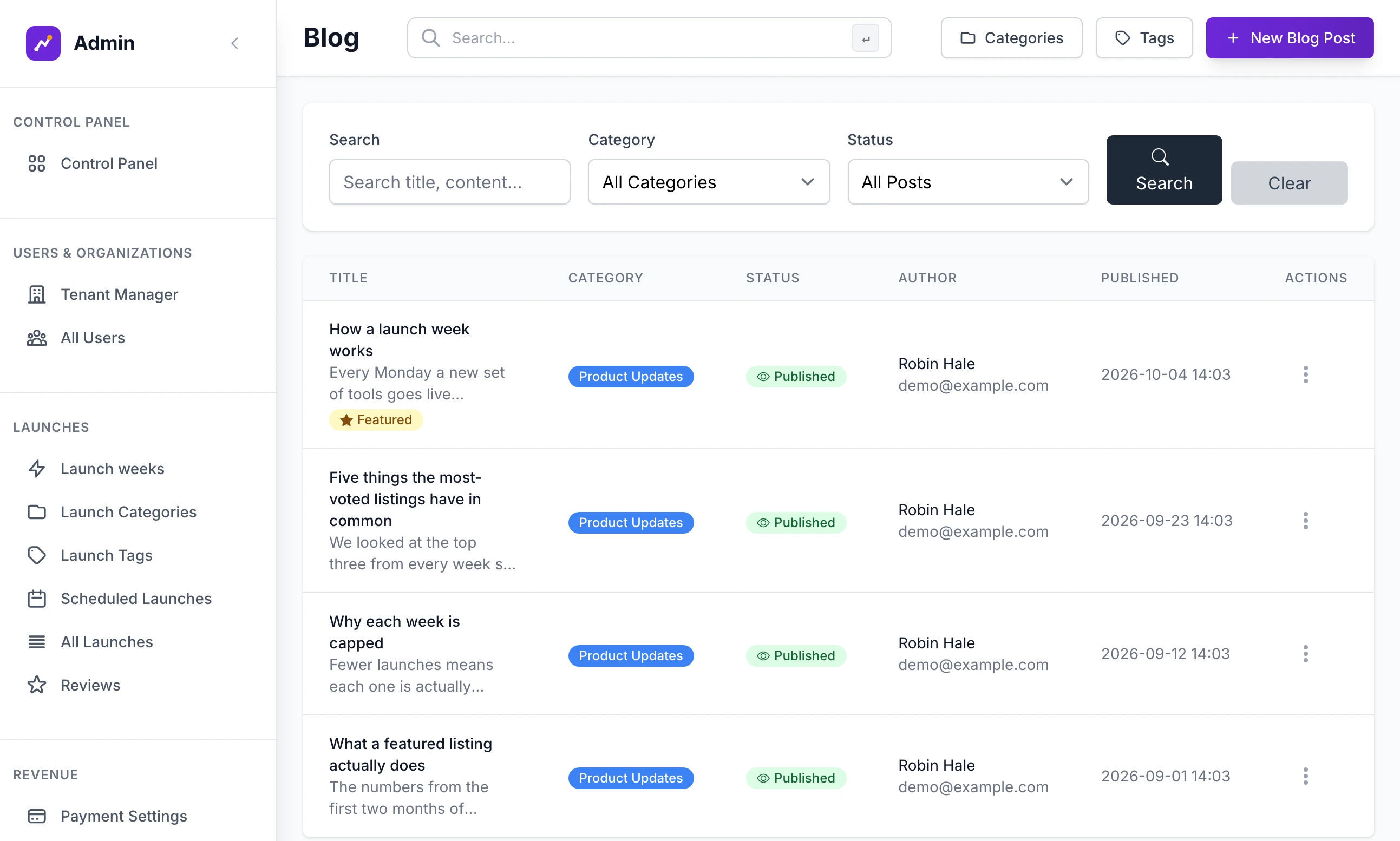
Open Blog Management under Content in the admin sidebar. The page is headed "Blog" and lists every post, published or not, with filters for Search, Category and Status. The blog is the one part of the site you write yourself. Everything else in this guide, the sitemap, the tags search engines read and the picture a shared link shows, the site does on its own.
This guide says "listing" and "maker": your site uses its own words for both.
Write a post#
Step 1: Click New Blog Post
The button is at the top of the page, beside Categories and Tags. The form is headed "Create New Blog Post".
Step 2: Give it a title and an excerpt
Title is the heading of the post and becomes its address: "How a launch week works" is published at
/blog/how-a-launch-week-works. Excerpt is the line shown under the title in the list of posts.Step 3: Write the content
The editor under Content has buttons for bold, italic, underline, two sizes of heading, lists, alignment, a divider, a picture and a link. Paste a YouTube address and it becomes a video. The word count is beside the label.
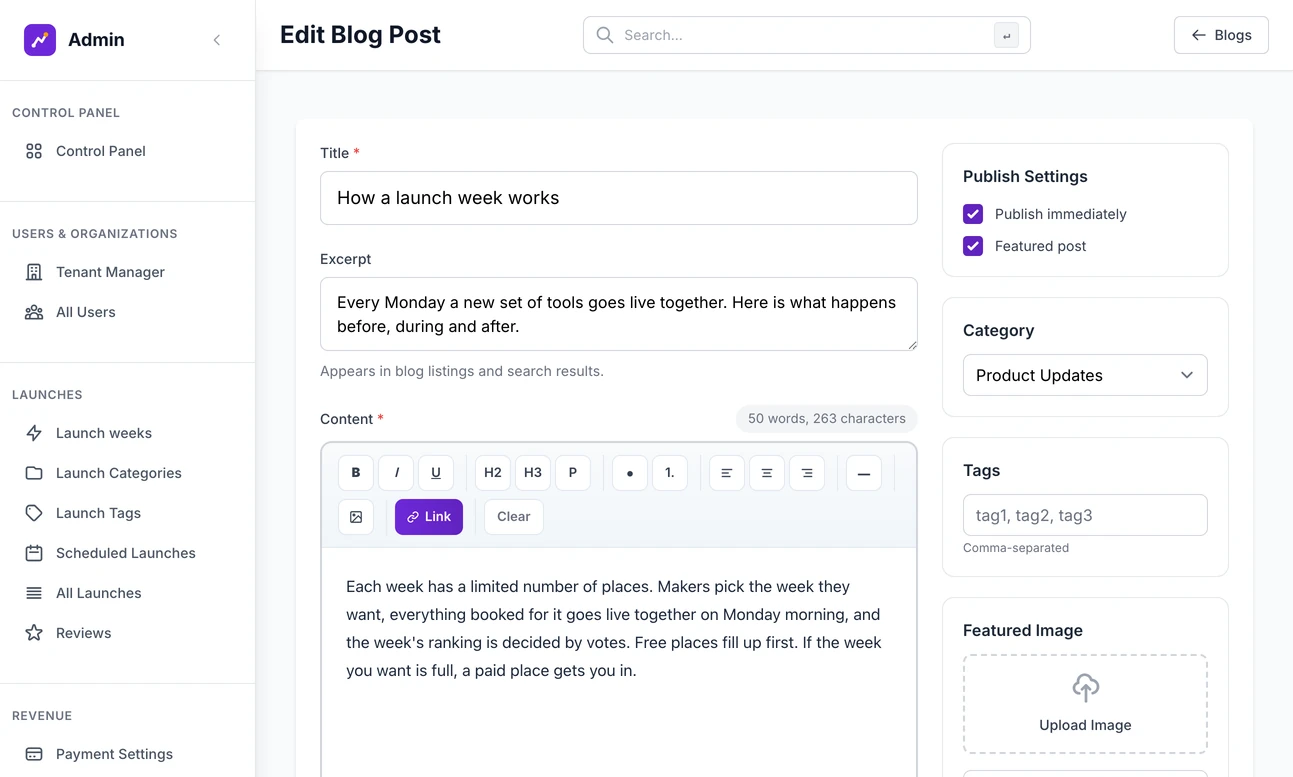
The post editor. Step 4: Fill in SEO Settings
All three are optional.
Meta Title: the title in the browser tab and in search results. Left empty, the post's title is used.
Meta Description: the line under the title in search results. Left empty, the first 150 characters of the excerpt are used.
Meta Keywords: left empty, the post's tags are used.
Step 5: Choose a category, tags and a featured image
Pick one Category. Type Tags with commas between them: a tag that does not exist yet is created. Under Featured Image, paste the address of a picture into Or paste image URL. It is shown at the top of the post, in the list, and when the post is shared.
Step 6: Publish
Tick Publish immediately and click Create Blog Post. You see "Blog post created successfully" and the post is live. Leave the box unticked to save a draft. Featured post adds a Featured badge and puts the post under the Featured filter on the blog.
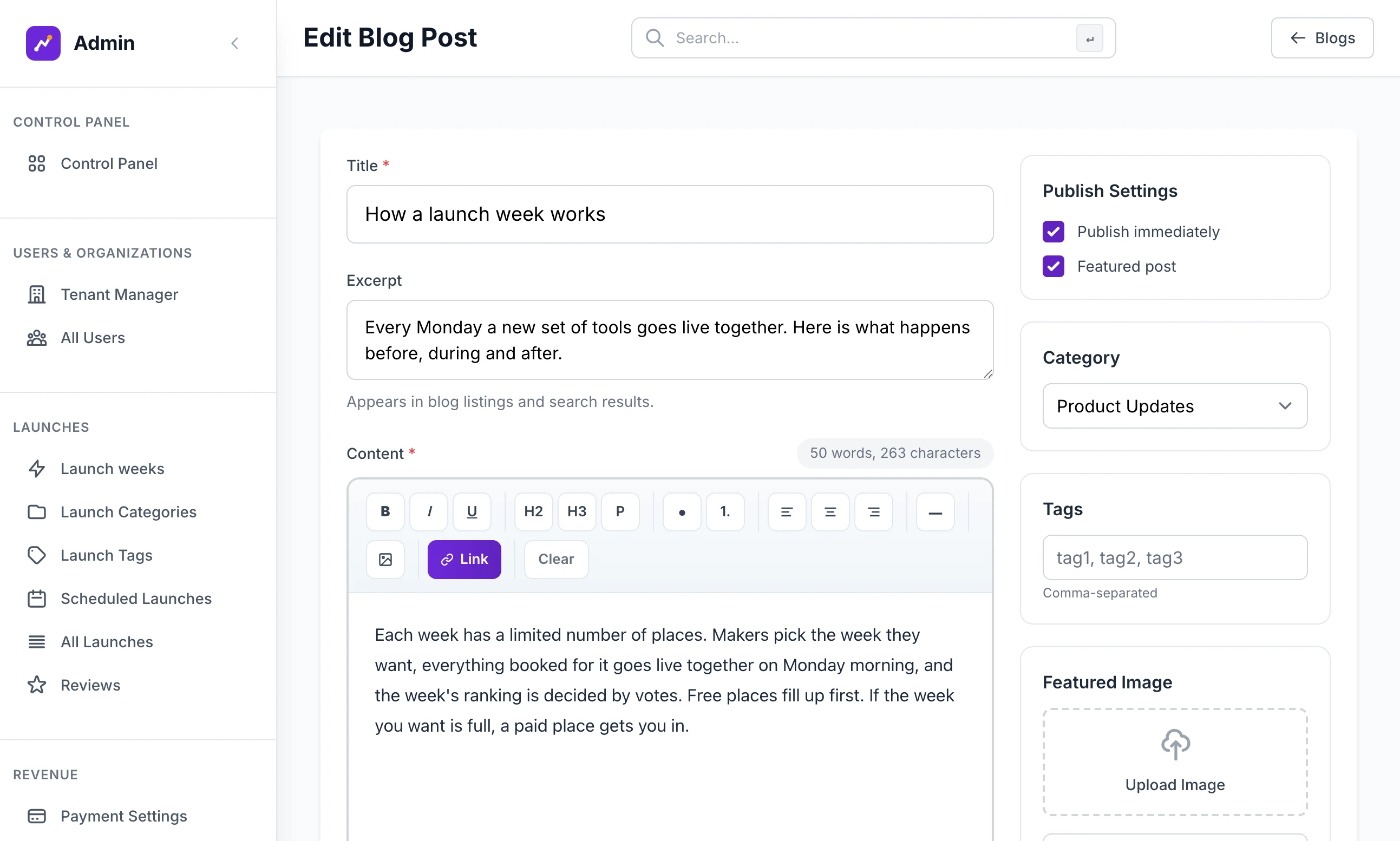
To publish or take down a post later, open the three-dot menu on its row: Publish, Unpublish, Edit Post, View Live and Delete Post are all there. Unpublishing clears the post's date, so publishing it again puts it at the top of the blog as new.
What visitors see#
The blog is at /blog, 12 posts to a page, and is linked from the header and the footer. Each post shows its reading time, worked out at 200 words a minute.
| Address | What it is |
|---|---|
/blog/category/tutorials | The posts in one category |
/blog/tag/pricing | The posts with one tag |
/blog/feed.xml | An RSS feed of the 20 newest posts: title, link, excerpt and date |
/blog/search?q=votes | Posts with those words in the title, excerpt or content |
No page links to the feed and no page has a search box, so in version 2.9.0 those two addresses work only for someone who types them. Give the feed address to anyone who asks for it.
A new site has five blog categories: Product Updates, Industry News, Tutorials, Company News and Case Studies. Categories at the top of Blog Management adds, renames and recolours them. Renaming one changes its address. A category with posts in it cannot be deleted: move the posts first. Tags lists every tag with how many posts use it.
To run the site with no blog, untick Blog on the Features tab of Site Settings. The links disappear and every blog address answers "not found".
The sitemap#
The site writes its own sitemap at /sitemap.xml, fresh each time it is asked for. It holds:
the home page, the categories page, pricing, contact, the three legal pages, site statistics and "What makers say"
the blog, the Advertise page and the Review Zone, when those features are on
every live listing, and a listing's reviews page once it has a published review
each category and each listing tag that has at least one live listing
every published post, and each blog category and blog tag that has one
the profile of every maker with a live listing
Drafts, scheduled listings, sign-in pages, dashboards and the admin are left out. Every address starts with Site URL from the General tab of Site Settings, so set that before you submit the sitemap anywhere.
robots.txt#
/robots.txt is also written for you. It keeps search engines out of the admin, sign-in, set-up, dashboard, payment and feedback pages, out of blog search and out of the pages a maker uses to submit and book a listing. It ends with the address of the sitemap.
To add rules, open Site Settings, Analytics & Legal, and type them into Extra robots.txt lines, one to a line. Only lines that start with Disallow:, Allow: or Crawl-delay: are used. Anything else, a User-agent: line for instance, is dropped without a message.
What each page tells search engines#
Title and description. Pages with nothing more specific use Site name, Tagline and Description from the General tab. A listing's page uses its name and tagline. A category page uses the category's description.
Canonical address. Every page names one address as its own: Site URL and the page's path, with nothing after a
?except the page number on page two onwards. An address ending in/is redirected to the one without.Not for indexing. The sign-in and sign-up pages, blog search, a tag page with no listings and the profile of a maker with nothing live are marked
noindex.Structured data. Each page carries a description of your site as an organisation, with its logo and the social links from the Contact & Social tab. The home page adds a list of its first ten listings. A listing's page describes the listing itself: name, tagline, description, category, pictures, video, links, tags, a price of zero when its pricing is Free, and its average rating once it has reviews. A maker's profile is described as a person, and a post as a blog post with its author.
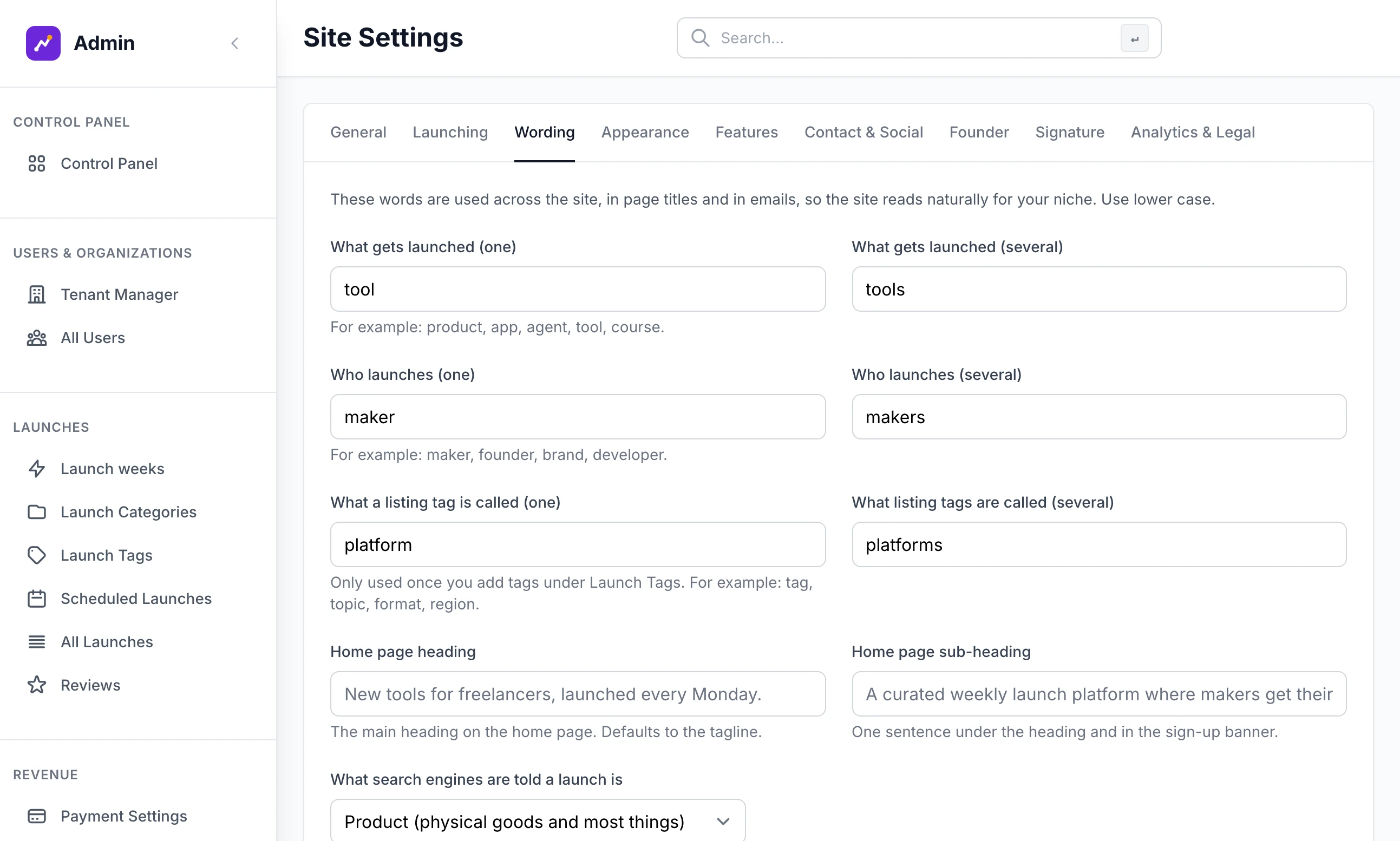
What a listing is described as is your choice. On the Wording tab, What search engines are told a launch is offers Product (physical goods and most things), which a new site starts on, Software application and Service.
Share images#
When a link is posted in a chat or on a social site, the picture shown is:
| Page | Picture |
|---|---|
| A listing | Its first image. With none, the site's share image |
| A blog post | Its featured image. With none, the site's share image |
| Everything else, the coming-soon page included | The site's share image |
The site's share image is set on the Brand screen. It is the one you upload under Use your own image instead, or else one drawn at 1200 by 630 pixels from your mark, wordmark and tagline, or else your logo. Brand, looks and footer credits covers it. The X / Twitter handle on the Contact & Social tab is added to the card X shows.
Pages made for search and browsing#
| Page | Address | What is on it |
|---|---|---|
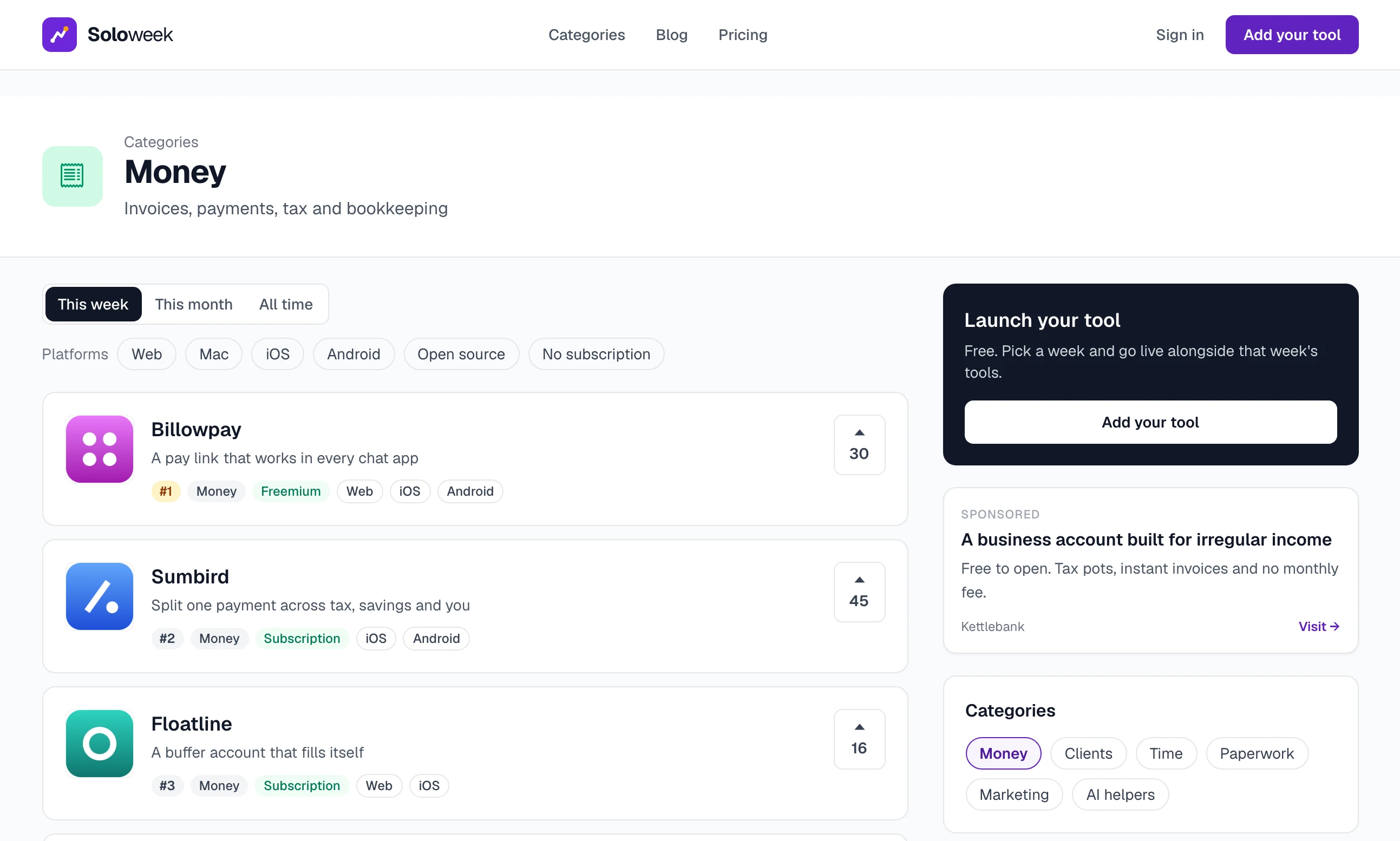
| Categories | /launch/categories | A tile for each category |
| A category | /launch/category/money | Its listings ranked by votes |
| A tag | /launch/tag/mac | Listings with that tag, once you have set up Launch Tags |
| A maker's profile | /creator/priyaraman | The maker and their live listings |
| Review Zone | /launch/reviews-zone | Reviews from across the site, when Reviews is on |
| What makers say | /feedback/reviews | Reviews of your site, written by makers who have had a listing go live |
| Site statistics | /launch/analytics | Totals for launches, accounts, views and votes |
The statistics page is public and linked from the footer as Site statistics. Anyone can read your totals there.
Make it your niche covers categories and tags, and What a maker sees covers profiles.
What is not there#
No field for a Search Console verification code. Verify your domain in Google Search Console with a DNS record at your domain registrar, which needs nothing from the site. Then submit
https://your-domain.com/sitemap.xmlthere.No generated landing pages. Category pages and tag pages are the only pages built from your listings. There are no "best of" pages, comparison pages or pages for each launch week.
No sitemap index. There is one sitemap file with every address in it.
My sitemap is empty
The site is in coming-soon mode, by the tick box on the Launching tab or by MAINTENANCE_MODE on the server. It fills as soon as the site opens.
The addresses in my sitemap start with the wrong domain
They are built from Site URL on the General tab of Site Settings. Correct it and load /sitemap.xml again.
Can I schedule a post for a later date?
No. A post is a draft or it is published. Publish it on the day.
Can a maker write a blog post?
No. Only an admin can open Blog Management.
"Cannot delete category with associated blog posts"
The category still has posts. Edit each post, give it another category, then delete the empty one.
Stuck on a step? Send a message.