What you sell and your prices
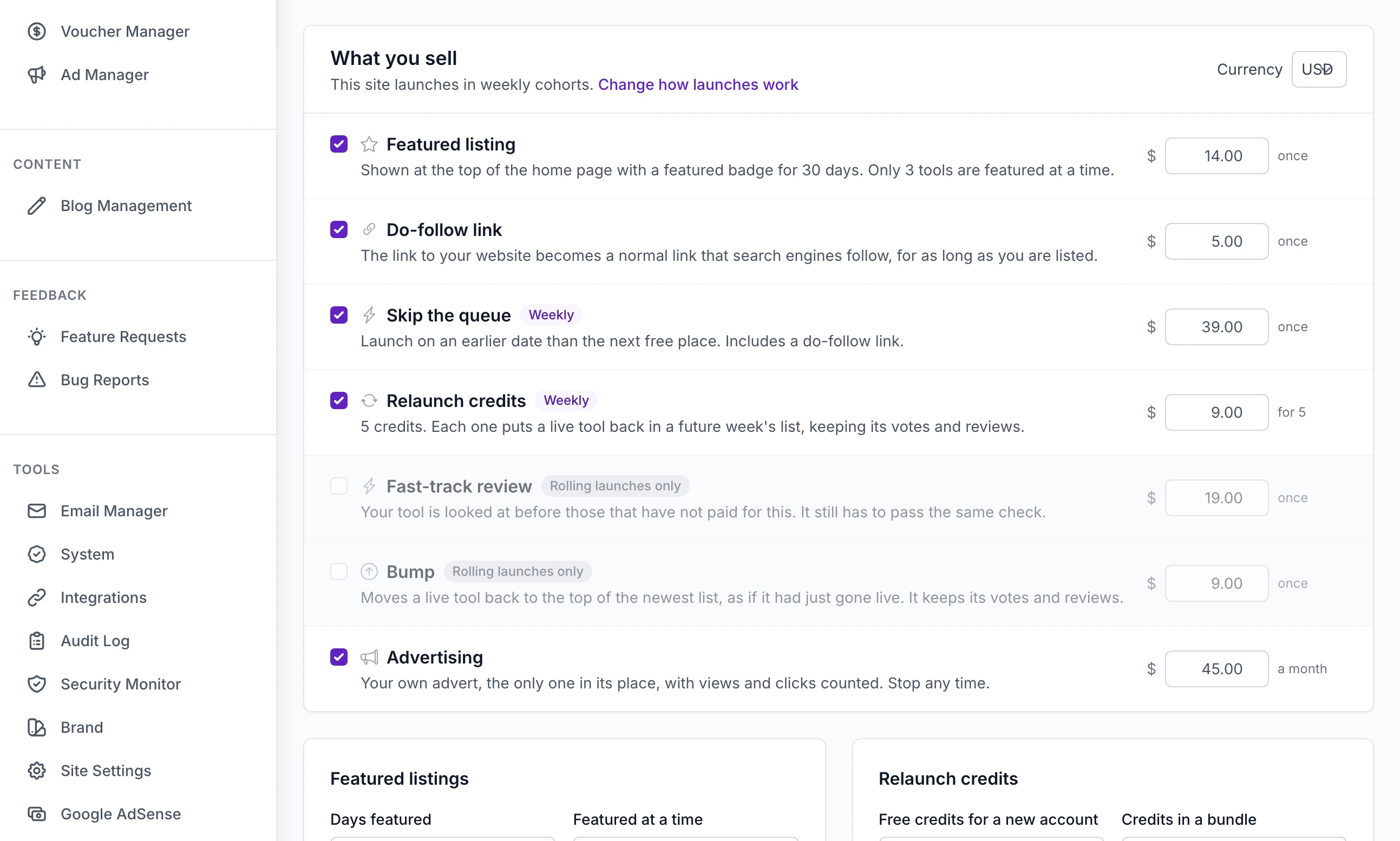
Choose your currency, switch each of the seven paid products on or off, set its price and decide how many free and paid places a launch week has.
Updated 9 Oct 2026 · written for Launch Lab 2.9.0
On this page
Open Payment Settings under Revenue in the admin sidebar. The page is headed Sales and opens on your takings. Scroll down to What you sell: this is where you choose the currency, switch each paid product on or off and set its price. Three smaller sections follow, Featured listings, Relaunch credits and Weekly launch schedule, and one button saves them all.
Launching is always free. Launch Lab earns from seven optional products sold around the free launch. Nothing here has to be copied into Stripe: the price on this page is sent to Stripe each time someone pays. Connect Stripe covers the one key that joins the two.
Your site uses its own words for a listing and for the person who launches it. This guide says "listing" and "maker".
The seven products#
Which products you can sell depends on how your site launches: in weekly cohorts or as a rolling list. How launches work explains the two.
| Product | Price on a new install | Sold on | Charged |
|---|---|---|---|
| Featured listing | 14 | Weekly and rolling | once |
| Do-follow link | 5 | Weekly and rolling | once |
| Skip the queue | 39 | Weekly | once |
| Relaunch credits | 9 | Weekly | once, for a bundle of 5 |
| Fast-track review | 19 | Rolling, and only when listings are checked before they go live | once |
| Bump | 9 | Rolling | once, each time |
| Advertising | 45 | Weekly and rolling, when advertising is on in Site Settings, Features | a month |
The setup wizard asks for the same prices, so yours may already differ.
Change what you sell#
Step 1: Check the currency
Currency is at the top right of What you sell. The whole site sells in one currency. Read Currency before you change it on a site that has taken money.
Step 2: Tick what you sell
Each product has a tick box, its name and one sentence saying what the buyer gets. Untick a product to stop selling it.
Step 3: Type each price
The box at the end of each row is the price, with what it is charged for beside it: "once", "for 5" or "a month".
Step 4: Click Save payment settings
The button is below Weekly launch schedule. You see "Payment settings saved." The new prices apply from the next checkout. No password is asked for, and nothing changes in Stripe.
A product that does not fit the way your site launches is greyed out with the reason beside its name: "Weekly launches only", "Rolling launches only", "Only when listings are reviewed before going live" or "Advertising is switched off in Site Settings". Its price box still works, and the price is kept for the day you switch. The line under the heading says which way the site launches, with a link, Change how launches work.
A product is on sale when three things are true: it is ticked, it fits the way the site launches and Stripe is connected.
Currency#
The list holds 20 currencies: AED, AUD, BRL, CAD, CHF, DKK, EUR, GBP, HKD, INR, JPY, MXN, NOK, NZD, PLN, SEK, SGD, THB, USD and ZAR.
Changing the currency converts nothing. A featured listing at 14 dollars becomes a featured listing at 14 euros, and the next checkout is charged in euros. Two things do not follow the change:
The Sales page adds every payment's figure together and shows the total with the current symbol. After a change, old dollars and new euros are summed as if they were the same.
An advertising subscription that is already running goes on at the price and in the currency it started with.
Choose the currency before your first sale.
What each product gives the buyer#
Featured listing#
The listing is shown at the top of the home page with a featured badge for the number of days you set, 30 on a new install. Only a set number are featured at once, 3 on a new install. Bought before launch, the days start on launch day. Featured listings and vouchers has the detail.
Do-follow link#
The link from a listing to the maker's website is normally marked nofollow, which tells search engines not to count it. This removes the mark for as long as the listing is on the site. It is bought once for each listing.
Skip the queue#
A paid place on the earliest launch date that still has one, and a do-follow link with it. The launch moves to the new date only when the payment completes. If that date's last paid place has gone by then, the launch takes the next date that has one. It is offered for a relaunch as well, which still uses one credit.
Relaunch credits#
A bundle of credits is added to the maker's account. Each credit puts a live listing back in a future week's list, on a date the maker chooses, with its votes, reviews and address kept. Credits do not expire and work for any listing on the account. One is taken when the relaunch is booked.
Fast-track review#
On a rolling site where you check listings before they go live, this places a listing ahead of those that have not paid in the Review queue. Among fast-tracked listings, the one that paid first comes first. It still has to pass the same check. It is offered when a maker submits and while they wait, once for each listing.
Bump#
On a rolling site, a bump moves a live listing back to the top of the newest list, as if it had gone live that moment. It keeps its votes and reviews. A maker can buy one as often as they like.
Advertising#
A monthly subscription for one advert in one of two places: beside the list on the home page, or on listing pages. Each place holds one advert at a time. See Sell advert places.
On a weekly site a maker can add a featured listing and a do-follow link while choosing a launch week, and pay for everything in one checkout. On a rolling site they tick extras as they submit.
Featured listings#
Days featured: how long a featured place lasts, from 1 to 365. A place already running keeps the end date it was given.
Featured at a time: how many listings can be featured at once, from 1 to 50. When they are all taken, nobody can buy one until a place frees up.
Relaunch credits#
Free credits for a new account: how many credits an account is given when it is created, from 0 to 100. It is 3 on a new install. Changing it does not touch accounts that already exist. To change one account's credits, use Tenant Manager.
Credits in a bundle: how many credits one purchase adds, from 1 to 100. The price of the bundle is the Relaunch credits price above.
On a rolling site this section is marked "Weekly launches only".
Weekly launch schedule#
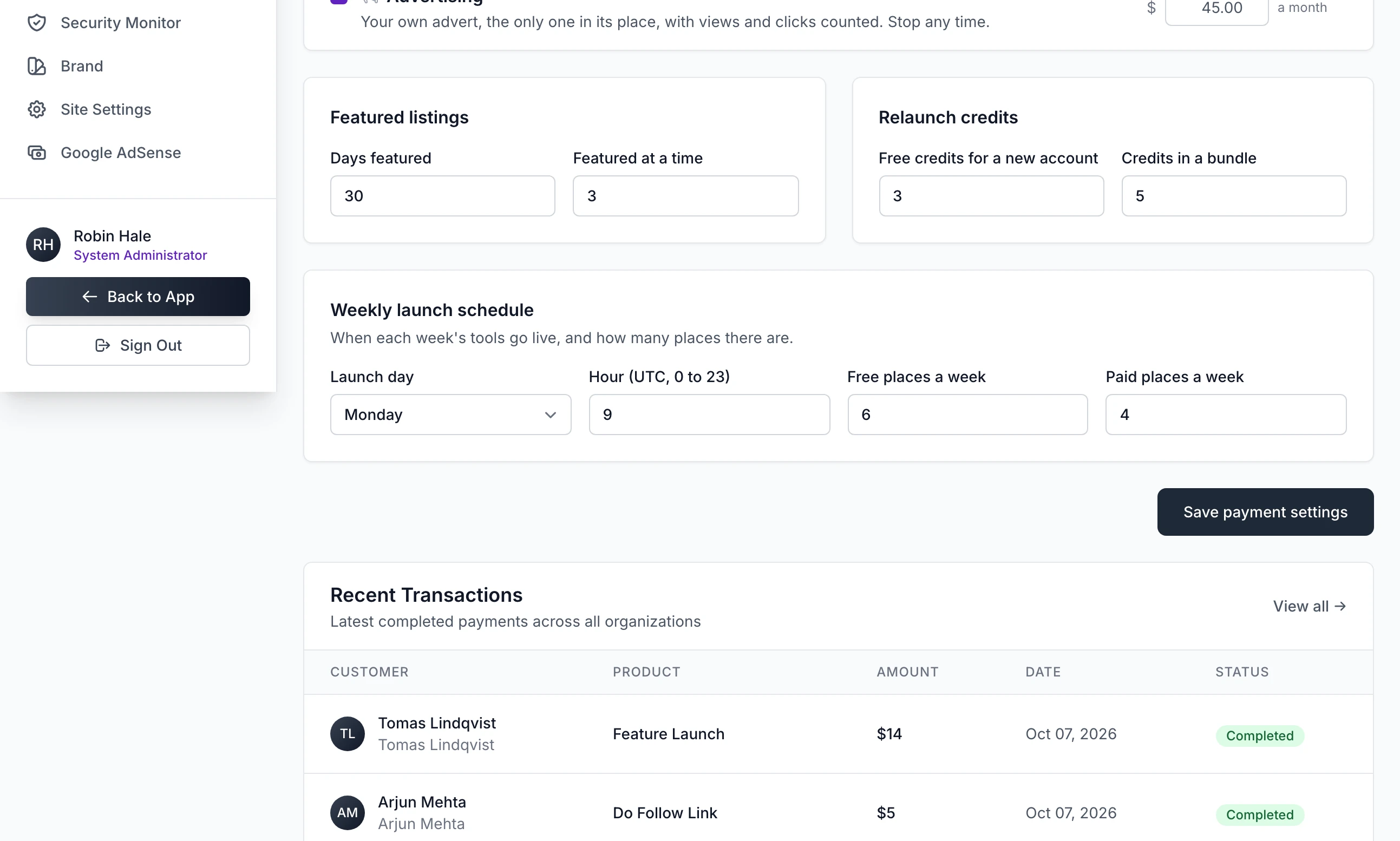
These four settings decide when each week's listings go live and how many places a week has.
Launch day: the day of the week every cohort goes live. Monday on a new install. Bookings already made keep their dates.
Hour (UTC, 0 to 23): the hour the day's launches are published, 9 on a new install. Makers are shown it in their own time zone.
Free places a week: how many listings can launch free in one week, from 0 to 1,000. It is 10 on a new install.
Paid places a week: how many more can launch in the same week by paying for Skip the queue, from 0 to 1,000. It is 5 on a new install.
On a rolling site the section reads "Not used while the site launches listings one by one. Kept for bookings made earlier, and in case you switch back." Running launches day to day covers the weeks themselves. The admin's Scheduled Launches page calls a paid place a "Queue Jump" slot: it is the same thing.
When a paid place is offered#
A maker choosing a launch week sees a second card, 2. Free or sooner?, only when paying would get them a sooner date.
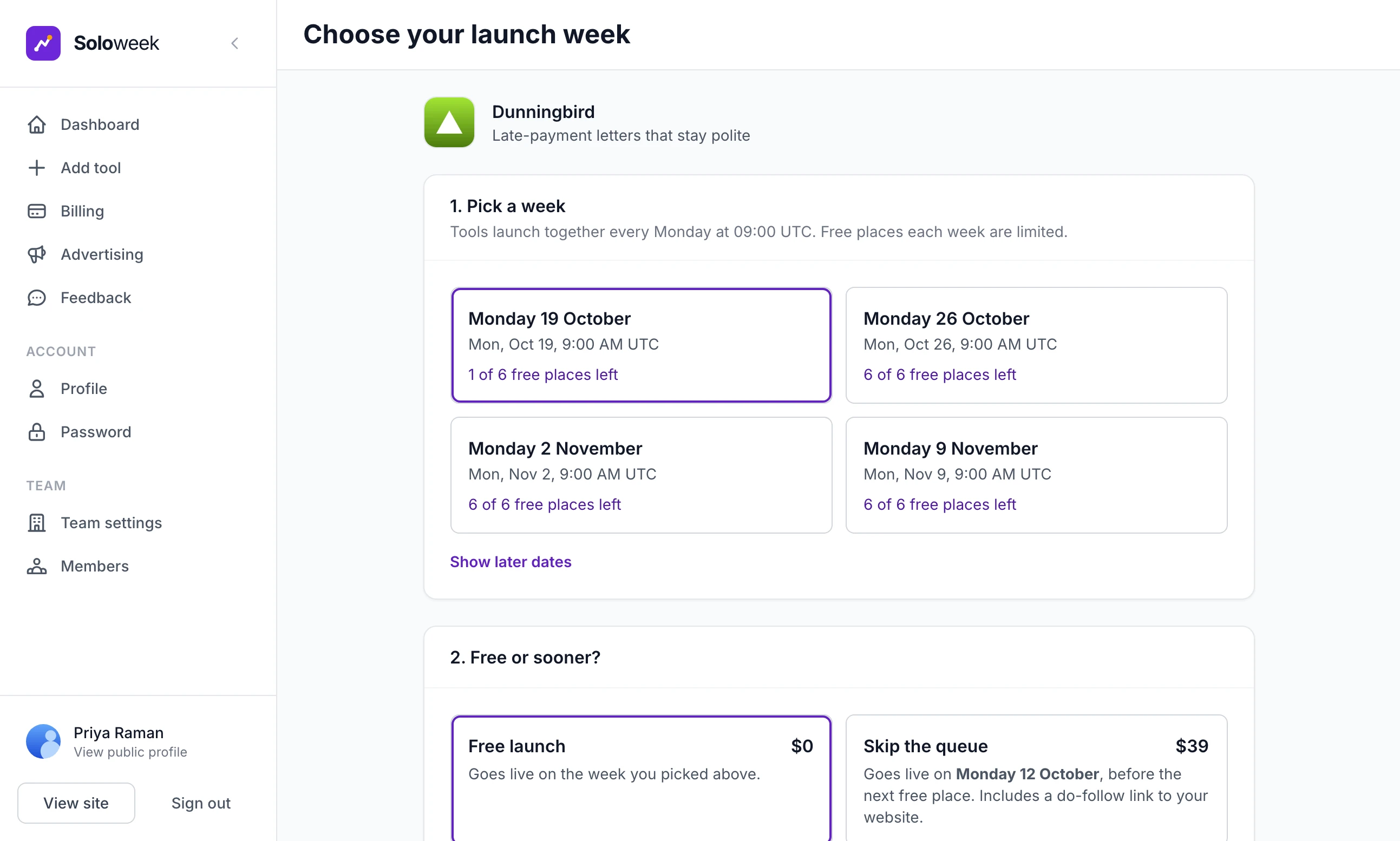
It is offered when all of these are true:
Stripe is connected.
Some launch date in the next 53 weeks has a paid place left. A paid place is held from the moment a maker goes to pay, so the last one cannot be sold twice.
That date is earlier than the first week with a free place, or there are no free places at all.
So with 6 free and 4 paid places a week, nobody is offered a paid place while next week still has a free one. Once the 6 are gone, the next 4 makers can pay to launch that week, and everyone else takes a free place the week after.
A maker who has already booked a free place is offered the move from the Upgrades card on their listing's page, for as long as an earlier paid date exists: "Move your launch forward to 12 Oct 2026. Includes a do-follow link."
It is not offered when Paid places a week is 0, when every paid place is taken or when the maker already holds the earliest date.
Where makers see your prices#
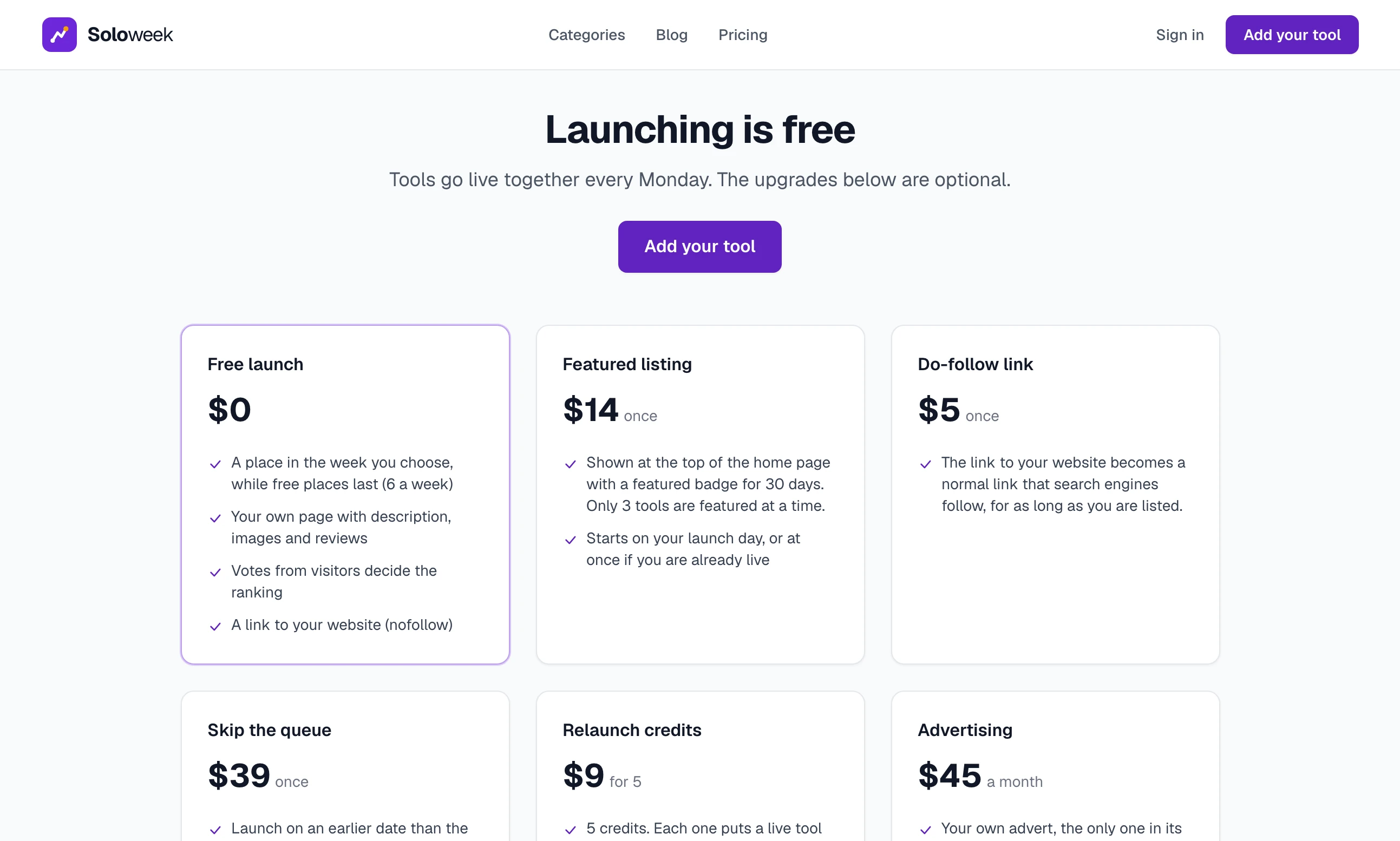
The public Pricing page, linked from the top and the foot of every page, shows a free launch at 0 and a card for each product you have ticked that fits the way the site launches. It shows them whether or not Stripe is connected. Until it is, the page says the upgrades "are not on sale yet".
A signed-in maker has Billing in their dashboard. It lists each of their listings with what it has and what can be added, such as "Add · $14" under Featured listing, and then every upgrade with its price under Upgrades. Advertising has its own panel lower down.
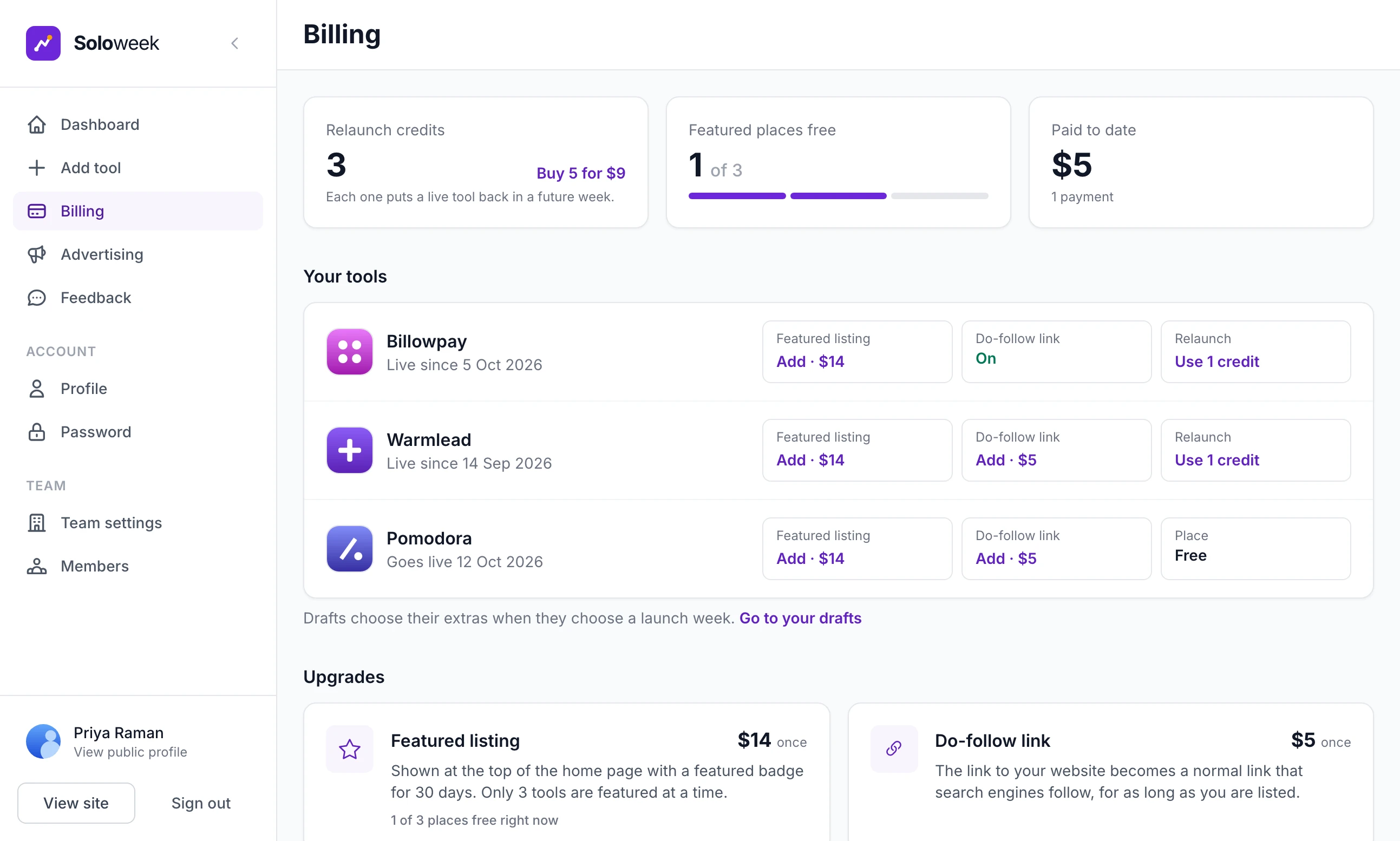
The same prices appear where the buying is done: on the launch week page, on the Upgrades card of a listing's page and in the emails the site sends.
"One of those values is not valid. Nothing was saved; please check and try again."
A number is outside its range or is not a number. Prices cannot be below 0. The ranges for the other boxes are given above. Nothing on the page was saved, the valid boxes included.
Do I change anything in Stripe when I change a price?
No. There are no prices in Stripe to change. The next checkout is sent the new amount.
Can I charge for every launch?
Yes, on a weekly site. Set Free places a week to 0 and leave Skip the queue on sale with at least one paid place a week. A maker choosing a week is then told "Every free place in the coming weeks is taken." and offered the next date with a paid place. The Pricing page still opens with "Launching is free" and a free launch at 0, so say what you charge somewhere a maker will read it.
Why is a product greyed out?
It belongs to the other way of launching, or it needs something that is switched off. The reason is printed beside its name. Fast-track review needs listings to be checked before they go live, and advertising needs to be on in Site Settings, Features.
Can a maker buy the same thing twice?
A featured listing cannot be bought again while the listing is featured. A do-follow link and a fast-track are bought once for each listing. Bumps and bundles of relaunch credits can be bought as often as the maker likes.
Stuck on a step? Send a message.