Updating Launch Lab
Move a site to a new version without losing its data or its settings, on a server or on your own computer, with repository access or with a zip.
Updated 9 Oct 2026 · written for Launch Lab 2.9.0
On this page
A new version of Launch Lab is new code. Your listings, accounts, settings and uploads are in a few files and folders that the code never touches, so an update means replacing the code round them. The database then brings itself up to date when the site starts. How you update depends on how the site runs: under deploy.sh, under Docker Compose or without Docker.
Which version you run#
Open System under Tools in the admin sidebar. The Status panel shows the Version, the Database in use, the Schema revision and Debug mode. Version 2.9.0 has schema revision 0012.

The version is also at the foot of every admin page, beside System status, and in the file app/version.py.
What is yours#
Keep these through every update. None of them is in the zip or the repository.
| File or folder | What is in it |
|---|---|
instance/ | The database app.db, the uploads folder and, if the site made its own key, the secret_key file. |
.env | Your settings. |
sites/ | On a deploy.sh server: each site's .env, port, domain and instance folder. |
backups/ and .backup.env | On a deploy.sh server: the nightly archives and the Telegram alert settings. |
| Packs and kits you added | Your own folders in niches/ and brands/. |
| Files you changed | A page template you edited, or scripts/nginx-site.conf.template. Note which: you make the change again in the new copy. |
Before you update#
Read
CHANGELOG.mdin the new version. Each entry ends with a part headed "Upgrading" that says what, if anything, you must do.Take a backup. On a
deploy.shserver runscripts/deploy.sh backup: see Backups and scheduled jobs. Anywhere else, stop the site and copy theinstancefolder and.env.Leave
SECRET_KEYas it is. The keys saved on Integrations are locked with it.
On a server set up with deploy.sh#
With repository access, one command fetches the code and updates every site:
cd /opt/launchlab
scripts/deploy.sh backup
scripts/deploy.sh update
With a zip there is nothing to fetch from, so copy the new files over the old ones first, then run the same command:
scp launch-lab-X.Y.Z.zip root@YOUR-SERVER-IP:/opt/cd /opt
unzip launch-lab-X.Y.Z.zip
cp -R launch-lab-X.Y.Z/. /opt/launchlab/
cd /opt/launchlab
scripts/deploy.sh backup
scripts/deploy.sh updateThe copy replaces the kit's own files and leaves sites/, backups/ and .backup.env alone. A file of the kit's that you had changed is replaced: make your change again before you run update.
What update does#
update asks no questions. It does these things, in this order:
Checks the server. It stops if another deploy is running, if a git checkout has changes that were never committed or if the disk is 90% full or more.
Fetches the code, in a git checkout:
git pull --ff-onlyfor the branch you are on. Without git it uses the files as they are.Keeps the running build. The image the sites run from now is given the name
launchlab:previous. Then the new image is built.Takes each site in turn, in name order:
Copies its SQLite database to
sites/<name>/instance/.snapshots/. The newest five are kept.Brings the database up to date in a throwaway container while the old site is still serving, and checks that it got there. It prints a line such as "database at 0012, code expects 0012".
Replaces the site's container with one from the new image. The site does not answer for the moments in between.
Waits for
/healthto answer, a few minutes at most, then prints "gadgets is healthy."
Tidies up. It installs the cron lines again, removes its own old images and trims Docker's build cache to 3 GB.
Reports. It says whether the other containers on the server were left unchanged, how full the disk is and the state of every site, and ends "DEPLOY OK."
If the database or the health check fails for a site, update stops there and goes back by itself. That site and every site updated before it are started again from launchlab:previous, each with its snapshot put back. Sites it had not reached were never touched. It ends "DEPLOY FAILED at 'gadgets' and was rolled back. Every site is running the previous build."
When update refuses or fails#
"This checkout has uncommitted changes. Deploys only run from clean code": you changed one of the kit's own files on the server, such as the nginx template. Files you added do not count. Run
git statusto see which. Put the change aside withgit stash, runupdate, then bring it back withgit stash pop. A change put aside is not in the image that gets built. That is fine for the nginx template, which is read on the server. A changed page template must be committed to the repository you pull from."The disk is 91% full. Free some space before deploying.": free some space. Old archives in
backups/are the usual place to look."Another deploy is running on this server.": wait for it to finish.
The fetch fails: the script never waits for a password, so the server must be able to pull without one. It also fails if the server's copy has commits the repository does not.
"The database of gadgets could not be brought up to date.": the reason is printed above that line. The sites have gone back to the previous build.
"gadgets did not become healthy on the new build.": the new container is removed when the site goes back, and its log goes with it. Run the update again when few people are about and watch
scripts/deploy.sh logs gadgetsfrom a second terminal.
With Docker Compose#
cd /opt/launchlab
git pull
docker compose up -d --build
With a zip, copy the new files over the old ones as above in place of git pull. The second line builds the new image and restarts the three containers. The database is brought up to date as the site starts. There is no snapshot and no going back here: copy the instance folder first.
Without Docker, and on your own computer#
Step 1: Stop the site and copy what is yours
Copy the
instancefolder and.envsomewhere outside the kit's folder.Step 2: Replace the code
With repository access, run
git pullin the kit's folder. With a zip, unpack it beside the old folder and copy its contents over:bashcp -R ../launch-lab-X.Y.Z/. .Your
instancefolder, your.envand your virtual environment are not in the zip, so they stay as they are.Step 3: Install the packages
bashpip install -r requirements.txtRun it with the virtual environment active. It adds whatever the new version needs and does nothing when there is nothing new.
Step 4: Start the site
Start it the way you always do:
python run.pyon your computer, or your gunicorn service on a server. Open System and check that Version shows the new number.
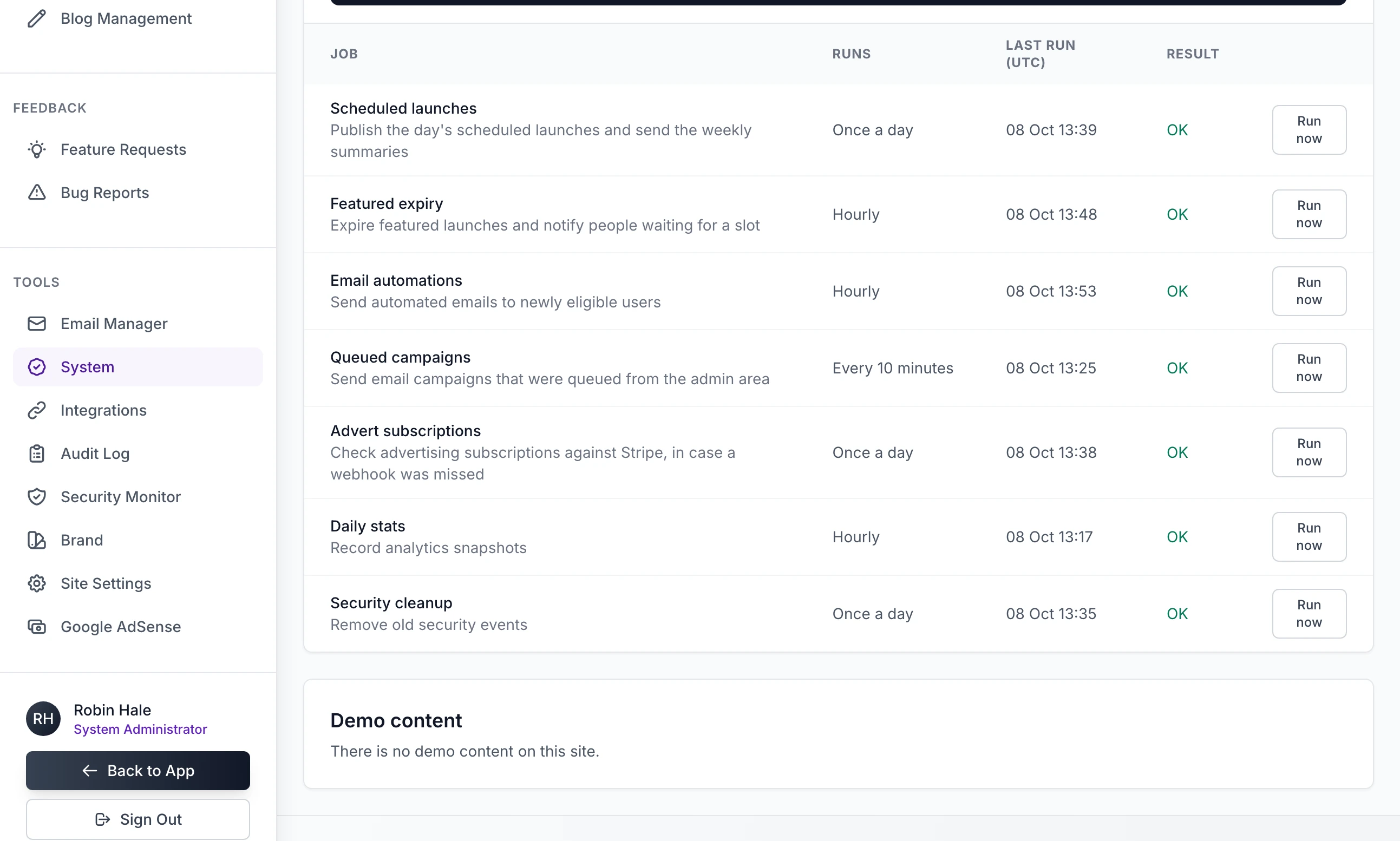
After any update, look at Background jobs on the same page a little later: the Last run (UTC) times should still be moving.
How the database catches up#
Each version carries its database changes as numbered files in migrations/versions. The newest in 2.9.0 is 0012. Every time the app starts, whether as the site, the job runner or a script, it applies the files your database has not had yet. There is no command to run.
To check, compare Schema revision on the System page with the highest number in
migrations/versions. The address/healthgives the same revision.If a change fails, the app writes a line beginning "Database bootstrap failed:" and starts anyway, on a database that does not match the code.
deploy.sh updatechecks for this and goes back. Under Compose or without Docker, look for that line yourself after an update.To do it by hand, set
AUTO_INIT_DB=falsein.env. The app then leaves the database alone, and you runflask --app run.py db upgradeafter each update.
The stylesheet#
The site's stylesheet, app/static/css/tailwind.css, comes ready built, and an update brings the new one. You need Node.js only if you changed the class names in a template, because the stylesheet holds only the classes the templates use. Rebuild it with:
npm install
npm run build-css-prod
npm run build-css builds the same file and keeps watching for changes while you work. An update replaces the built file with the kit's own, so rebuild yours after each one. Under Docker the stylesheet is copied into the image when the image is built: with deploy.sh and git, your rebuilt file must be committed to the repository you pull from.
What 2.9.0 and 2.8.0 changed#
| Version | What changed | What to do |
|---|---|---|
| 2.9.0 | Payments work with the current version of Stripe's library: before, a new install could not take a payment, a purchase that was paid was never applied, and vouchers could not be created, changed or deleted. The setup wizard has a new look, with its seven steps down the side and a summary before it creates the site, and it loads nothing from another site. Editing a custom email template works: it used to open a page that did not exist. A voucher records the discount you typed: it used to say 50 whatever you entered. A voucher that Stripe has no coupon for is now refused, where before a maker saw the lower price and was charged the full one. Send to all users on a campaign is saved, and the filters on the email Logs page work. | No database change. Run pip install -r requirements.txt, which scripts/deploy.sh update does for you: Stripe's library is now pinned. Then make one test purchase and check it is applied. If you made a voucher while Stripe was not connected, delete it and create it again. |
| 2.8.0 | The Signature tab of Site Settings became Footer credits. Beside your signature there is an optional "Built with" credit, a choice of how the two are arranged and a preview. | Database change 0012 runs at the first start. The new credit is off until you switch it on. |
How do I go back to the old version?
A failed update goes back by itself. To go back after one that worked, check out the older commit with git and run scripts/deploy.sh update: it says "Checkout is pinned to" and the commit, and deploys exactly that. This works only when the newer version made no database change. From 2.9.0 to 2.8.0 it does. Across a database change, restore the backup you took before the update: see Restore a backup.
Do I have to run flask db upgrade?
No. The app does that itself when it starts, unless you set AUTO_INIT_DB=false.
Will an update change my wording, prices or brand?
No. Those are in the database, which an update adds to and does not reset. Only files are replaced.
Is the site down during an update?
Under deploy.sh, each site stops answering for the moments its container is swapped, one site at a time. Under Compose and without Docker the site is down from the restart until it is up again.
Can I update one site and not the others?
Not with deploy.sh. Every site on the server runs from the same image, and update moves them all.
Stuck on a step? Send a message.