Opening day: coming-soon mode and the checklist
Keep the site behind a holding page while you get it ready, collect email addresses from people who want to know when it opens, then work through the checklist and open.
Updated 9 Oct 2026 · written for Launch Lab 2.9.0
On this page
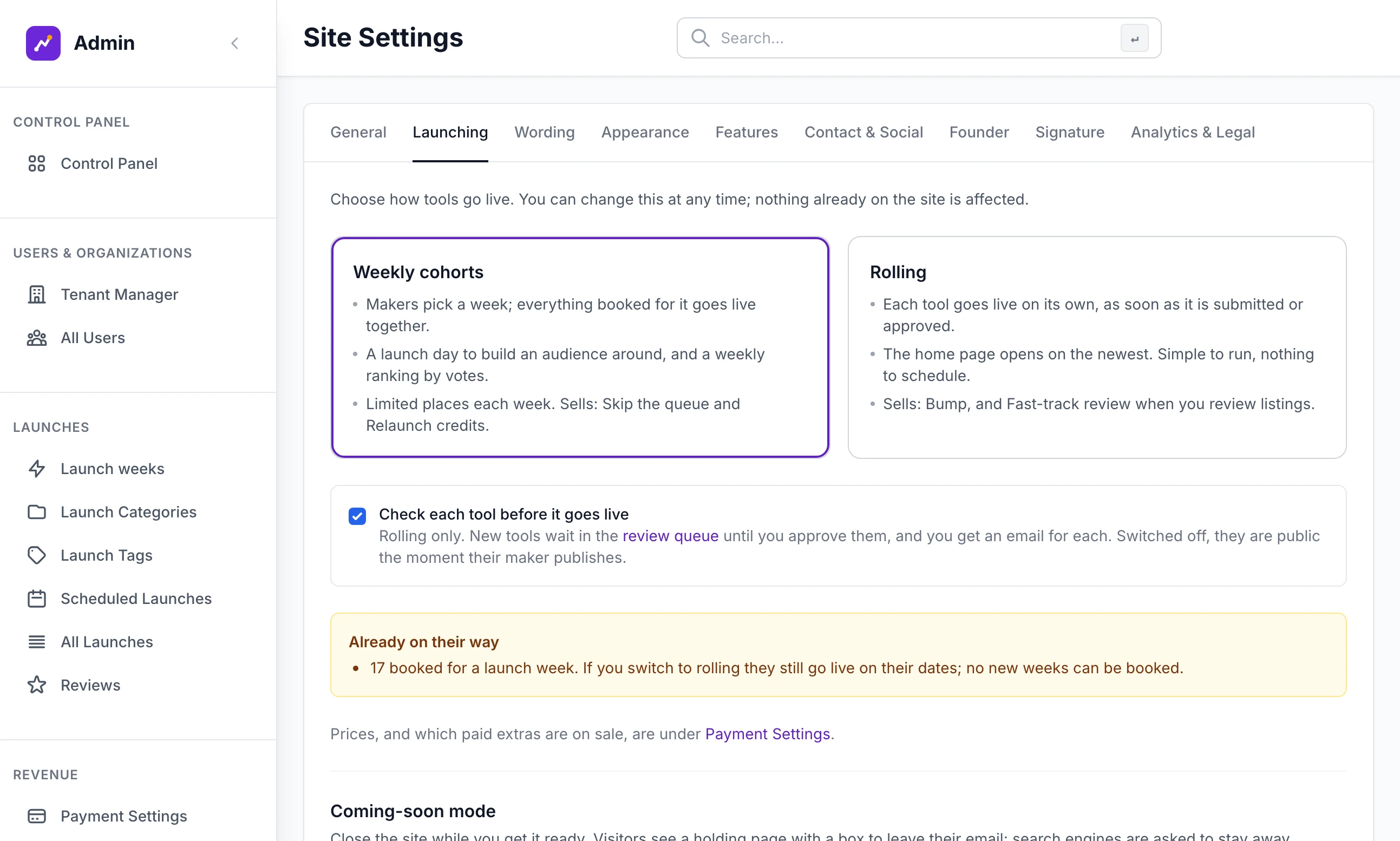
Open Site Settings under Tools in the admin sidebar, choose the Launching tab and scroll down to Coming-soon mode. This is the switch that keeps visitors on a holding page while you fill the site, connect payments and test everything as an admin. The second half of this guide is the checklist to finish before you turn it off.
This guide says "listing" and "maker": your site uses its own words for both.
Close the site#
Step 1: Tick the box
Tick Show the coming-soon page to visitors.
Step 2: Write the message
Message on the coming-soon page is one or two sentences shown under the heading, up to 300 characters. Left empty, the page says "We are getting the first products ready. Leave your email and we will tell you the day we open.", with your site's own word for a listing.
Step 3: Click Save settings
You see "Site settings updated successfully!". From now on a dark bar runs across the top of every public page you open: "Coming-soon mode is on. Visitors see the holding page; you see the site because you are signed in as an admin."
Step 4: Look at it as a visitor
Open your site in a private window. To see the page without signing out, open Brand under Tools and, in the preview headed On the site, switch from Home to Coming soon.
What a visitor sees#
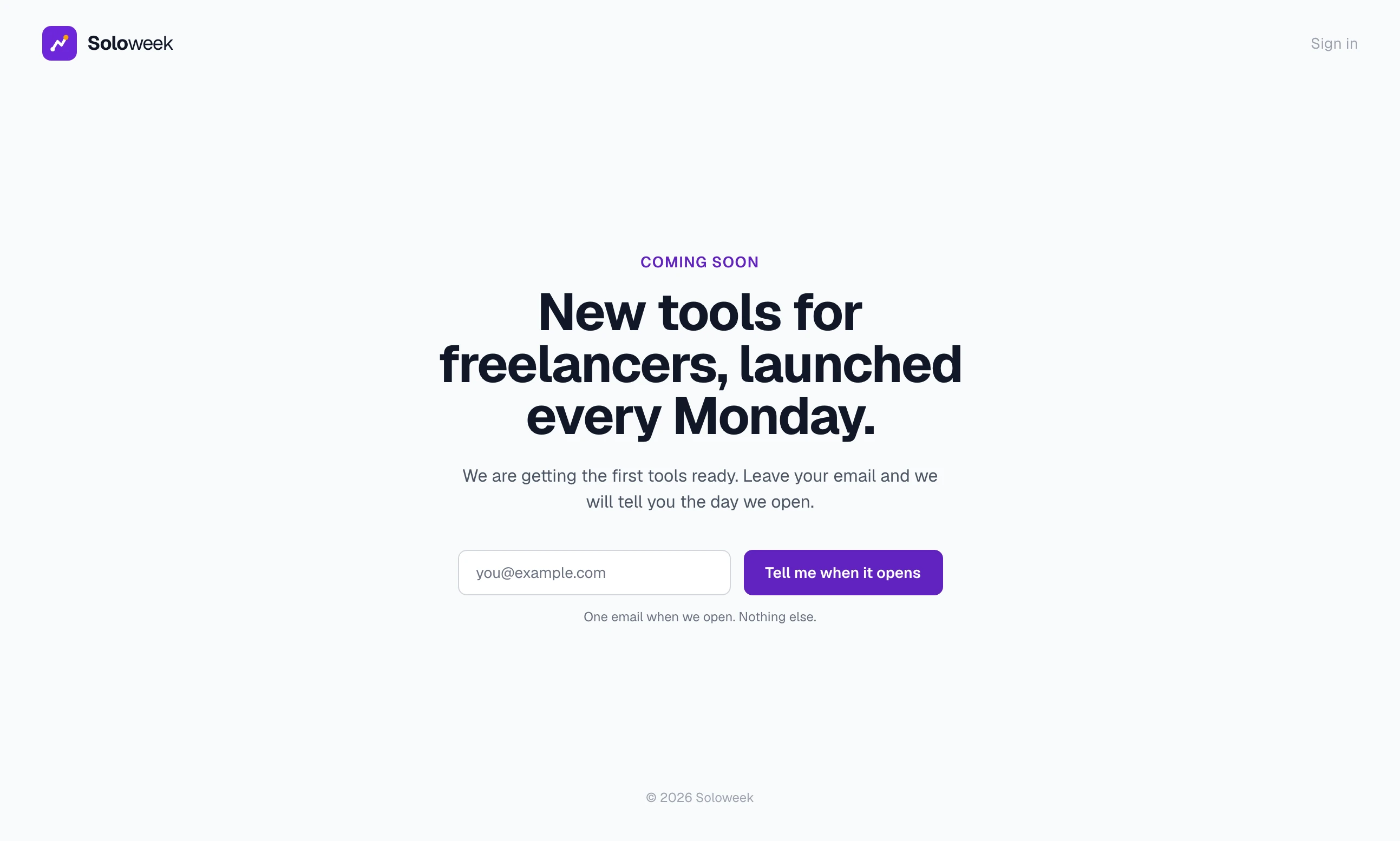
The page carries your mark and name, the words "Coming soon", your home page heading, your message, a box for an email address with the button Tell me when it opens and a small Sign in link in the corner. There are no menus and no links into the site.
Every address shows this page. A page that exists answers as normal, so a link checker does not report the site as broken. An address that does not exist shows the same page marked "not found".
Search engines are told to stay away. The page is marked
noindex,/robots.txtdisallows everything and/sitemap.xmlis empty.A shared link still looks right. The page has your name, tagline, message and share image for link previews.
Signing in works. So do password resets, Google sign-in, unsubscribe links in emails and messages from Stripe. Creating an account by email does not.
Google Analytics is not loaded on the holding page.
What you see#
Anyone signed in with admin access sees the whole site, with the dark bar as a reminder. That is how you fill it while it is closed: add categories, import a niche pack, book listings into weeks and make test payments.
A maker who signs in is not an admin, so they see the holding page too. Nobody outside can submit a listing until you open.
The two locks#
The site is closed when either of these is on.
| Lock | Where it is | Who can lift it |
|---|---|---|
| The tick box | Site Settings, Launching | An admin |
MAINTENANCE_MODE | The site's .env file | Someone with access to the server |
The second one is for a server that is being prepared. Nobody can open the site from the admin by accident, because the admin cannot switch it off. While it is set, the Launching tab shows an amber box headed "Closed by the server setting", and the tick box changes nothing.
On your own computer, add this line to .env and restart the site. 1, true, on and yes all count:
MAINTENANCE_MODE=1On a server set up with the deploy script, create the site closed from the start, with your own name and domain in place of mysite and example.com:
scripts/deploy.sh add-site mysite example.com --closedIt answers "Site 'mysite' is running" with the words "in coming-soon mode", and scripts/deploy.sh status marks the site "(coming soon)". To lift the lock, set the value to nothing:
scripts/deploy.sh set-env mysite MAINTENANCE_MODE=That removes the line and restarts the site. You see "MAINTENANCE_MODE updated and mysite restarted." Deploy to a server covers the rest of the script.
Coming-soon sign-ups#
Each address typed into the box on the holding page is kept. The list is not in the sidebar: on the Launching tab, under the message, click Coming-soon sign-ups.
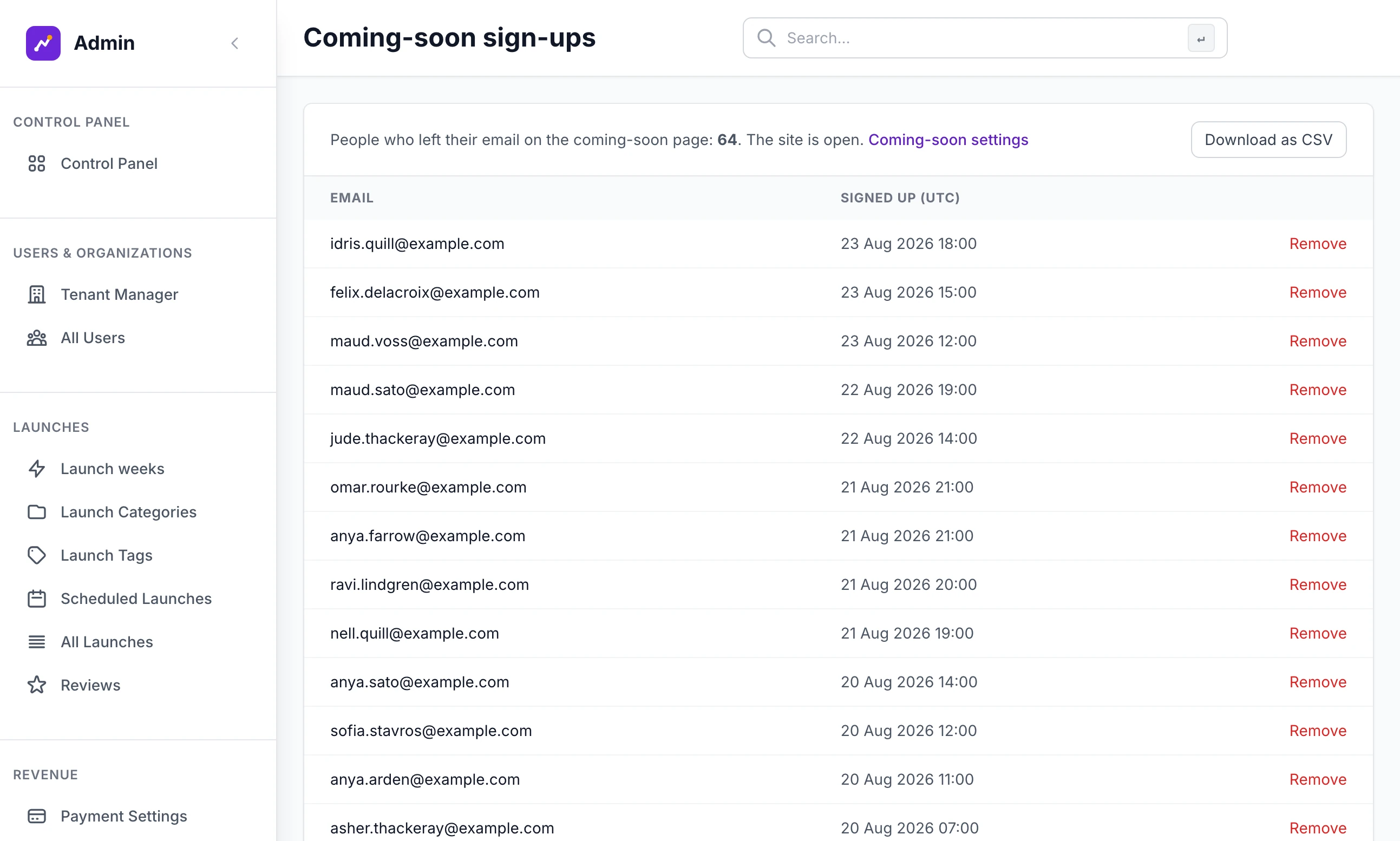
The table has Email and Signed up (UTC), newest first, 100 to a page.
Download as CSV saves
coming-soon-signups.csvwith two columns,emailandsigned_up_utc.Remove deletes one address. You see "Removed from the list."
An address is stored once however many times it is entered, and the visitor sees the same answer either way: "You are on the list. We will email you once, on the day we open." One visitor can submit the box ten times an hour. The list stays after you open.
The go-live checklist#
A card headed Finish setting up sits at the top of the Control Panel and at the top of System. It counts the steps done, and each one that is not done has a Set up link to the right screen. Every step ticks itself from the real state of the site. When all the required steps are done the card disappears.
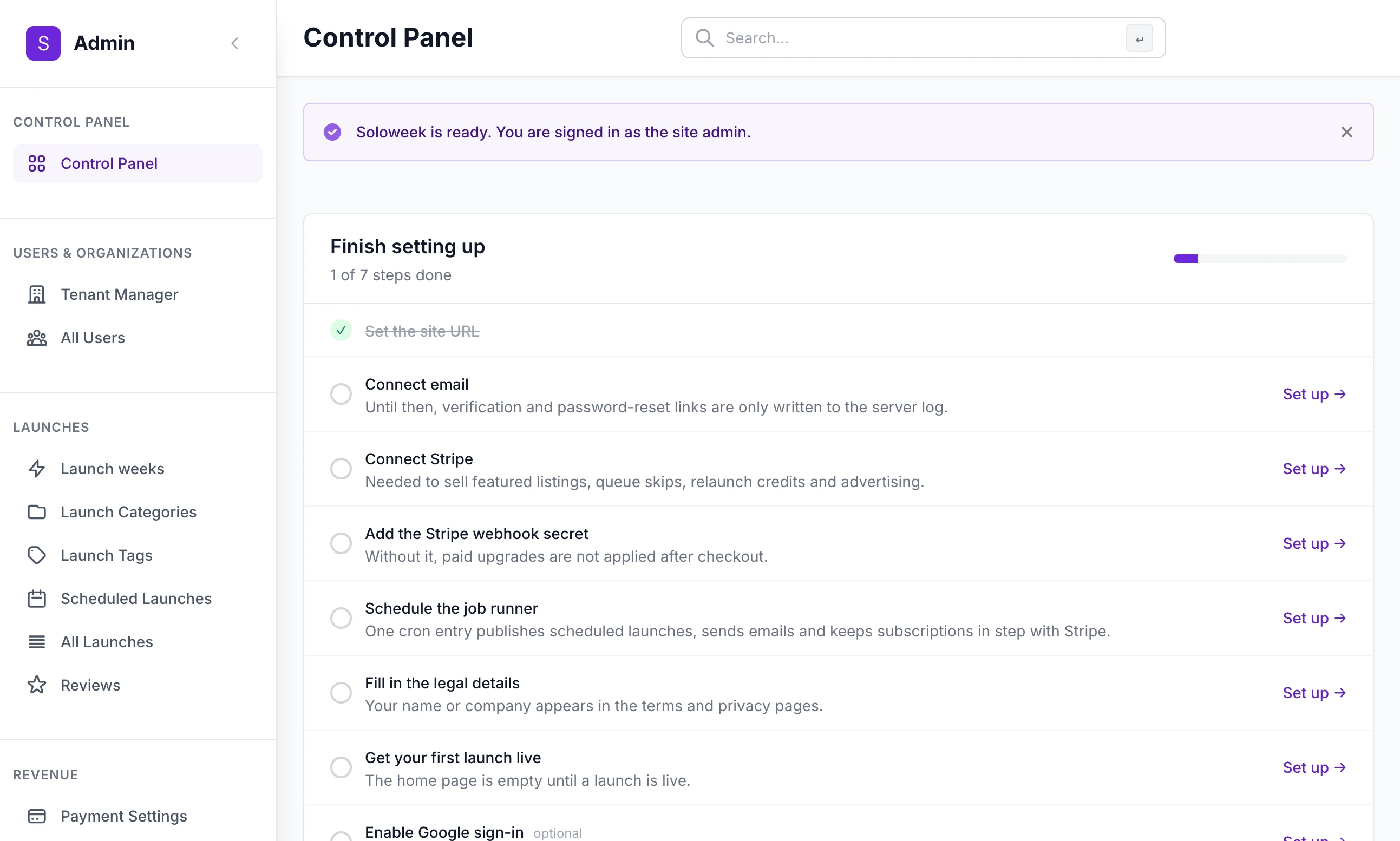
| Step | It ticks itself when | Guide |
|---|---|---|
| Set the site URL | Site URL on the General tab of Site Settings has something in it | Deploy to a server |
| Connect email | A mail server is saved | |
| Connect Stripe | A Stripe secret key is saved | Connect Stripe |
| Add the Stripe webhook secret | A webhook secret is saved | Connect Stripe |
| Schedule the job runner | Any background job has run in the last two hours | Backups and scheduled jobs |
| Fill in the legal details | Legal entity on the Analytics & Legal tab is filled in | Below |
| Get your first launch live | A listing that is not demo content is live | Running launches day to day |
| Remove the demo content | Shown only while demo listings exist. It goes when they do | Below |
| Turn on secure cookies | Shown only when Site URL starts with https://. Ticks when SESSION_COOKIE_SECURE is on | Below |
| Enable Google sign-in | Optional. Both Google values are saved | Google sign-in |
| Protect forms from bots | Optional. Both Turnstile keys are saved | Bot protection |
What the checklist does not check#
A tick means a value is present. It does not mean the value is right. Go through these by hand before you open.
Whether the site is open. Coming-soon mode is not on the list. A site can show a finished checklist and still be closed, or be open with nothing done.
That email arrives. On Integrations, click Send test email on the Email card and read what lands in your inbox.
Live Stripe keys. A test key ticks the step as well as a live one. Test Stripe key on the Integrations page answers with "test mode" or "live mode".
The webhook itself. The tick only says a secret is saved. In Stripe there must be an endpoint pointing at the address shown on the Stripe payments card, and the secret must be that endpoint's. The checklist's own words are "Without it, paid upgrades are not applied after checkout."
A job runner that keeps running. Clicking Run now on a job ticks the step for two hours, with no schedule in place. Open System and watch the Last run (UTC) column under Background jobs over half an hour: the times should move on their own. Without the schedule, booked listings do not go live on launch day and queued campaigns are not sent.
SESSION_COOKIE_SECURE. The step is hidden unless Site URL starts withhttps://, so a site whose Site URL is empty or typed withhttp://is never asked. On a live site it should betruein.env, so that the sign-in cookie only travels over HTTPS. The deploy script sets it for you. Leave it off on your own computer.TRUSTED_PROXIES. Not checked at all. Behind nginx or Caddy it must be set to the number of proxies in front of the site, which is1for either on its own. Without it every visitor seems to come from one address, so they share one set of rate limits and blocking that address blocks everyone. The deploy script and the Docker Compose file both set it.Demo content you have looked at. On System, under Demo content, click Remove demo content. You see "Demo content removed:" with the number of launches and demo accounts. Real listings and accounts are not touched. Only content that was added as demo content is removed, so look through All Launches for anything else you do not want public.
The legal pages. The tick needs only a name in Legal entity. Read
/terms,/privacyand/cookiesas a visitor. They are built-in wording with your name in it. On the Analytics & Legal tab, set Jurisdiction and Legal pages last updated, and paste your own wording into Terms of service, Privacy policy or Cookie policy to replace a page.
Open the site#
Step 1: Finish the checklist and the list above
Do it while the site is still closed. Nothing on it needs the site open.
Step 2: Lift both locks
Untick Show the coming-soon page to visitors and click Save settings. If the server lock is on, remove
MAINTENANCE_MODEas well. The dark bar goes.Step 3: Check it as a visitor
Open the site in a private window. Then open
/robots.txt, which should now list the areas search engines are kept out of and end with your sitemap's address, and/sitemap.xml, which should list your pages.Step 4: Email your sign-ups
Download the CSV and send the email the holding page promised.
I unticked the box and the site is still closed
MAINTENANCE_MODE is set on the server. The Launching tab says so in an amber box headed "Closed by the server setting". Remove the line from .env and restart, or use set-env as shown above.
Can people create accounts while the site is closed?
Not with the email form: the sign-up page shows the holding page. With Google sign-in connected, a new person can finish an account through Google, and then sees the holding page like everyone else.
Do coming-soon sign-ups become accounts?
No. They are a list of addresses and nothing more. Each person registers in the usual way once the site is open.
Can I take payments while the site is closed?
As an admin, yes: you see the whole site, and messages from Stripe get through. That makes a closed site the place to run test payments.
The Finish setting up card has gone
Every required step is done. The two optional steps do not keep it on screen.
Stuck on a step? Send a message.