Make it your niche: wording, categories and tags
Name the site, choose the words it uses for a listing and a maker, switch off the parts you do not need, and set up the categories and tags that listings are sorted by.
Updated 9 Oct 2026 · written for Launch Lab 2.9.0
On this page
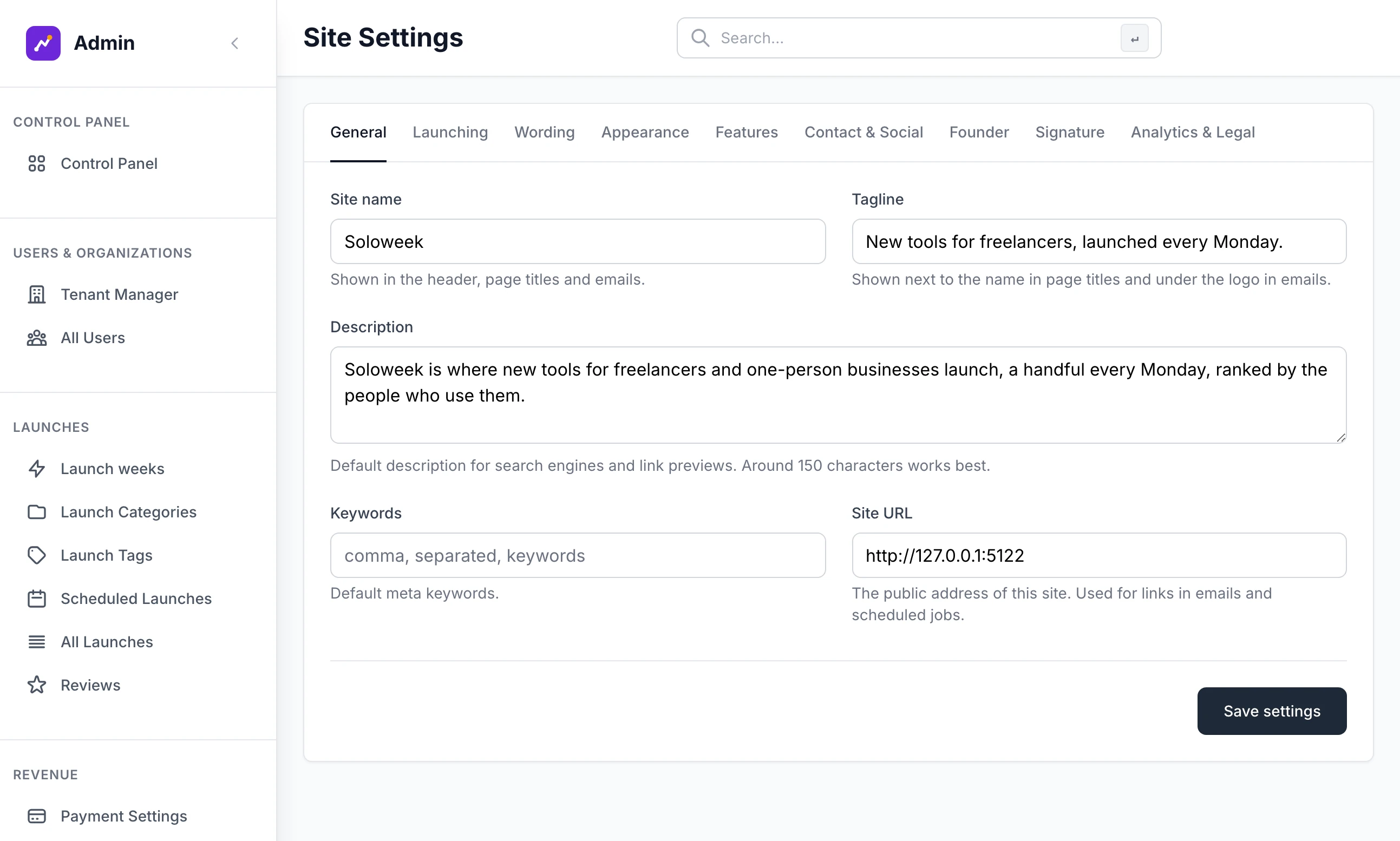
Open Site Settings under Tools in the admin sidebar. It has nine tabs, and six of them decide what your site is about: its name, the words it uses, which parts are switched on, and who is behind it. This guide takes those six in turn, then the two screens that sort your listings: Launch Categories and Launch Tags, both under Launches.
The other three tabs have guides of their own. Appearance and Footer credits are in Brand, looks and footer credits. Launching is in How launches work.
These guides say "listing" and "maker". Your site says whatever you type on the Wording tab. The site in the pictures says "tool" and "maker".
Set the basics#
Step 1: Name the site
On the General tab, fill in Site name and Tagline. Add your public address to Site URL, starting with
https://.Step 2: Choose your words
Click the Wording tab. Type what one listing is called into What gets launched (one) and the plural into What gets launched (several), in lower case. Do the same for Who launches (one) and Who launches (several).
Step 3: Switch off what you do not need
Click the Features tab and untick any part of the site you are not going to run, for example Blog or Team invites.
Step 4: Click Save settings
The button is at the bottom of every tab. You see "Site settings updated successfully!" and stay on the tab you were on.
General#
Site name: the one field you cannot leave empty. The screen says it is "Shown in the header, page titles and emails." If you set a wordmark under Brand, the header shows the wordmark and page titles keep the site name.
Tagline: follows the name in the browser tab, as in "Soloweek - New tools for freelancers, launched every Monday." It is also under the name in the footer, on the share image, and it is the home page heading unless you type a different one on the Wording tab. This is the same field as Tagline on the Brand screen.
Description: what search engines and link previews show for any page that has no description of its own. The screen suggests about 150 characters.
Keywords: the default keywords for search engines, separated by commas.
Site URL: the public address of the site, used to build the links in emails and in scheduled jobs. It must start with
http://orhttps://. A slash at the end is removed for you.
Wording#
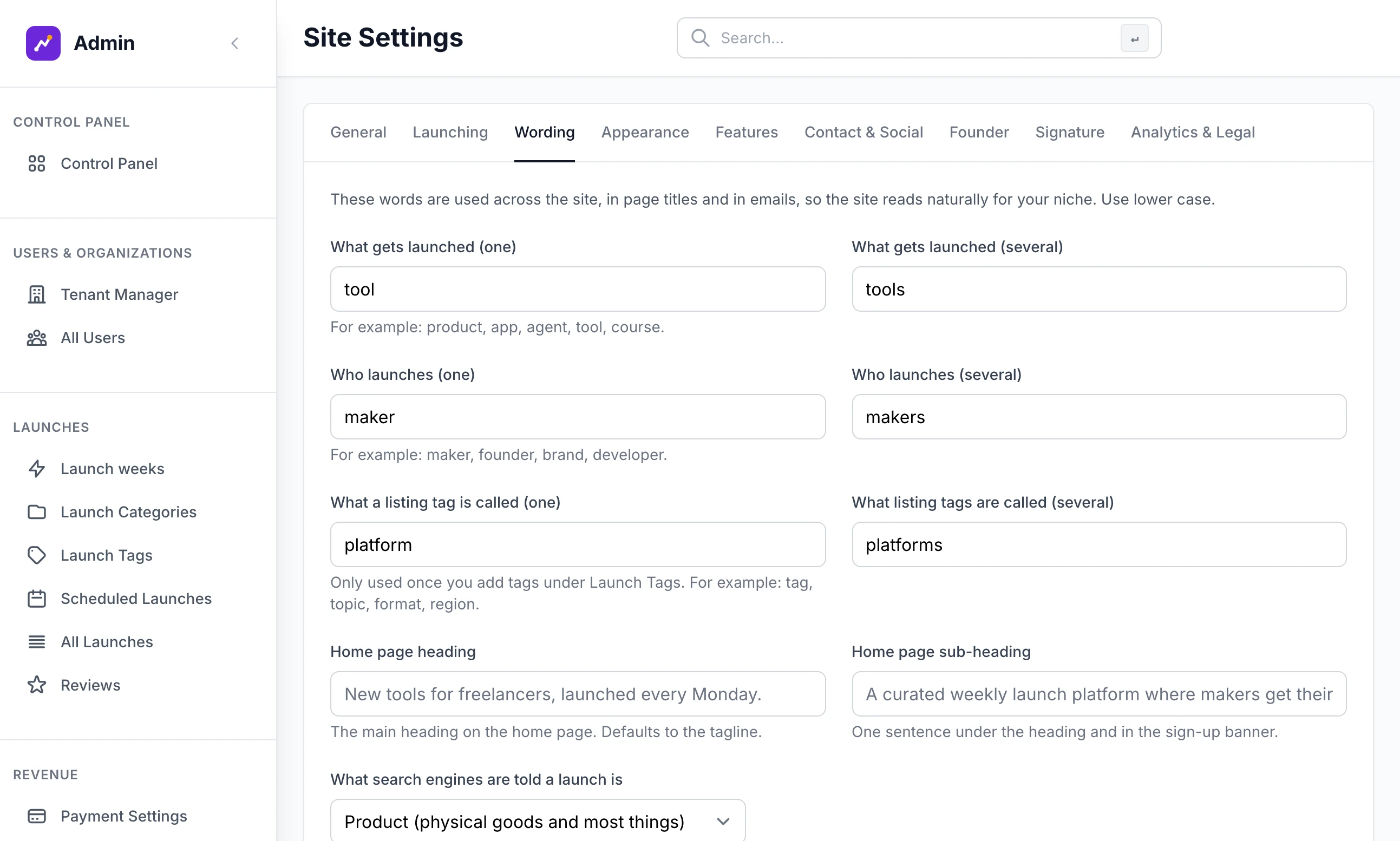
| Field | Until you change it | Used for |
|---|---|---|
| What gets launched (one) and (several) | product, products | Every mention of a listing: "Add your tool", "Tool page", page titles and emails |
| Who launches (one) and (several) | maker, makers | Every mention of the person who submits one: the footer heading "For makers", the text of the home page |
| What a listing tag is called (one) and What listing tags are called (several) | tag, tags | The heading over your tags. Only used once you add tags under Launch Tags |
| Home page heading | The tagline | The main heading on the home page |
| Home page sub-heading | "A curated weekly launch platform where makers get their products discovered." | One sentence under the heading and in the sign-up banner |
Type the words in lower case, up to 40 characters each. The site adds a capital where a heading needs one. The plural is not worked out for you, so type both.
With no tagline and no heading of your own, the home page heading is "New products, launched weekly" on a weekly site and "The newest products, as they launch" on a rolling one, with your own word in place of "products".
What search engines are told a launch is sets the type in the hidden description of each listing that search engines read. Choose Product (physical goods and most things), Software application or Service. A site for apps or developer tools should pick Software application: the listing's category is then passed on as the application's category as well.
Features#
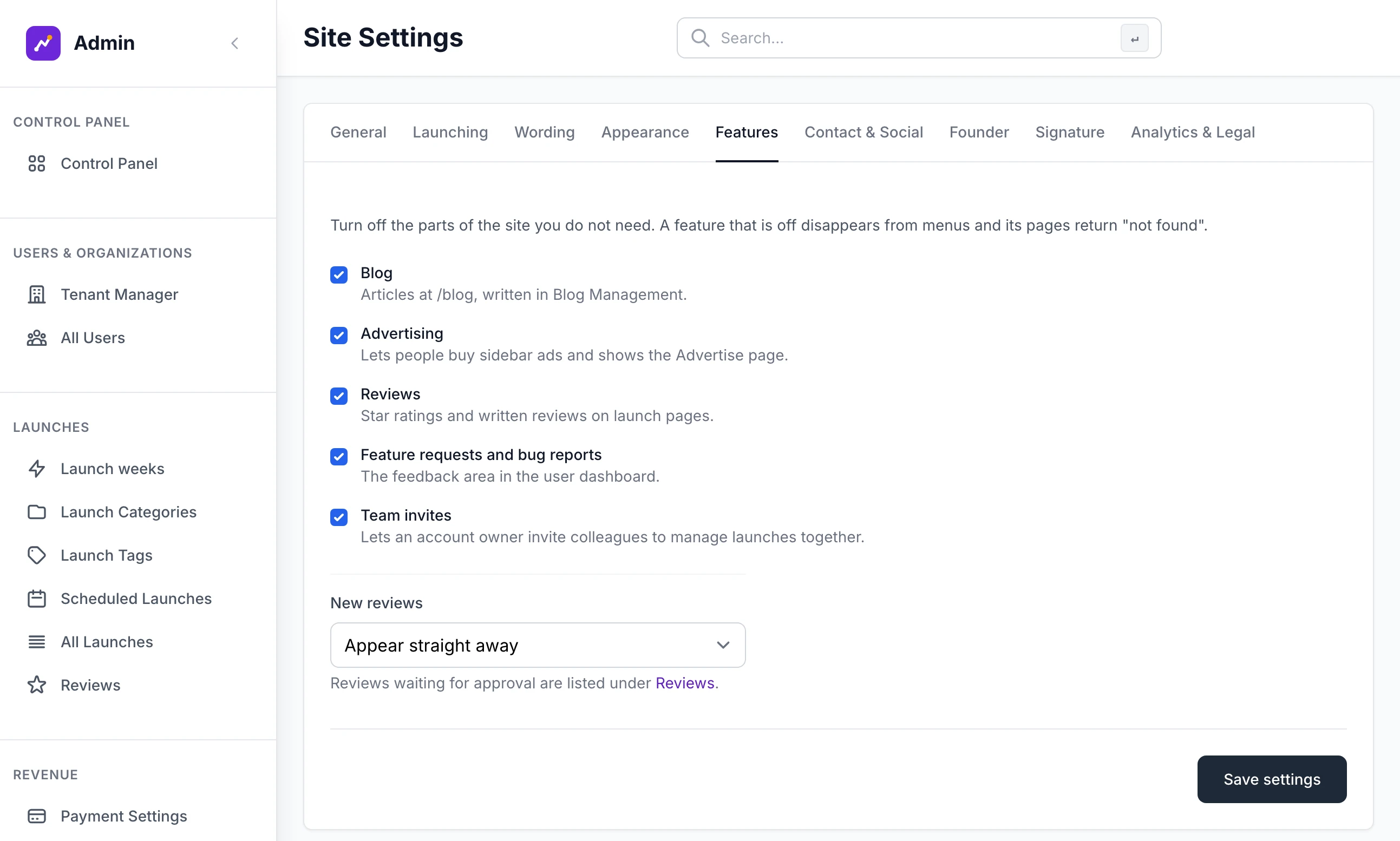
A part that is switched off disappears from menus, and an old link to it gets "not found".
| Switch | What goes when you untick it |
|---|---|
| Blog | The Blog link in the header and footer, and every page under /blog. Blog pages leave the sitemap. |
| Advertising | The Advertise page and its footer link, Advertising in a maker's dashboard menu and the pages a maker creates an advert on. On Payment Settings, advertising is marked "Advertising is switched off in Site Settings". |
| Reviews | The reviews section of every listing page, the Review Zone page, and the pages for writing or editing a review. |
| Feature requests and bug reports | Feedback in a maker's dashboard menu and the pages behind it. The site also stops asking makers to review the site itself. |
| Team invites | The Team section of the dashboard menu, and the pages where an account owner invites and manages colleagues. |
Under the switches, New reviews decides whether a review needs your approval before visitors see it: Appear straight away, Wait for approval if written without an account or Always wait for approval. Reviews that are waiting are listed under Reviews in the admin sidebar.
Contact & Social#
Support email: printed at the foot of the emails the site sends and on the legal pages. Emails are also sent from this address, unless a separate sending address is set.
X / Twitter handle: type it without the @. It is used in link previews, and on the Contact page when the founder has no handle of their own.
GitHub URL, LinkedIn URL and Discord URL: full addresses starting with
https://.
The grey Outgoing email box at the bottom reports the address your emails are sent from, or that no mail server is set up. Email and the emails the site sends covers setting one up.
Founder#
This tab is optional. Fill in Name and the founder appears in three places:
The footer of every page, as "Built by" and the name. With an X / Twitter handle the name is a link to that profile.
The Contact page, as the name and Title.
The sign-off of the emails makers receive, with the Photo, the name, the title and the X handle. An empty title reads "Founder".
Leave the name empty and those emails are signed "The Soloweek team", with your own site name. The photo should be square and at least 200 pixels wide.
Analytics & Legal#
Google Analytics ID: starts with
G-. Leave it empty and no analytics code is loaded. See Google sign-in, bot protection and analytics.Legal entity and Jurisdiction: the company or person named in the terms and privacy pages, and the governing law named in the terms. With no legal entity the site name is used.
Legal pages last updated: the date shown at the top of the terms, privacy and cookie pages.
Terms of service, Privacy policy and Cookie policy: paste your own wording as plain text to replace the built-in page. Line breaks are kept. An empty box keeps the built-in page.
Extra robots.txt lines: lines added to the site's
robots.txtfile.
Launch Categories#
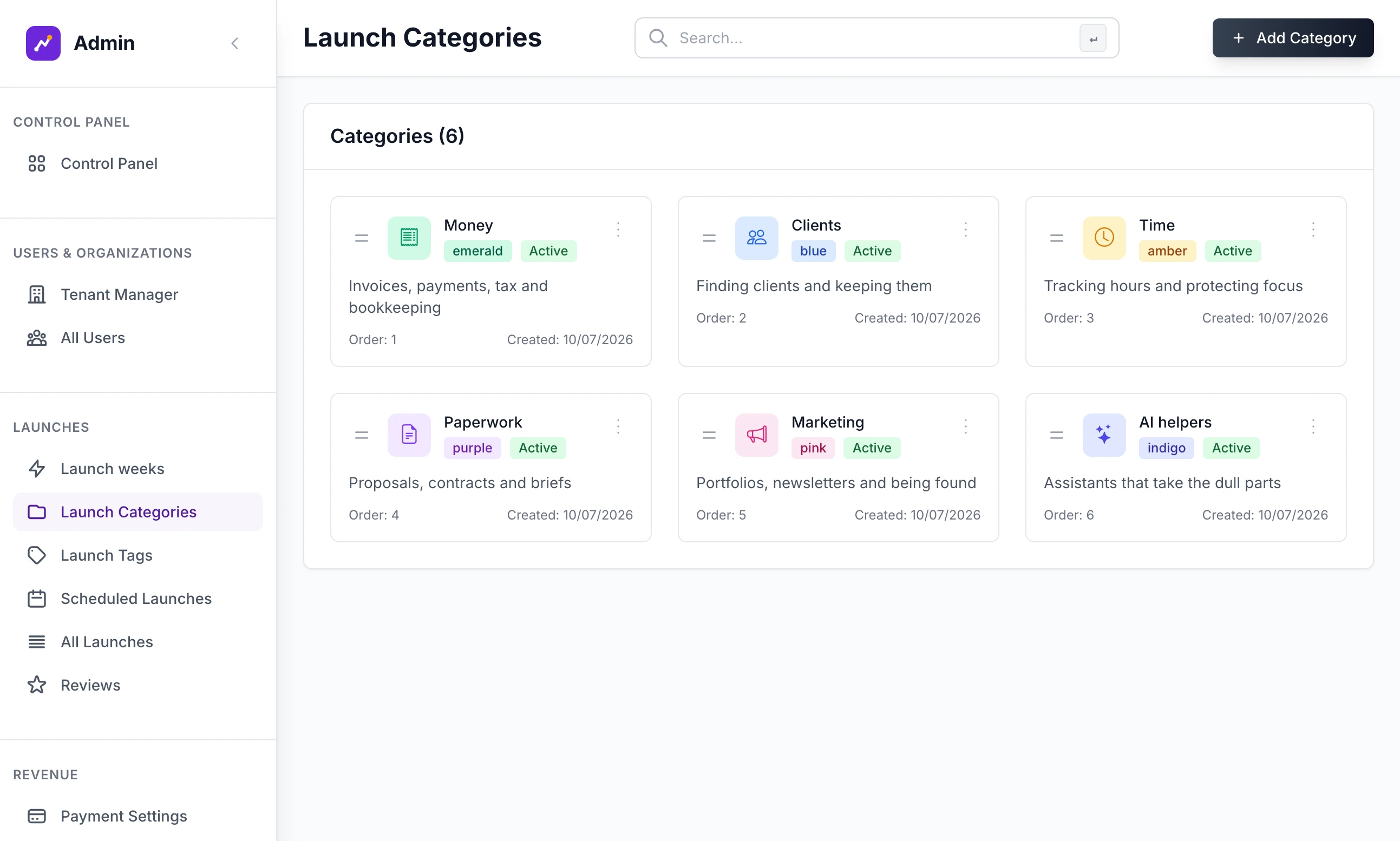
Open Launch Categories under Launches. Every listing belongs to exactly one category, and each category has a page of its own. A new site starts with Apps, Tools, Hardware, Services, Learning and Other, or with the ones you typed in the setup wizard.
Step 1: Click Add Category
The button is at the top right. A box headed "Add New Category" opens.
Step 2: Fill it in
Type the Category Name, the only field that is required. Add a Description, choose an Icon from the ten on offer and a Color Theme from the nine.
Step 3: Click Add Category
You see "Category "Money" added successfully!", with your own name in it. The new category goes to the end of the list.
Everything else is behind the three dots on a category's card:
Edit Category opens the same fields. Renaming a category moves every listing in it to the new name, and changes the address of its page, which is made from the name: "AI helpers" is at
/launch/category/ai-helpers.Deactivate hides the category. Its badge changes from Active to Inactive. A hidden category leaves the Explore Categories page, the Categories box on the home page and the list a maker chooses from, and its own page returns "not found". Listings already in it stay live and keep the category. Activate brings it back.
Delete Category asks you to confirm, and works only on a category with no listings.
To change the order, drag a card to a new place. The order is saved as you drop it, and you see "Category order updated successfully!". It is the order of the Explore Categories page, the home page box and the maker's list.
Launch Tags#
Open Launch Tags under Launches. A category says what a listing is. Tags say anything else your visitors choose by, such as the platform it runs on, and one listing can carry up to five. You write the list and makers tick the ones that apply. With no tags, nothing about them is shown anywhere.
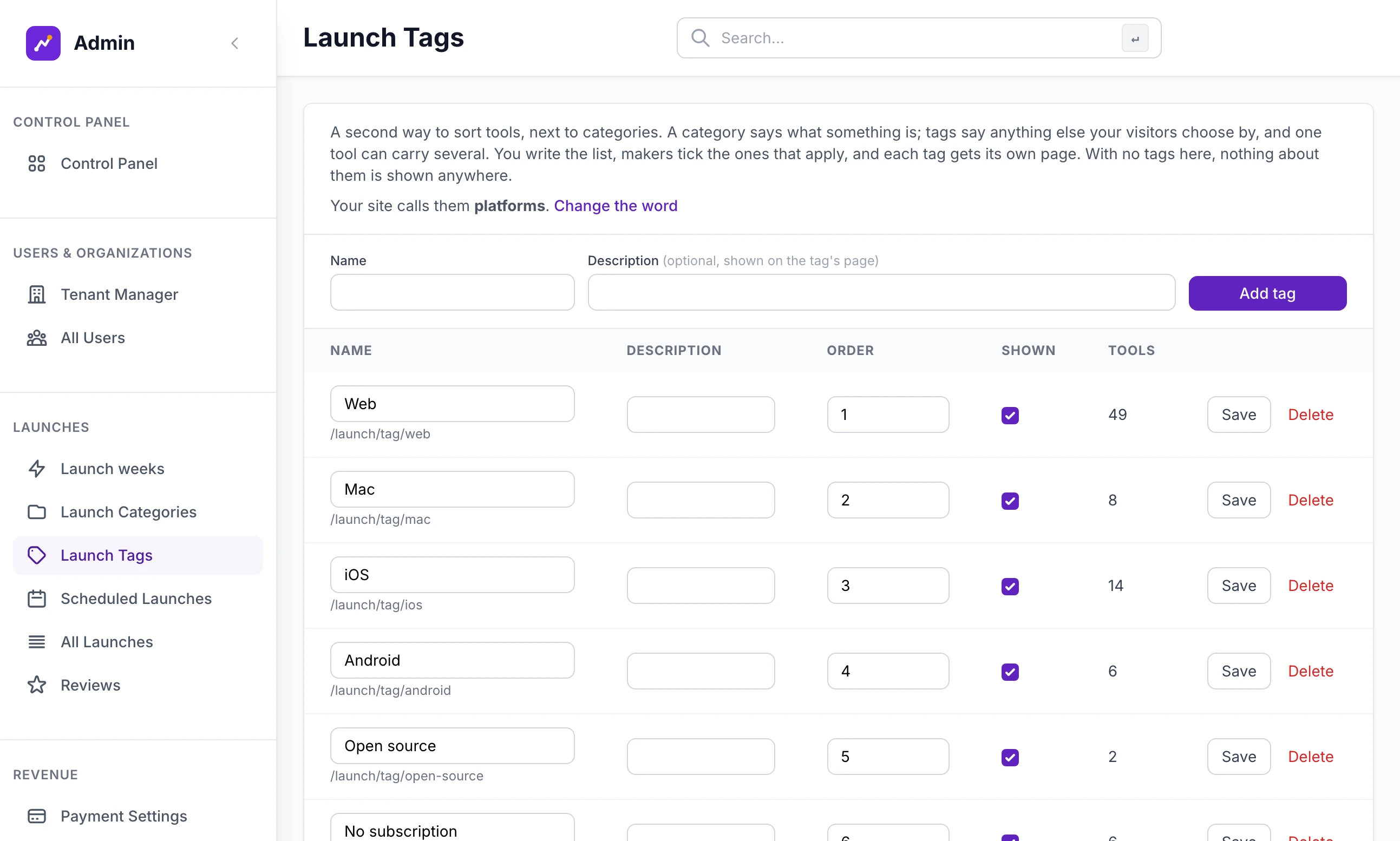
To add one, type a Name of up to 50 characters, add a Description if you want one on the tag's page, and click Add tag. You see "Saved "Web".".
Each row of the table is saved on its own, with the Save button at its end:
Name: the address of the tag's page is under it, for example
/launch/tag/web. Renaming a tag changes that address.Order: lower numbers come first.
Shown: untick it to hide a tag without taking it off the listings that carry it. A hidden tag leaves the home page, listing pages and the maker's form, and its page returns "not found".
The last column counts the listings that carry the tag.
Delete asks "Delete this tag and take it off every listing?" and then does exactly that.
Once there is at least one tag, visitors see the list in a row above the listings on the home page and in a box beside them. Clicking a tag narrows the list to it, and clicking it again clears it. Each listing shows its first three tags in the list and all of them on its own page.
The line at the top of the screen, "Your site calls them platforms", is the tag wording from the Wording tab. Change the word takes you there.
Can I change the wording after makers have signed up?
Yes. The words are read from Site Settings each time a page is drawn, so a change shows on the next page anyone loads. Text you typed yourself, such as a blog post, keeps whatever you wrote.
"Cannot delete category "Other" - it is being used by 3 launches!"
A category with listings cannot be deleted. Use Deactivate to hide it, or rename it with Edit Category, which carries its listings along.
"Another category already uses the address "ai-tools". Choose a different name."
A category's address is its name in lower case, with everything that is not a letter or a number turned into a hyphen. "AI Tools" and "AI & Tools" both come out as ai-tools, so only one of them can exist. Tags follow the same rule, and say "is too close to a name already in use."
"Site URL must start with http:// or https://"
Type the whole address, for example https://example.com, not example.com. The same check applies to the GitHub, LinkedIn and Discord addresses, and nothing on any tab is saved until every one of them passes.
Does hiding a category or a tag remove it from listings?
No. The listings keep it, and it shows on them again the moment you switch it back on.
Stuck on a step? Send a message.