Backups and scheduled jobs
Know what runs in the background and check that it is running, then back up and restore a site on a server.
Updated 9 Oct 2026 · written for Launch Lab 2.9.0
On this page
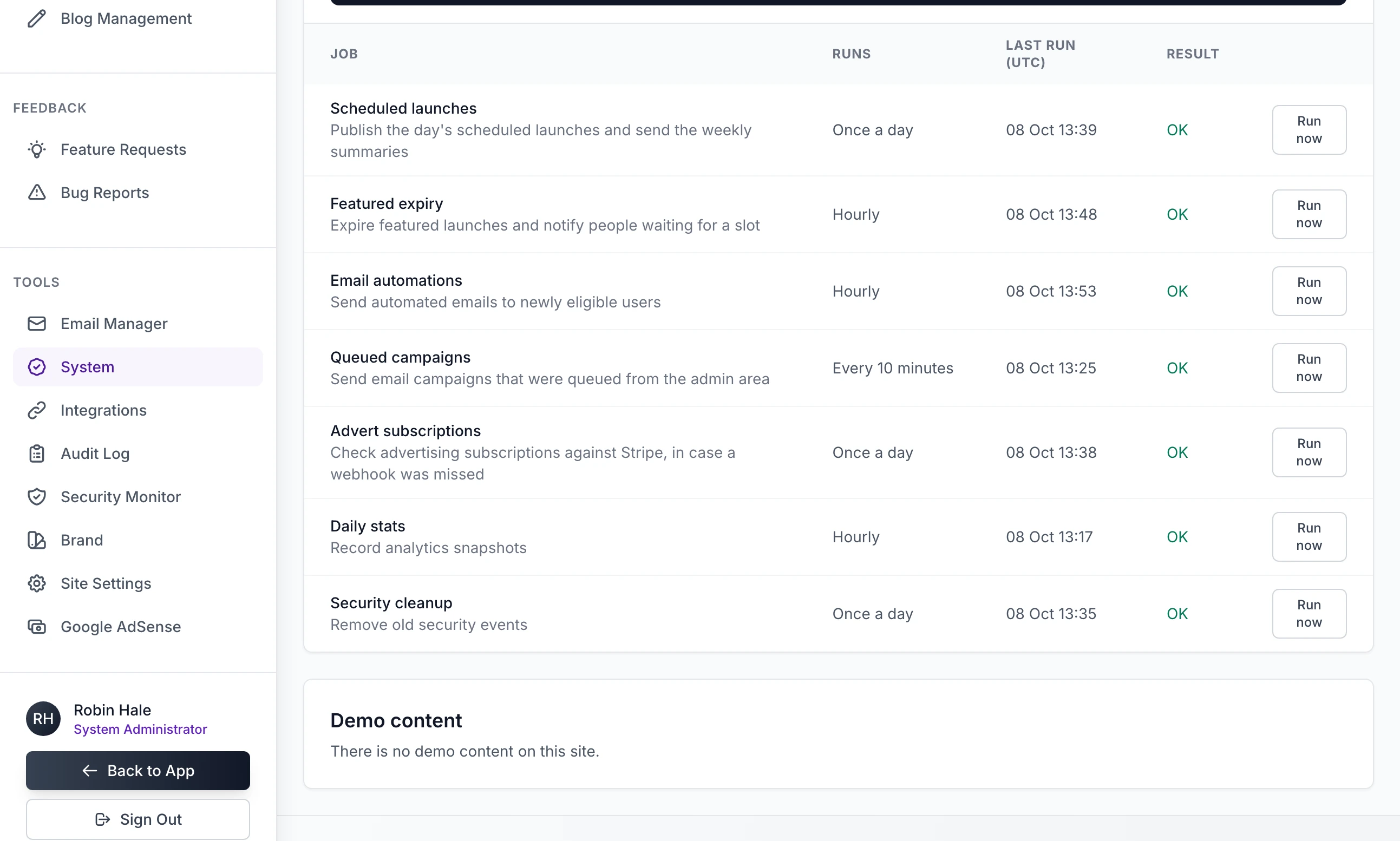
Open System under Tools in the admin sidebar. Its Background jobs table lists the seven jobs that put booked listings on the site, send queued email and keep adverts in step with Stripe, with when each last ran. This guide covers those jobs, then the nightly backup on a server set up with deploy.sh and how to restore one. Server commands are run as root in the kit's folder, here /opt/launchlab, for a site called gadgets.
The guides say "listing" and "maker". Your site uses its own words for both.
The seven jobs#
| Job | Runs | What it does |
|---|---|---|
| Scheduled launches | Once a day | Puts every booked listing whose date has arrived on the site, including any from days the job missed. On launch day it emails last week's makers how their week went. It frees places held for 24 hours by a checkout nobody paid and sends the once-only reminders: a draft left alone, a request to review the site a week after launch, a featured place about to end. |
| Featured expiry | Hourly | Ends featured listings that have reached their end date, and emails the people waiting for a featured place. |
| Email automations | Hourly | Sends your automations to the people who have newly qualified for one. |
| Queued campaigns | Every 10 minutes | Sends the campaigns you queued in the admin. |
| Advert subscriptions | Once a day | Asks Stripe about every advert subscription, in case a webhook was missed. |
| Daily stats | Hourly | Records the figures behind the analytics charts. |
| Security cleanup | Once a day | Deletes security events more than 30 days old. |
Once a day means once in each day by UTC, on the first pass at or after the launch hour. That hour is Hour (UTC, 0 to 23) under Weekly launch schedule on Payment Settings, and it starts at 9. A once-a-day job that fails is tried again on the next pass.
Hourly means when 55 minutes have gone by since the last run.
The jobs are looked at every 15 minutes, so Every 10 minutes means every time.
What runs the jobs#
One command, flask jobs run, works out which jobs are due and runs them. Something has to call it, and what does depends on how the site is installed.
| Install | What calls it |
|---|---|
A server set up with deploy.sh | A cron line, installed by first-run and again by every update. Every 15 minutes it runs scripts/deploy.sh jobs, which runs the due jobs inside each site's container in turn and writes what happened to sites/jobs.log. |
| Docker Compose | The jobs container. It runs the due jobs, sleeps 15 minutes and starts again. |
| A server without Docker | Nothing, until you add a cron line yourself. |
| Your own computer | Nothing. Booked listings stay booked until you click Run now. |
On a deploy.sh server, crontab -l shows the two lines the kit installed:
*/15 * * * * /opt/launchlab/scripts/deploy.sh jobs >> /opt/launchlab/sites/jobs.log 2>&1 # launchlab-jobs
30 3 * * * /opt/launchlab/scripts/backup-all.sh auto >> /opt/launchlab/backups/backup.log 2>&1 # launchlab-backup
scripts/setup-crons.sh writes them. Running it again is safe: it replaces its own two lines and leaves every other line alone. The lines carry the folder's path, so run it again if you ever move the folder.
Without Docker, add the line the System page shows above the table, with crontab -e:
*/15 * * * * cd /opt/launchlab && .venv/bin/flask --app run.py jobs runCheck that the jobs are running#
Step 1: Open System
Open System under Tools and find Background jobs. Each row has the job, how often it Runs, its Last run (UTC) and its Result.
Step 2: Read the last run
"Never" in every row means nothing is calling the job runner. On a working server the hourly jobs show a time in the last hour. Result reads "OK" or "Failed". Hold the pointer over "Failed" to read why.
Step 3: Click Run now
Run now runs that one job at once, due or not. The page comes back with "scheduled_launches finished." or with "scheduled_launches failed:" and the reason.
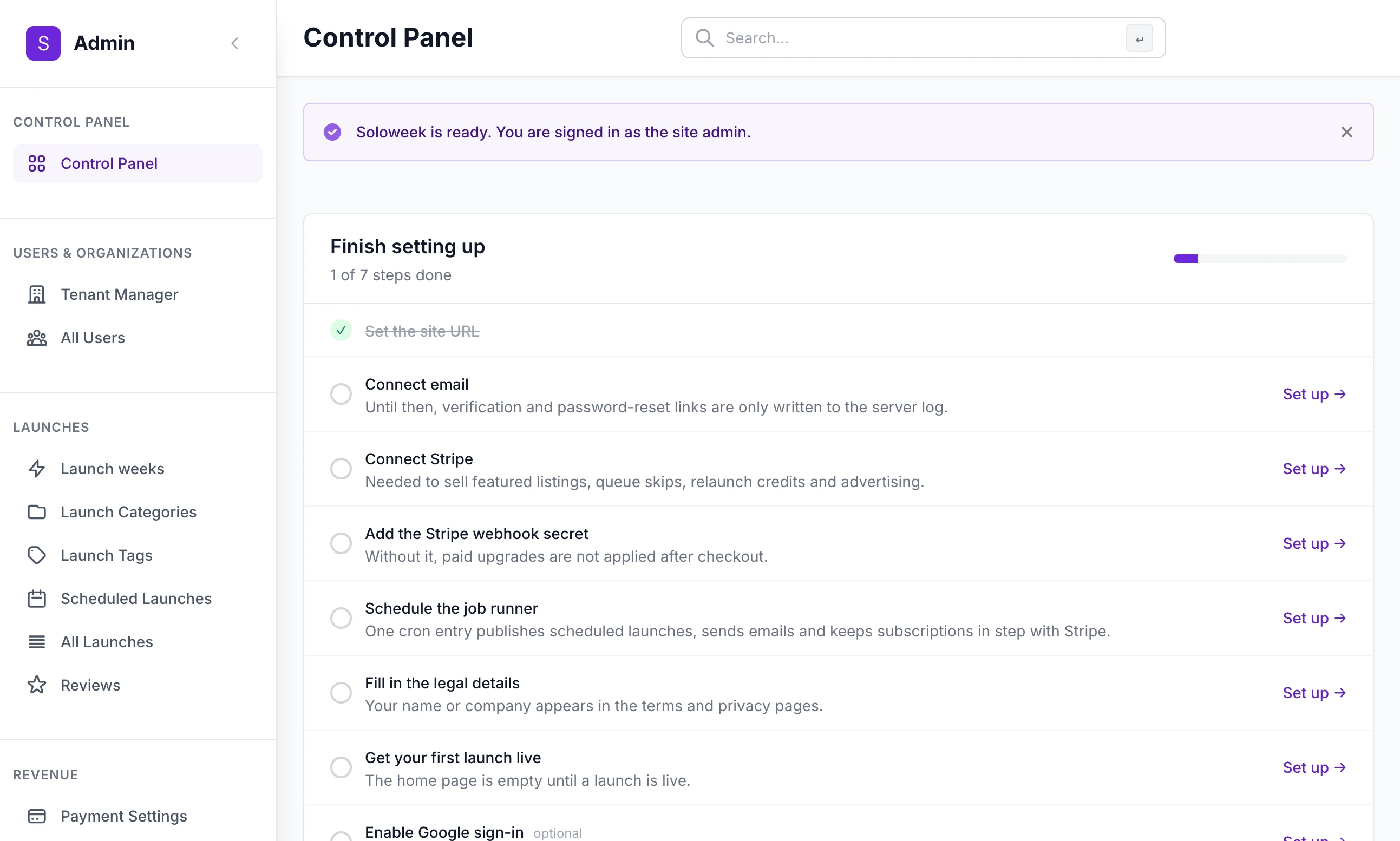
The Finish setting up list on the admin dashboard has an item called "Schedule the job runner". It is ticked while any job has run in the last two hours. Run now counts, so on your own computer it ticks for two hours and then clears again.
Run a job from the terminal#
docker exec launchlab-gadgets flask jobs status
docker exec launchlab-gadgets flask jobs run --only scheduled_launches
Under Compose, start each line with docker compose exec app flask. Without Docker, start it with venv/bin/flask --app run.py.
jobs statusprints a line for each job: its name, then how and when it last ran, such as "ok at 2026-10-08 09:00 UTC", or "never run".jobs runruns what is due and prints "ok" or "FAILED" beside each name, or "Nothing due."--only NAMEruns that one job now, due or not. The names arescheduled_launches,featured_expiry,email_automations,queued_campaigns,advert_subscriptions,daily_statsandsecurity_cleanup.--forceruns all seven now. With--onlyit changes nothing.
The nightly backup#
At 03:30 by the server's clock, cron runs scripts/backup-all.sh auto. It covers the sites deploy.sh made and nothing else. For each one it writes a single archive, named with the date and time in UTC:
/opt/launchlab/backups/daily/gadgets-20261007-033001.tar.gzThe archive holds:
The database,
instance/app.db, copied while the site is running in a way that is safe to restore.The uploads, the whole of
instance/uploads, every time.The settings: the site's
.env,.portand.domainfiles. Alsoinstance/secret_key, if the site has that file.
Which folder it goes in depends on the date, in UTC, and each folder keeps its newest archives for each site:
| Folder | When | Kept |
|---|---|---|
monthly | The 1st of the month | 6 |
weekly | A Sunday that is not the 1st | 4 |
daily | Every other day | 7 |
Disk check: if the disk is 80% full or more, the script writes nothing and logs "ERROR: disk is 83% full; not writing more backups".
Size check: an archive under 1 KB is deleted and counted as a failure.
The log is
backups/backup.log. A good run ends "Backup complete: 1 site(s), daily."
To run one yourself, for example before an update:
scripts/deploy.sh backup
scripts/deploy.sh backup weekly
The first writes to daily. The second names the folder.
What is not in a backup#
A site stopped with remove-site is no longer backed up. The snapshots that update keeps in instance/.snapshots are not in the archive either.
Get a Telegram message when a backup fails#
The script can send a Telegram message when a backup fails. It sends nothing when one works.
Step 1: Make a bot
In Telegram, open a chat with @BotFather and send
/newbot. It asks for a name and replies with a token that looks like123456789:AAHfollowed by a long string.Step 2: Find your chat ID
Send your new bot any message. Then open
https://api.telegram.org/bot<token>/getUpdatesin a browser, with your token in place of<token>. Your chat ID is the number after"chat":{"id":.Step 3: Write the file
/opt/launchlab/.backup.envTELEGRAM_BOT_TOKEN=your-bot-token TELEGRAM_CHAT_ID=your-chat-idStep 4: Test it
bashscripts/backup-all.sh testThere is no folder called
test, so the script stops before it writes anything and sends "launchlab backup failed on" with the server's name and the reason.
Restore a backup#
There is no restore command. The route the kit supports is to unpack an archive and hand its instance folder to import-site, which replaces a site's data with a folder holding app.db, a file called secret_key and, if there is one, uploads. It works for SQLite sites only, and anything added since the backup was made is gone from the live site.
Step 1: Unpack the archive
bashmkdir -p /root/restore tar -xzf backups/daily/gadgets-20261007-033001.tar.gz -C /root/restoreYou now have
/root/restore/gadgets, with.envandinstanceinside it.Step 2: Write the secret_key file
bashgrep '^SECRET_KEY=' /root/restore/gadgets/.env | cut -d= -f2- > /root/restore/gadgets/instance/secret_keyStep 3: On a new server, make the site first
Run
first-runandadd-site gadgets example.comas in Deploy to a server. Do not open the setup link: your admin account arrives with the data.Step 4: Import
bashscripts/deploy.sh import-site gadgets /root/restore/gadgets/instanceThe script stops the site, moves its present data aside, copies in the database and the uploads, writes the key into the site's
.envand starts the site. It ends "Imported into 'gadgets'. The previous data, if any, is in sites/gadgets/instance.before-import-" and the time.Step 5: Check the settings
import-sitetakes only the key from the archive. Compare/root/restore/gadgets/.envwithsites/gadgets/.envand bring across anything else you had set, withscripts/deploy.sh set-env. When you are sure of the restored site, delete theinstance.before-importfolder.
The same command moves a site from your own computer to the server: stop the site there, copy its instance folder up and import it. If your computer's .env has a SECRET_KEY line, write the secret_key file from it first, as above.
Backups without deploy.sh#
backup-all.sh looks only in the sites folder. Under Docker Compose, or without Docker, nothing is backed up for you. Everything a site owns is in its instance folder and its .env file. Stop the site, copy both and start it again:
docker compose stop app jobs
tar -czf /root/launchlab-$(date +%F).tar.gz instance .env
docker compose start app jobs
The files in scripts/backup/ and scripts/restore_from_backup.py are older tools that copy the SQLite file, or call pg_dump and restore its .dump files, and the nightly backup neither uses them nor writes anything they can read.
How do I know last night's backup worked?
tail /opt/launchlab/backups/backup.log
ls -lh /opt/launchlab/backups/daily/
The log ends with a line beginning "Backup complete", and the newest archive has last night's date and a sensible size.
Can I change the times?
You can edit the two lines with crontab -e, but setup-crons.sh writes its own two lines back whenever it runs, and both first-run and update run it.
The server was off on launch day. Are the listings lost?
No. The next time Scheduled launches runs, it puts every booking whose date has passed on the site, dated the day it runs.
Does a new site need its own cron line?
No. The one line runs the jobs for every site in the sites folder, and the backup covers them all.
Stuck on a step? Send a message.