How launches work: weekly or rolling
How a listing gets from a maker's draft to the home page in each of the two modes, what puts it live, who can vote and what the order of the list means.
Updated 9 Oct 2026 · written for Launch Lab 2.9.0
On this page
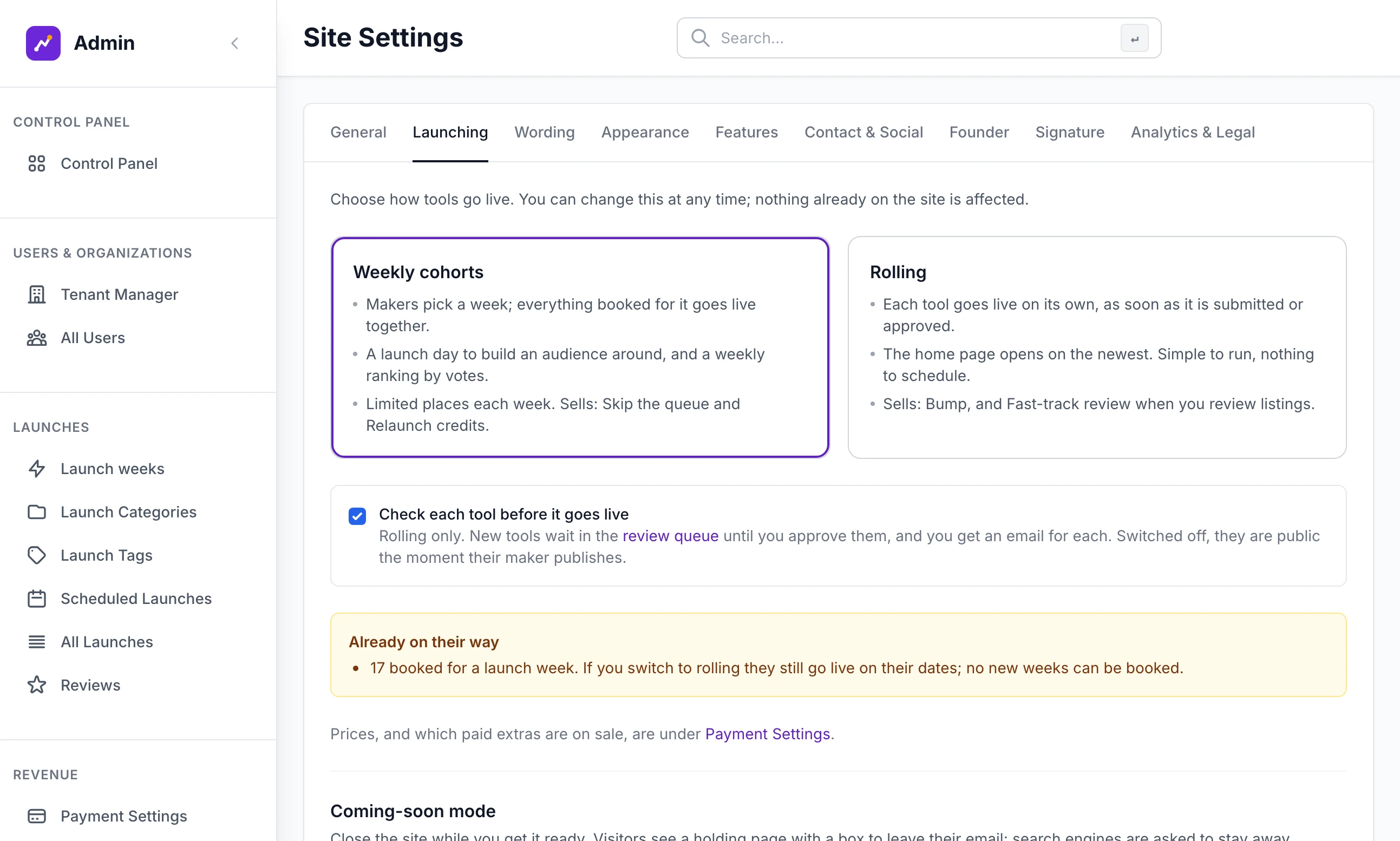
Open Site Settings under Tools in the admin sidebar and choose the Launching tab. This is where you choose how listings go live: together once a week, or one at a time as they arrive. What a maker is asked to do, what the home page opens on and which paid extras are on sale all follow from it.
Your site has its own words for a listing and for the person who launches it. These guides say "listing" and "maker".
The two ways to launch#
| Weekly cohorts | Rolling | |
|---|---|---|
| A listing goes live | On the launch day of the week its maker booked | When its maker publishes it, or when you approve it |
| Places | A set number of free and paid places each week | No limit |
| You check it first | No. A booked listing goes live on its day | Only with Check each tool before it goes live ticked (the label uses your own word for a listing) |
| The home page opens on | This week, in order of votes | Newest, most recent first |
| Extras only this mode sells | Skip the queue, Relaunch credits | Bump, and Fast-track review when you check listings |
A featured listing, a do-follow link and advertising are sold in both. A new site is weekly unless you chose otherwise in the setup wizard.
Set up the launch week#
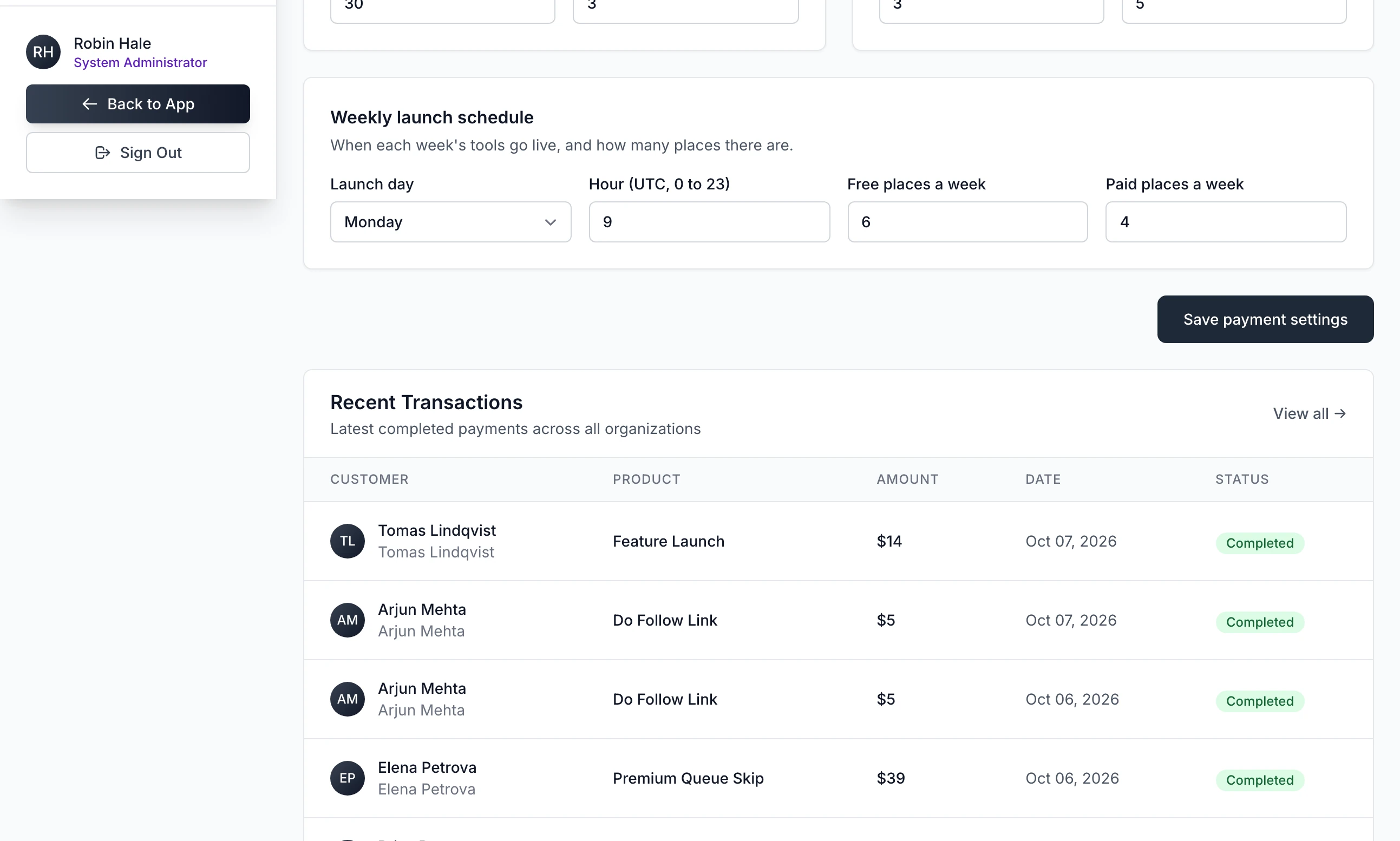
A weekly site needs four numbers. They are not on the Launching tab. Open Payment Settings under Revenue (the page is headed Sales) and scroll down to Weekly launch schedule.
Step 1: Choose the launch day
Launch day is the day of the week every cohort goes live, Monday to Sunday.
Step 2: Set the hour
Hour (UTC, 0 to 23) is a whole hour in UTC, not in your own time zone. 9 means 09:00 UTC all year round.
Step 3: Set the free places
Free places a week is how many listings can book a week without paying, from 0 to 1000.
Step 4: Set the paid places
Paid places a week are extra places, sold as Skip the queue. They are only offered once Stripe is connected: see What you sell and your prices.
Step 5: Click Save payment settings
You see "Payment settings saved."
Changing the day or lowering the places does not touch bookings already made. They go live on the date they were given.
How a week is counted#
A launch week starts on the launch day at the launch hour and lasts seven days. Until that hour on launch day, the home page still shows the week before.
Next launch in, beside the list on the home page, counts down to the next launch day at that hour.
Booking for a launch day closes when the day begins, at 00:00 UTC. The earliest date a maker can book is the next launch day after today.
A date up to 53 weeks ahead is accepted. The page a maker books on lists four dates, or twelve after Show later dates.
How a maker books a week#
A maker who finishes the listing editor lands on Choose your launch week: What a maker sees shows the page. The rules behind it are these:
The list starts at the first launch day that still has a free place, and that date is already chosen. Full weeks before it are left out. Full weeks after it are shown and marked Full.
A free place with no extras is confirmed at once. The maker presses Schedule for free, sees You're booked and is sent an email. You are sent one too.
Skip the queue is offered only when a paid place is open on an earlier launch day than the first free place. It always gives the earliest launch day with a paid place left, and it includes a do-follow link.
Anything that costs money waits for payment: a paid place, or a free place with a featured listing or a do-follow link added. The booking is confirmed when Stripe's webhook tells your site the payment went through, so paid bookings need the webhook set up: see Connect Stripe.
A paid place is held from the moment the maker goes to pay, and the listing's page reads Waiting for payment with a Choose a launch date button. A booking still unpaid 24 hours after it was started is released the next time the daily job runs, and the listing is an ordinary draft again.
A relaunch takes a place in the same way as a first launch.
What puts a listing live#
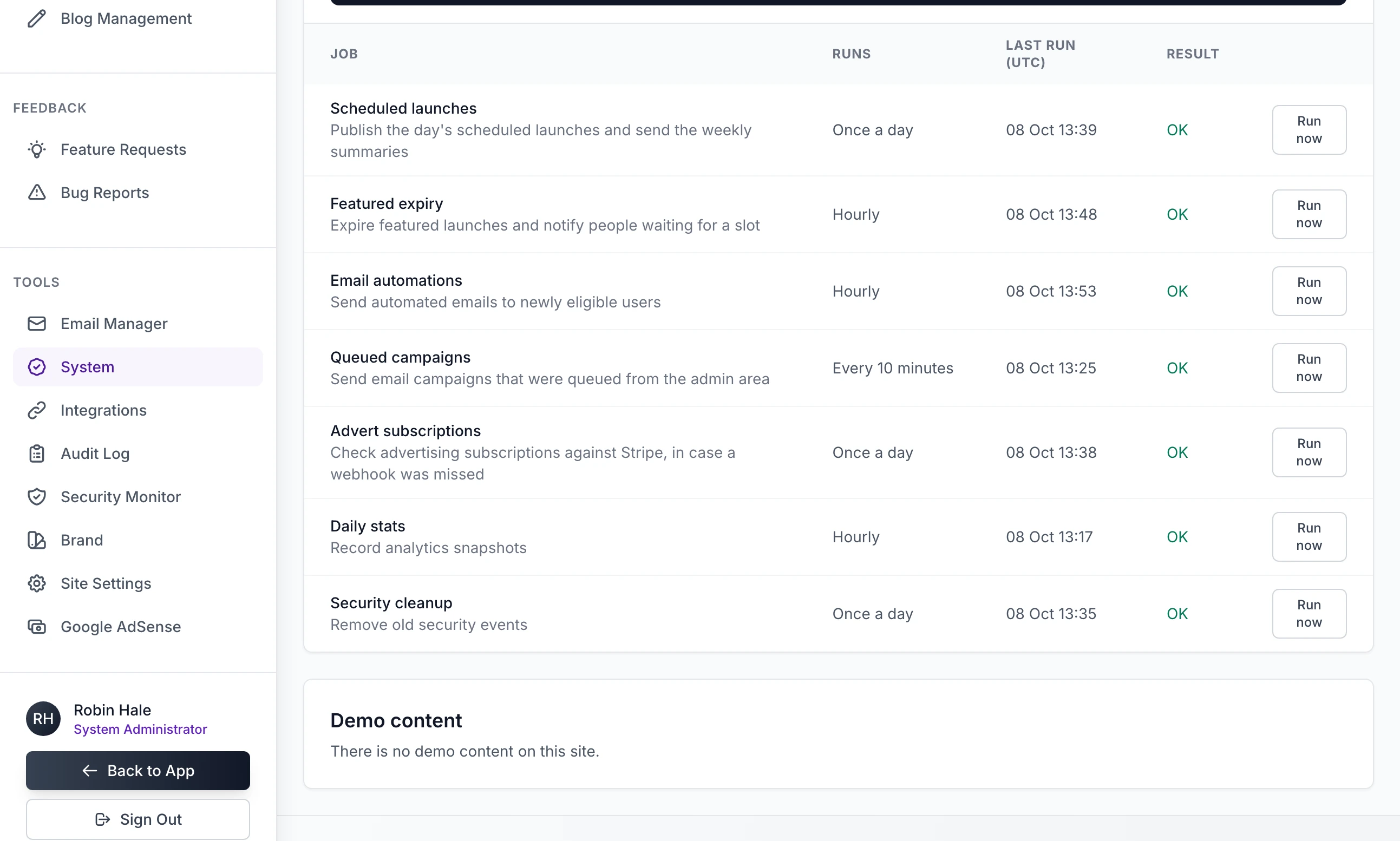
A booked listing does not go live by itself when the launch hour arrives. A job called Scheduled launches does it. The job runner starts it once in each UTC day, the first time it runs at or after your launch hour. Each run:
Puts live every booked listing whose date has come. A booking from a day the job missed goes live on the day it catches up, in the current week.
On launch day, emails each maker whose listing went live in the week that has ended.
Releases places held by payments that were never finished.
Sends the once-only emails listed under When a week ends.
Paying never puts a listing live early. A paid place moves the booking to an earlier launch day, and the listing still waits for that day.
On a live server a scheduled task starts the job runner every 15 minutes: see Backups and scheduled jobs.
Weekly mode has no approval step. To stop a booked listing, cancel its booking before its day: see Running launches day to day.
Voting#
Anyone who is signed in can vote, on any live listing, at any time. That includes listings from earlier weeks.
A visitor who is not signed in and presses a vote button is taken to the sign-in page and brought back.
Each account has one vote for each listing. Pressing the button again takes the vote back.
A maker can vote for their own listing. So can you.
Nothing limits how quickly votes arrive. The limits are on making accounts: 10 sign-ups an hour from one internet address, an email address to confirm when an email server is connected, and a bot check if you add one. See Google sign-in, bot protection and analytics.
The maker is emailed once, when a listing reaches 5 votes.
What the order of the list means#
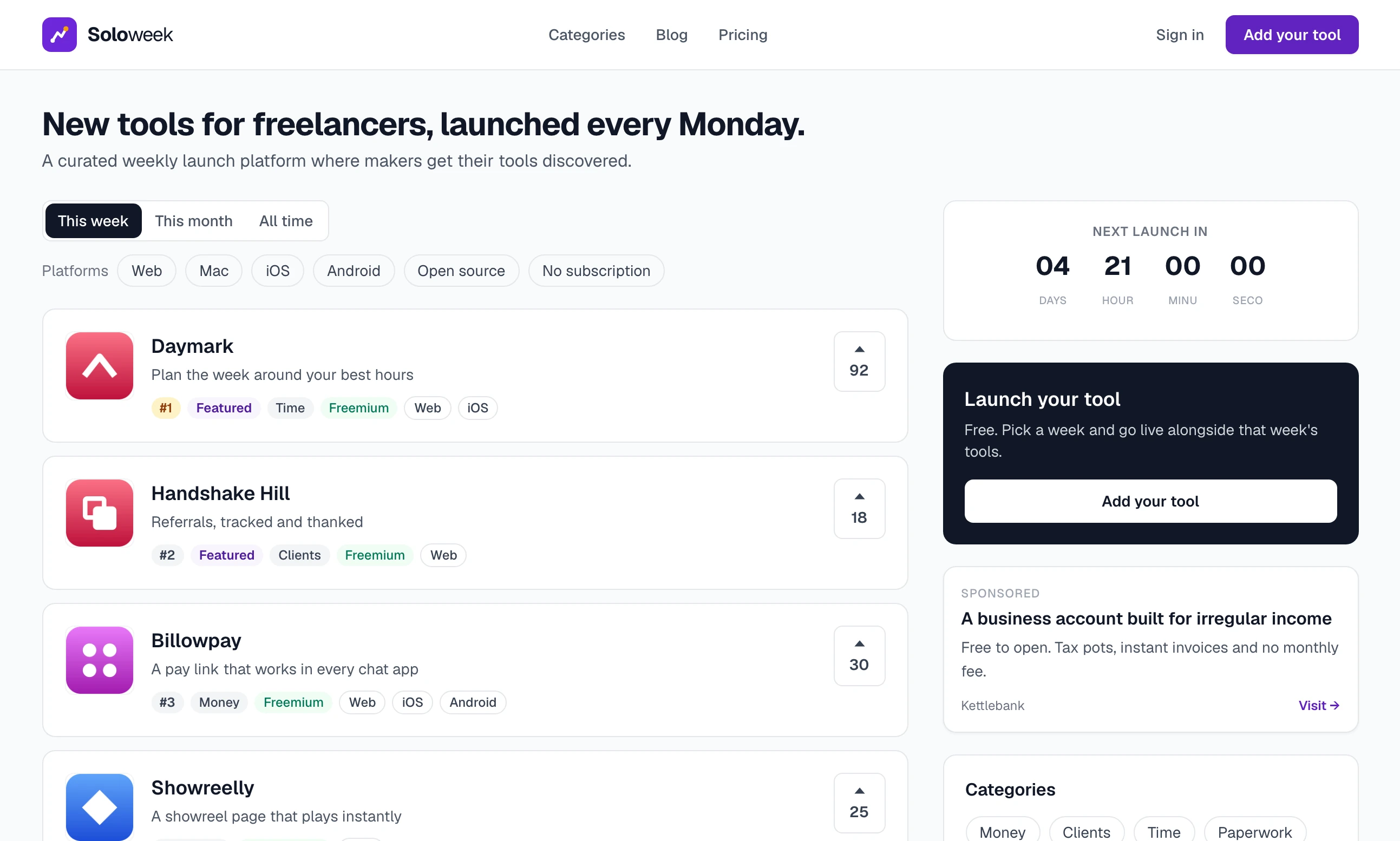
The home page list is always in this order:
Featured listings first, for as long as their featured period runs.
Then by votes, most first.
Listings with the same votes: the later launch date first.
The #1, #2 and #3 chips mark the first three places in that list, on its first page only. They are positions in the list. In the picture a featured listing with 18 votes is #2, above an unfeatured listing with 30 at #3.
The number on a vote button is every vote the listing has ever had, not the votes cast this week. For a new listing in its first week the two are the same. A relaunched listing comes back with all its earlier votes.
This week holds the listings whose launch date is in the current week, relaunches that went live in it and every featured listing, whichever week it launched in. This month holds the last 30 days plus the featured listings. All time holds everything.
If nothing has gone live in the current week yet, This week shows the most recent listings instead.
Launch Lab has no winner, award or leaderboard: when a week ends nothing is announced and no result is stored.
A category page counts differently. Its This week and This month tabs rank by the votes cast in the last 7 or 30 days, and they cover every live listing in the category, whenever it launched.
When a week ends#
Nothing changes on the site. Listings stay live and can still be voted on. They leave This week when the next launch hour passes. What a maker receives is email, sent by the daily job. In the subjects below, Daymark stands for the listing's name and Soloweek for your site's:
| Email subject | When | What it says |
|---|---|---|
| "How Daymark's launch week went" | On launch day, for each listing that went live in the seven days before | Views, votes, reviews and Ranking by votes, for example "2 of 9", among everything that launched or relaunched that week |
| "Daymark is not scheduled yet" | Once, for a draft untouched for 3 days and not booked | A link back to the editor or the week picker |
| "How was launching on Soloweek?" | Once for each maker, a week after going live, with Feature requests and bug reports switched on | Asks for a review of your site |
| "Daymark's featured place ends on 14 March" | Once, within 3 days of a paid featured period ending | That the listing stays listed afterwards |
The weekly summary is sent on launch day only. If the job does not run at all on a launch day, the summaries for the week before are not sent later. None of these arrive until an email server is connected: see Email and the emails the site sends.
Rolling launches#
With Rolling chosen there are no weeks, no places and no countdown.
With checking off, the editor ends on Review and publish. The maker presses Publish now and the listing is live at once, at the top of the newest list.
With Check each tool before it goes live ticked, the page is Review and submit and the button reads Submit for review. The listing waits in the Review queue under Launches and you are emailed. Approve and publish puts it live and emails the maker. Send back returns it with your note.
The home page tabs become Newest, Top this week, Top this month and All time. Newest puts featured listings first, then the most recently live, with no chips. The other three are in the order described above.
Bump and Fast-track review replace Skip the queue and Relaunch credits. A bump moves a live listing back to the top of Newest. Fast-track review puts a waiting listing ahead of unpaid ones in your queue.
The summary email is sent a week after each listing goes live.
Change the way you launch#
You can switch at any time. Nothing that is already live is removed.
Step 1: Open the Launching tab
Open Site Settings under Tools and choose Launching.
Step 2: Choose Weekly cohorts or Rolling
A box headed Already on their way says how many listings are booked for a week or waiting for review, if any are.
Step 3: Decide whether to check listings
Check each tool before it goes live only has an effect on a rolling site.
Step 4: Click Save settings
You see "Site settings updated successfully!".
What follows a switch:
Listings already booked for a week still go live on their dates after a switch to rolling. No new weeks can be booked. Launch weeks and Scheduled Launches stay in the menu until the last booking has gone.
Listings waiting for review stay in the Review queue until you approve them or send them back.
The paid extras follow by themselves. On Payment Settings the ones that no longer apply are marked Weekly launches only or Rolling launches only.
Relaunch credits a maker holds are kept, and cannot be used while the site is rolling.
A booked listing did not go live on its day
The daily job has not run. On your own computer, click Run now. On a server, open System and read Last run (UTC) and Result for Scheduled launches, then see Backups and scheduled jobs. When the job next runs the listing goes live that day.
Can a listing go live before its week?
Not by paying. You can put one live yourself: tick it on All Launches and click Approve. It is live at once with today as its launch date, and its maker is emailed.
A maker sees "That date is full or is not a launch day. Choose another week."
The last free place in that week was taken while they were on the page, or you changed the launch day after the page loaded. They choose again from the list.
Stuck on a step? Send a message.