Featured listings and vouchers
Sell a place at the top of the home page for a set number of days, feature a listing by hand and give makers a percentage off with a voucher code.
Updated 9 Oct 2026 · written for Launch Lab 2.9.0
On this page
A featured listing is the product most makers buy: a place at the top of the home page for a set number of days. Its price, its length and the number of places are set in Payment Settings under Revenue in the admin sidebar. Money off is given with a voucher, made in Voucher Manager in the same section. A voucher takes a percentage off a featured listing and nothing else.
Your site uses its own words for a listing and for the person who launches it. This guide says "listing" and "maker".
What featuring does#
A featured listing comes first in the list on the home page, on its category's page and on tag pages, ahead of every listing that is not featured, whatever its votes. Among featured listings, the one with more votes comes first. It carries a featured badge in the list and on its own page.
On a weekly site it stays at the top for its whole featured period, whichever week it launched in. A listing that launched three weeks ago and is still featured is shown above this week's cohort.
Set the length and the number of places#
Step 1: Open Payment Settings
Open Payment Settings under Revenue and scroll to What you sell. Tick Featured listing and type its price in the box at the end of the row.
Step 2: Set Days featured
Under Featured listings, Days featured is how long a place lasts, from 1 to 365. It is 30 on a new install.
Step 3: Set Featured at a time
Featured at a time is how many listings can be featured at once, from 1 to 50. It is 3 on a new install.
Step 4: Click Save payment settings
You see "Payment settings saved." A place already running keeps the end date it was given.
Featured listings can only be bought once Stripe is connected: see Connect Stripe. The other products on the page are in What you sell and your prices.
What a maker sees#
A maker can buy a featured listing before launch or after it.
Before launch, on a weekly site, Featured listing is a tick box under Extras on the page where they choose a launch week. It is paid for with anything else they picked, in one checkout. The listing is marked "Featured from launch day" and its days start when it goes live. On a rolling site it is one of the extras offered as the listing is submitted.
After launch, it is on the Upgrades card of the listing's page and on Billing. The days start when the payment is confirmed.
On a weekly site, Add on the Billing page opens the featured upgrade page first. This is the only page with a box for a voucher code.
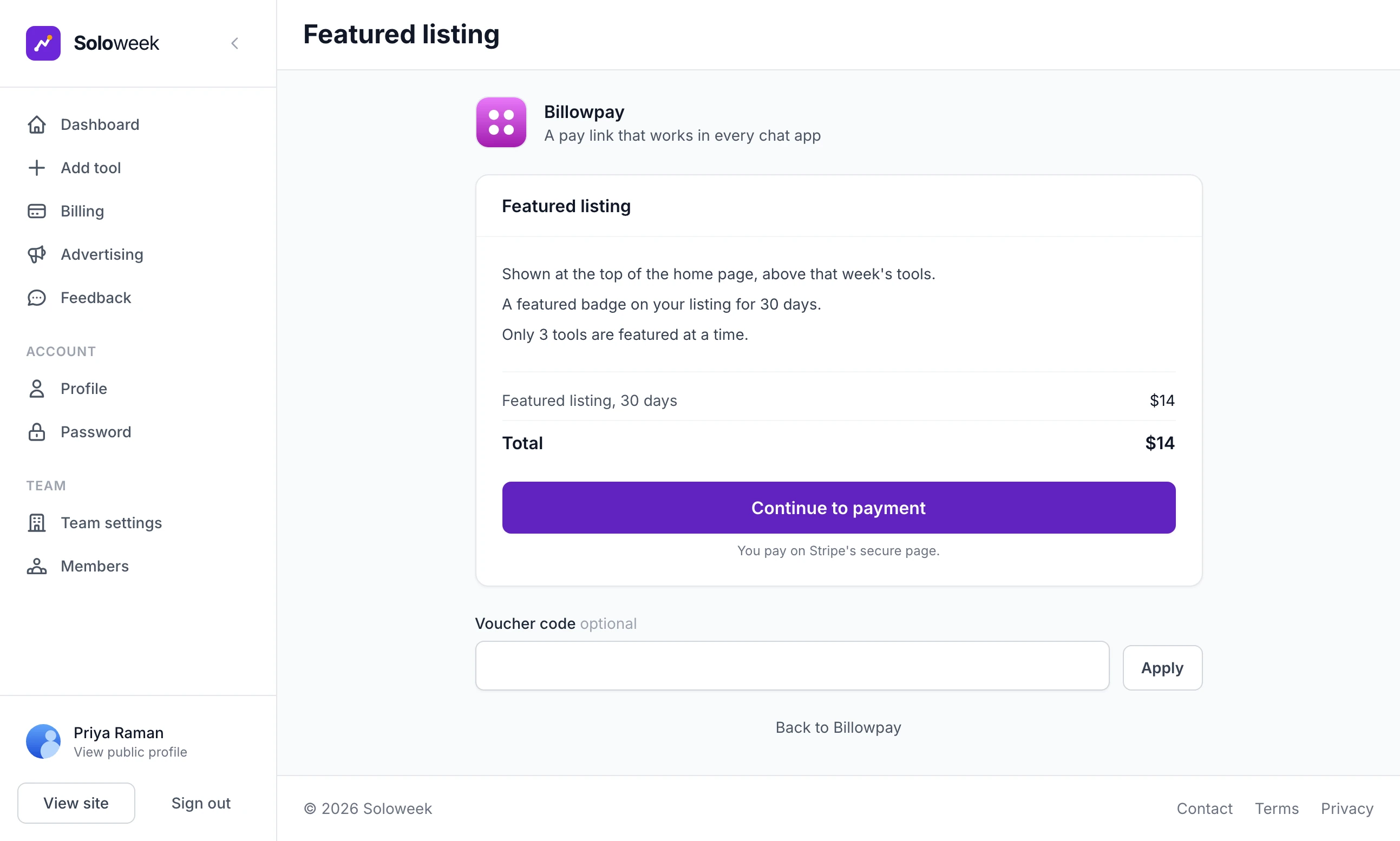
The page says what featuring does and shows the price and the total. Its one button, Continue to payment, goes to Stripe. The receipt emailed to the maker says when the featured days start.
In version 2.9.0 a featured listing bought together with a relaunch starts when the payment is confirmed, not on the relaunch date. The page says "starting on launch day", which is true only of a listing that has not launched yet.
When every place is taken#
The limit is checked when a maker goes to pay. With every place taken, a featured listing is not offered:
The launch week page says "All 3 featured places are taken right now. You can ask to be told when one frees up from your launch's page."
The Upgrades card says "All featured places are taken right now." with a link, Tell me when one is free. Clicked, it changes to "We will email you".
Billing says "All places taken".
When a place frees up, the hourly job emails everyone who asked, all at once, under the subject "A featured place is free on Soloweek". The button in the email, Take the place, opens the featured upgrade page. The first to pay gets the place.
Two things let more listings be featured than the limit allows:
The limit counts listings that are live and featured at that moment. A featured listing bought ahead for a coming week is not counted until it launches, so several can start on the same launch day.
A listing you feature by hand is not checked against the limit. It does count towards it afterwards.
When a featured listing ends#
A featured place ends when its days run out. From that moment the listing drops back into the list on its votes and loses its badge, and its place can be sold to someone else. It stays on the site with its votes and reviews. Nothing renews by itself: a maker who wants more time buys again.
Two jobs do the housekeeping. Both need the job runner to be scheduled: see Backups and scheduled jobs.
The hourly job clears finished places and sends the "A featured place is free" emails.
The daily job emails a maker once, in the last three days of a paid place, under a subject such as "Daymark's featured place ends on 14 October". The email is headed "Your featured place ends soon". A listing you featured by hand gets no such email.
A refund does not end a featured place. Remove it yourself with Unfeature, below. Sales, transactions and refunds covers refunds.
Feature a listing by hand#
To give a place away, or to fill the top of a new site, feature a listing yourself. There are two ways, and they end differently.
| Where | How | How it ends |
|---|---|---|
| All Launches under Launches | Tick the listing and click Feature in the row of buttons above the table | By itself, after the number of days in Days featured |
| Scheduled Launches under Launches, then the card of the week the listing is booked into | Click Feature beside the listing | Never. It stays until you click Unfeature |
Unfeature, in either place, ends a featured place at once, paid or not.
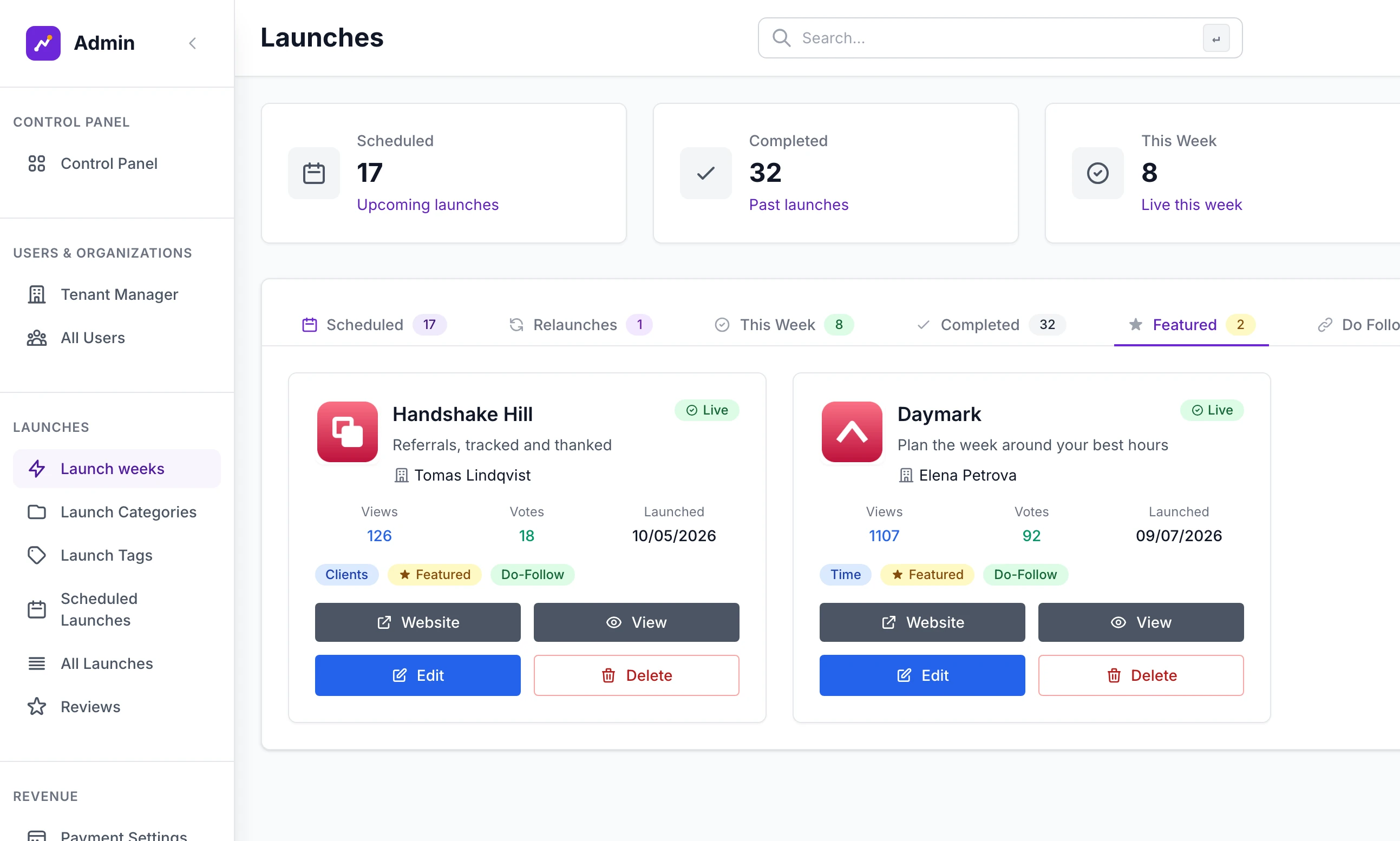
To see who has paid for a place, open Launch weeks under Launches and choose the Featured tab.
Vouchers#
Open Voucher Manager under Revenue. The cards at the top count your vouchers, the form under them creates one and the table at the foot lists them.
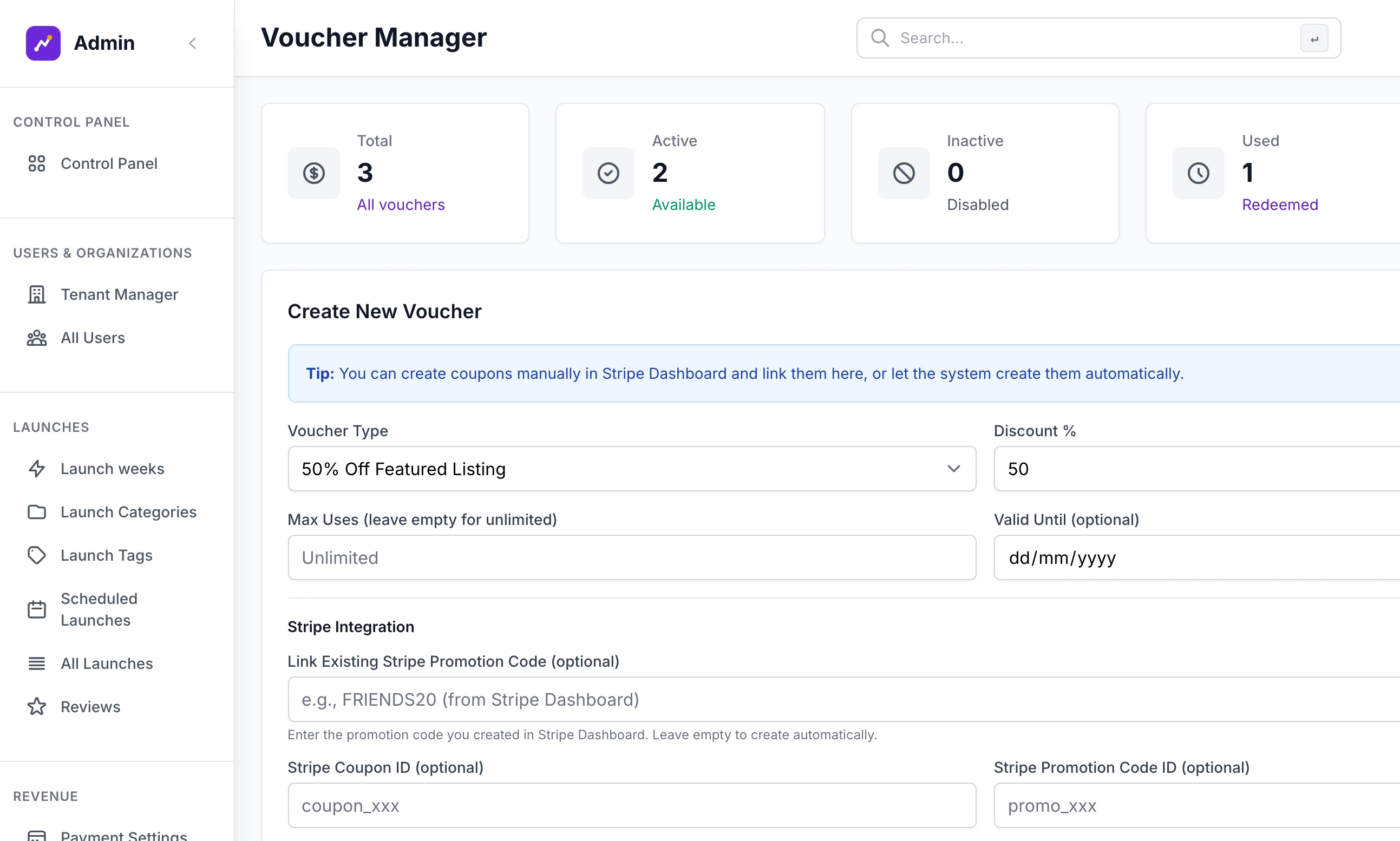
There is one kind of voucher. Voucher Type offers a single choice, "50% Off Featured Listing", but the discount is whatever you type in Discount %. It is a percentage off the price of a featured listing.
Create a voucher#
Creating a voucher makes a coupon and a promotion code in your Stripe account, so connect Stripe first.
Step 1: Type the discount
Discount % takes a whole number from 1 to 100. It starts at 50.
Step 2: Limit it, if you want to
Max Uses (leave empty for unlimited) is how many purchases can use the code in total. Valid Until (optional) is a date: the code stops working at midnight UTC at the start of that day, so choose the day after the last day you want it to work.
Step 3: Leave the Stripe boxes empty
Under Stripe Integration, leave all three boxes empty and the site makes the coupon for you.
Step 4: Click Create Voucher
You see "Voucher FEAT50-7KQ2M9XB4T created successfully!", and the voucher is at the top of the table as Active. The code is made for you:
FEAT50-and ten letters and digits, whatever percentage you typed.
Description and Admin Notes (optional) can be left empty. In version 2.9.0 whatever you type in Description is replaced with a line such as "50% off featured listing promotion", and notes are saved but shown nowhere.
Use a code of your own#
To choose the code yourself, create a coupon with a percentage off and a promotion code for it in your Stripe dashboard, then type the code into Link Existing Stripe Promotion Code (optional) and click Create Voucher. The site looks through your Stripe account for that code. When it finds it, the voucher takes that code as its own and reads the percentage from Stripe's coupon.
If it is not there you see 'Stripe promotion code "FRIENDS20" not found. Please create it in Stripe Dashboard first, then enter the code here.' In version 2.9.0 a voucher is saved even so, with a made-up FEAT50- code that cannot be used. Delete it.
Stripe Coupon ID (optional) and Stripe Promotion Code ID (optional) are for pasting Stripe's own IDs. They are saved as typed and not checked. A voucher works only if it has a promotion code ID.
Where a maker uses a voucher#
On the featured upgrade page, and nowhere else. The maker types the code into Voucher code and clicks Apply. The page then shows a line such as "Voucher FEAT50-7KQ2M9XB4T (50% off)" and a lower Total, and Continue to payment carries the discount to Stripe.
A code cannot be used on the launch week page, on the Upgrades card or for any other product. Makers reach the upgrade page from Add on their Billing page on a weekly site, from a link in an email or at the address /launch/upgrade-featured on your site.
Two messages turn a code away. "Voucher code not found." means no voucher has that code. "This voucher code is no longer valid or has expired." means it is deactivated, past its date, used up or has no promotion code in Stripe. The maker can still pay the full price.
The voucher in the "you're live" email#
On a weekly site, the email a maker gets when their booked listing goes live can carry your voucher. It adds a closing line such as "Optional: a featured listing puts Daymark at the top of the home page for 30 days. Code FEAT50-7KQ2M9XB4T takes 50% off, making it $7", with a link that opens the upgrade page with the code already applied.
The site picks the voucher itself: the most recently created one whose status is Active. The line is left out when:
the listing is already featured, or has a featured listing bought for launch day
that newest voucher is past its date, used up or has no promotion code in Stripe. An older voucher is not tried in its place
you approved the listing by hand before its date
the site is rolling
To stop the offer, deactivate every voucher.
Deactivate, regenerate or delete#
Each row of the table has three buttons.
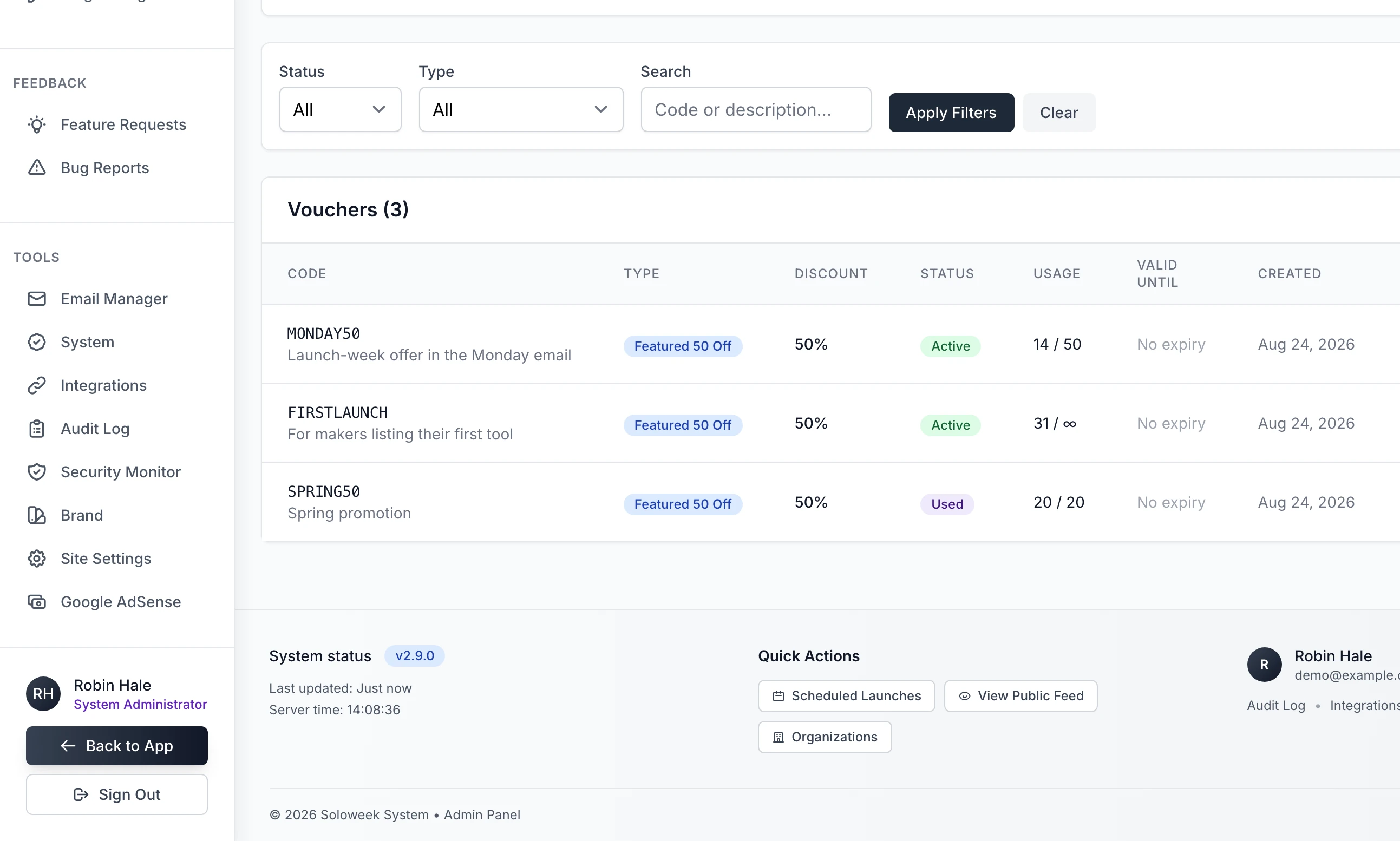
Deactivate stops the code working on your site and switches the promotion code off in Stripe. You see "Voucher FEAT50-7KQ2M9XB4T deactivated", and the button becomes Activate. A voucher past its date or used up cannot be activated: "Cannot activate expired voucher".
Regenerate Code gives the voucher a new code of the same shape. The old code stops working on your site at once, including in emails already sent.
Delete removes the voucher from your site for good.
A voucher that reaches its Max Uses changes to Used. One that passes its Valid Until date goes on reading Active in the table, although it is refused: nothing changes its status, so the Expired filter finds nothing.
Stripe does not let a promotion code's text be changed or a promotion code be deleted, so the two buttons work round it. Regenerate Code switches the old promotion code off in Stripe and makes a new one for the same coupon. Delete switches the promotion code off and deletes the coupon.
A maker sees "This voucher code is no longer valid or has expired." on a voucher I just made
The voucher has no promotion code in Stripe. It was created while Stripe was not connected, or against a different Stripe account. Delete it and create it again with Stripe connected.
"Featured launch slots are currently full (3/3). Please try again later when slots become available."
Every place went between the maker opening the page and going to pay. They can ask to be told when one frees up, from the Upgrades card on their listing's page.
Can a voucher take money off a paid place or an advert?
No. A voucher applies to a featured listing bought on the featured upgrade page. It is not applied when a featured listing is added to another purchase on the launch week page.
Stuck on a step? Send a message.