Sell advert places
Sell the two advert places as monthly subscriptions that advertisers buy and manage themselves, run them from the Ad Manager and fill the same space with Google AdSense.
Updated 9 Oct 2026 · written for Launch Lab 2.9.0
On this page
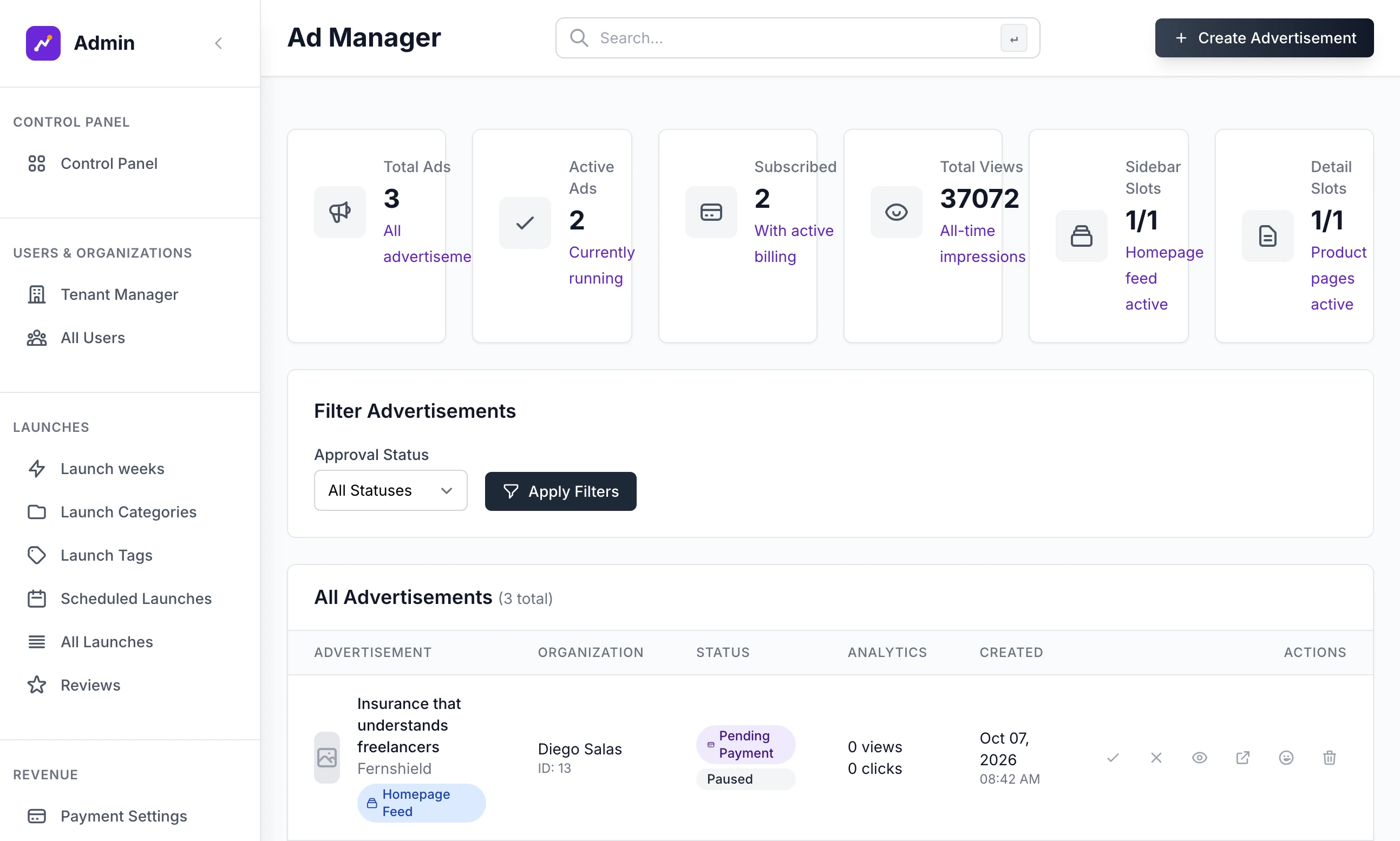
Open Ad Manager under Revenue in the admin sidebar to see every advert on your site: who made it, whether it is paid for and its views and clicks. Advertising is the one thing Launch Lab sells as a subscription. An advertiser designs an advert and pays the monthly price on Stripe, and the advert is live the moment the payment lands. You do not approve it first.
Your site uses its own words for a listing and for the person who launches it. This guide says listing and maker, and calls anyone who buys an advert an advertiser.
What you sell#
There are two places, and each holds one advert at a time. Adverts are never rotated, so the most you can have running is two.
| Place | Where the advert shows | The Ad Manager calls it |
|---|---|---|
| Home page | Beside the list on the home page, and on every category and tag page | Homepage Feed |
| Listing pages, named with your site's word, for example Tool pages | Beside the description on every listing's own page | Detail Pages |
An advert is a small card marked Sponsored: a headline, a sentence or two, who it is from, an optional image and a Visit link that opens in a new tab. Each advert has its own monthly subscription, and both places cost the same. One advertiser can hold both.
Switch it on and set the price#
Step 1: Connect Stripe
Save your Stripe secret key and the webhook signing secret: see Connect Stripe. Advertising needs the webhook more than anything else you sell: renewals, failed cards and cancellations all arrive through it.
Step 2: Check advertising is on
Open Site Settings under Tools and choose the Features tab. Advertising is switched on in a new site. It reads "Lets people buy sidebar ads and shows the Advertise page."
Step 3: Set the monthly price
Open Payment Settings under Revenue. Under What you sell, tick Advertising, type the price beside it and click Save payment settings. You see "Payment settings saved." The price there to begin with is the one you gave in the setup wizard. What you sell and your prices covers the rest of that page.
You create nothing in Stripe. The price you typed is sent each time an advertiser starts a subscription, and is then fixed for that subscription. A new price applies only to adverts bought from then on.
What an advertiser sees#
Someone who is signed in finds Advertising in their dashboard menu.
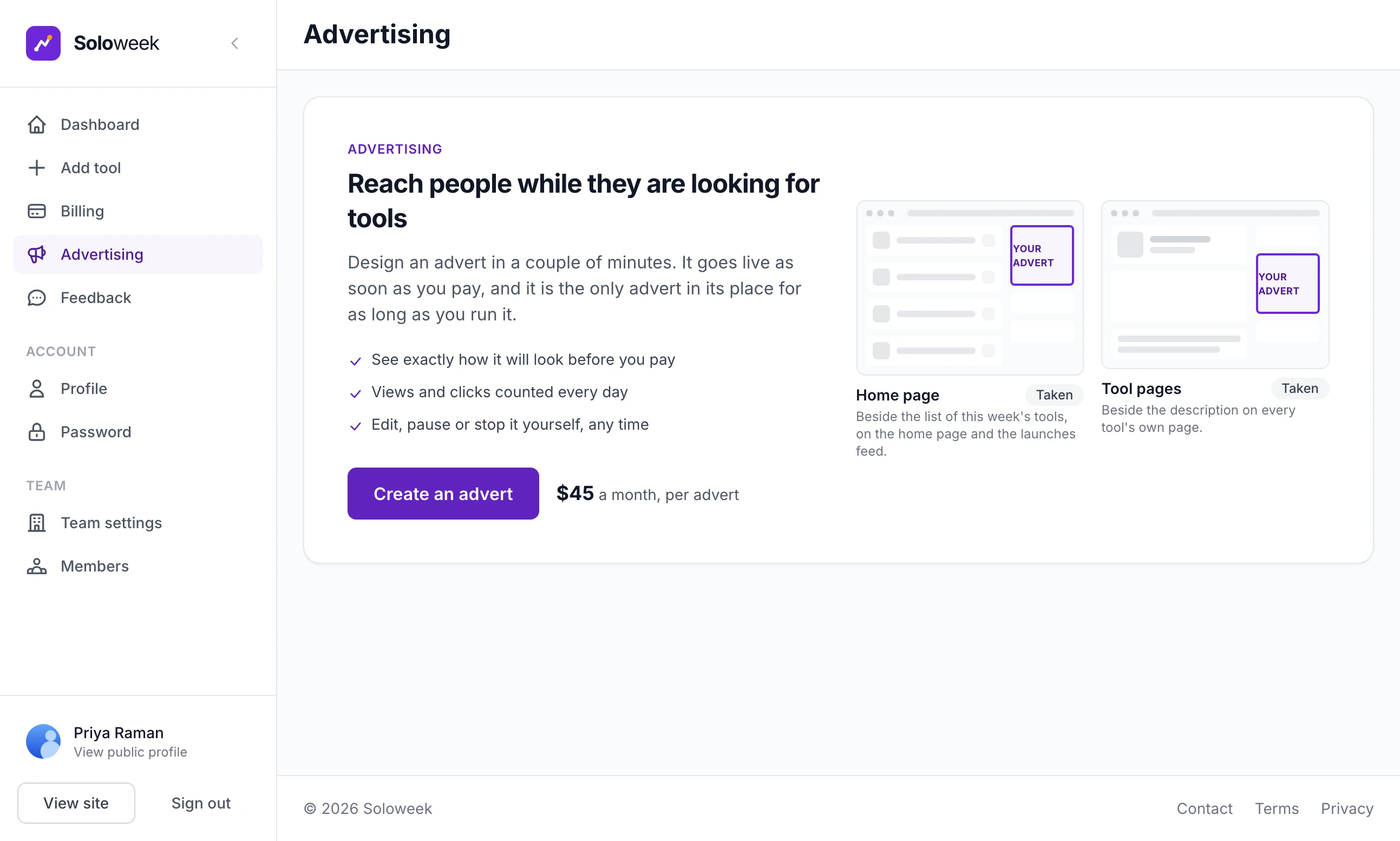
Create an advert opens a creator with three steps. The first two are saved as they go, so a half-made advert is a draft they can finish later.
Step 1: Design
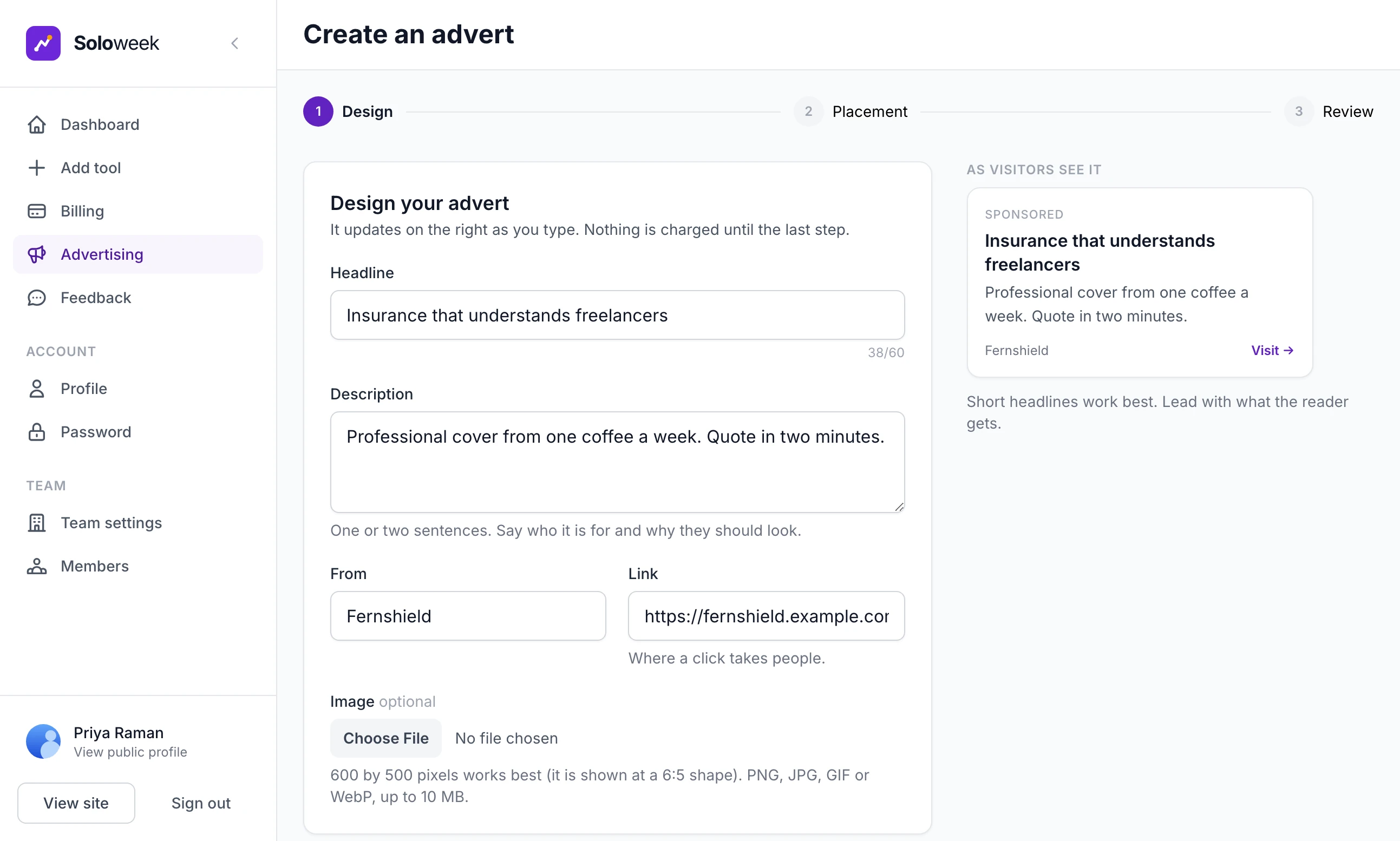
They fill in Headline (up to 60 characters), Description (up to 140), From (up to 40), Link and an optional Image. The advert is drawn beside the form under As visitors see it and changes as they type. They click Save and continue.
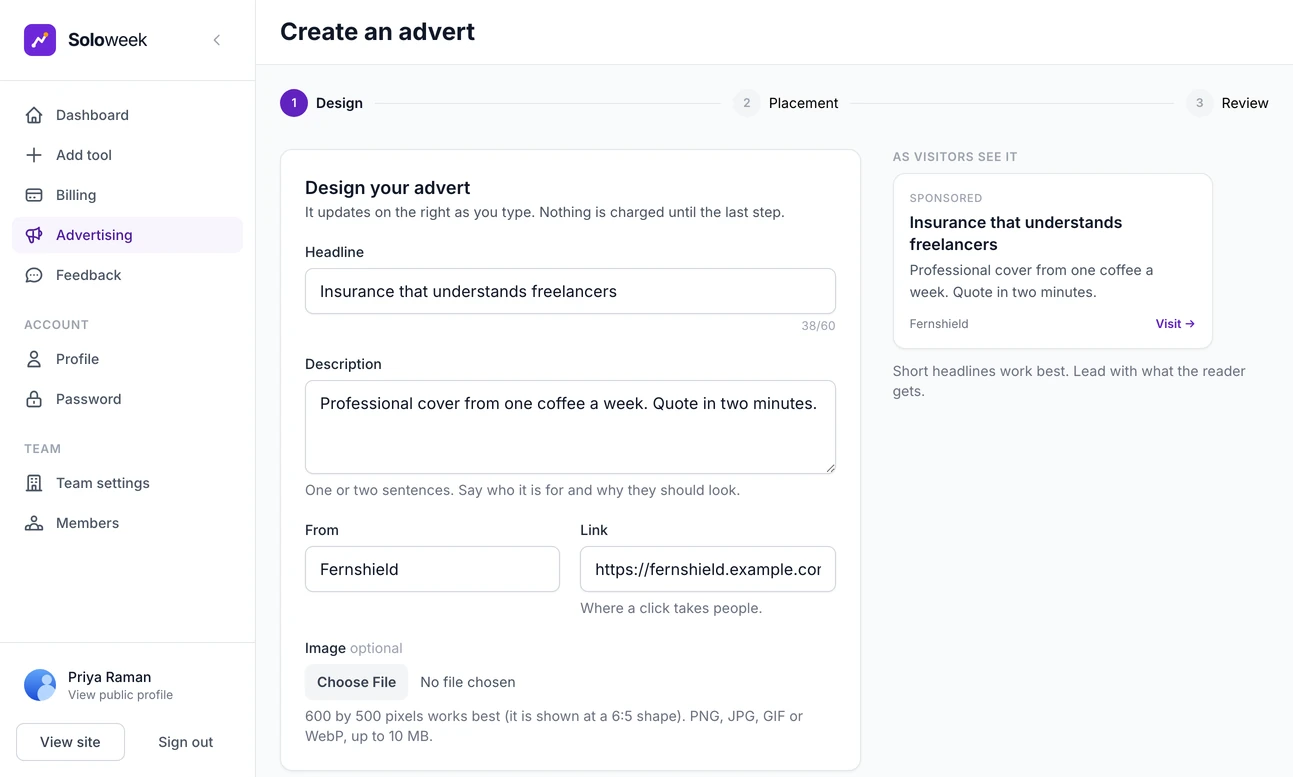
The advert creator shows the advert as it is typed. Step 2: Placement
Under Choose where it appears each place is marked Free now, Taken or Free from a date when its advertiser has chosen to stop. A taken place can still be picked: "You can save your advert for this place and publish it when it is free." They click Save and review.
Step 3: Review
Review and publish shows the finished advert, where it runs, the link and the price, with Goes live set to "As soon as you have paid". The button carries your price, for example Pay $45 and publish, and leads to Stripe's payment page.
Back from Stripe they land on their Advertising page under "Payment received. Your advert is live." They are emailed a receipt and a note that the advert is live. You are emailed that a payment came in.
How a place is held#
When an advertiser clicks the pay button, the place is held for them for 35 minutes so that it cannot be sold twice. Anyone else who tries to pay for it in that time sees "That placement has just been taken. Choose the other placement, or try again later." If they come back from Stripe without paying, the place is freed at once and they see "No payment was taken. Your advert is saved as a draft."
The life of a subscription#
Every advert on the advertiser's page has one of these badges.
| Badge | It means | The advertiser can |
|---|---|---|
| Draft | Saved and not paid for | Review and publish, Edit, Delete |
| Live | Showing, with the date it renews | Edit, Move, Pause, Card and invoices, Stop |
| Paused | Not showing. It keeps its place and the subscription goes on being charged | Resume, Stop |
| Live, stopping soon | Stop was clicked. It shows to the end of the month paid for, then ends | Keep it running, Delete now |
| Payment failed | Stripe could not take this month's payment. It stops showing and keeps its place | Update your card |
| Ended | The subscription is over and the place is free | Run it again, Edit, Delete |
| Taken down | You rejected it | Delete |
Stop ends the subscription at the end of the paid month: "Your advert will stop on 14 November 2026 and you will not be charged again."
Move works only to a place that is free.
Card and invoices and Update your card open Stripe's own customer portal. On a live Stripe account, Stripe refuses to open it until you have saved the portal's settings once, at dashboard.stripe.com/settings/billing/portal. Until then the advertiser sees "We could not open the card page."
Delete now ends the subscription at Stripe straight away, and the rest of the paid month is lost.
A running advert cannot be deleted: "Stop this advert first. You can delete it once it has ended."
Each renewal, failed payment and ending is emailed to the advertiser: see Email and the emails the site sends.
The daily check with Stripe#
Stripe reports every change through the webhook. In case a message is missed, a job called Advert subscriptions runs once a day. It asks Stripe about every subscription the site believes is running or has a payment problem and copies Stripe's answer, so an unpaid advert cannot stay on show. It has a Run now button on the System page: see Backups and scheduled jobs.
Views and clicks#
A view is counted once for each page load, when at least half of the advert has been on screen for one second. Neither views nor clicks are counted for the advertiser's own account or for an admin, and one address can add at most 240 views and 60 clicks an hour. The advertiser sees Views, Clicks, Click rate and a chart of views for each of the last 14 days.
The Ad Manager#
The cards across the top are counts, ending with each place shown as 0/1 or 1/1. Approval Status filters the list.
Read the badges on a row together. Pending Payment is a draft nobody has paid for. A paid advert reads Pending Review with Live and Paid beside it: it is already on the site, and approving it only changes the badge.
Approve, Reject, Pause and Delete#
| Action | What it does | The subscription | The advertiser is emailed |
|---|---|---|---|
| Approve | Marks the advert approved and switches it on. An advert nobody paid for goes live free | Not touched | No |
| Reject | Takes it down for good. The advertiser cannot edit or publish it again | Cancelled at Stripe at once | Yes, with your reason |
| Pause, Resume | Hides or shows it. A paused advert keeps its place and is still charged | Not touched | No |
| Delete | Removes the advert and its statistics | Cancelled at Stripe at once | No |
In the list, the tick and the cross approve and reject an advert that is still pending, and the cross gives no reason. To give one, click the eye to open Review Advertisement. Reject asks for it there, and all four buttons are present whatever the advert's status. In version 2.9.0 the preview on that page does not show an advert's image: look at the advert on the site itself.
After a rejection you see "has been taken down and the advertiser told. Its subscription has been cancelled; refund any unused time from Transactions if you wish."
Run an advert of your own#
A house advert is one you put live without payment, for your own product or for a sponsor you bill yourself.
Step 1: Make it
Click Create Advertisement at the top of the Ad Manager. It opens the same creator, in your own account. Do the first two steps, then click Finish later on the third.
Step 2: Approve it
In the Ad Manager the advert is marked Pending Payment. Click the tick. You see "has been approved and is now live."
The public Advertise page#
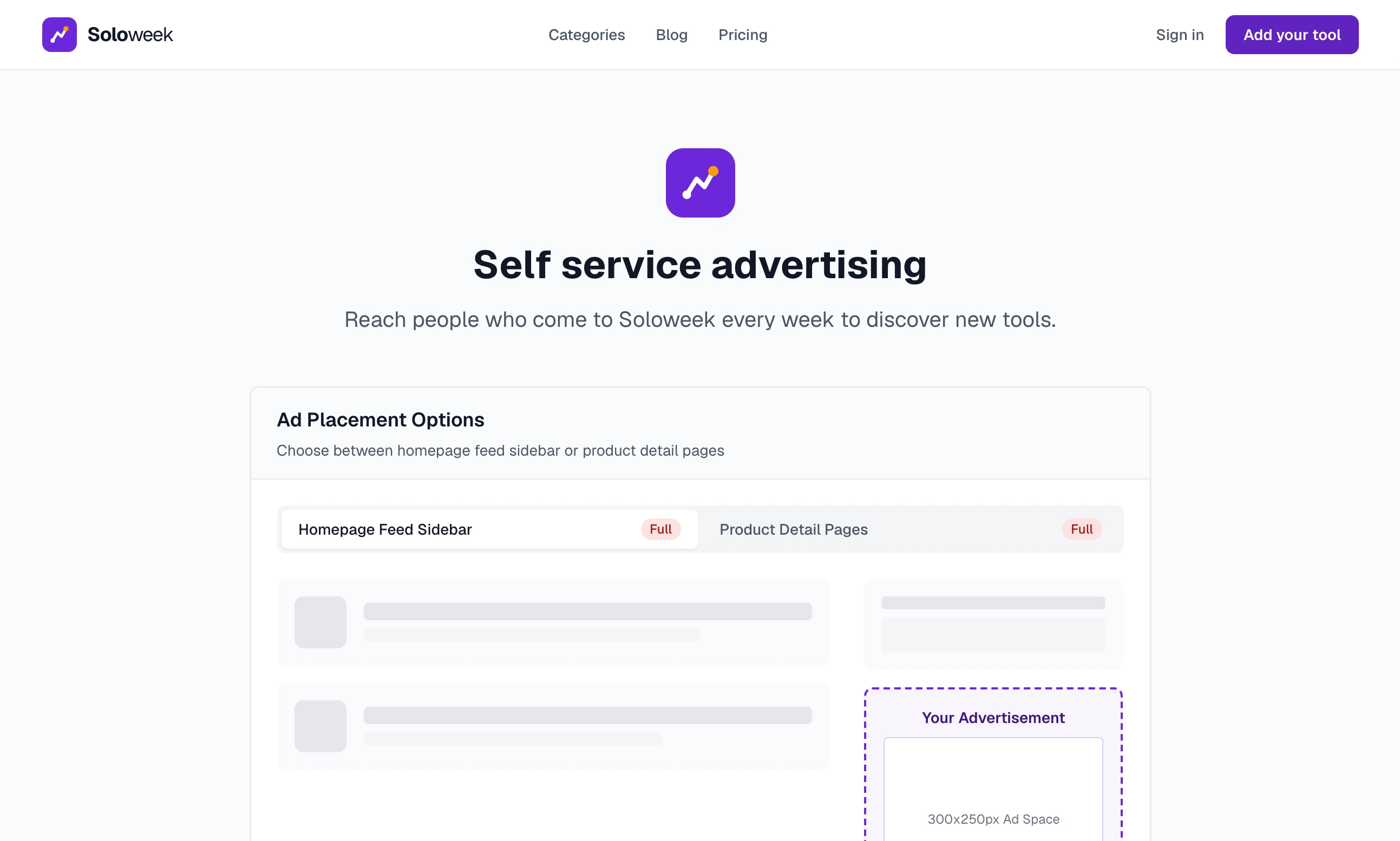
Your site has a page at /advertise, linked as Advertise in the footer. It is headed "Self service advertising" and shows the two places, each marked 1 Available or Full, your monthly price and a button: Create Your Advertisement for someone signed in, Sign Up to Advertise for everyone else.
Google AdSense#
AdSense is the other way to earn from the space beside a listing. Open Google AdSense under Tools. The page is headed AdSense Management.
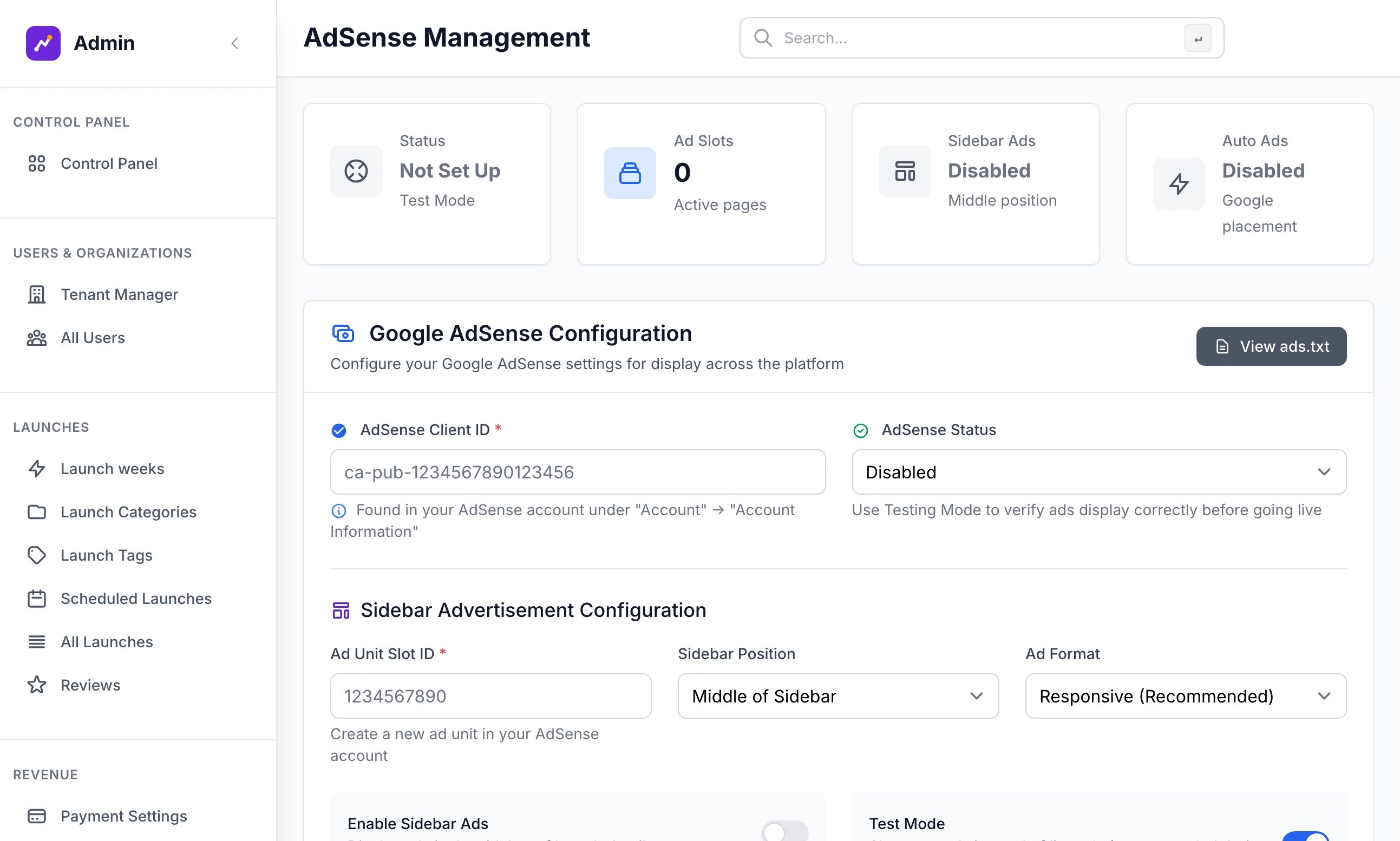
It places one AdSense unit in the sidebar of every listing page, and nowhere else. It does not replace a paid advert: a listing page can show both.
Step 1: Find your publisher ID
In your AdSense account, copy your publisher ID. It is
ca-pub-followed by 16 digits.Step 2: Create an ad unit
In AdSense, create a display ad unit. The code AdSense gives you contains
data-ad-slotfollowed by a number. That number is the slot ID.Step 3: Fill in the form
Put the publisher ID in AdSense Client ID and the number in Ad Unit Slot ID. Choose a Sidebar Position and switch on Enable Sidebar Ads.
Step 4: Check where it will sit
Set AdSense Status to Active (Live), switch Test Mode back on and click Save AdSense Settings. You see "AdSense settings updated and activated successfully!" Every listing page now shows a grey box marked Test Ad where the unit will go.
Step 5: Go live
Switch Test Mode off and save again. The box becomes the real unit.
/ads.txt: once a client ID is saved, your site answers at
/ads.txtwith the line Google looks for,google.com, pub-and your number,DIRECT, f08c47fec0942fa0. View ads.txt opens it.Auto Ads lets Google place adverts of its own anywhere on your public pages. It works only while the status is Active (Live) and the sidebar unit above is filled in and enabled.
Responsive Ads lets Google size the unit to the space. Switched off, the unit is a rectangle.
Google's script is loaded on every public page from the moment a client ID is saved, whatever the status. To stop it, empty AdSense Client ID and save.
An advertiser sees "Advertising is not available on this site."
Advertising is not ticked under What you sell in Payment Settings. Tick it and save.
What happens if I switch Advertising off in Site Settings?
The Advertise page, the creator and every advertiser's Advertising page answer not found. Adverts that are running keep showing and keep being charged, and their owners can no longer reach the page to stop them. Delete or reject each running advert in the Ad Manager before you switch it off.
Does refunding an advertiser take the advert down?
No. A refund in Stripe changes nothing on your site. Reject or delete the advert in the Ad Manager, which also cancels the subscription.
Stuck on a step? Send a message.