Sales, transactions and refunds
Read the revenue figures, find and export any payment, refund one from the admin and know what a refund leaves in place.
Updated 9 Oct 2026 · written for Launch Lab 2.9.0
On this page
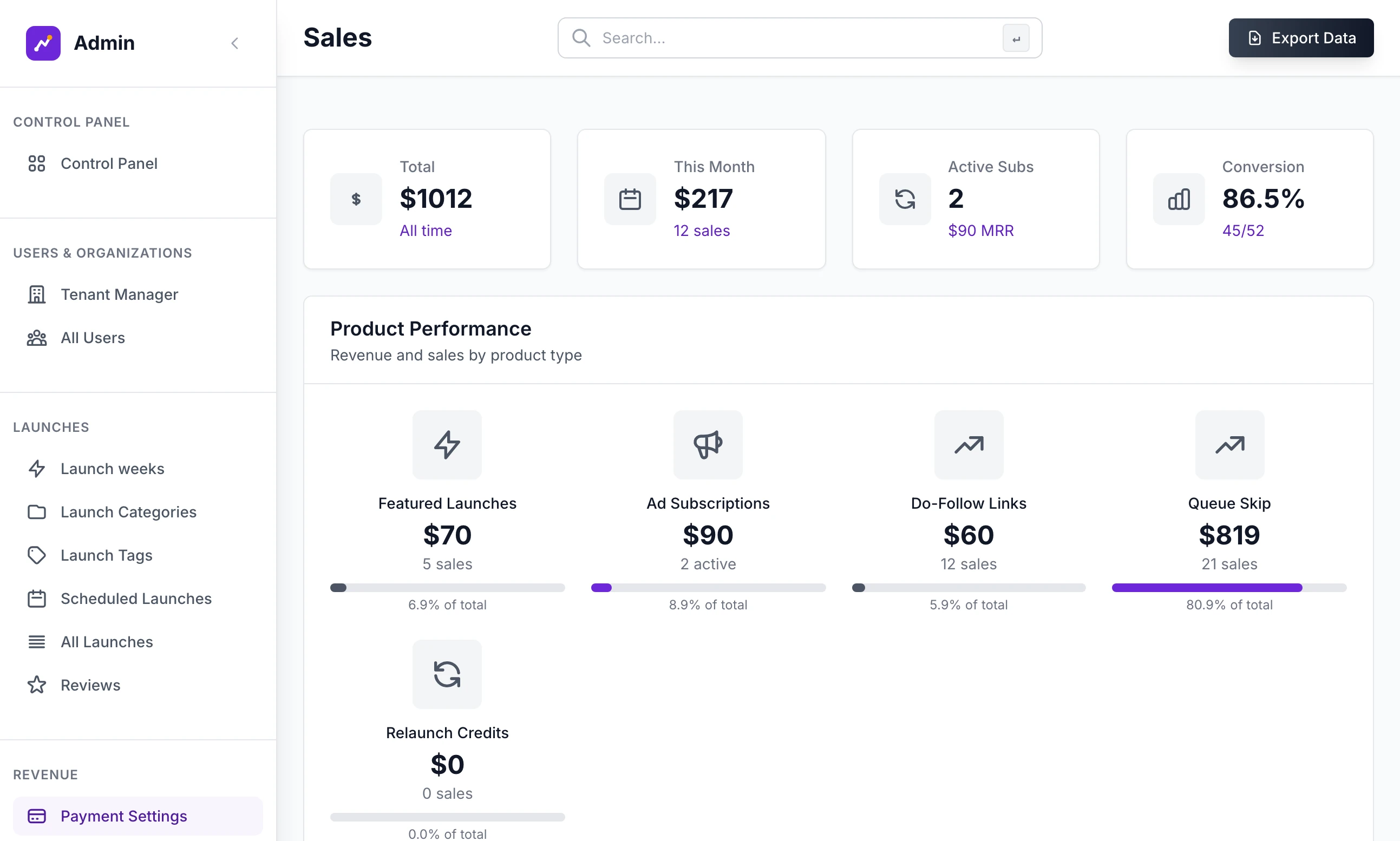
Open Payment Settings under Revenue in the admin sidebar. The page is headed Sales. It starts with what your site has taken: four cards, then revenue for each product. Your prices come next, which What you sell and your prices covers, and the latest payments are at the foot of the page.
Your site uses its own words for a listing and for the person who launches it. This guide says listing and maker.
What counts as a sale#
Every figure in the admin is added up from the site's own list of payments, not read from Stripe. A payment is written down as Pending when a maker is sent to Stripe's payment page and becomes Completed when Stripe confirms it. Only completed payments count.
That list is not your accounts. Four things make it differ from what Stripe paid you.
The Sales page#
The four cards:
Total: every completed payment, all time.
This Month: completed payments started since the first of the month, with the number of sales. The month turns over at midnight UTC.
Active Subs: advert subscriptions running now. The MRR under it is that number times your current advertising price.
Conversion: completed payments as a share of every checkout ever started, with the two numbers beneath, for example 45/52.
Product Performance gives revenue, the number of sales and the share of the total for Featured Launches, Ad Subscriptions, Do-Follow Links, Queue Skip and Relaunch Credits. Ad Subscriptions is not money taken. It is the same estimate as MRR, labelled with the number of subscriptions that are active.
Recent Transactions lists the last ten completed payments. Click a row to open it.
All Transactions#
Open All Transactions under Revenue. The page is headed Transactions.
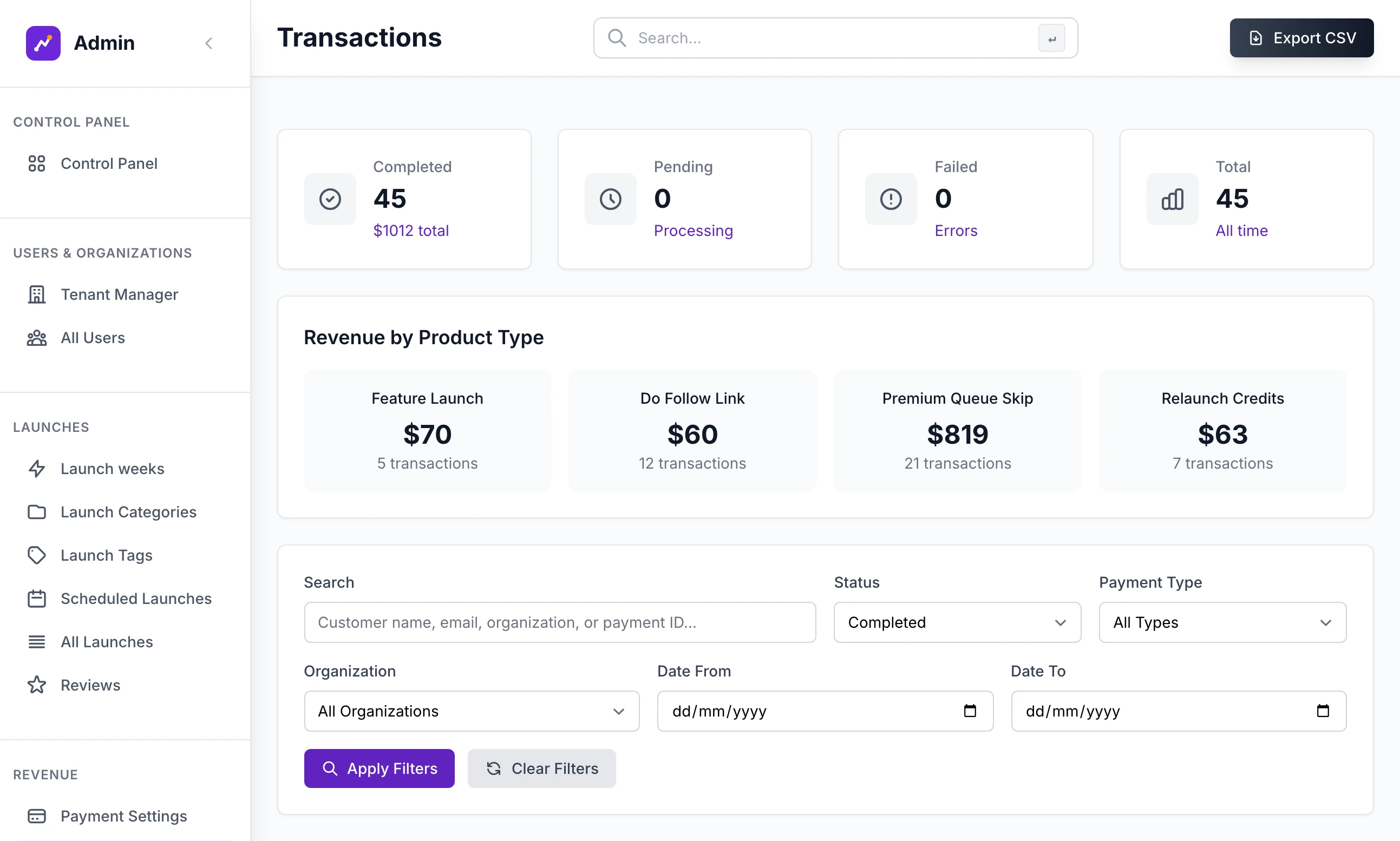
The cards count Completed payments with their total, Pending, Failed and the three together. Revenue by Product Type splits the completed total by product. Then come the filters:
Search: a customer's name or email, the name of their account or a Stripe payment ID.
Status: All Statuses, Completed, Pending or Failed.
Payment Type: All Types, Feature Launch or Advertisement.
Organization: one maker's account.
Date From and Date To: the day the checkout was started.
Click Apply Filters. Clear Filters puts the page back as it opened.
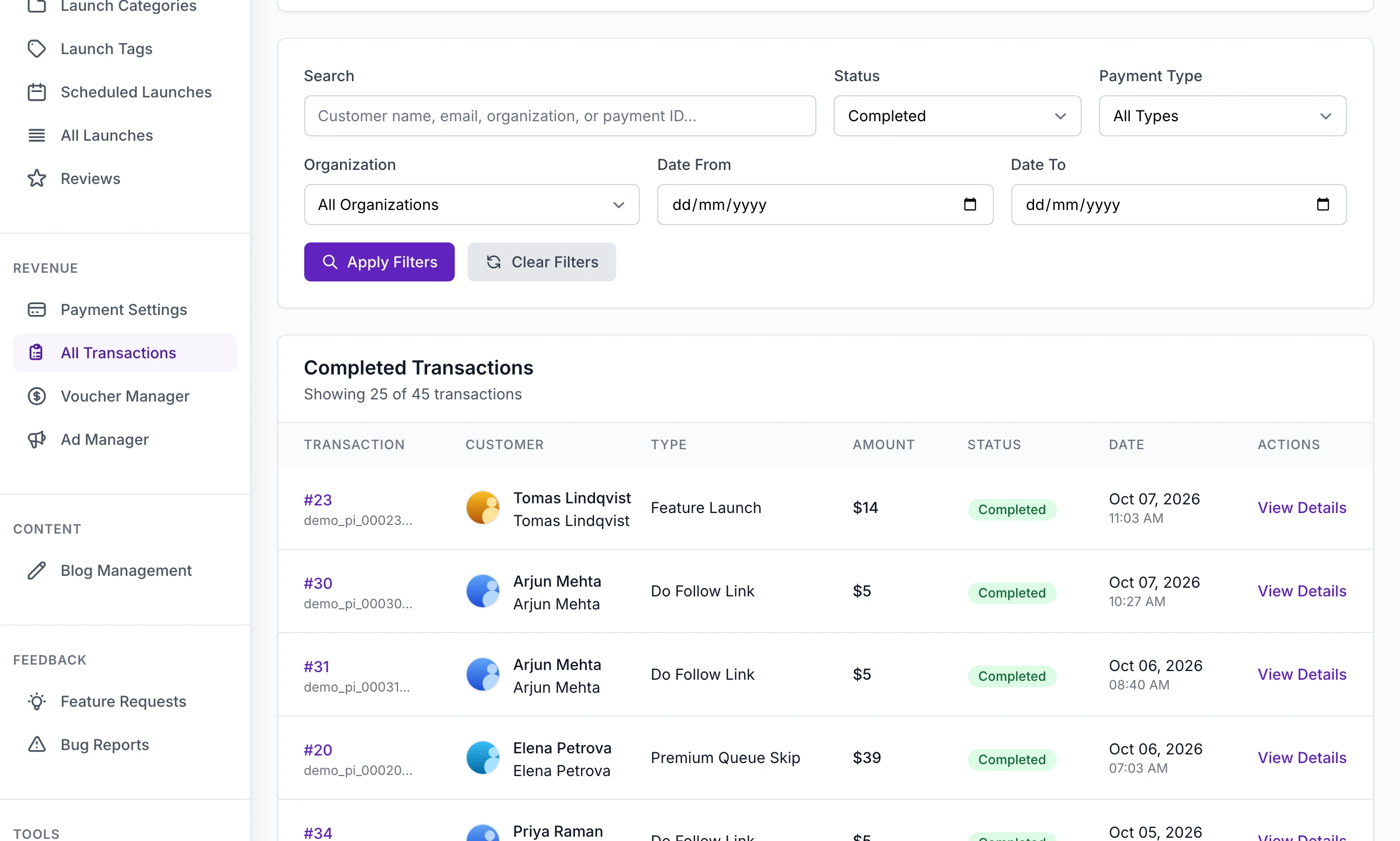
The list opens on Completed Transactions, newest first, 25 to a page. Each row has the payment's number and the start of its Stripe payment ID, the customer and their account, the product, the amount, the status and the date. View Details opens the payment.
Export CSV#
Export CSV, at the top of the page, downloads the payments that match the filters you have applied, newest first, as a file named transactions_ and the date and time. It holds at most 1,000 payments, so narrow the dates to export a longer history in parts.
The columns are Transaction ID, Date, Customer Name, Customer Email, Organization, Payment Type, Amount ($), Status, Stripe Payment ID and Completed At. The amount column is headed with a dollar sign whatever your currency.
Refund a payment#
Step 1: Open the payment
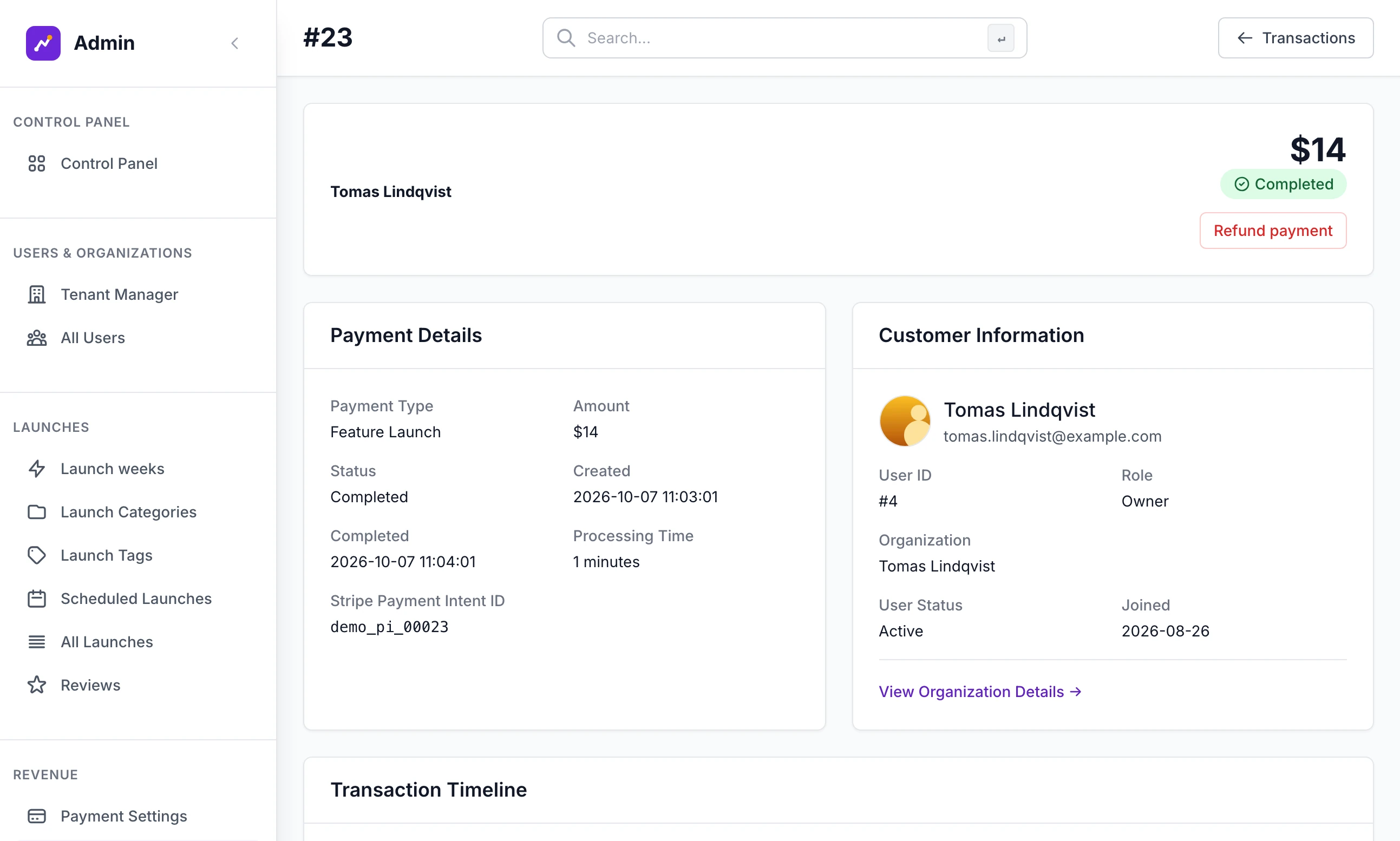
In All Transactions, click View Details on its row. The page is headed with the payment's number, for example #42, with the amount and its status at the top.
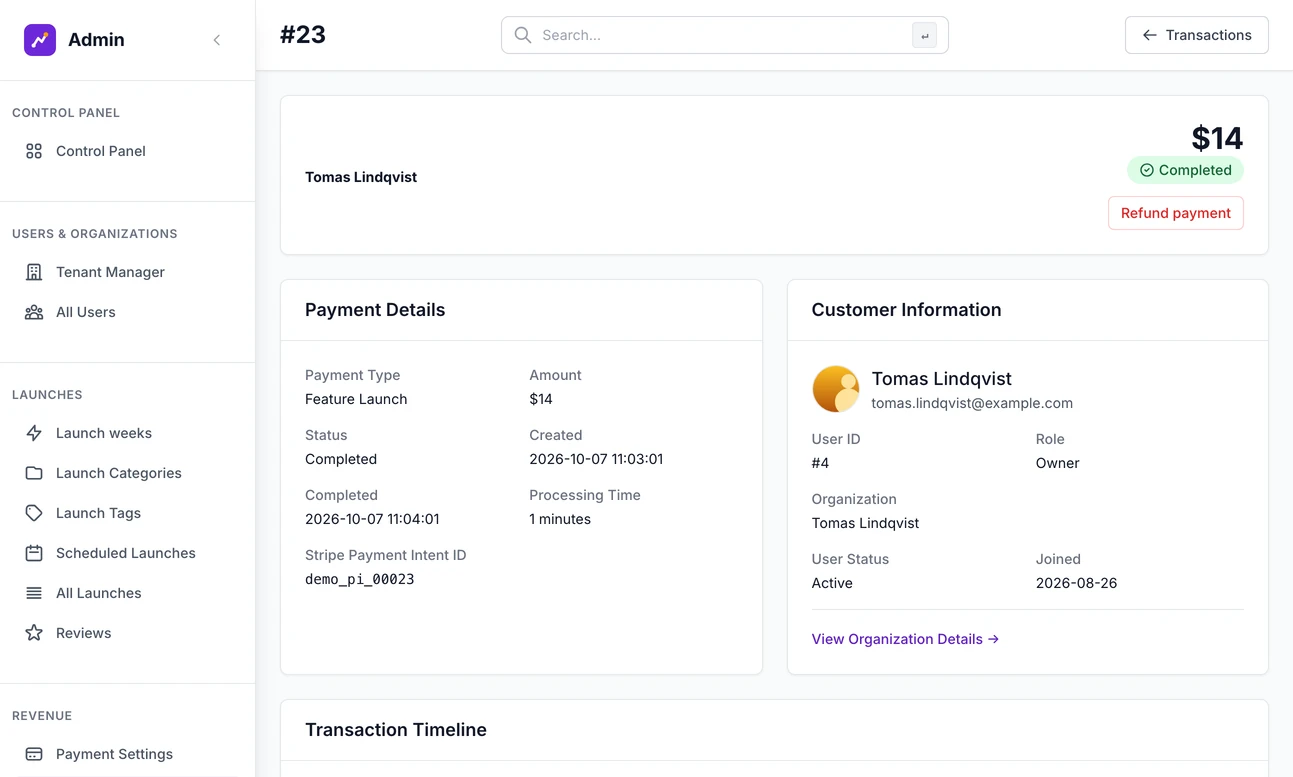
A completed payment, with Refund payment under the amount. Step 2: Click Refund payment
The button is under the amount. It shows only on a completed payment that has a Stripe payment ID, and only to a full admin: a read-only admin does not see it. Your browser asks "Refund this payment in full? This cannot be undone."
Step 3: Read the message
You see "Payment refunded. What the customer bought (for example a featured listing) is not removed automatically." The status is now Refunded, and the refund is written to the Audit Log with the amount.
Step 4: Take back what was bought, if you mean to
The refund has returned the money and nothing else. What a refund does and does not undo lists what is still in place.
The refund is always for the whole payment. To return part of it, do that in your Stripe dashboard: the site then leaves the payment as Completed.
A refund made in Stripe#
You can refund in your Stripe dashboard instead. Stripe tells your site through the webhook, with the event charge.refunded: see Connect Stripe. When the whole payment has gone back, the site marks it Refunded and emails the maker "We have refunded the payment below. Depending on your bank it can take 5 to 10 days to show on your statement." with the item, the amount and the payment's number. With no webhook secret saved, the site never hears of the refund.
Adverts#
An advert's payments are not in All Transactions, so there is no Refund payment button for them. Refund an advertiser in your Stripe dashboard, then reject or delete the advert in the Ad Manager, which cancels the subscription: see Sell advert places.
What a refund does and does not undo#
A refund returns the money and changes the payment's status. What the maker bought stays exactly as it was.
| What was bought | After the refund | To take it back |
|---|---|---|
| Featured listing | Still featured, until its days run out | Remove the featured place by hand: see Featured listings and vouchers |
| Do-follow link | The link stays do-follow | Nothing in the admin switches it back |
| Skip the queue | The listing keeps its paid place, its date and the do-follow link that came with it | Cancel the booking: see Running launches day to day |
| Relaunch credits | The credits stay on the account | Open the account in Tenant Manager and lower Relaunch Credits |
| Fast-track review, bump | They have had their effect | Nothing to take back |
| Anything bought with a voucher | The voucher still counts as used once |
What does change:
The payment's status is Refunded.
It leaves Total, This Month, the product cards and the revenue chart.
Conversion falls, because a refunded payment counts as a checkout that did not complete.
The maker's own Billing page marks the payment Refunded and takes it out of what they have paid.
When two items were paid for in one checkout, Stripe holds one payment, so refunding the first item refunds both. The second item's own row in the list stays Completed.
The revenue chart on the Control Panel#
Open Control Panel and scroll to Revenue.
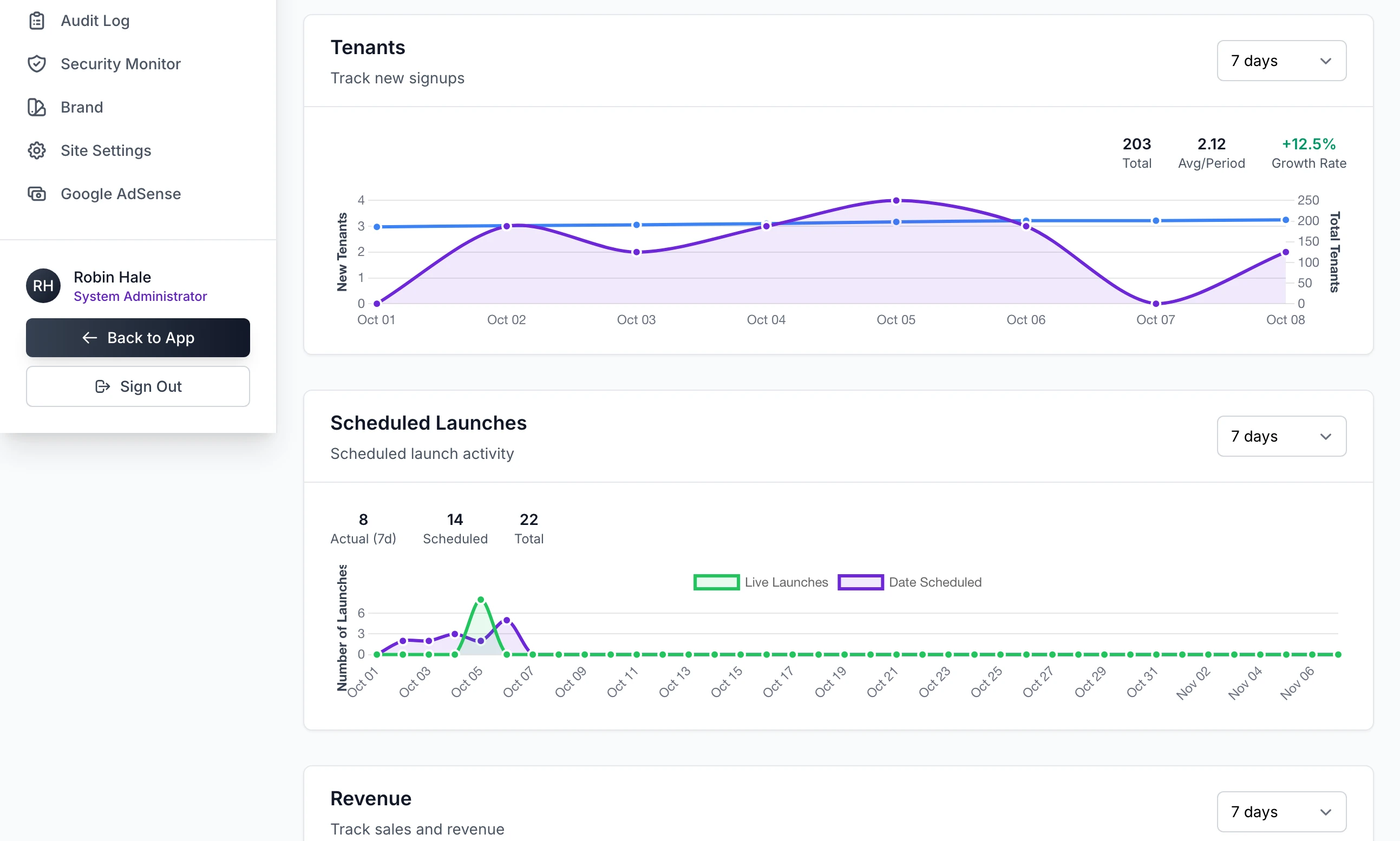
The chart draws two lines, revenue for each day and a running total, for the period chosen at its top right: Today, Yesterday, 7 days, 30 days, 90 days or 1 year. It opens on 7 days. At 90 days the points are weeks, and at 1 year they are months.
A payment falls on the day it was completed, in UTC.
Total Revenue is the sum for the period. Avg/Period is that sum divided by the number of points. Growth Rate compares the second half of the period with the first.
The chart refreshes itself every five minutes.
Below it, Sales Transactions lists up to 50 of the latest payments for Today, Yesterday, 7 Days, 30 Days, 90 Days, 1 Year or All Time, above Total Sales, Transactions, Avg Price and Top Product for the payments listed. View All opens the Sales page.
Both follow the rules in What counts as a sale.
"Stripe could not refund this payment"
Stripe refused, and its reason follows the message. One cause is a payment that was already refunded in your Stripe dashboard at a time the webhook was not connected, so that your site never heard. Nothing has changed on your site.
Why is Total different from my Stripe balance?
Total leaves out advert income, counts voucher sales at full price, misses the second item of a combined checkout and drops refunded payments. Stripe also takes its fees before paying you. Total is a guide to what is selling, not a ledger.
Do test payments count?
Yes. The site cannot tell a payment made with test keys from a real one, and there is no screen that deletes a payment. Make your test purchases on the copy on your own computer, not on the live site.
Can a maker ask for a refund from their account?
No. Their Billing page lists what they have paid and has no refund button. They write to you, and you refund from the admin or from Stripe.
Stuck on a step? Send a message.