Running launches day to day
The screens you work in once makers are booking: check a week before it goes live, cancel a booking, approve or send back a listing, moderate reviews, feature a listing by hand and look up a maker.
Updated 9 Oct 2026 · written for Launch Lab 2.9.0
On this page
Open Launch weeks under Launches in the admin sidebar. The page is headed Launches. On a weekly site this is the day-to-day view: what is booked, what went live this week and which listings have paid extras.
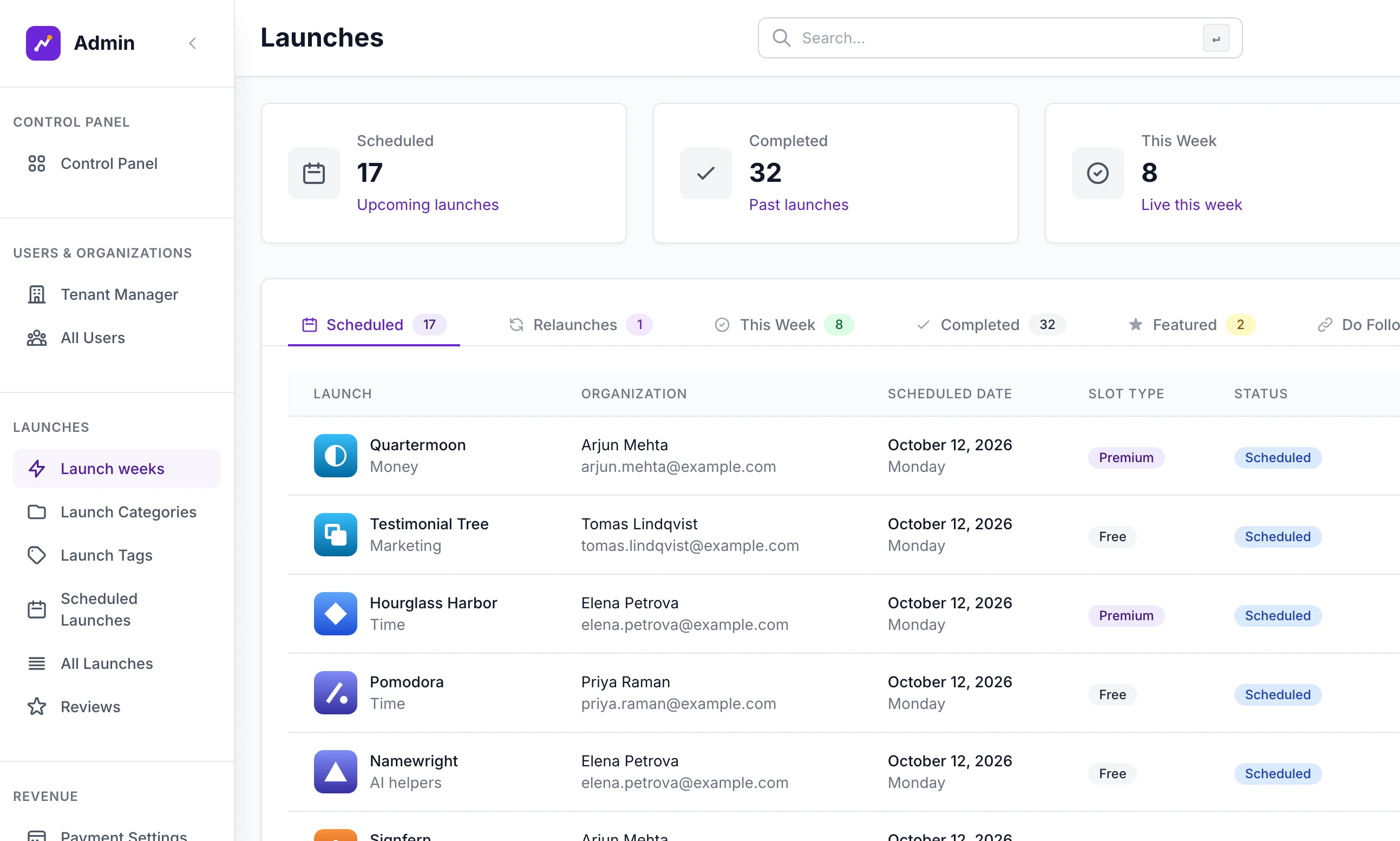
Your site has its own words for a listing and for the person who launches it. These guides say "listing" and "maker". Several admin screens still say "launch", "organization" and "tenant": an organization, or tenant, is a maker's account.
Check a week before it goes live#
A weekly site has no approval step, so a booked listing goes live on its day unless you stop it. Look the week over a day or two before.
Step 1: Open the Scheduled tab
Launch weeks opens on Scheduled: every confirmed booking, soonest first, with its Scheduled Date, a Slot Type of Free or Premium and what was paid.
Step 2: Preview each listing for the coming launch day
Preview opens the listing in a panel, as visitors will see it.
Step 3: Fix small things yourself
Edit opens the maker's own editor with you signed in as admin. What you save is saved to their listing.
Step 4: Stop one that should not go live
Cancel asks "Cancel this scheduled launch?" and then shows 'Scheduled launch for "Daymark" has been cancelled.' The place is free again and the listing is a draft. Scheduled Launches says what a cancel leaves undone.
Step 5: Check they went live
After your launch hour, open the This Week tab. Each listing that went live has a card with its views and votes. If the tab is empty, the daily job has not run: see What puts a listing live.
The tabs on Launch weeks#
| Tab | Holds |
|---|---|
| Scheduled | Confirmed bookings that have not gone live yet |
| Relaunches | Relaunch bookings, both those to come and those that have gone live |
| This Week | Listings whose launch date is in the current week |
| Completed | Live listings from earlier weeks |
| Featured | Listings with a paid featured place that is still running |
| Do Follow | Listings with a do-follow link |
| Drafts | Drafts with no confirmed booking |
| Search | A box that searches every listing by name, tagline, category, account or email |
Scheduled and Relaunches are tables. The five tabs after them show a card for each listing, with Website, View, Edit and Delete.
Scheduled Launches#
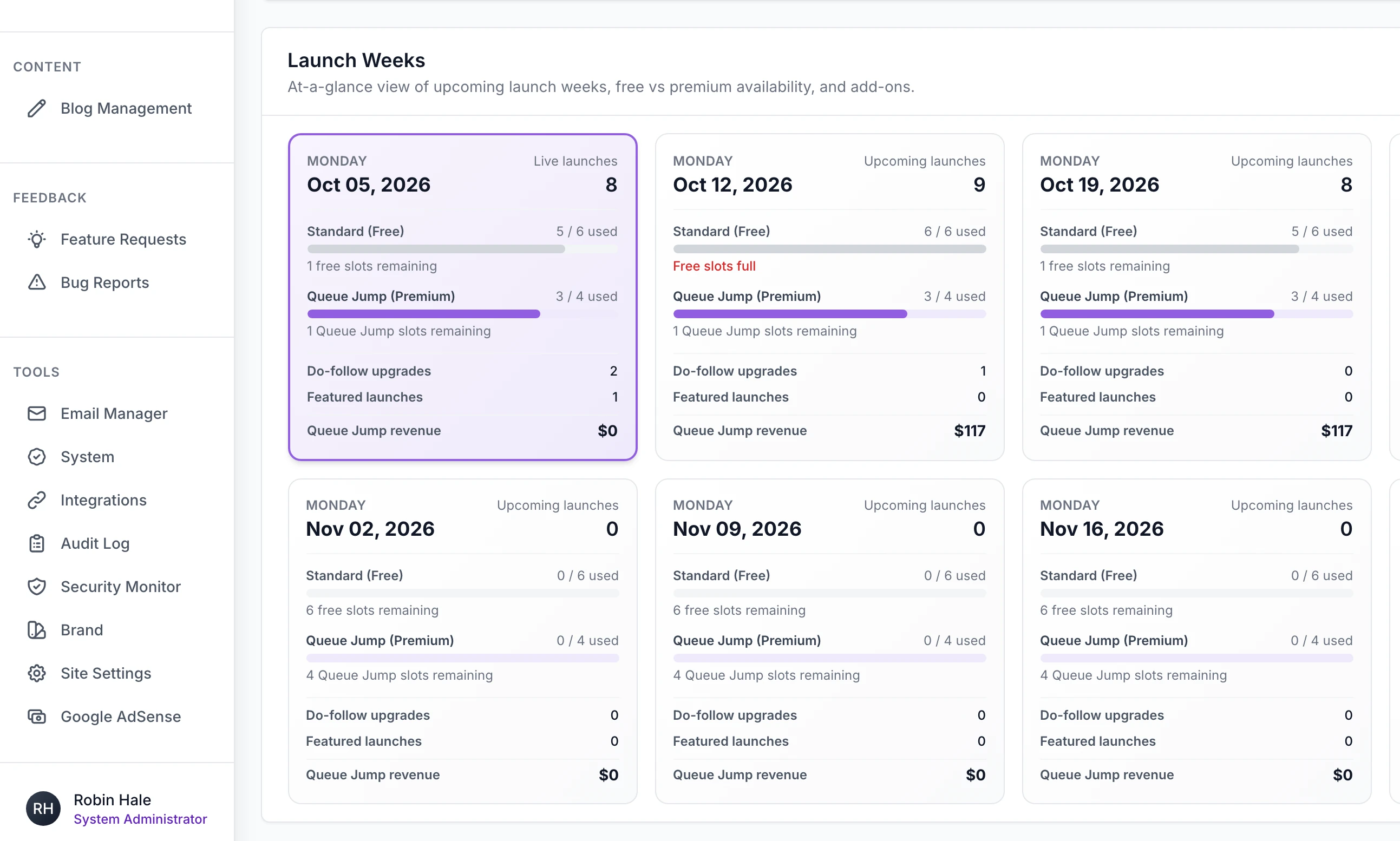
Scheduled Launches, also under Launches, is the same bookings seen by week.
Pipeline Health shows how far ahead your free places are fully booked, against a target of four weeks.
Launch Weeks has a card for the current week and each of the next eight: free places used, paid places used (called Queue Jump here), do-follow upgrades, featured listings and the money from paid places. Click a card to open that week.
The filters under the grid are Status (Scheduled, Live, Completed, Cancelled, Pending Payment, All), Slot Type and Date. Pending Payment lists bookings a maker started paying for and has not finished.
Each row of the table has an Actions menu.
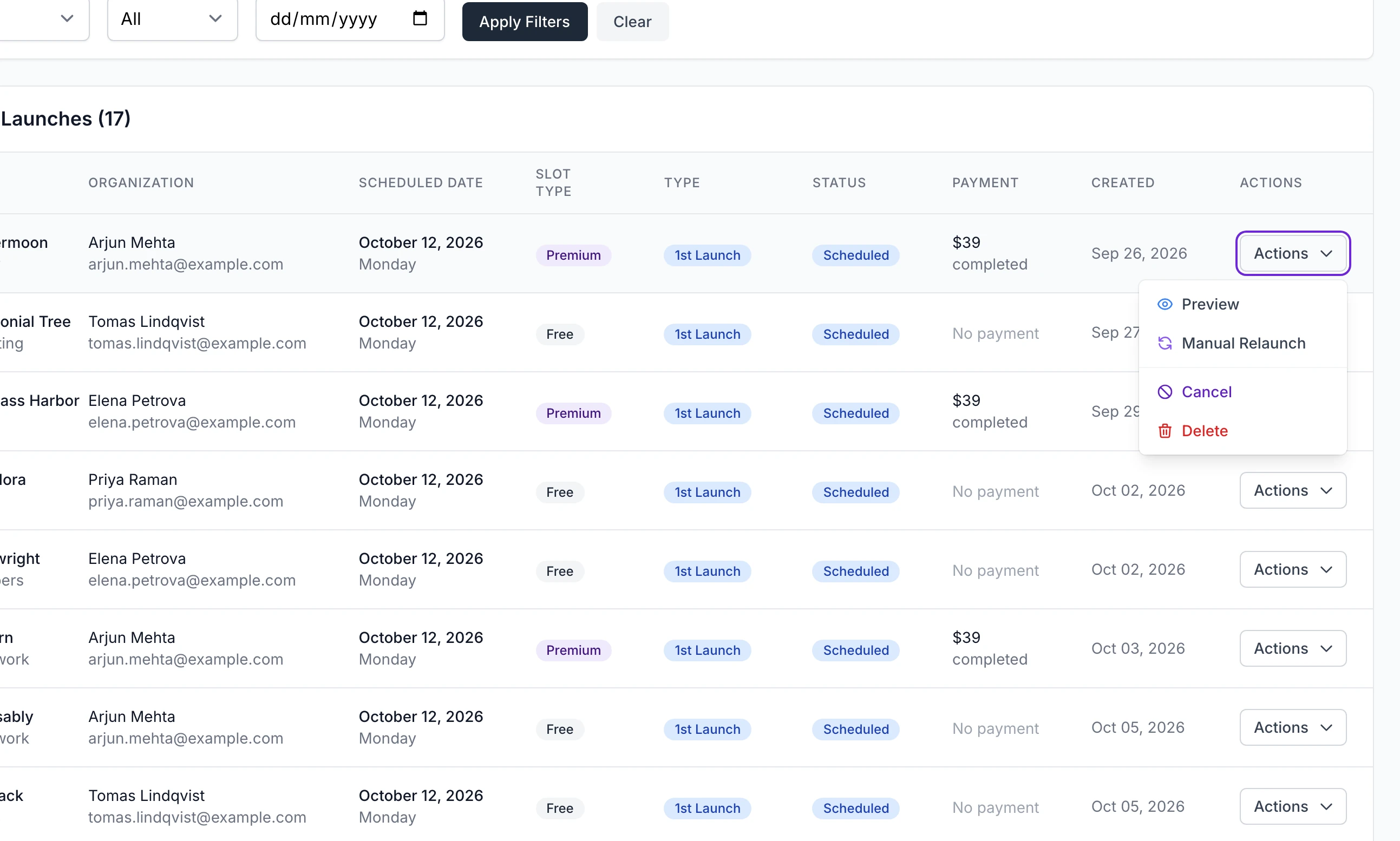
| Action | What it does |
|---|---|
| Preview | Opens the listing in a panel |
| Cancel | Marks the booking cancelled and frees its place. Shown for a booking that has not gone live |
| Delete | Removes the record of the booking altogether. Prefer Cancel, which keeps it under the Cancelled filter |
| Manual Relaunch | Books a relaunch for the listing on a date you choose |
Cancel and Delete change the booking and nothing else. The maker is not emailed, a payment for a paid place is not refunded and a relaunch credit is not given back. Tell the maker yourself, refund from Sales, transactions and refunds and return a credit from the Tenant Manager. The listing itself stays as a draft, and its maker can pick a week again from their dashboard.
Manual Relaunch opens a form with a Relaunch Date, a Slot Type and a tick box, Use organization's relaunch credits. Leave the box empty to give the relaunch away. Schedule Relaunch books it whether or not the week has room.
One week in detail#
Clicking a card in Launch Weeks opens Launch Week Detail.
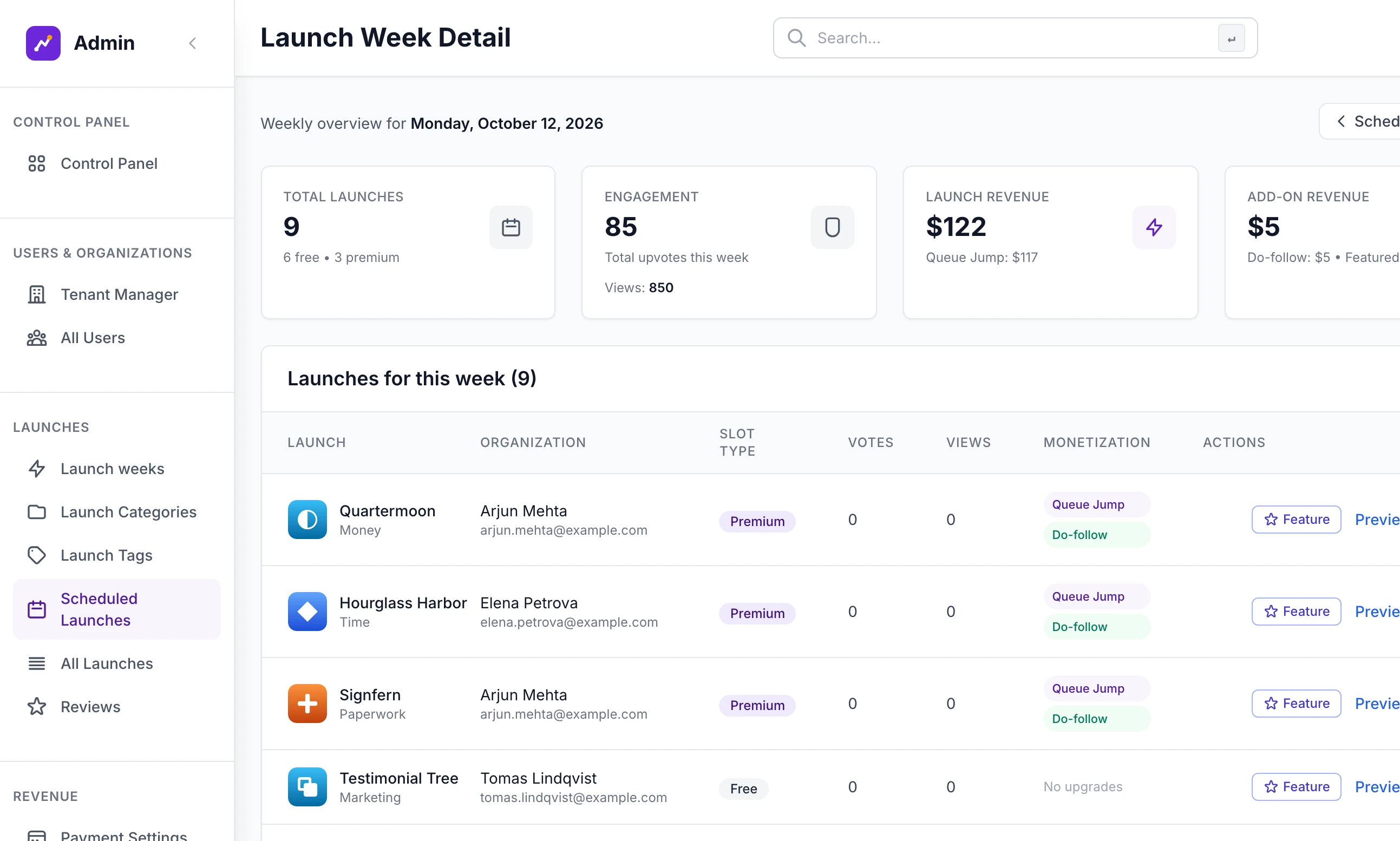
Across the top are the number of listings, their votes, their views and the money the week brought in from paid places, do-follow links and featured listings. The table lists each booking, featured ones first, then paid places. A future week shows what is booked. The current week shows what went live as well.
Each row has Feature or Unfeature, Preview, View once the listing is live and Analytics. Cancelling a booking is not done here: use the Actions menu on Scheduled Launches. In version 2.9.0 Analytics opens the site's public statistics page, not figures for that listing.
All Launches#
All Launches lists every listing on the site, newest first, in either mode.
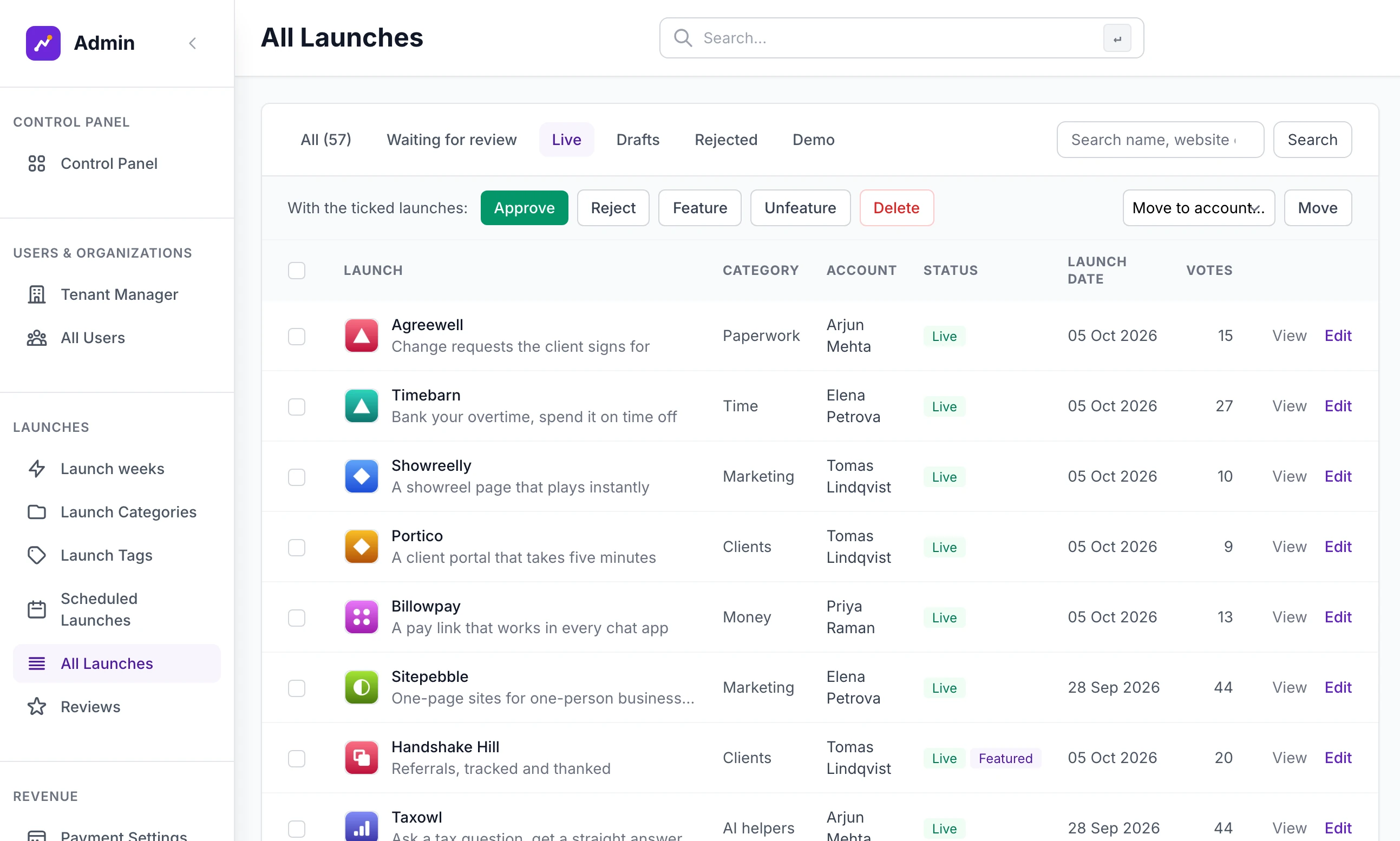
The filters are All, Waiting for review, Live, Drafts, Rejected and Demo, and the box searches by name, website or category. On a weekly site a booked listing is a Draft here until its day. Tick one or more rows, then click a button in the bar that starts With the ticked launches:.
| Button | What it does |
|---|---|
| Approve | Puts each listing live now, with today as its launch date, and emails its maker. It works on a draft, a booked listing, one waiting for review and one that was sent back |
| Reject | Sends each listing back to its maker and takes it off the site if it was live. The maker is emailed that it "needs a few changes" |
| Feature | Features each listing from now: see Featuring a listing by hand |
| Unfeature | Ends a featured place, a paid one included |
| Delete | Removes each listing with its bookings, votes, reviews and pictures. Its payments stay in your records |
| Move | Choose an account under Move to account… first. The listing and its bookings pass to that account |
You then see a line such as "3 launches approved." Move is how you hand over a listing you added yourself once its real maker has signed up. A listing approved early keeps its booking, which is marked complete on its day without going live a second time.
The Review queue#
Review queue is in the menu on a rolling site with Check each tool before it goes live ticked, and in either mode while anything is waiting. You are also emailed for each listing that arrives.
Listings that paid for Fast-track review come first, marked Fast-tracked. Then the longest waiting.
Each one shows who sent it, how long it has waited and the start of its description, with Open the full preview and Edit it yourself.
Approve and publish puts it live at once and emails its maker. You see '"Daymark" is live and its maker has been told.'
Send back opens a box, What needs changing. A note is required. Send back with this note emails it to the maker, and when they save their changes the listing returns to the queue.
Reviews#
Reviews under Launches holds every review visitors have left on listings. It opens on Waiting for approval. The other tabs are Published and All.
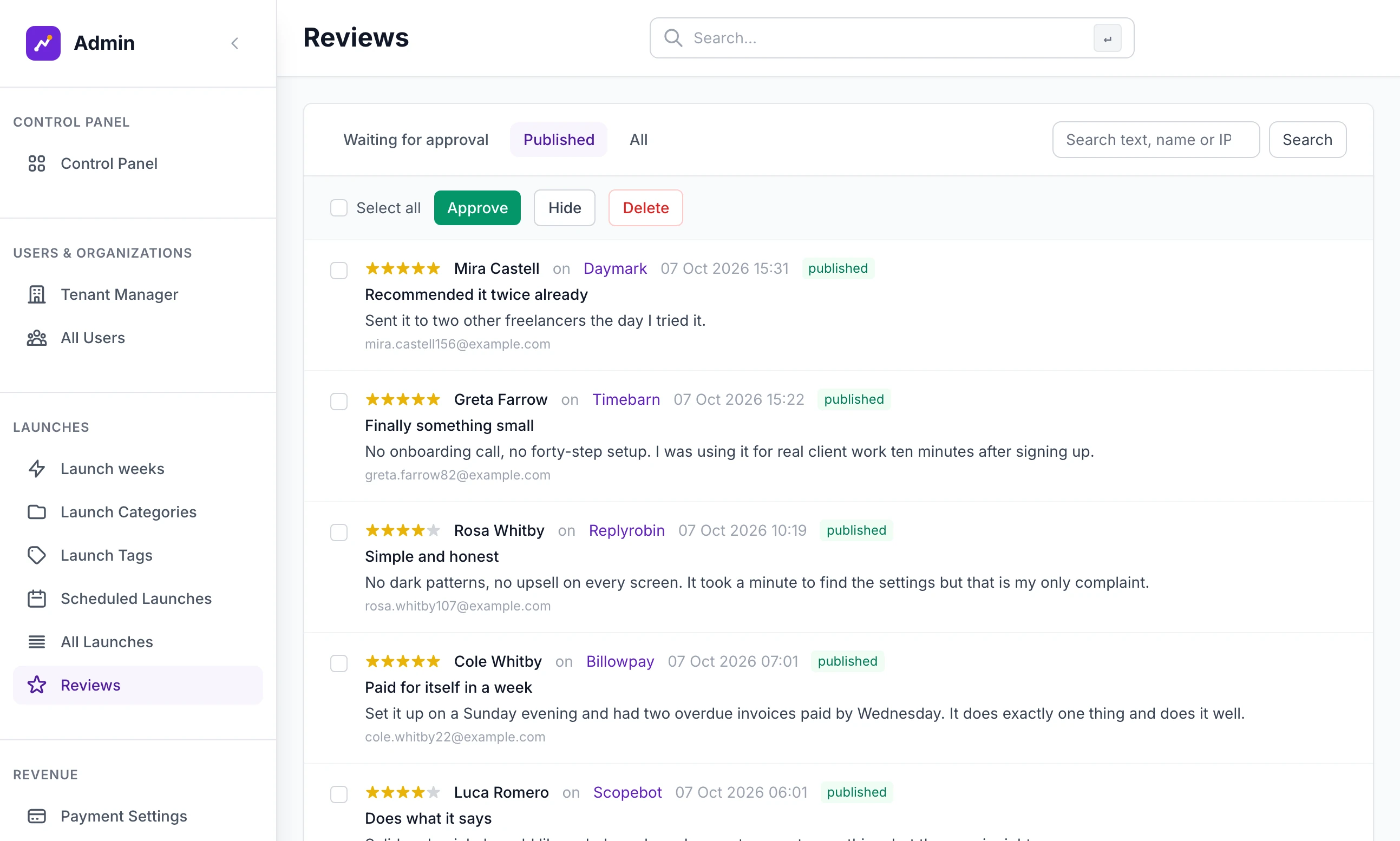
Each review shows its stars, who wrote it, the listing, the date and published or hidden, then the text, the writer's email and their internet address.
Tick reviews, or Select all, then Approve, Hide or Delete. You see "2 reviews approved."
Hide takes a published review off the site and puts it back under Waiting for approval. Hidden and waiting are the same thing.
Which reviews wait is set under Site Settings, on the Features tab, in New reviews:
| Choice | Effect |
|---|---|
| Appear straight away | Every review is public the moment it is sent, and the maker is emailed |
| Wait for approval if written without an account | Holds nothing in normal use: the review form on a listing's page is only shown to signed-in visitors |
| Always wait for approval | Every review waits here. The writer is told "Thanks! Your review will appear once it has been approved." |
The Reviews switch on the same tab turns reviews off altogether. A maker is emailed about a review that appears straight away, and not about one you approve later. Reviews of your site itself are not on this screen: they are on the Control Panel, under Recent Reviews, Platform.
Featuring a listing by hand#
There are two buttons, and they do not behave alike.
| Where | Lasts |
|---|---|
| Feature on All Launches | The number of days in Days featured on Payment Settings, counted from now |
| Feature on a week's detail page | Until you click Unfeature. It has no end date |
Either way a live listing goes to the top of the home page with a Featured badge. Neither button checks Featured at a time, and a listing you feature takes one of those places, so featuring by hand can leave makers with none to buy. The Featured tab on Launch weeks lists paid places only. A listing you featured is found on All Launches, by the Featured tag beside its status. Featured listings and vouchers covers the paid kind.
Looking up a maker#
Tenant Manager under Users & Organizations lists every account with its status, people, relaunch credits and the date it was made. The box searches accounts, names and email addresses. The menu on each row has:
View Details: the account's people, its payments, the emails sent to it and every listing with its dates and votes.
Manage Credits: set the number of relaunch credits and click Save Changes.
Suspend: nobody in the account can sign in, and they are told "Your organization account is suspended. Please contact support." Their listings stay on the site. Reactivate undoes it.
Delete: removes the account and everything it owns.
All Users lists people, not accounts, with filters for role, status and account. Impersonate in a row's menu signs you in as that person: see What a maker sees. To stop one person signing in, choose View Details, set Status to Suspended and click Save Changes. In version 2.9.0 the Suspend, Activate and Delete entries in the row's own menu do nothing.
Feature Requests and Bug Reports#
With Feature requests and bug reports switched on, makers have a Feedback page where they can ask for a feature, vote on other makers' requests and report a bug. Both lists are under Feedback in the admin sidebar, each with totals across the top and filters below.
Open a request to see what was asked and its votes. Under Management, set a Status such as Under Review or Completed, a Priority and any Admin Notes, then click Update Feature Request. A bug report works the same way, with a Severity, a Resolution and a Workaround. Its button is Update Bug Report. The maker sees the status on their own Feedback page. Nothing is emailed to them when it changes.
A maker asks to move to a different week
They cannot change a booking themselves. Cancel it on Scheduled Launches, and they choose again from their dashboard. A payment for a paid place is not carried over to the new booking: refund it as described in Sales, transactions and refunds.
I see "Tick at least one launch and choose an action."
No row was ticked when you pressed a button on All Launches. "Choose the account to move the launches to." means Move was pressed with no account chosen.
A review is abusive. What is the quickest way to remove it?
Open Reviews, choose Published, search for a word from it, tick it and click Delete.
Stuck on a step? Send a message.