Email that arrives
Connect an email server, test it, read the log of everything your board sends and check the three DNS records that keep it out of the spam folder.
Updated 9 Oct 2026 · written for Job Lab 1.1.0
On this page
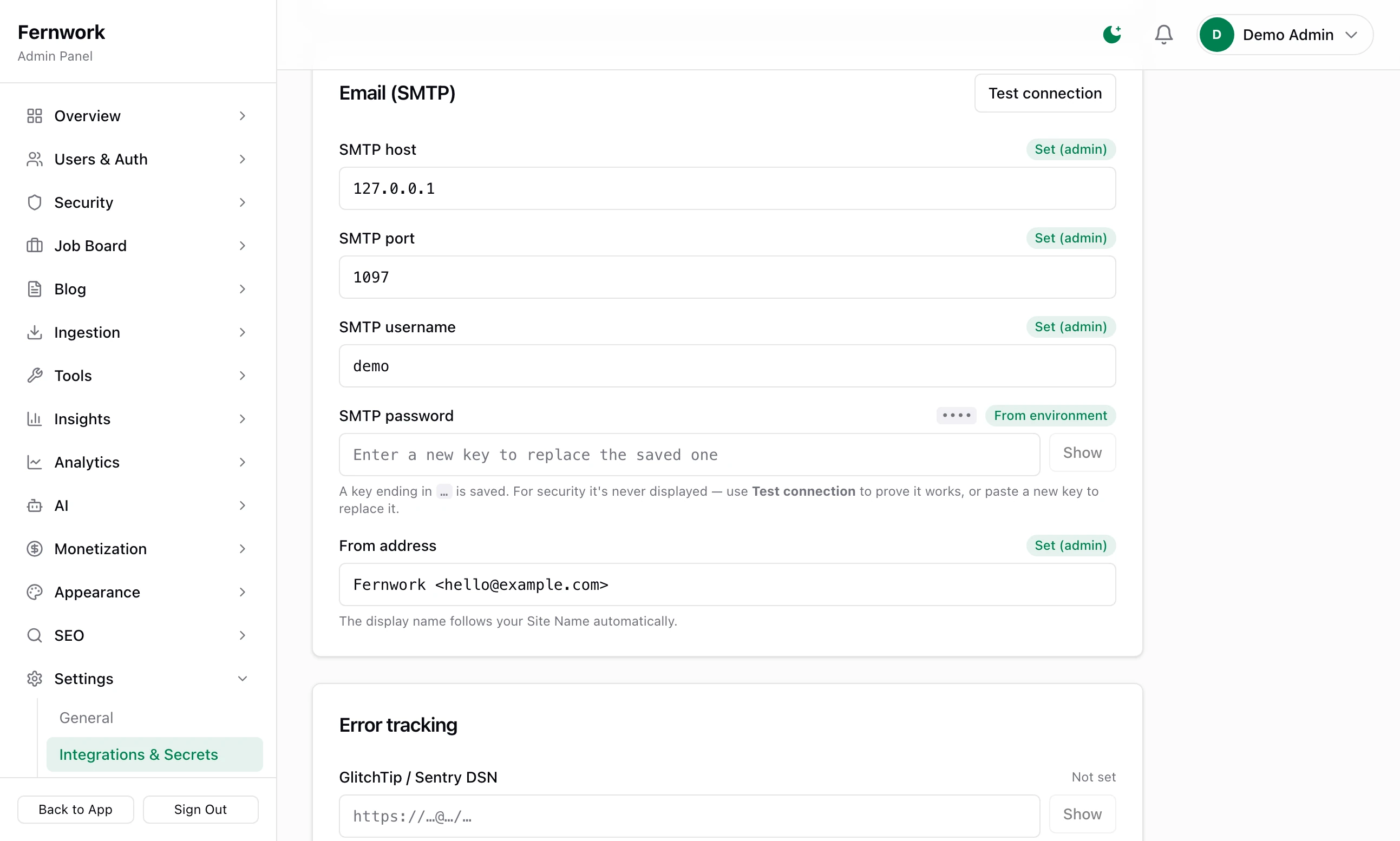
Open Integrations & Secrets under Settings in the admin sidebar and find the card headed Email (SMTP). Your board sends its own email: welcome and verification messages, password resets, application notices, receipts, job alerts and the newsletter. It sends all of it through an SMTP server that you provide, and this card is where you give it the details. Any email provider that offers SMTP will do.
Connect your email server#
Step 1: Get four details from your provider
In your email provider's account, find its SMTP settings and note the host (for example
smtp.example.com), the port, the username and the password. Some providers have you create a password or key for sending. You also need an address to send from, on a domain the provider lets you send for.Step 2: Fill in the card
SMTP host: the server's name.
SMTP port: use 587 unless your provider says 465. Left empty, 587 is used.
SMTP username and SMTP password: as given by the provider.
From address: the address your email comes from, for example
[email protected]. Your site's name is put in front of it for you.
Step 3: Click Save integrations
The button is at the bottom of the page. You see "✓ Saved. Most changes apply immediately — Google sign-in applies after the next restart. Use “Test connection” to verify." Email is one of the changes that apply at once: there is nothing to restart.
Step 4: Click Test connection
The button is at the top right of the Email (SMTP) card. It signs in to your mail server and sends nothing. Success reads "✓ Connected and authenticated with the SMTP server." A failure shows the mail server's own answer, which usually names the cause: a wrong password, a refused connection, a wrong port.
Step 5: Send yourself a real email
Open Email Manager under Tools. Under Send a Test Email, leave Welcome Email chosen, check the address and click Send test. You see "Test "Welcome Email" sent to" and your address. Look for it in your inbox, and in the spam folder.
Beside each field is a mark saying where its value comes from: Not set, Set (admin) or From environment. The password is never shown again once saved. The card says only "A key ending in" and its last four characters. Leave the password box empty to keep the saved one, or type a new one to replace it.
Port 587 or 465#
On port 465 the connection is encrypted from the first moment. On any other port, 587 included, it starts plain and is switched to an encrypted one when the server offers that. Use the port your provider names.
Or use the .env file#
The same five settings can live in the .env file in the Job Lab folder instead:
SMTP_HOST=smtp.example.com
SMTP_PORT=587
SMTP_USER=your-username
SMTP_PASS=your-password
[email protected]
Restart the site after you edit the file. A value saved on the admin page always wins over the same line in .env.
The From address#
If From address is empty, your board uses the SMTP username when that is an email address. Failing that it makes one up from your site's address, no-reply@ followed by your domain, and Email Manager warns "No From address configured — using a derived fallback." Set a real one: many providers refuse mail from an address they do not know.
Replies go to the Support Email under Settings, then General, when one is saved. Otherwise they go to the From address.
With no email server#
Job Lab runs without email, and a copy on your own computer has none: the kit's Docker file starts a database, Redis, search and file storage, and no mail server. Nothing is delivered, and several things stop quietly.
| What | What happens with no email server |
|---|---|
| Signing up | The account is made and the person can sign in. The verification link never reaches them, so they cannot apply for a job or post one: they see "Please verify your email address first — check your inbox for the verification link." |
| Password reset | No email. The link is written to the server log instead. |
| Newsletter sign-up | The address stays at "awaiting confirmation". |
| A newsletter issue | It fails, with "SMTP is not configured — set SMTP_HOST etc. and retry from the issue page." |
| Receipts and notices | Most are tried five times over about two and a half minutes, then kept in the log as failed, with "SMTP not configured — will retry; configure SMTP in Settings → Integrations". |
Nothing in that last row is lost. Once email works, open Email Manager and click Resend on each failed row.
System Health under Overview shows Email (SMTP) as a warning until a server is set. Once one is set, it reports the server refusing or not answering as critical.
Email Manager#
Email Manager, under Tools, is where you watch email once it is connected.
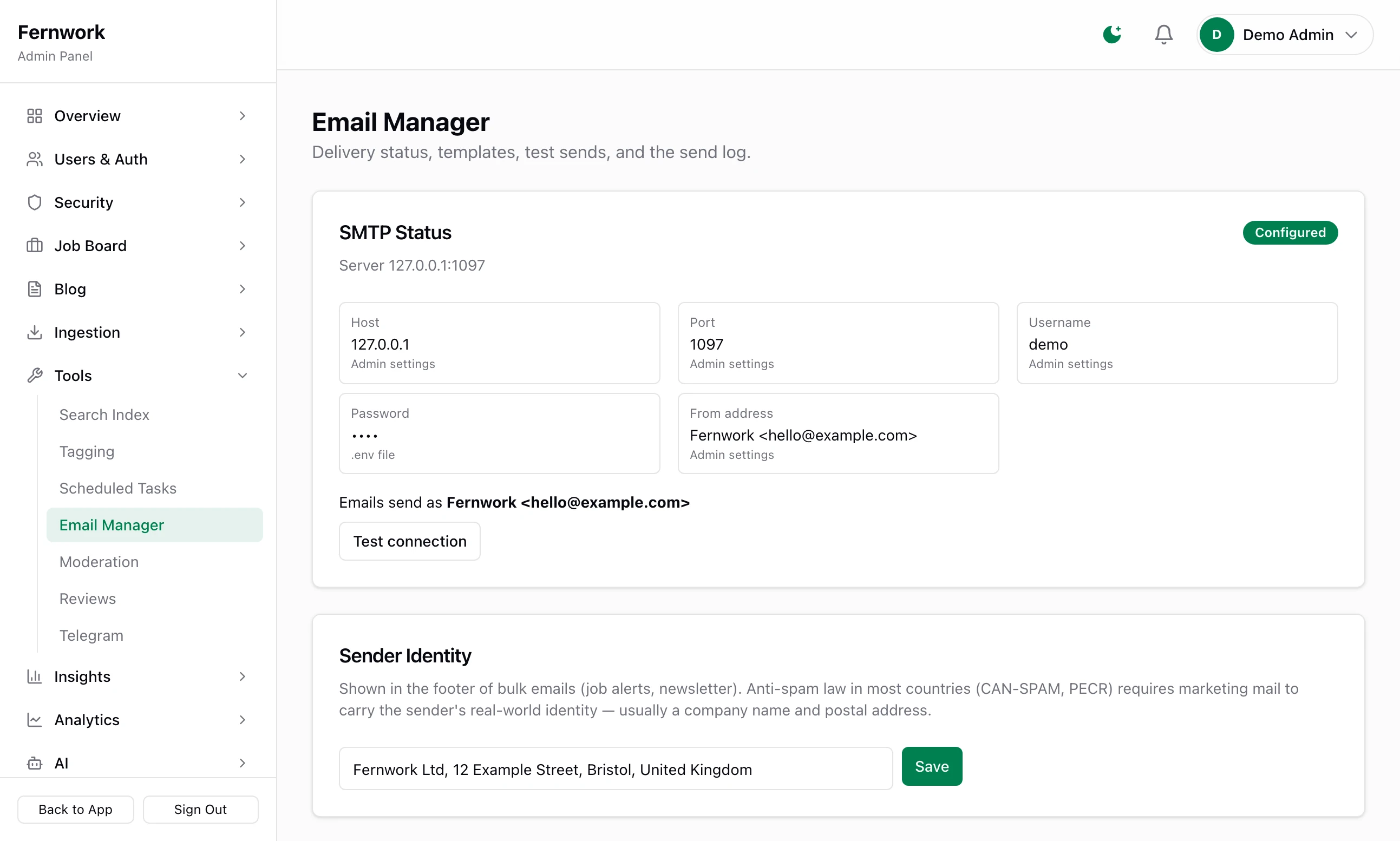
SMTP Status: Configured or Not Configured, the server and port, and a tile each for Host, Port, Username, Password and From address, saying whether it came from "Admin settings" or the ".env file". The line "Emails send as" shows the address in use. Test connection is the same test as on the settings page.
Sender Identity: one line, usually your business name and postal address, printed at the foot of job alerts and the newsletter. The law in most countries asks for it on bulk email. Type it and click Save. While it is empty the card warns "Not set — bulk emails currently go out without a sender identity line."
Send a Test Email: sends any template to any address with made-up sample content, and "[Test]" at the front of the subject. It is sent at once, so an error from the mail server is shown to you there and then.
Email Templates: every email your board can send.
Recent Sends: the log.
Deliverability: the DNS check.
The templates#
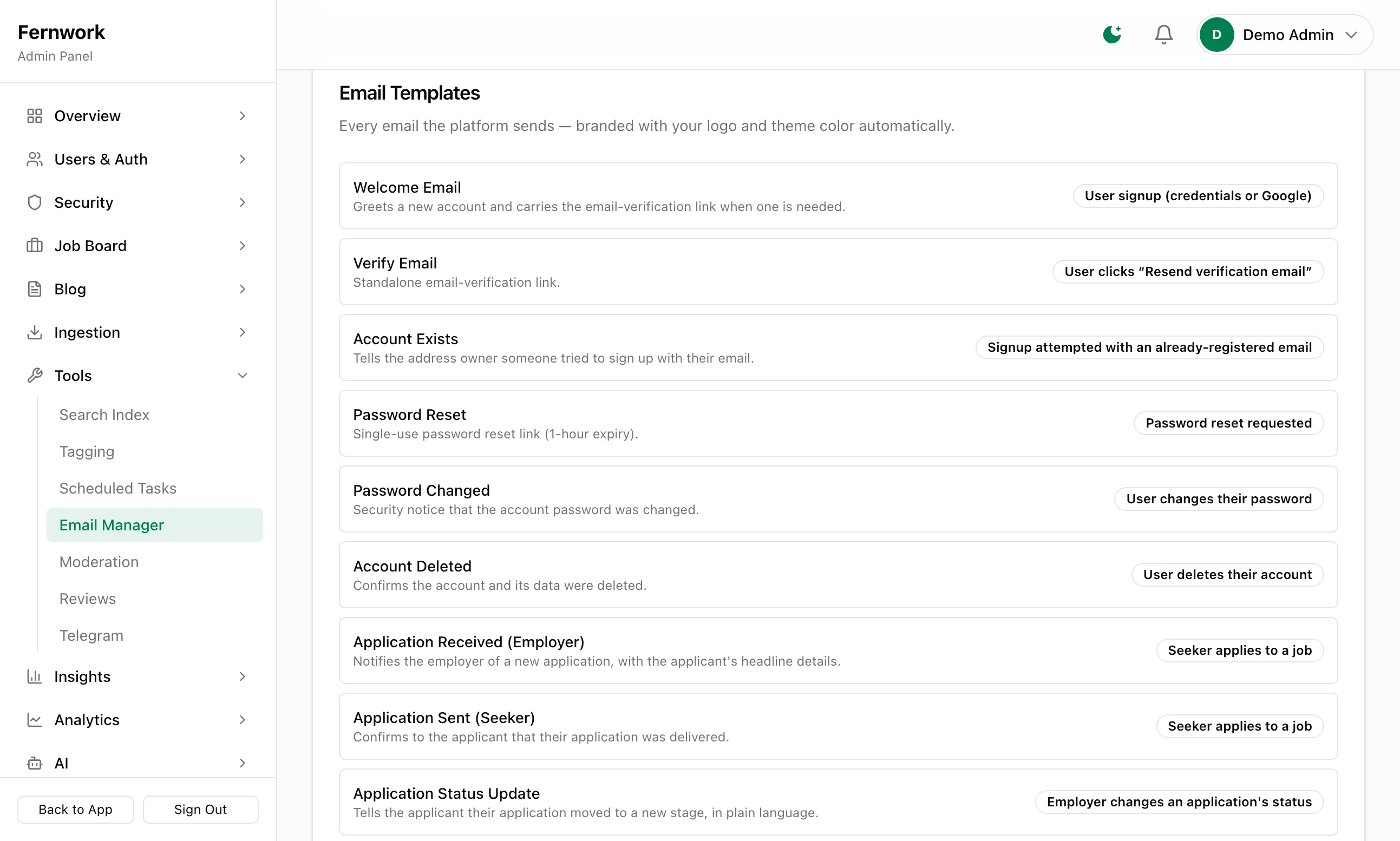
There are thirty templates. Each takes your logo, your theme colour and your site's name from Appearance. The list says what each one contains and what sets it off, and marks the two bulk emails Bulk. There is no screen for editing their wording.
| Template | Sent when |
|---|---|
| Welcome Email | Someone signs up. It carries their verification link. |
| Verify Email | They ask for the verification link again |
| Password Reset | A reset is asked for. The link lasts one hour. |
| Application Received (Employer) and Application Sent (Seeker) | A job seeker applies for a job |
| Application Status Update | An employer moves an application to a new stage |
| Listing Approved and Listing Not Approved | You approve or reject a job in moderation |
| Listing Expiring Soon and Listing Expired | An employer's job is three days from expiry, and when it expires |
| Job Alert (bulk) | New jobs match a job seeker's alert |
| Weekly Newsletter (bulk) | An issue is sent |
| Newsletter Confirmation and Newsletter Welcome | Someone subscribes, and when they confirm |
| Featured Listing Receipt and Subscription Started | An employer pays for a featured job or starts a plan |
| Payment Failed and Subscription Canceled | A plan's renewal fails, or the plan is cancelled |
| Ad Order Receipt, Ad Order Approved, Ad Order Rejected | An advertiser pays, and when you decide |
| Operator Alert | To you, at your support email, when a background task keeps failing or a health check breaks and Telegram is not connected |
The rest are smaller notices of the same kinds: an account that already exists, a changed password, a deleted account, the end of a featured job, and four more for advertising orders.
Recent sends#
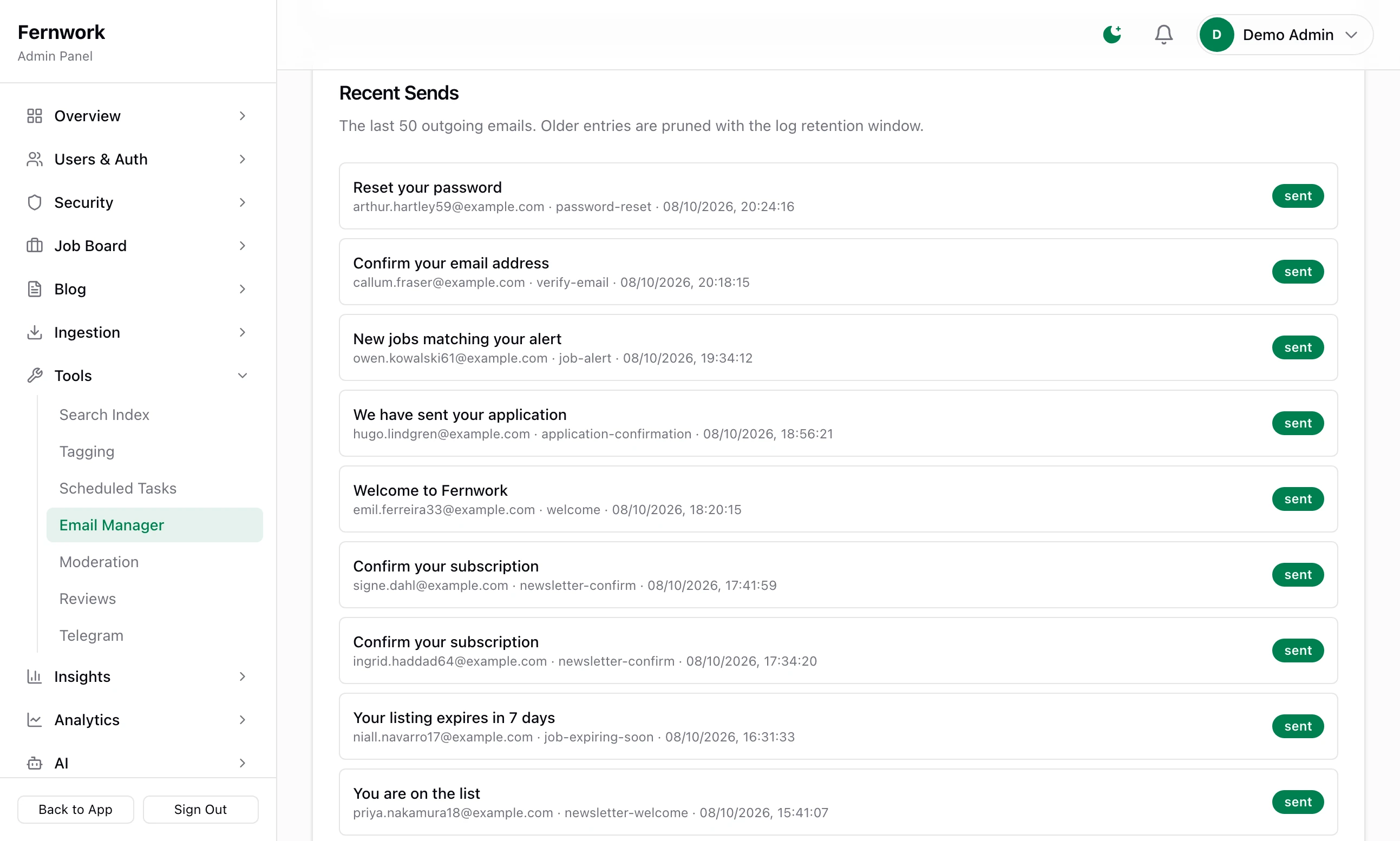
The last 50 emails, newest first, each with its subject, who it went to, its template and the time.
| Status | It means |
|---|---|
| queued | Waiting to be sent |
| sent | Your mail server accepted it. That is not proof it reached an inbox. |
| failed | The mail server refused it, or there was no server. The reason is in red underneath. |
| skipped | It was sent outside the queue while no server was set |
A failed or skipped row has a Resend button, which sends that same email again as a new row and then reads "Re-queued ✓". Old rows are cleared out along with the other logs.
SPF, DKIM and DMARC#
An email that claims to come from your domain is trusted only if your domain's DNS says so. Deliverability, at the bottom of Email Manager, looks up three records for the domain in your From address each time the page loads. Re-check looks again.
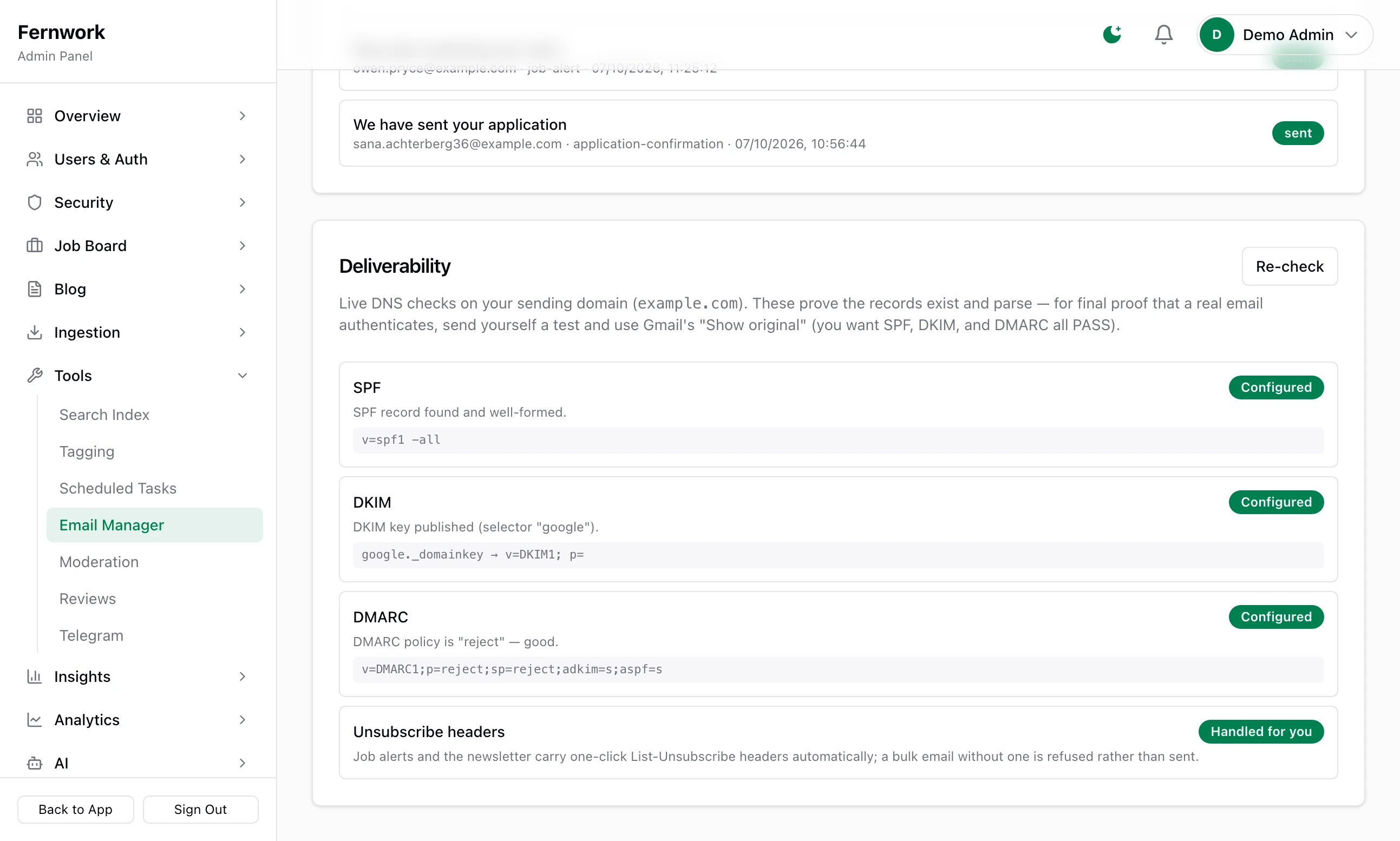
| Record | What it is for | Where the check looks |
|---|---|---|
| SPF | A list of the servers allowed to send mail for your domain | A TXT record on the domain itself, starting v=spf1 |
| DKIM | A signature your provider adds to each email, which receivers check against a key you publish | A TXT record at ten common names, such as google._domainkey and selector1._domainkey |
| DMARC | Tells receivers what to do with mail that fails the other two | A TXT record at _dmarc, starting v=DMARC1 |
Each row carries a mark and a line of advice, and shows the record it found.
| Mark | On SPF | On DKIM | On DMARC |
|---|---|---|---|
| Configured | One record, ending in an all rule | A key was found | The policy is quarantine or reject |
| Needs attention | The record does not end in an all rule | No key at any of the ten names | The policy is none, which only watches, or cannot be read |
| Missing | No record, or more than one. Two SPF records count as none: merge them. | No record | |
| Unknown | No From address to check, or the lookup failed | The same | The same |
Your email provider gives you the exact records to add. You add them where your domain's DNS is managed, then come back and click Re-check. DNS changes can take a while to show.
The fourth row, Unsubscribe headers, always reads "Handled for you". Job alerts and the newsletter carry a one-click unsubscribe, and a bulk email without one is refused, not sent.
Job alerts#
A job alert is an email your board sends for a job seeker who asked for it. They save a search as an alert and choose how often to hear: Daily Digest, Weekly Digest or Instant. A task called Job Alert Scan runs every 15 minutes, finds the alerts that are due and emails each person the jobs that have joined the board since their last alert, up to ten in one email. A scan that finds nothing new sends nothing.
Every alert email has a link that pauses that alert with one click, with no sign-in. A job seeker can also switch off alert emails on their profile page and keep the notices inside the site. You can change how often the scan runs under Tools, then Scheduled Tasks.
Send test says "SMTP is not configured — set it under Settings → Integrations & Secrets first."
There is no SMTP host. Fill in the Email (SMTP) card, or the SMTP_HOST line in .env, then try again.
Test connection passes and nothing reaches my inbox
Signing in to the server and being allowed to send from an address are two things. Check Recent Sends for a red reason under the test. Then check that the From address is on a domain your provider has approved, and look at Deliverability.
Our email lands in spam
Work down the Deliverability card until SPF, DKIM and DMARC all read Configured, fill in Sender Identity, and send from an address on your own domain, not a free webmail address.
A new member says the verification email never came
Find it in Recent Sends. If it failed, fix the cause and click Resend. If it is not among the last 50, open the person under All Users and click Mark email verified. They can also ask for the link again from the site with Resend verification email.
Can I use more than one provider, or something other than SMTP?
No. There is one server for everything, and SMTP is the only way in. Most email services offer SMTP alongside their own methods.
Stuck on a step? Send a message.