Updating Job Lab
Move to a new version without losing your data or your saved keys, on your own computer or on a server, and move a board to another machine.
Updated 9 Oct 2026 · written for Job Lab 1.1.0
On this page
A new version of Job Lab is new code. Your data is in the database and the file storage, and your settings are in one small file, so an update means replacing the code round them and then bringing the database tables in line with it. This guide covers your own computer and a server, then what to carry when you move a board.
Which version you have#
The version is the "version" line near the top of package.json, and the newest entry in CHANGELOG.md. It is not shown anywhere in the admin.
grep '"version"' /opt/joblab/package.jsonWhat is yours#
| Where | Keep |
|---|---|
| Your computer | .env and the Docker volumes that hold the database, the search index and the uploads. |
| A server | /opt/joblab/.env, the sites/ and backups/ folders and, if you made one, .backup.env. The data is in Docker volumes outside the code folder. |
Everything else in the folder is the kit's code. If you changed any of it, note which files: you repeat the change in the new copy.
Before you update#
Read
CHANGELOG.mdin the new version. It lists what changed, newest first, and says under Upgrading whether the database changes.Take a backup. On a server, run the backup script below: see Backups, scheduled tasks and health.
Leave
APP_SECRETas it is. Why is below.
/opt/joblab/scripts/prod/backup.sh dailyOn your own computer#
Step 1: Stop the site
Press Ctrl and C in the terminal where
pnpm devis running. Leave the Docker services running.Step 2: Replace the code
With a git copy, run
git pullin the Job Lab folder. Your.envis not in the repository, so the pull leaves it alone.With a zip, unzip the new version beside the old one. Copy
.envfrom the old folder into the new one. Then rename the old folder, for example tojob-lab-old, and give the new folder the name the old one had.Step 3: Install and bring the tables in line
bashpnpm install pnpm db:pushpnpm installadds any packages the new version needs.pnpm db:pushcompares the tables with the new code and changes them to match. If the change would remove a column or a table, it lists what would be lost and asks "Do you still want to push changes?" before it does anything.Step 4: Start the site
bashpnpm devCheck your jobs and your settings are there before you delete the old folder.
On a server, from a repository#
cd /opt/joblab
./scripts/prod/backup.sh daily
./scripts/prod/deploy.sh update
update does these things, in this order:
Pulls the new code:
git pull --ff-only origin main.For each board in turn, builds its image, removes its container and starts a new one, then builds the
joblab-toolsimage and runspnpm db:push --forcein it against that board's database.Removes unused images and trims Docker's build cache to 3 GB. If the disk is more than 75% full it clears the build cache altogether.
Runs
scripts/prod/setup-crons.sh, so the nightly backup stays installed.Prints a health line for each board.
To update one board, name it: ./scripts/prod/deploy.sh update myboard. A board does not answer for a few seconds while its container is swapped, and between the swap and the end of db:push it runs new code on the old tables. If any step fails the script stops there, and the boards after it in the list are not touched. Read the error, fix it and run update again.
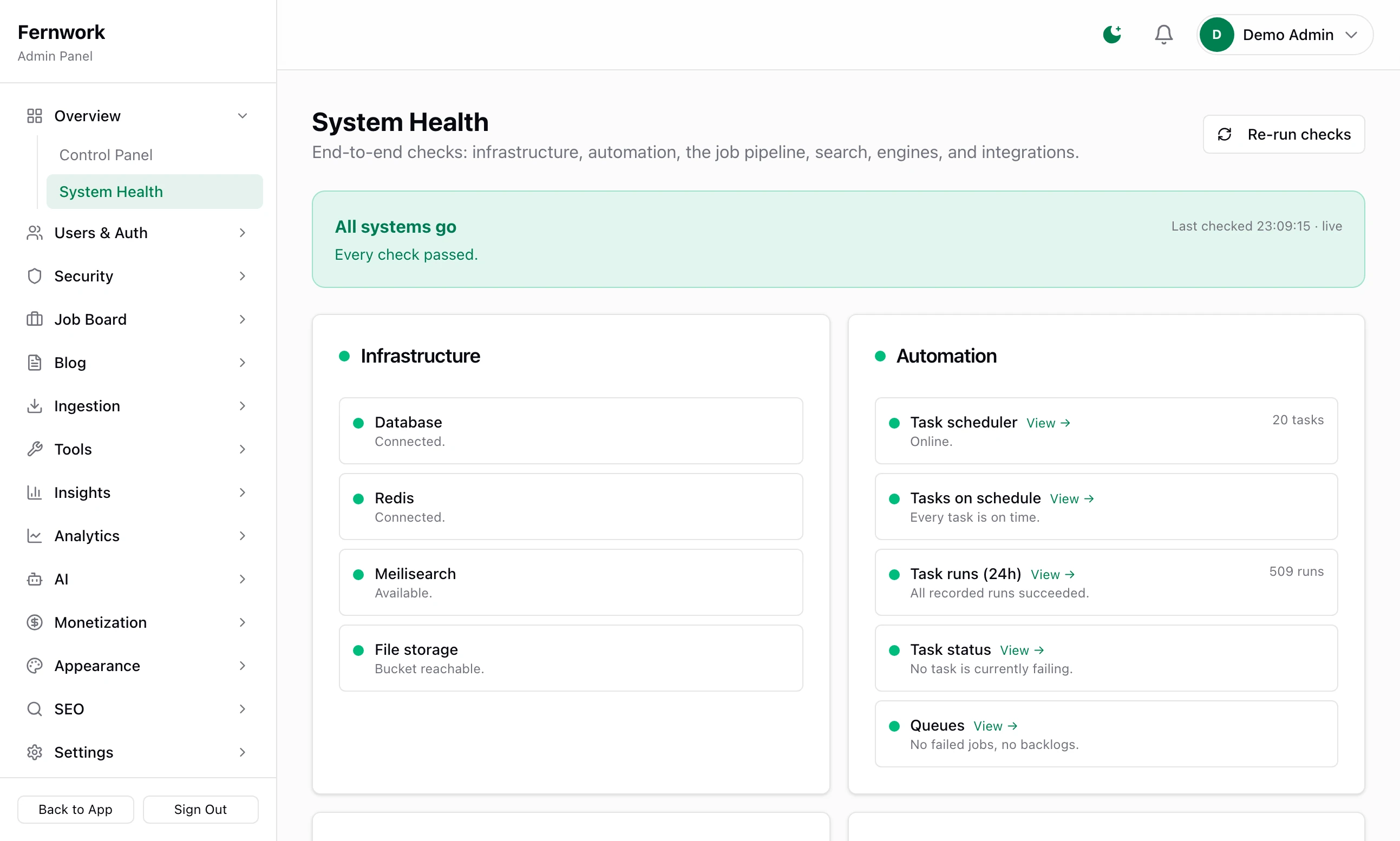
Afterwards, open System Health under Overview in the admin sidebar and check that the banner reads "All systems go".
On a server, from a zip#
update begins with git pull, and an unzipped copy is not a git repository: it stops with "fatal: not a git repository". Replace the files by hand and tell update to skip the pull.
Step 1: Back up, upload and unpack
On your computerscp job-lab-X.Y.Z.zip root@YOUR-SERVER-IP:/opt/On the server/opt/joblab/scripts/prod/backup.sh daily cd /opt unzip job-lab-X.Y.Z.zipStep 2: Move what is yours into the new folder
bashmv joblab/sites joblab/backups job-lab-X.Y.Z/ cp -p joblab/.env job-lab-X.Y.Z/Copy
joblab/.backup.envtoo if you made one, and repeat any change you made toscripts/prod/nginx-site.conf.template.Step 3: Swap the folders
bashmv joblab joblab-old mv job-lab-X.Y.Z joblabThe code must end up at
/opt/joblab: the backup script and its schedule have that path written into them.Step 4: Build and restart every board
bashcd /opt/joblab SKIP_PULL=1 ./scripts/prod/deploy.sh updateThis is the same
updateas above without its first step. A board that started seconds ago can show "health 000": run./scripts/prod/deploy.sh statusa minute later. When every board shows "health 200" and you have looked at each one, delete/opt/joblab-old.
Keep the same APP_SECRET#
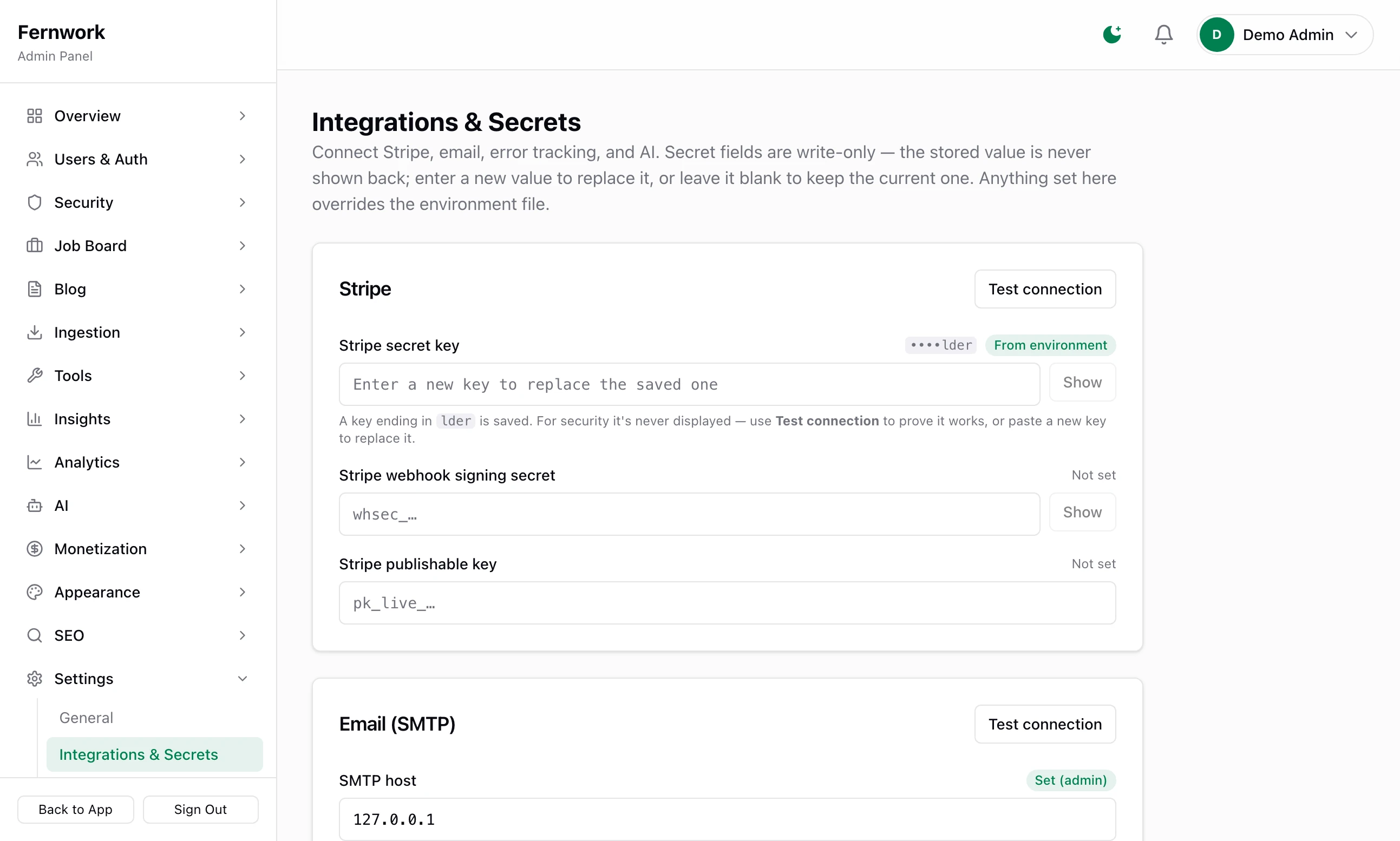
APP_SECRET is a line in .env on your computer and in sites/NAME/.env on a server. Job Lab encrypts every key you save in the admin with it: the Stripe keys, the email password, the AI keys, the Google client secret and the rest of Integrations & Secrets under Settings. The Telegram bot token is encrypted with it too.
No update needs a new one. If it changes:
The saved keys can no longer be read, and each feature behaves as if it had never been set up. Each such field on the Integrations page says "A key was saved here but can no longer be read, because the app secret changed since. Paste the key again to store it under the current one."
One-click unsubscribe links in job alert emails already sent stop working.
A value shorter than 16 characters stops the site from starting at all.
AUTH_SECRET is different. Changing it signs everyone out and loses nothing.
Move a board to another server#
A board is one database, one storage bucket and one settings file. Whatever else changes, the new copy must run with the old APP_SECRET.
Every board on a server at once: restore the newest backup on the new server, with the old .env and sites/ folder. Restore a backup has the steps. The settings files carry each APP_SECRET across.
One board, from your computer or from another server:
Step 1: Make an empty board on the new server
bash./scripts/prod/new-site.sh myboard example.com --no-start--no-startmakes the database, the bucket, the settings file and the nginx file, and does not build or start the board. Set the server up first as in Deploy to a server.Step 2: Carry the secret across
Open
sites/myboard/.envon the new server and replace the value ofAPP_SECRETwith the one from the old copy.Step 3: Copy the database
On the old machine, write the database to a file. On your own computer the database is called
joblab:On your computerdocker compose exec -T postgres pg_dump -U joblab --no-owner --no-acl joblab | gzip > board.sql.gzOn a server it is
joblab_and the board's name:On the old serverdocker exec joblab-postgres pg_dump -U joblab --no-owner --no-acl joblab_myboard | gzip > board.sql.gzCopy the file to the new server and load it as the board's own database user, so that the board owns its tables:
On the new servergunzip -c board.sql.gz | docker exec -i joblab-postgres psql -U joblab_myboard -d joblab_myboardStep 4: Build and start the board
bashSKIP_PULL=1 ./scripts/prod/deploy.sh update myboardThen open Search Index under Tools and click Full Reindex: the search index is not copied, it is rebuilt.
Going back to a copy older than 1.0.0#
Copies from before 1.0.0 kept saved keys as plain text and cannot read encrypted ones. Before you put such a copy back, write the keys back as plain text with the script made for it. It needs the same APP_SECRET and database address the site runs with:
pnpm tsx --env-file=.env scripts/encrypt-integration-secrets.ts --revertdocker run --rm --network joblab-net --env-file sites/myboard/.env joblab-tools pnpm tsx scripts/encrypt-integration-secrets.ts --revertIt prints a line for each key it changed, then a summary that starts with how many were "written back as plain text". Nobody who started on 1.0.0 or later needs this.
What 1.1.0 changed#
| Area | Change |
|---|---|
| Installing | pnpm db:push is the command that creates the tables. pnpm db:migrate and pnpm db:generate are gone. |
| Setup wizard | A new look and a page of its own, with the nine steps listed down the side. It asks the same questions and saves the same things. |
| Setup wizard | It moves on by itself once the admin account is made. Before, it stayed on the account form until the page was reloaded. |
| Telegram | Setup Webhook uses the site's own address, NEXT_PUBLIC_APP_URL. Before, it answered "APP_URL not configured". |
| Telegram | The /health command checks the right services. Before, on a server it reported search and file storage as down when they were fine. |
| AI | AI_PROVIDER=anthropic is accepted in .env. Before, the site refused to start with it. |
| Stripe | A subscriber's renewal date is saved, and renewals and failed renewals are recognised, on a Stripe account made since 31 March 2025. Before, Billing showed no renewal date and both were ignored. |
| Telegram | Bot commands are refused until Setup Webhook has been clicked. If you use them, click it once after updating. |
| Server | A .dockerignore file ships, so a server's settings files and backups are no longer copied into its images. |
| Database | No change. Coming from 1.0.0 there is nothing to do beyond the steps above. |
"Can't find meta/_journal.json file"
You ran pnpm db:migrate, which the README of 1.0.0 gave. That command does not work on a fresh copy and is gone in 1.1.0. Run pnpm db:push.
pnpm db:push asks "Do you still want to push changes?"
The new version no longer has a column or a table that your database has, and the command is about to remove it with its data. It lists what would be lost above the question. Answer yes only when you have a backup. On a server, update answers yes for you.
deploy.sh update stops with "fatal: not a git repository"
The copy in /opt/joblab came from a zip. Follow On a server, from a zip, or run SKIP_PULL=1 ./scripts/prod/deploy.sh update if the new files are already in place.
The update went wrong. How do I go back?
Put the old code back, restore the backup you took before the update and build again. With a zip copy, swap the folders back and move sites and backups into the old one. Then follow Restore a backup and run SKIP_PULL=1 ./scripts/prod/deploy.sh update. Do not run the old code against the newer tables without restoring: db:push --force would drop whatever the old code does not know.
Stuck on a step? Send a message.