Skills, roles and locations
How jobs are sorted into skills, roles and places as they arrive, and how to tidy those lists, fix untagged jobs, tune search and look after company pages.
Updated 9 Oct 2026 · written for Job Lab 1.1.0
On this page
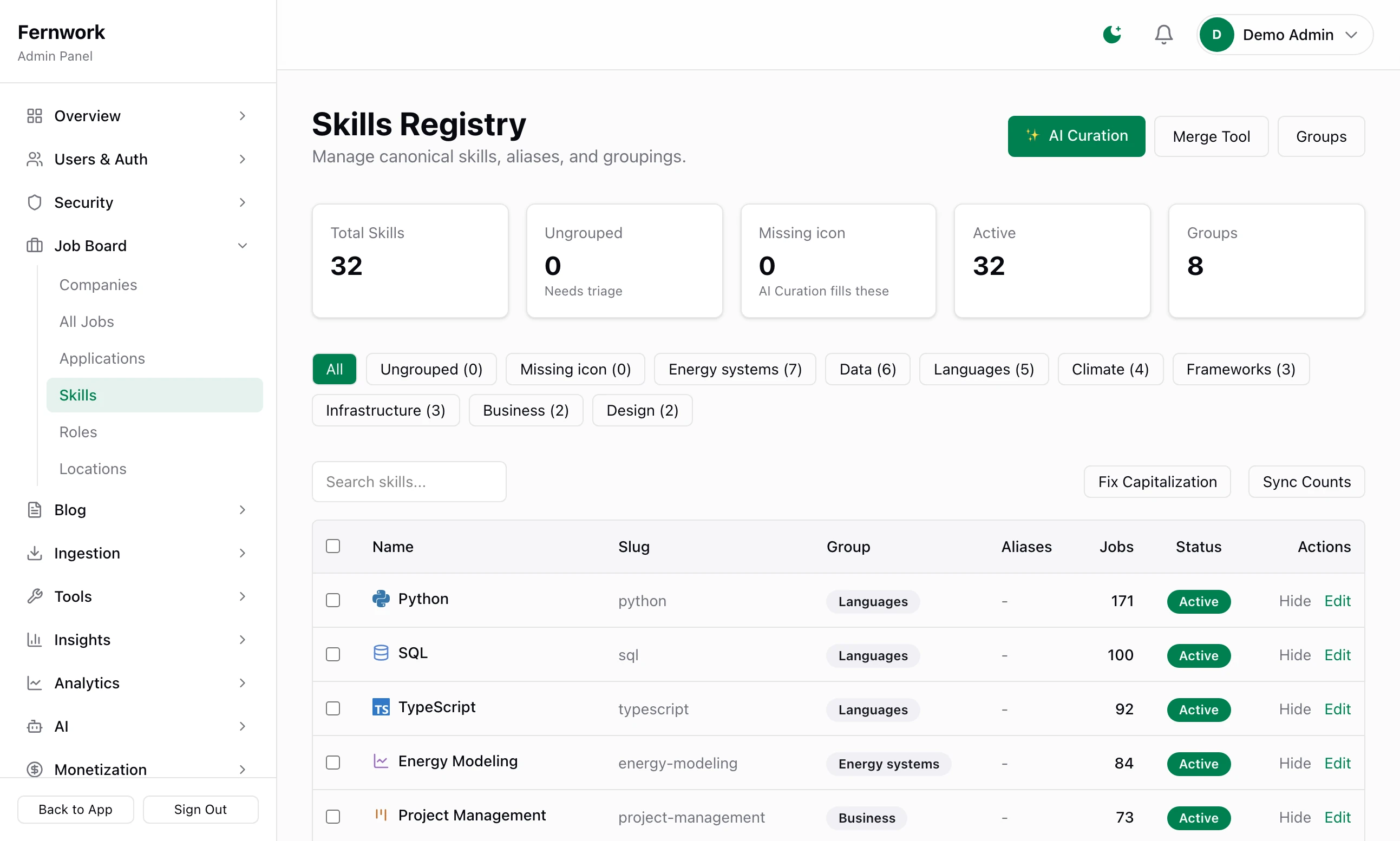
Open Skills under Job Board in the admin sidebar. Skills, roles and locations are how the board sorts its jobs. Each gives you public pages, a search filter and a count, and each list fills itself from the jobs that arrive. Your part is tidying: grouping, merging duplicates, hiding noise and teaching the board places it does not know.
Job Lab has no job categories as such. A job has several skills, one role, one location, one type and one experience level, and skills can be put into groups. Between them they do that work.
How a job gets its tags#
| Tag | Per job | Where it comes from |
|---|---|---|
| Skills | Up to 12 | The tags the job's source sent. When it sent fewer than 4, skills from your list that appear as whole words in the title and description are added |
| Role | One | Matched from the job title against your list of roles |
| Location | One | Worked out from the location text the source sent: a country, a city and whether it is remote |
| Type and level | One each | Two fixed lists: see Job types and experience levels |
A tag from a source that is not in your skills list is added to it, with no group. Nothing joins the roles list unless you add or approve it. The numbers 12 and 4 are settings on the Tagging screen.
Tidy the skills list#
The Skills Registry shows the 200 skills with the most jobs, with a filter above the table for each group.
Step 1: See what arrived by itself
Click Ungrouped. These are mostly skills created from the tags of incoming jobs.
Step 2: Put skills into groups
Tick the skills that belong together and click Set Group. Your browser asks "Enter group name (or leave empty to ungroup):". Type a name such as
Languages. A group exists as soon as one skill carries its name, and visitors can filter the public skills page by it. Groups, at the top, lists every group with its skills.Step 3: Merge duplicates
Click Merge Tool. Tick the skills to fold away under 1. Select Source Skills, choose the one to keep under 2. Select Target and click Execute Merge. Every job moves to the target, and each source's name is kept as an alias, so a job that arrives later with the old tag still lands in the right place. A merge cannot be undone. In version 1.1.0 a skill merge does not refresh search: click Full Reindex on the Search Index screen afterwards, or the skills filter goes on using the old name until the next daily check.
Step 4: Hide what is not a skill
Click Hide on a row such as "Remote". The skill's page stops existing and it disappears from job tags, filters and search. Its record is kept, so the next fetch does not bring it back. Show reverses it.
Step 5: Fix names and counts
Fix Capitalization turns all-lowercase names into proper ones, "react" into "React", everywhere they appear. Sync Counts recounts the jobs under every skill.
Edit one skill#
Click Edit on a row.
Name, Slug, Group and Description: the slug is the end of the skill's address,
/skills/python.Aliases (comma-separated): other spellings that count as this skill, such as
python3, py.Icon:
si:reactfor a brand logo,lucide:brainfor a plain icon, the address of an image or an emoji. Left empty, a coloured tile with the first letter is shown.Active: the same switch as Hide and Show.
Delete works only on a skill no job uses. Otherwise you see "Cannot delete: skill is used by 12 jobs. Merge instead."
Add a skill by hand#
In version 1.1.0 the Skills page has no button to add a skill and no screen to import a list. To add one yourself, open Tools, then Tagging, type the name against a job in Jobs with no skills and click Save: the skill is created and the job is tagged with it.
Roles#
Open Job Board, then Roles. A role is the occupation a job is for: "Data Scientist", "Field Technician". The Roles Registry has the same tools as skills: Merge Tool, Fix Capitalization, Sync Counts, Hide, Show and Edit. Three things differ.
A job has one role. It is matched from the job title, and the longest matching name wins.
There are no groups. The filters are All, Hidden and Missing description.
Nothing is added by itself. Sources do not send roles. If you chose a starter niche in the setup wizard, the list begins with that niche's roles. It grows when you approve a role the AI proposes or type one on the Tagging screen.
An empty list reads "No roles yet — and that's normal" and offers a button to load your niche's starter roles and tag existing jobs with them. On a custom board, which has no niche, the button offers 24 software and tech roles: leave it alone unless that is your field.
Locations#
Open Job Board, then Locations. Every job arrives with a line of location text, which the board reads into a country, a city and a remote flag. This screen shows how well that went and lets you teach it what it missed.
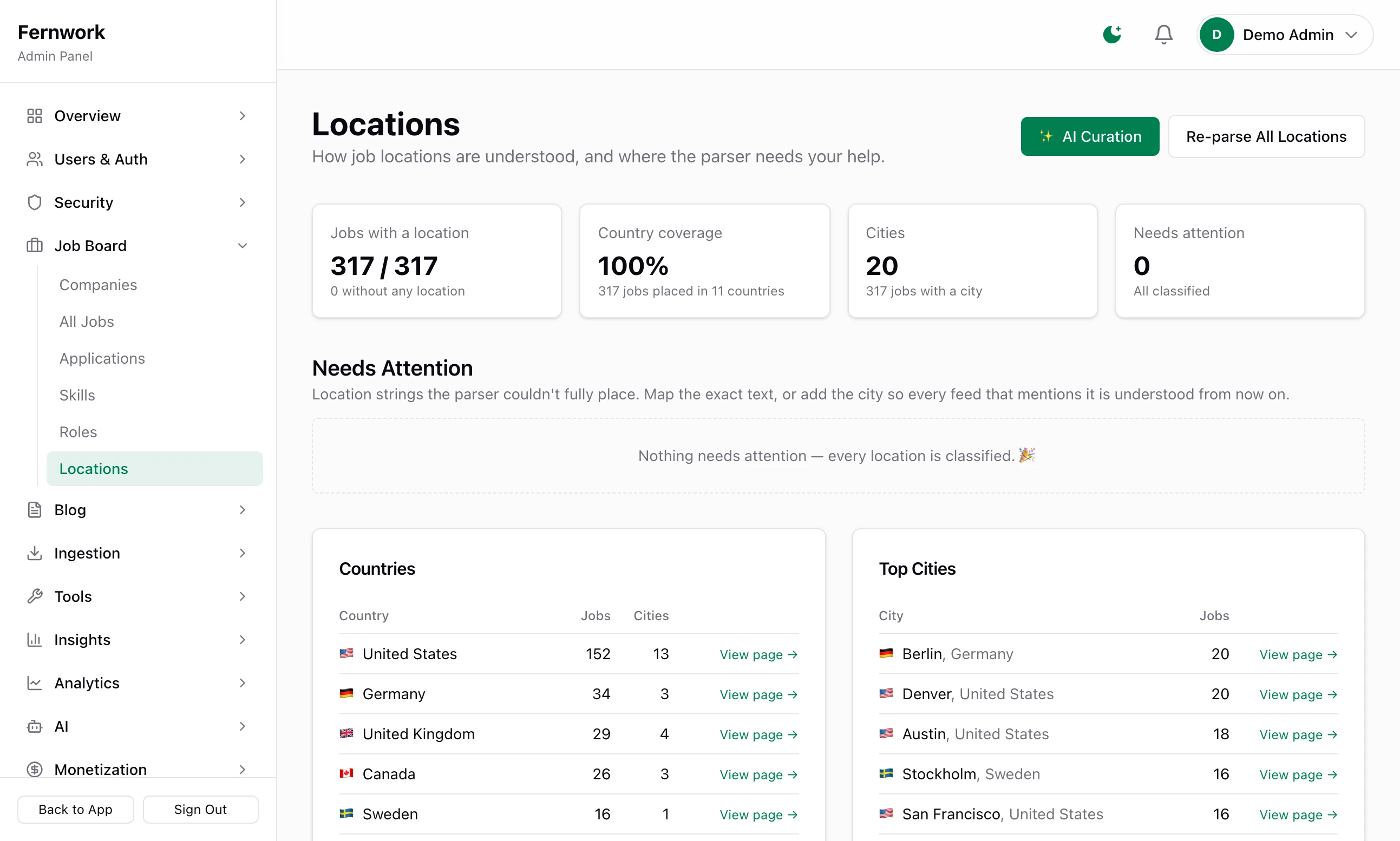
Needs Attention lists the location texts it could not fully place.
On a row, choose a country, type a City (optional) and click Add city. That teaches the board the city and fixes every location that mentions it. With no city, the button reads Set country and fixes that exact text only.
Dismiss hides a text that is not a place you need to fix.
To do many at once, tick the rows, choose a country and click Add as cities or Map to country.
Taught Knowledge, at the bottom, holds everything you have taught it:
| List | What it holds |
|---|---|
| Mapping Rules | An exact location text and the place it means, with a Counts as remote tick box. A rule wins over everything else |
| Custom Cities | Cities beyond the built-in list, with their country and other spellings |
| Country Aliases | Other spellings of a country, such as "Holanda" for the Netherlands |
Every change here is applied to all jobs and companies at once. You see "Saved — re-parsed 14 job(s), 2 company(ies)." with your own numbers. Re-parse All Locations, at the top, reads every location again and rebuilds the search index.
Hiring Scopes lists jobs that are remote with no place, or that name a region wider than a country. Those are correct as they are.
Tagging#
Open Tools, then Tagging. Its Skills and Roles tabs each show how many published jobs are tagged, the rules for matching and the jobs that got nothing.
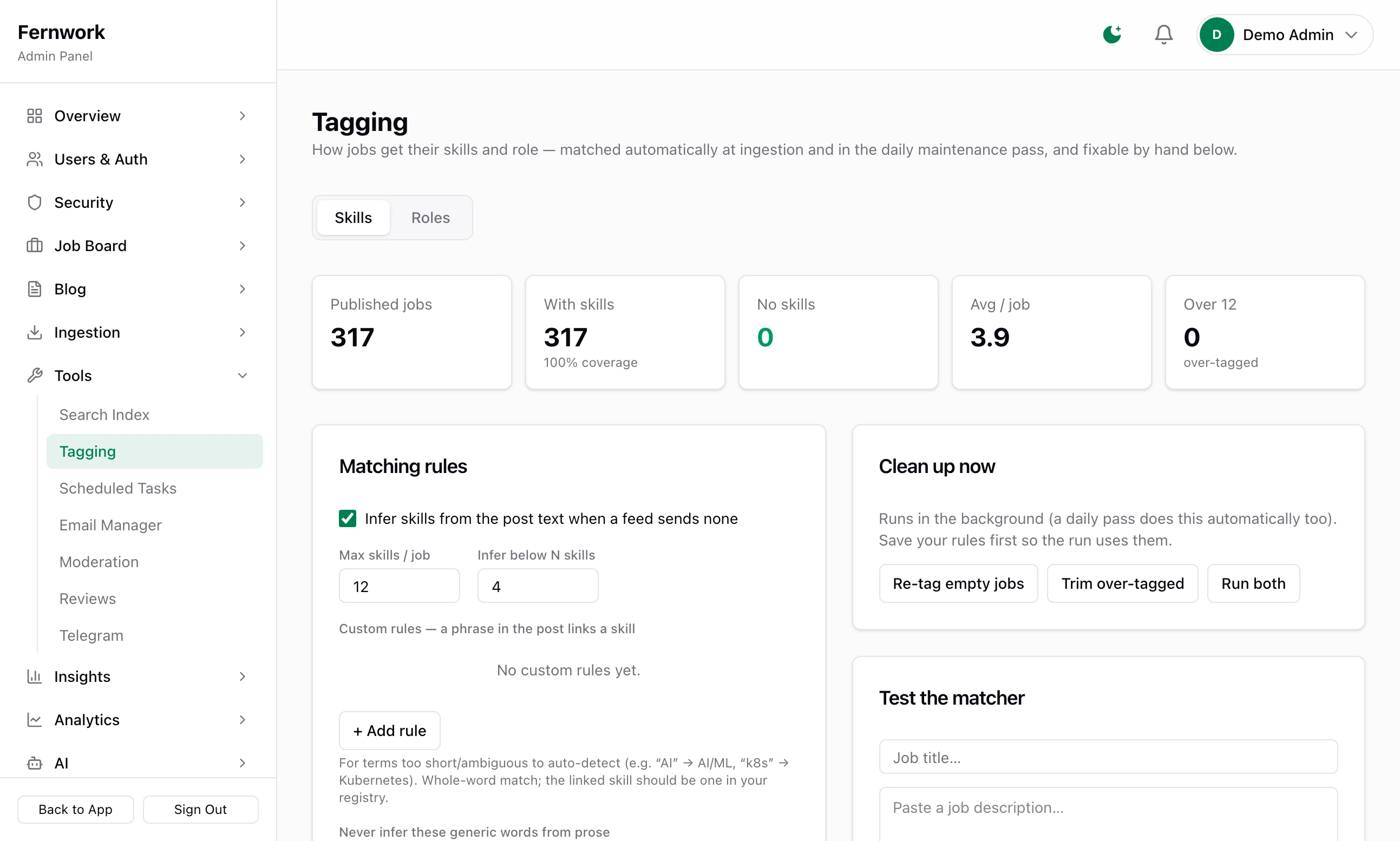
On the Skills tab, under Matching rules:
Infer skills from the post text when a feed sends none: the switch for finding skills in a job's own words.
Max skills / job: a job with more is cut down to the most relevant.
Infer below N skills: the text is only read when the source sent fewer skills than this.
Custom rules — a phrase in the post links a skill: for example the phrase
k8sand the skillKubernetes.Never infer these generic words from prose: words such as "testing" and "support" that would tag almost every job. They still count when a source sends them as tags.
Click Save rules. Test the matcher takes a title and a description and shows the skills they would get, using the rules on screen even before you save.
The Roles tab has the same shape. Its switches are Match a role from the job title and Also scan the post text when the title has no match (multi-word terms only), and its list is Never match these.
Fix untagged jobs#
Jobs with no skills lists each published job that has none.
Suggest from text runs the matcher on that one job. It is not AI and costs nothing.
Type a skill and press Enter, then click Save. A new name is added to your skills list.
No skill needed takes a job off the list and leaves it live. Dismiss all remaining clears the whole list.
If the title is really an occupation, type it beside "…or this job is a role:" and click Save as role.
On the Roles tab, Jobs without a role works the same way, with Suggest from title, Save and No role needed.
Under Clean up now, Re-tag empty jobs, Trim over-tagged and, on the Roles tab, Match roles for untagged jobs run over the whole board in the background. You see "Started in the background — refresh in a minute to see counts drop." The same work runs by itself once a day, as Tagging Maintenance under Tools, Scheduled Tasks.
The search index#
Open Tools, then Search Index. Search runs on Meilisearch, a service that runs beside the site. This screen shows whether it is up, how many jobs it holds and how it ranks them.
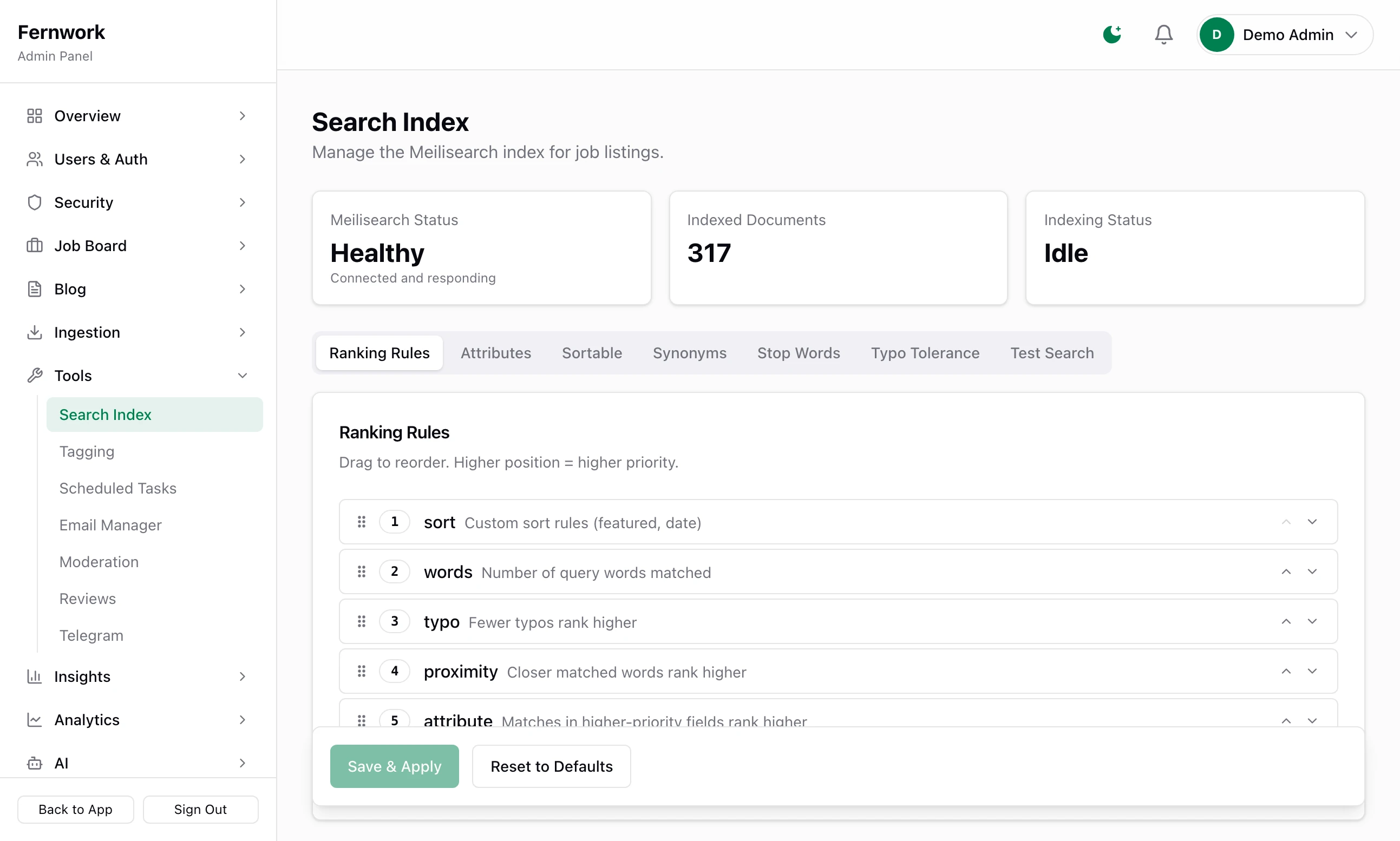
| Tab | What you set |
|---|---|
| Ranking Rules | The order of the six rules that decide which result comes first. Drag to reorder |
| Attributes | Which fields are searched, in order of weight: title first, then skills, role, company name and description. Also which fields can be filtered on |
| Sortable | Which fields results can be sorted by |
| Synonyms | A key word and the words that should also match it. None are set to begin with |
| Stop Words | Words left out of the index, such as "the" and "and" |
| Typo Tolerance | Whether misspellings still match: one typo in words of 4 letters or more, two in words of 8 or more |
| Test Search | A query box that shows the first results, the time taken and a Source: badge |
Click Save & Apply. You see "Config saved and applied to Meilisearch". Reset to Defaults puts every tab back.
Under Actions, Full Reindex loads every published job into the index again and reports "Reindexed 317 jobs" with your own number. Configure Index sends the settings again without reloading the jobs. The index is also checked against the database once a day, so a missed job corrects itself.
When Meilisearch is down#
Meilisearch Status reads Unavailable, with "Using database fallback" beneath it. Search on the site keeps working from the database, and Test Search shows Source: database. The fallback is plainer: the words typed must appear exactly, in the title or the description, with no typo tolerance, synonyms or ranking rules. The two Actions buttons are greyed out until the service is back. See Backups, scheduled tasks and health.
Job types and experience levels#
These two lists are fixed. The types are Full-Time, Part-Time, Contract, Freelance and Internship. The levels are Entry Level, Mid Level, Senior, Lead and Executive. Each has a public page under /types. When a source sends no level, the board reads one from the job title where the title makes it plain, and otherwise leaves it empty. Changing either list needs code.
What the AI buttons do#
Each of these screens has an ✨ AI Curation link. The buttons behind it need an AI provider: without one they are greyed out under "No AI provider configured." AI: providers, curation and cost covers the provider and the cost.
| Screen | Button | What it does |
|---|---|---|
| Skills | Curate incomplete skills (9) | Fills in missing groups, aliases, descriptions and icons, and never overwrites a field already filled |
| Skills | Full re-scan (32 skills) | The same, and checks every name again and looks for duplicates |
| Skills | Scan for missing skills | Reads untagged jobs and proposes skills that are not in your list |
| Roles | Run discovery now | Reads untagged job titles and proposes new roles |
| Roles | Curate incomplete roles (4) | Fills in missing descriptions, icons and aliases |
| Locations | Write 8 market descriptions with AI | Writes a short overview for each country and city page that has none |
| Companies | Enrich next 50 with AI | Reads the websites of up to 50 imported companies with empty profiles and writes each a description, industry and skills |
| A skill or role | ✨ Redo with AI | Rewrites that one entry, replacing what is there |
The numbers in the button names are your own counts. Anything that would merge, remove or add an entry waits on the same page for you to approve it. A daily task, AI Curation, does the same work unattended.
Companies#
Open Job Board, then Companies. A company appears here when a job is imported for it or an employer creates one. An imported company has no owner and is listed as Unclaimed.
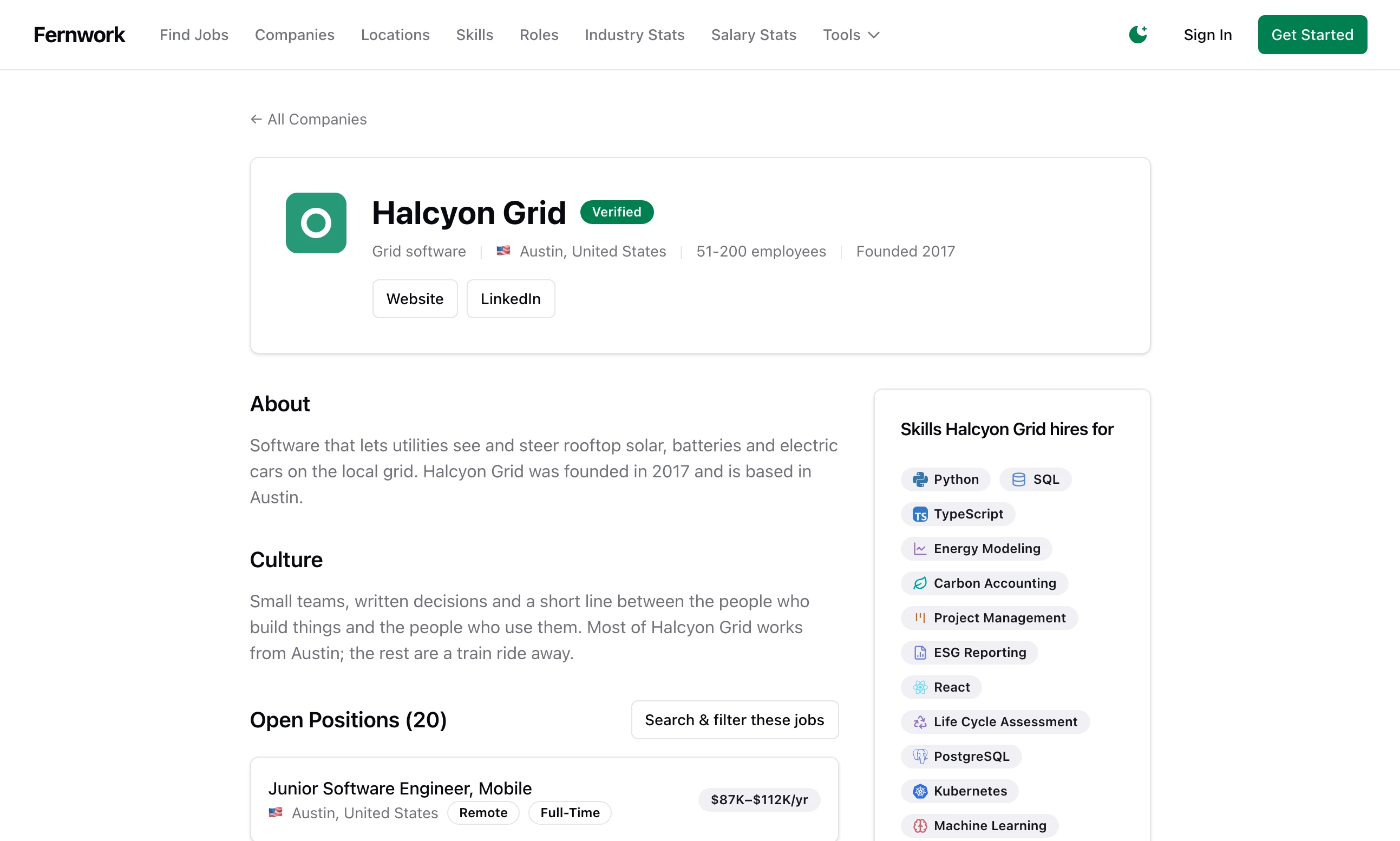
The Actions menu on each row has:
Edit profile: the name, website, description, location, industry, size, tech stack, benefits, culture and social links, plus Upload Logo. A logo is stored in the database, like your own. On a company an employer owns, the page warns that your edits override theirs.
Mark as verified: a badge you give by hand. It puts a checkmark on the company's public page and ranks it higher on the companies page.
Delete company: this also deletes every job the company has, and cannot be undone.
Needs AI Enrichment counts imported companies whose profile is empty.
I deleted a skill and it came back
A source sent that tag again, and a tag the board does not know is added to the list. Use Hide instead of Delete: a hidden skill is still recognised, so it is never created again and never shown.
Can I add categories?
There is no category list. Put skills into groups with Set Group, and use roles for occupations. Visitors can browse by skill group, role, location, type and level.
Stuck on a step? Send a message.