Add job sources
Fill the board from job feeds. Add a ready-made source or a feed of your own, test it, set how often it is fetched and follow each job from the feed to the page.
Updated 9 Oct 2026 · written for Job Lab 1.1.0
On this page
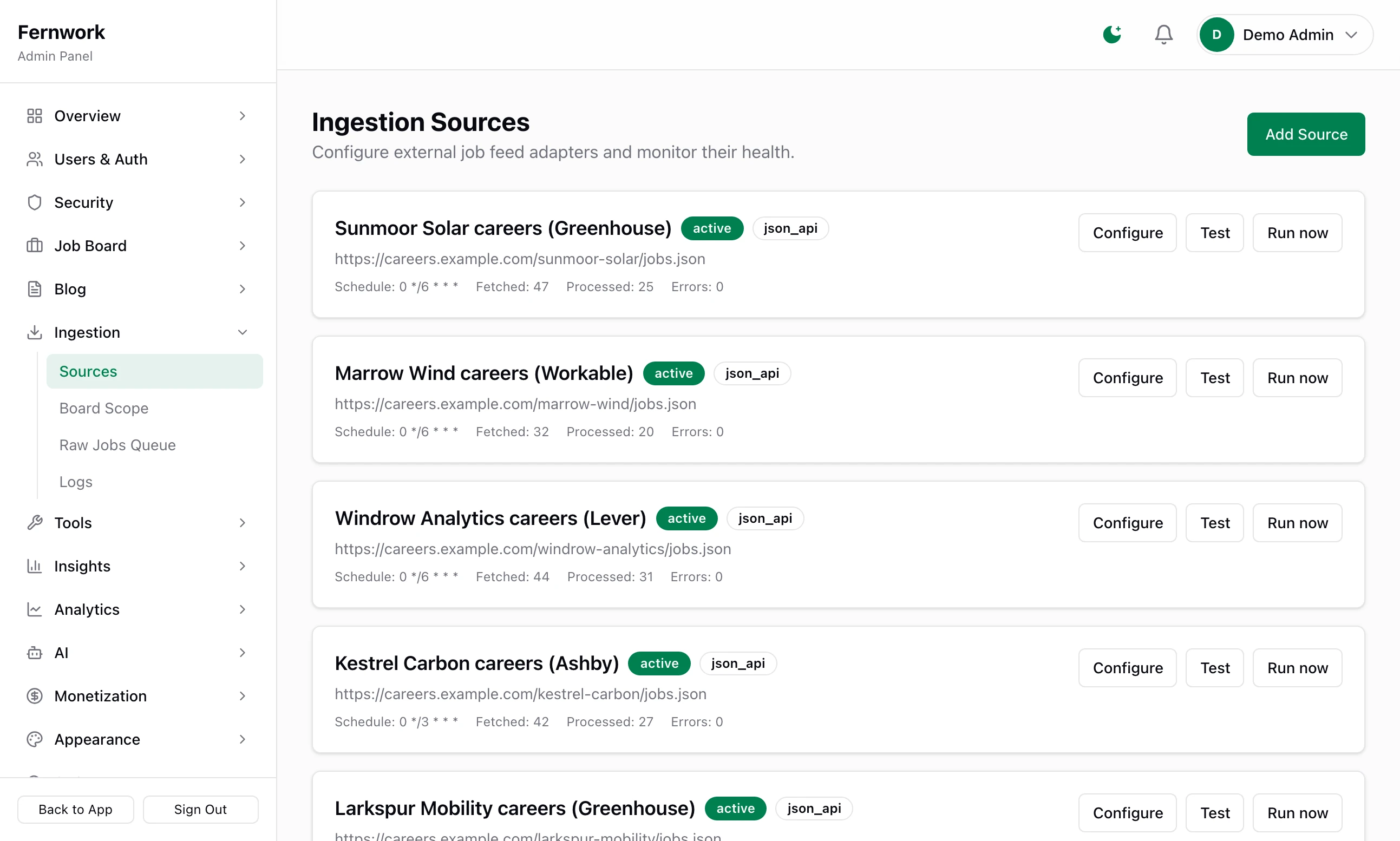
Open Sources under Ingestion in the admin sidebar. A source is one place jobs come from: a job board's feed, a search on an aggregator or one company's hiring system. Job Lab fetches each source on its own timetable, checks every job against your board scope, drops the duplicates and publishes the rest.
Add your first source#
Start with the built-in Test Feed: twenty sample software jobs served by your own site. It needs no key and shows the whole path from feed to page.
Step 1: Click Add Source
The button is at the top right. You see Add Ingestion Source, with two steps across the top: Choose a source and Configure & test.
Step 2: Open Custom & advanced and pick Test Feed
The tile is at the bottom, under Sandbox, marked No key needed. If the setup wizard already brought in the sample jobs, it is also marked Already added and you can go straight to the ready-made sources.
Step 3: Make the Feed URL a full address
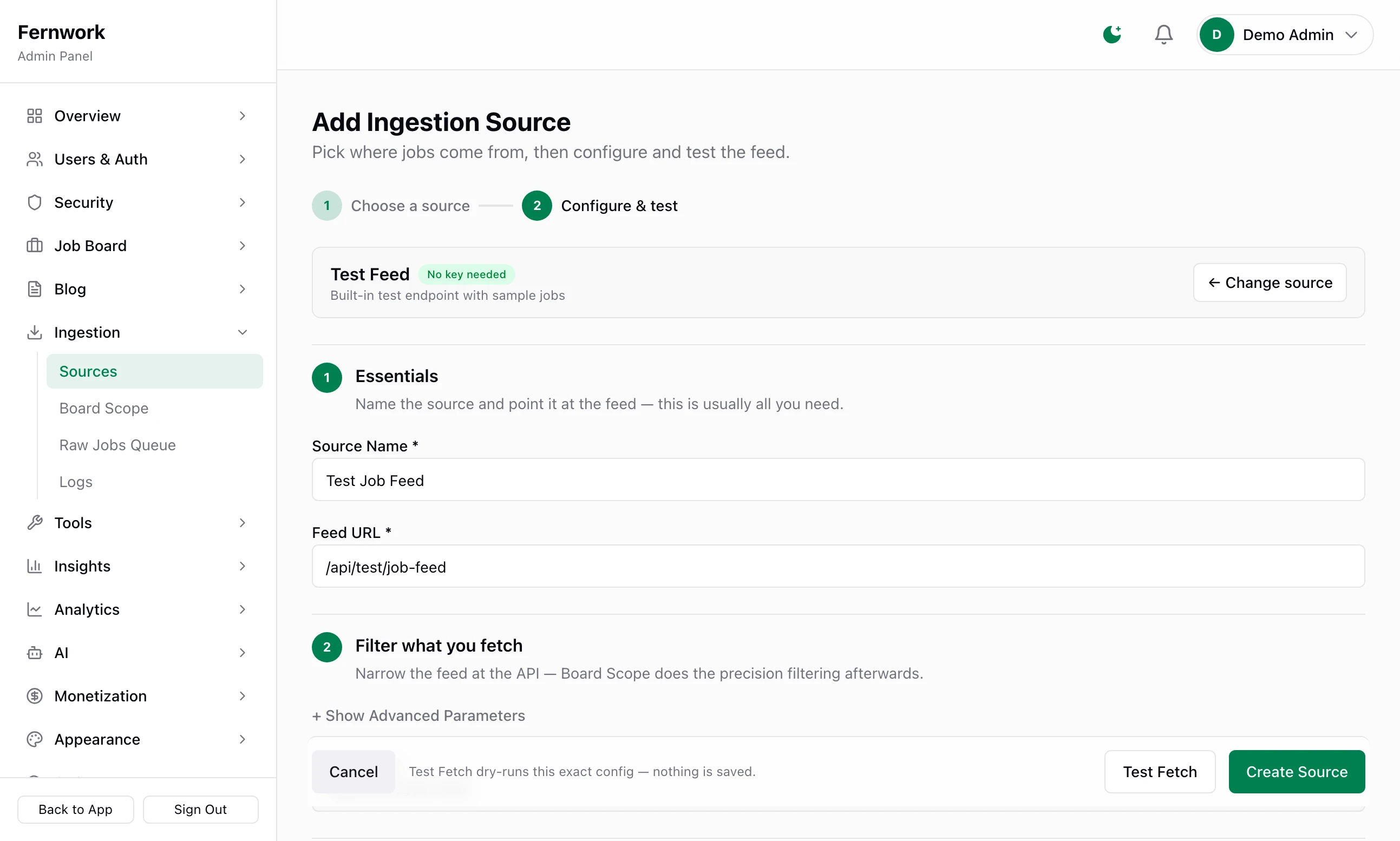
The form opens with Source Name set to "Test Job Feed" and Feed URL set to
/api/test/job-feed. Put your site's own address in front of it. On your own computer that makes:Feed URLhttp://localhost:3000/api/test/job-feedStep 4: Click Test Fetch
You see Test fetch — looks good and "20 items fetched. Sample:" above the first five jobs. Nothing is saved: the bar at the bottom says "Test Fetch dry-runs this exact config — nothing is saved."
Step 5: Click Create Source
You are back on the list, with a new card marked
activethat readsSchedule: 0 */6 * * *,Fetched: 0,Processed: 0andErrors: 0.Step 6: Click Run now
The source is fetched and its jobs are processed while you wait. On a board with no scope set you see "Fetched. 20 new jobs processed." and the jobs are on the public site.
The sample jobs are published like any others. Delete them under Job Board, All Jobs before you open the site to visitors, and delete the source.
The ready-made sources#
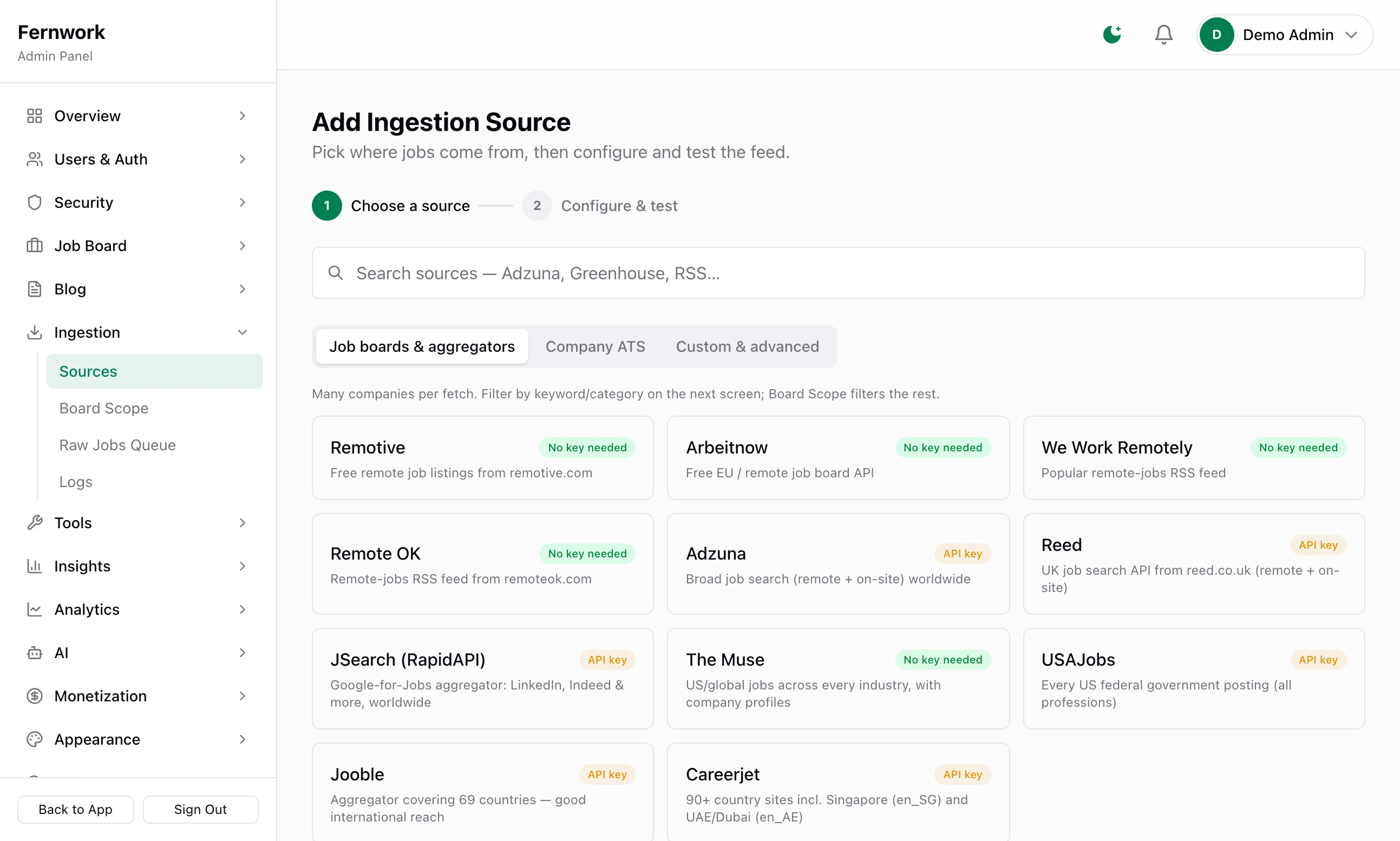
The first tab of the picker, Job boards & aggregators, holds eleven sources that are already set up. Each tile says No key needed or API key.
| Tile | What it carries | What it needs |
|---|---|---|
| Remotive | Remote jobs from remotive.com | Nothing |
| Arbeitnow | European and remote jobs | Nothing |
| We Work Remotely | Remote jobs, as an RSS feed | Nothing |
| Remote OK | Remote jobs, as an RSS feed | Nothing |
| The Muse | Jobs in every industry, in the US and elsewhere | Nothing. A key of your own is optional and goes in API Key (optional) among the filters |
| Adzuna | A keyword search of jobs in one country | An App ID and an App Key from developer.adzuna.com |
| Reed | A keyword search of UK jobs | An API key from reed.co.uk/developers |
| JSearch (RapidAPI) | A keyword search across several large job sites | A key from rapidapi.com |
| USAJobs | US federal government jobs | A key from developer.usajobs.gov |
| Jooble | Jobs from many countries | A key from jooble.org/api/about, typed into the address |
| Careerjet | A keyword search on one country's Careerjet site | An affiliate ID from Careerjet's partner pages |
The second tab, Company ATS, brings in one named employer's openings: see Company career pages and ATS feeds.
Where a key goes#
Step 1: Get the key from the service
Each service issues its own, from the site named in the table. The note on the tile's form repeats where.
Step 2: Put it in the form
Pick the tile. The key goes into the second step of the form:
Reed, JSearch and USAJobs: the API Key field under Essentials.
Adzuna: App ID and App Key. Country is the two-letter code of the Adzuna site to search, and starts as
us.Jooble: the Feed URL itself, in place of
YOUR-API-KEY. Test Fetch and Create Source stay greyed out until that placeholder is gone.Careerjet: Affiliate ID, among the filters.
Step 3: Click Test Fetch, then Create Source
A key that works brings back a count and a sample of jobs. A key that is refused brings back 0 items and a warning such as "HTTP 401" with the path. Once saved, an API Key or App Key is shown as its first four characters only. A key that is part of the address or the filters, as with Jooble and Careerjet, is shown in full on the list and on the source's page.
Under Filter what you fetch, a keyword source takes up to ten search terms and makes one request for each on every fetch. It never goes on to a second page of results, so several exact terms bring in more than one broad one.
Add a feed of your own#
On the Custom & advanced tab, pick the kind of feed, type a Source Name and the Feed URL, click Test Fetch and read the sample before you click Create Source.
| Tile | Use it for | What it reads |
|---|---|---|
| RSS Feed | A job board's RSS feed | Each <item>: title, link, description, date and author. A title written "Company: Job title" is split in two. An Atom feed, made of <entry> elements, returns nothing |
| JSON API | Almost any API that answers in JSON | The list of jobs at the Data Path you give |
| XML Feed | An XML file of jobs | Each element named in Item Tag Name, which starts as job |
| Custom Scraper | A program of your own | A JSON answer with a jobs list, each job with id, title, description, company, location and url |
For a JSON API the Fine-tune section opens by itself. Data Path says where the list of jobs is in the answer and ID Field which field tells one job from another. Auth Style is how the key is sent: Custom header, Basic auth (key as username) or Bearer token. Field Mapping matches the API's field names to Job Lab's. A field you leave out is looked for under common names such as title, company and location.
The other four tiles are Careers Page, covered in Company career pages and ATS feeds, and Remotive, Arbeitnow and Adzuna without their ready-made filters.
A job must have a title and a company. When the sample has no company, the test warns "No item carries a company — jobs would be rejected."
Run, pause and repair a source#
Each card on the list shows the source's status, its kind, its address and four figures.
| On the card | It means |
|---|---|
active | Switched on and not failing |
paused | You switched it off |
error | The last fetch failed |
disabled | Switched off by Job Lab after too many failures in a row |
| Schedule | The timetable, as a cron expression |
| Fetched | Items brought in that this source had not sent before |
| Processed | Jobs created from them |
| Errors | Fetches that failed outright |
Run now fetches the source and processes what arrived. Configure opens the source's own page.
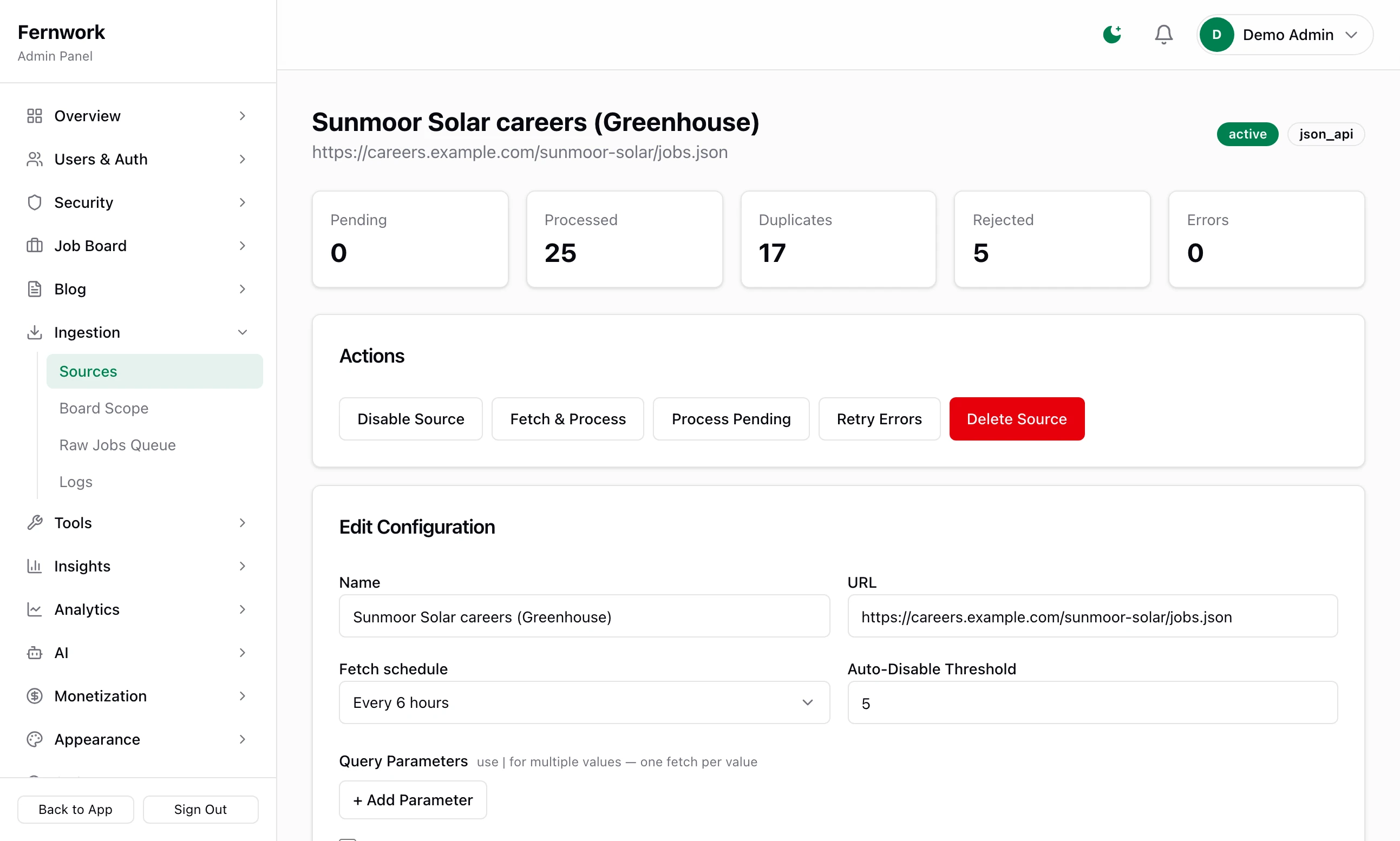
On the source's page, Actions has:
Disable Source or Enable Source: stops or restarts the timetable.
Fetch & Process: the same as Run now, with a fuller answer.
Process Pending: processes items already fetched from this source, 100 at a time.
Retry Errors: tries again every item that failed while being processed.
Reset Errors: shown only while the source has failed fetches against it. Clears the count.
Delete Source: asks first, then removes the source with its raw jobs and logs. Jobs it already published stay on the board.
Edit Configuration, below, changes the name, address, schedule and filters. Click Save Changes and you see "Configuration saved."
A source that fails five fetches in a row is switched off and marked disabled, and you are told on Telegram if alerts are set up. The limit is Auto-disable after N errors under Fine-tune. To bring a source back, fix the cause, click Reset Errors and then Enable Source.
Schedules#
Every source has its own timetable. A new one is fetched every 6 hours. A Careers Page starts at once a week, on Mondays at 06:00 UTC.
The choices run from Every hour to Every 12 hours, then Daily at 06:00 UTC, Mondays at 06:00 UTC and Custom (cron expression), which takes five fields such as 0 */6 * * *. All times are UTC.
Change it under Fine-tune when you add the source, under Edit Configuration on the source's page, or on Scheduled Tasks under Tools, where every source is listed as "Fetch:" and its name, with its own menu.
What happens to each job#
Every fetched item is stored as it arrived and then goes through these steps in order. A step that stops a job records why.
Read. The item is turned into a title, company, description, location, pay and link, and garbled characters are put right. With no title it is rejected.
Remote check. On a remote-only board, a job from a feed that does not say whether it is remote is read for clear signs that it is.
Scope. A job outside the board scope is rejected, with the reason.
Duplicates. A job with the same title, company and place as one already processed is marked a duplicate.
Description. The text is cleaned, and a logo the feed put at the top of it is lifted out.
Location. The place is read into a city and a country. When none is named, the source's Default country is used.
Company. The job joins the company of the same name, or a new company is made. With no company it is rejected.
Duplicates again. The job is compared with the jobs live on the board.
Pay. An impossible salary is dropped. When the feed sent none, a range is read from the description if salary extraction is on. A missing currency is taken from the job's country.
Publish. The job goes live, dated as the feed dated it. It expires after Imported Job Expiry (days) on Settings, General, which starts at 45. The apply button leads to the feed's link.
Moderation. A job that trips one of your moderation rules is pulled back to a draft and listed under Tools, Moderation.
Skills, role and search. The feed's tags are topped up from the job's text against your skills. A role is matched from the title and the job is added to the search index.
Board scope and the raw jobs queue covers steps 3, 4 and 8 and the place where every stopped job can be seen.
Logs#
Open Logs under Ingestion for the last 100 entries from every source, newest first. Filter by Level (info, warn or error) and by Source. A row with an arrow opens to show its details.
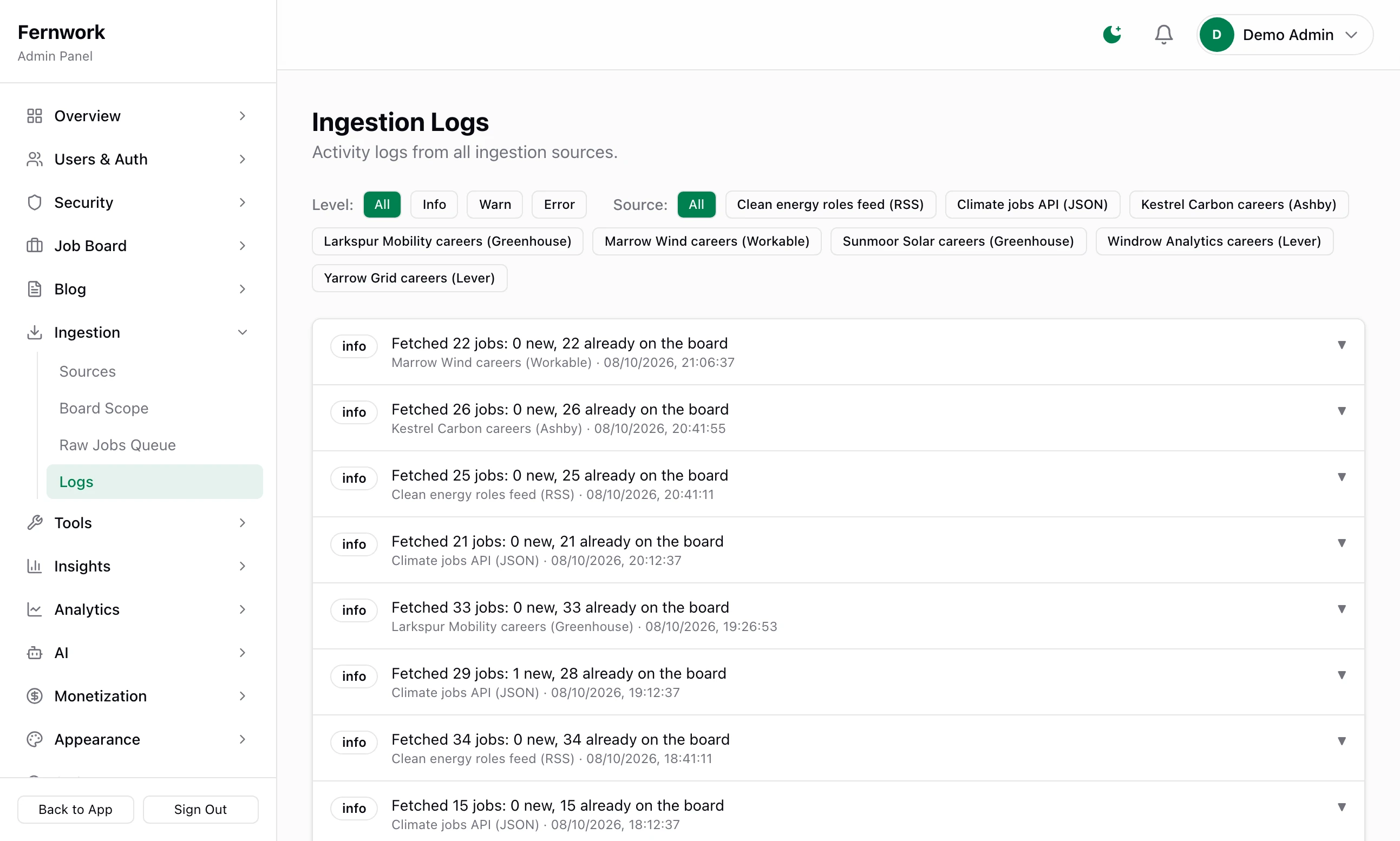
"Fetched 20 jobs, inserted 20 new": a fetch. The second number is how many were not already known.
"Processed batch: 12 new, 3 duplicates, 5 out of scope, 0 errors": what became of them.
"Fetch failed:" and the reason, or "Source auto-disabled after 5 consecutive errors:".
A source's last 20 entries are at the foot of its own page. Entries are kept for 30 days: Log Retention (days) on Settings, General.
Feeds on a private network#
Job Lab refuses to fetch an address that is not on the public internet: localhost, a name ending .local or .internal, an address written as a bare IP number or a name that leads to a private or loopback address. Every redirect is checked the same way. Your site's own address is always allowed, which is how the Test Feed works.
A refused feed fails with "Blocked or unreachable URL" and the path. If a feed of yours really is on your own network, add this line to .env and restart the site:
ALLOW_PRIVATE_SOURCE_HOSTS=1Test Fetch says "looks good" but fetched 0 items
In version 1.1.0 the heading reads Test fetch — looks good even when nothing came back. Read the count and the warnings underneath. "Blocked or unreachable URL" means the address was refused or did not answer, and "HTTP 401" or "HTTP 403" that the key was not accepted. "The feed returned zero items — check the URL and parameters." on its own means the request worked and matched nothing.
"Response is not an array"
A JSON API answered, but the list of jobs is not where Data Path points. Open the feed's address in a browser, find the name of the list that holds the jobs and type that name, such as results or data.jobs.
A source fetched hundreds of jobs and only some are on the board
Look at the tiles on the source's page. Pending means they are waiting: click Process Pending. Rejected means the board scope turned them away, and Duplicates that the board already had them. Board scope and the raw jobs queue shows how to read the reason on each one.
Stuck on a step? Send a message.