SEO: landing pages, indexing and Search Console
Let search engines in, shape the pages the board builds for every skill, role and place, and connect Google so new jobs reach its job search within hours.
Updated 9 Oct 2026 · written for Job Lab 1.1.0
On this page
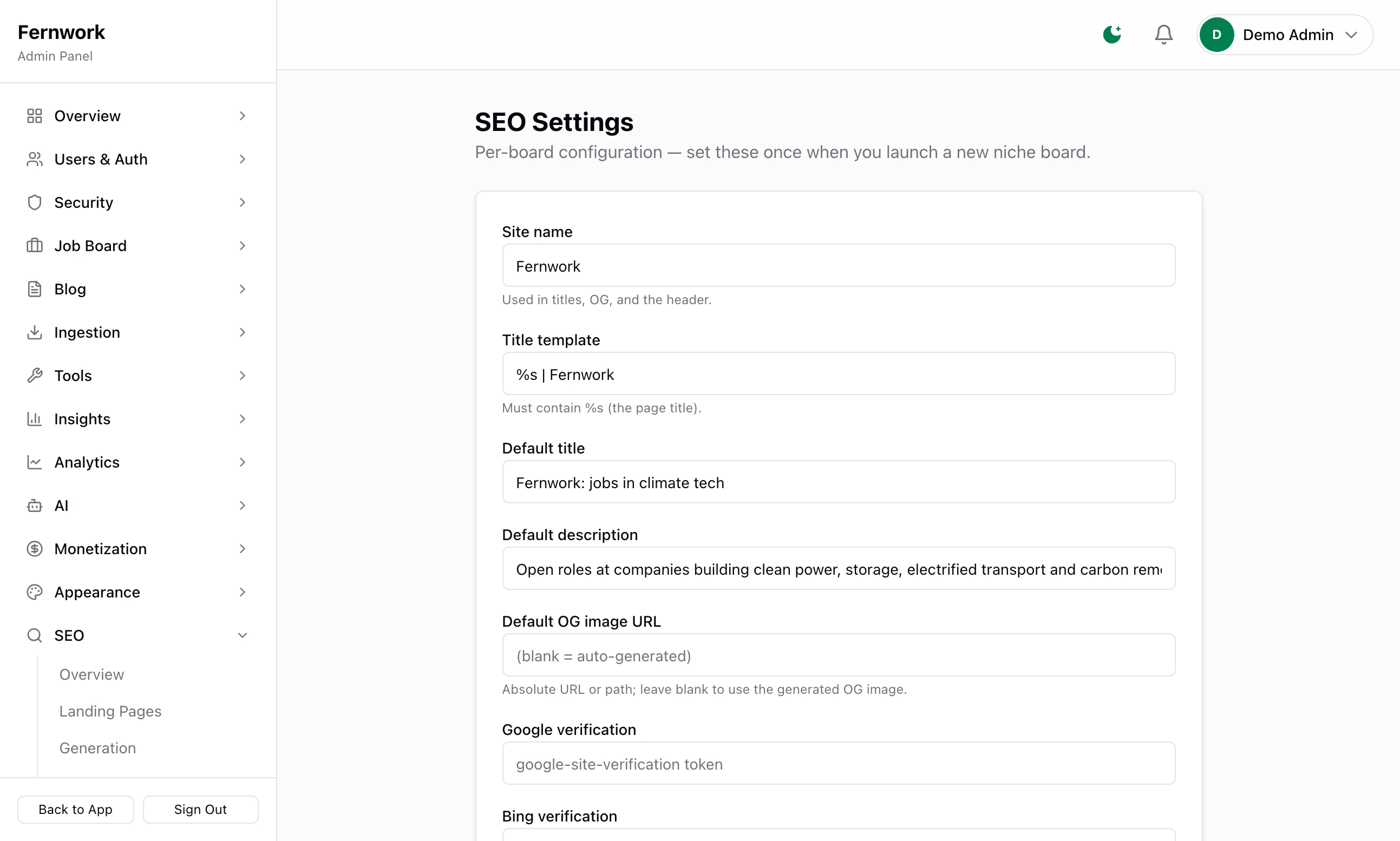
Open Settings under SEO in the admin sidebar. The setup wizard switched search engines off on its first run, so a new board is invisible to Google until you change one tick box on this screen. The rest of the SEO group covers the pages the board writes for you and how they are doing.
Let search engines in#
Do this on the day the site goes live on its own domain, not before.
Step 1: Check the site's address
Every sitemap entry and every canonical link is built from
NEXT_PUBLIC_APP_URLin your.envfile. Open Overview under SEO: the line metadataBase set (absolute URL) under SEO Health shows the address in use, with an amber dot while it containslocalhost. Deploy to a server covers setting it.Step 2: Tick the box
On SEO, Settings, tick Allow search engines to index this site. A bar appears at the bottom of the screen reading "Unsaved changes".
Step 3: Click Save SEO settings
The bar reads "Saved." The change applies to the next page anyone loads.
Step 4: Read your robots.txt
Open
/robots.txton your site. It now has the lineAllow: /near the top and ends with aSitemap:line. The launch checklist on the Control Panel ticks Turn on search-engine indexing at go-live.
While the box is unticked, robots.txt tells every crawler Disallow: / and every page carries a noindex, nofollow tag. With it ticked, crawlers are kept out of /admin/, /employer/, /seeker/, /api/ and /auth/ only. Running the setup wizard a second time leaves the box as you set it.
The other settings#
Site name: the name in the header, in page titles and on share images.
Title template: wraps the title of every page.
%sstands for the page's own title, as in%s | Fernwork. Nothing checks for the%swhen you save, so keep it.Default title and Default description: what the home page, and any page with no wording of its own, shows in search results.
Default OG image URL: the picture shown when a page is shared. Leave it blank and the site draws one from the site name and the default description.
Google verification and Bing verification: the code each search engine gives you to prove the site is yours. Paste the code alone, not the whole tag.
Twitter handle: added to share cards, for example
@yourbrand.Ping Google instantly when jobs go live or close (Indexing API): see Connect Google.
Landing pages#
The board writes a page for each skill, role and place that has enough open jobs, and takes it down again when the jobs run out. These are the pages that answer a search such as "remote react jobs".
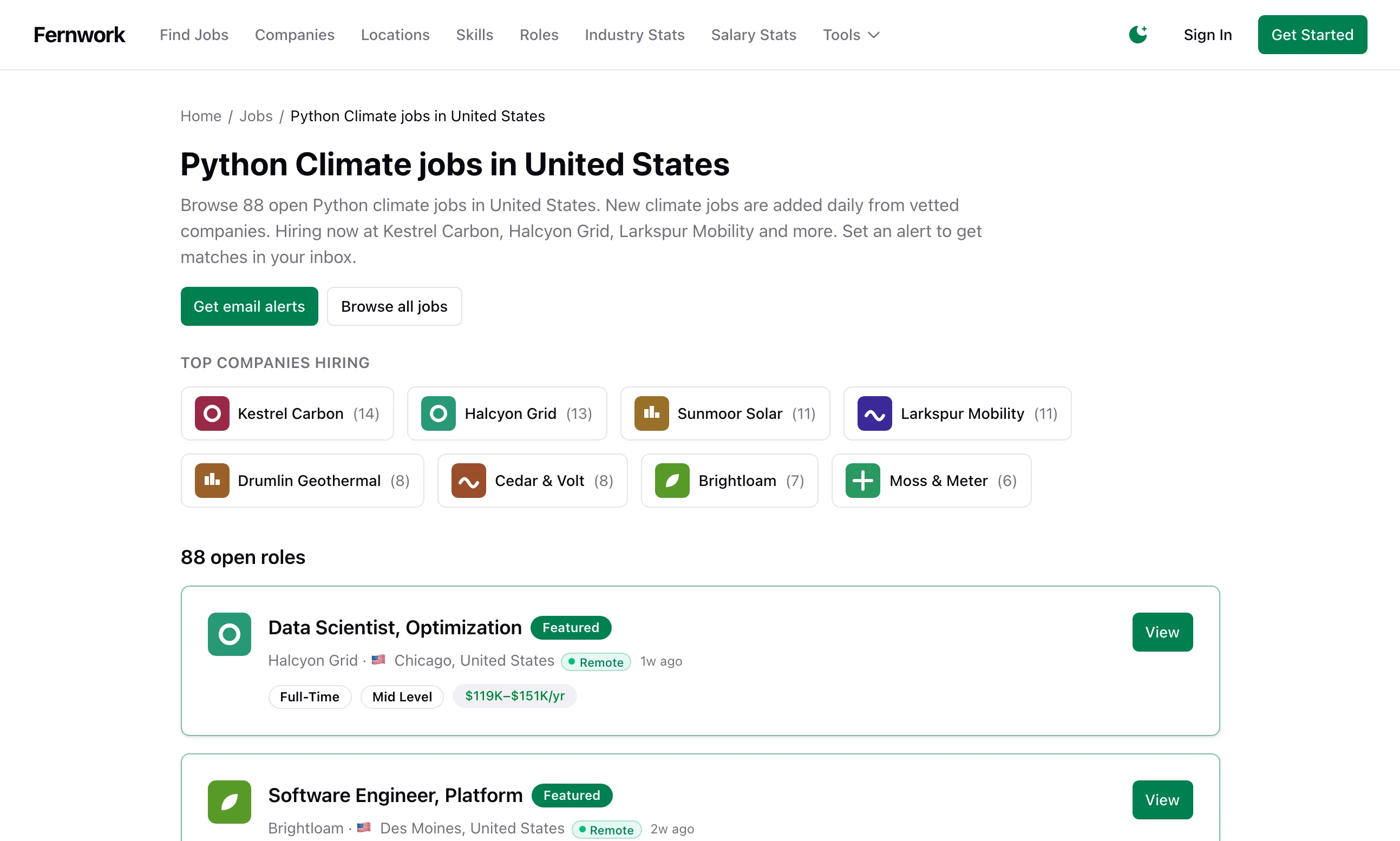
There are four kinds. The examples are from a board whose jobs are called "climate jobs".
| Kind | Example address | Published at | Most pages |
|---|---|---|---|
| Skill | /python-climate-jobs | 5 jobs | 200 |
| Role | /product-designer-climate-jobs | 5 jobs | 100 |
| Location | /climate-jobs-berlin | 5 jobs | 100 |
| Skill and location | /python-climate-jobs-united-states | 8 jobs | 300 |
Skill pages come from your active skills, busiest first. Role pages come from Roles under Job Board: see Skills, roles and locations.
Location pages take countries first, then cities, until the limit is reached.
Skill and location pages pair your 15 busiest skills with your 10 leading places. That is 150 pages at most, whatever the limit says.
A page has a heading, a short introduction naming up to three companies that are hiring, the matching jobs, the top hiring companies, a few questions and answers, and links to related pages.
Set the wording and the limits#
Open Generation under SEO.
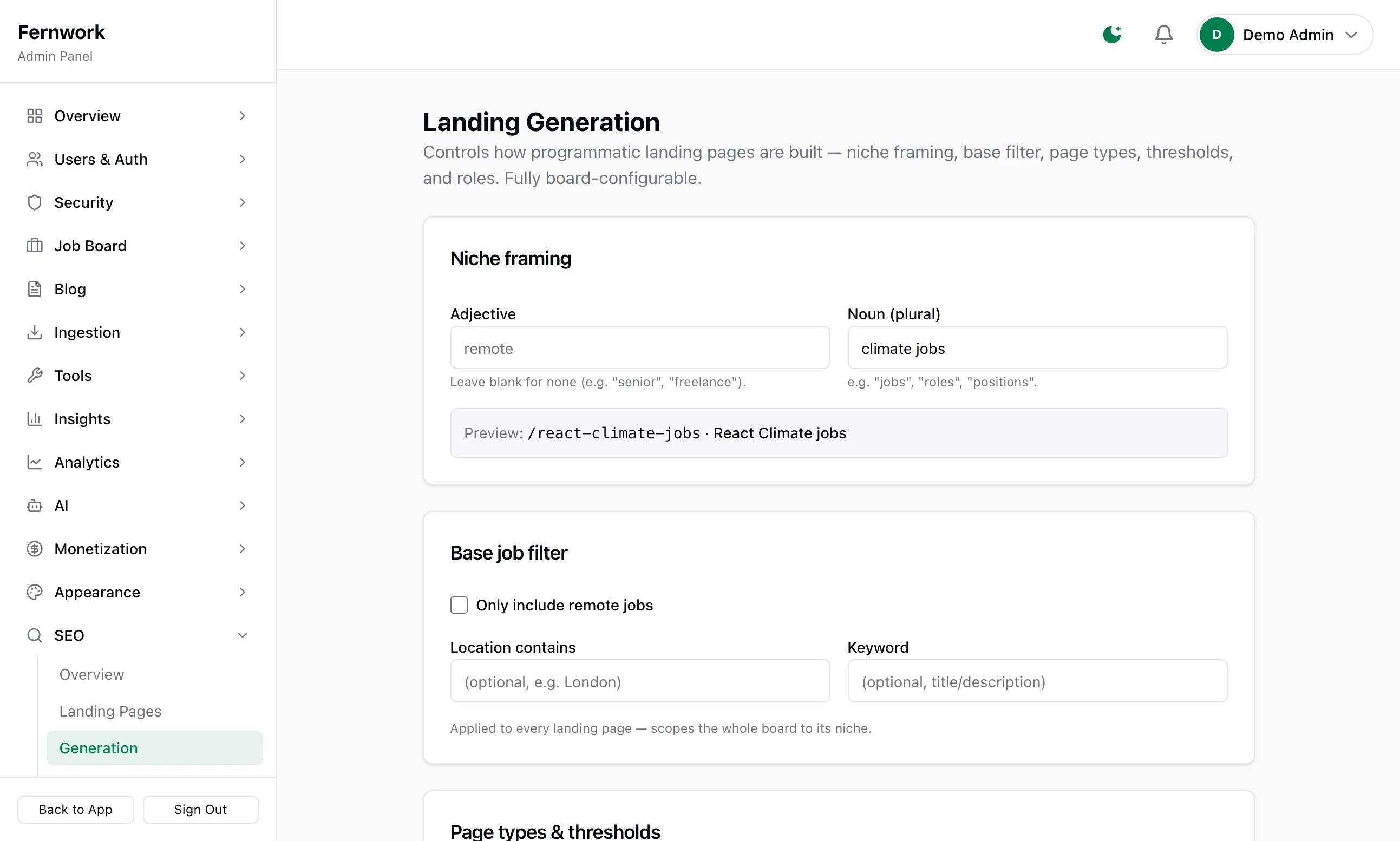
Adjective and Noun (plural), under Niche framing: the words every address and heading is built from. With "remote" and "jobs" the React page is
/remote-react-jobs, headed "Remote React Jobs". The Preview line shows the result as you type. The setup wizard filled these in.Only include remote jobs, Location contains and Keyword, under Base job filter: a filter applied to the jobs on every landing page.
Skill, Role, Location and Skill × Location: untick a kind to stop building it.
Min jobs to publish (single) and Min jobs to publish (combo): 5 and 8 to begin with.
+ Show max-page caps opens Max Skill, Max Role, Max Location and Max Combo: 200, 100, 100 and 300.
Click Save generation config. You see "Saved — click Generate to apply." Nothing changes on the site until the next run.
Generate, edit and prune#
Open Landing Pages under SEO.
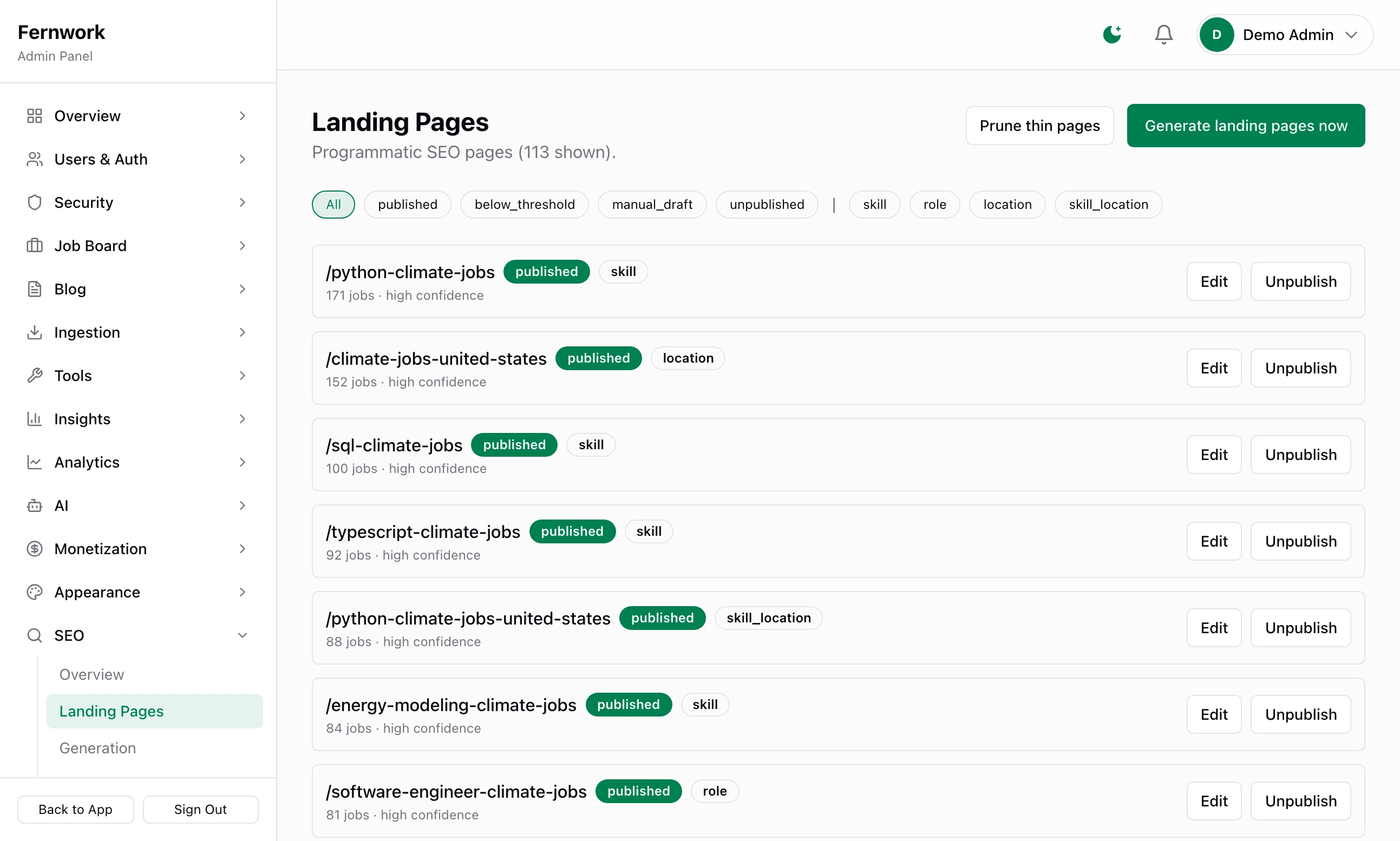
Generate landing pages now runs the whole job at once and reports, for example, "Created 12, updated 101, demoted 0."
Each row has the page's address, its status, its kind, and a line such as "171 jobs · high confidence". Confidence is high from 50 jobs and medium from 15.
The chips above the list filter by status and by kind. The list shows the 300 busiest.
Edit opens H1, Intro, Meta title and Meta description. Click Save (marks as manual): later runs keep your wording and still update the job count.
Unpublish takes a page down, and it stays down through later runs until you click Publish.
Prune thin pages deletes every page marked
below_threshold, after asking "Delete all below-threshold (thin) landing pages?". A deleted page is written afresh if its jobs come back, without any wording you had edited.
| Status | It means |
|---|---|
published | Live, and in the sitemap. |
below_threshold | Too few jobs, or no longer matches the settings. The address answers "not found". |
unpublished | You took it down. Runs leave it alone. |
The task SEO Page Generation does the same run every day at 03:00 UTC. You can change how often in Scheduled Tasks under Tools: see Backups, scheduled tasks and health. Publish on a page that is below the minimum lasts only until that run.
The sitemaps#
/sitemap.xml is written fresh each time it is asked for. It holds the home page and the main browse pages, the newest 5,000 published jobs, up to 2,000 companies, every active skill and skill group, every role with a job, every published stat page and landing page, every country page, up to 500 city pages and the feed pages. Indexable URLs on SEO, Overview is the number of addresses in it.
/jobs/sitemap.xml holds the newest 5,000 published jobs and nothing else. robots.txt names only /sitemap.xml, and that is the one to give to Search Console.
Job pages and Google's job search#
Every published job page carries the structured data Google reads for its job search: title, description, kind of employment, date posted, the date it is valid until (the job's expiry, or 30 days after posting), the company and its logo, the place, whether it is remote, and the salary when there is one. There is nothing to switch on. When a job closes, the data is removed and the page is marked noindex.
Check any job page with Google's Rich Results Test.
Metadata Audit#
Metadata Audit under SEO reads every published landing page and lists what is wrong. A missing description and a title shared by two pages are errors. A title over 60 characters, and a description over 160 or under 50, are warnings. It also counts skills with no description. Fix a page with Edit on Landing Pages.
Connect Google#
One Google service account does three jobs: it fills Overview and Search Console under Analytics, and it lets the board tell Google the moment a job opens or closes. The tracking tag is separate and needs only the Measurement ID.
Step 1: Create a service account
In Google Cloud Console, open IAM & Admin, then Service Accounts, and create one. Open it, add a key and choose JSON. A file is downloaded. It holds a
client_emailending.iam.gserviceaccount.comand aprivate_keystarting-----BEGIN PRIVATE KEY-----.Step 2: Switch on the three APIs
In the same Google Cloud project, enable the Google Analytics Data API, the Google Search Console API and the Web Search Indexing API.
Step 3: Give the account access
Add the service account's email to your Analytics property as a Viewer. Add it to your Search Console property as an Owner: the Indexing API refuses anything less.
Step 4: Paste the values in
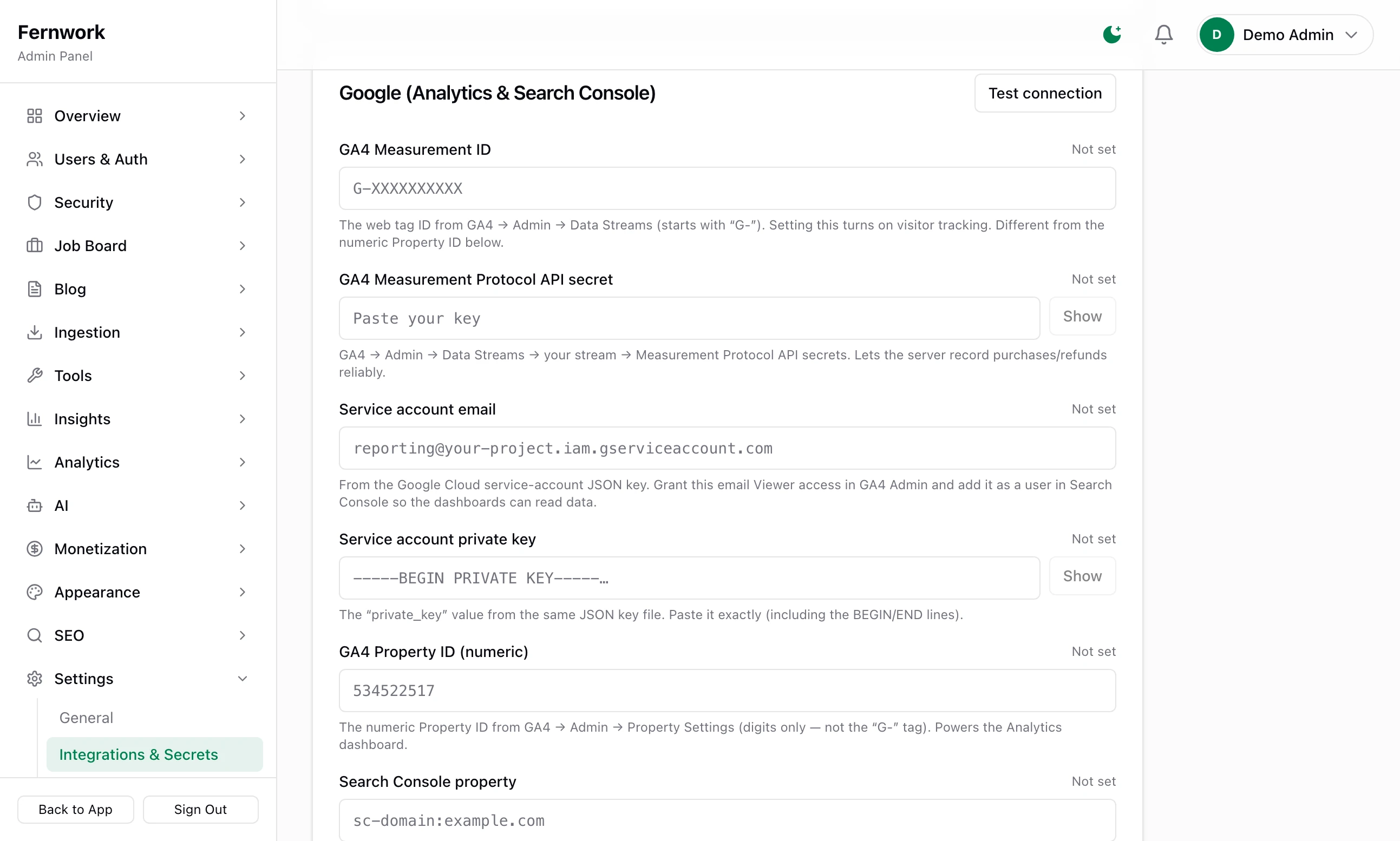
Open Integrations & Secrets under Settings and find the card Google (Analytics & Search Console).
Field What goes in it GA4 Measurement ID The tag ID from your Analytics data stream, such as G-XXXXXXXXXX. This alone puts the tracking tag on every page.GA4 Measurement Protocol API secret Optional. From the same data stream. It lets the server record purchases and refunds in Analytics. Service account email The client_emailfrom the file.Service account private key The private_keyfrom the file, with its BEGIN and END lines.GA4 Property ID (numeric) The property's number, digits only. Not the G-ID.Search Console property sc-domain:example.comfor a domain property, orhttps://example.com/for a URL-prefix property.Step 5: Save and test
Click Save integrations, then Test connection on the card. You see "✓ Service account authenticated with Google. Analytics and Search Console are ready.", or a line naming the field still missing.
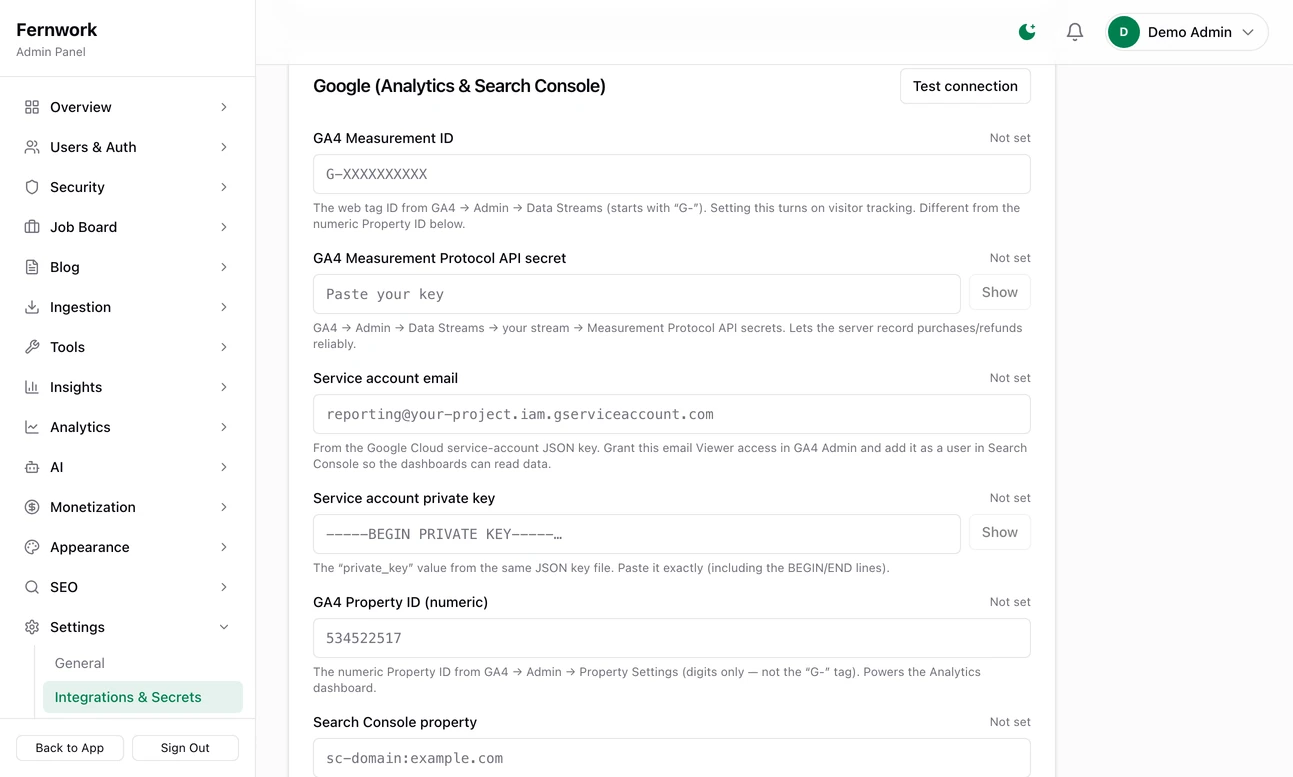
The six Google fields. On the demo all read Not set. Step 6: Turn on the pings
Back on SEO, Settings, tick Ping Google instantly when jobs go live or close (Indexing API) and save.
Analytics, Overview shows users, sessions, views, engagement, key events and revenue, then where visitors came from and which pages they landed on. Analytics, Search Console shows clicks, impressions, click rate and position, the searches you rank for, and Opportunities: searches where you rank on the second page. Both offer the last 7, 28 or 90 days or 12 months, and hold figures for 15 minutes unless you click Refresh.
With the pings on, each job that is published or closed is reported to Google, one at a time and no more than 30 a minute. The board stops at 200 a day, Google's own daily allowance, counted by the UTC day. Jobs beyond that are not held over: Google finds them through the sitemap.
SEO Overview shows "Indexing allowed" with "noindex" beside it
The box Allow search engines to index this site is still unticked. The setup wizard leaves it that way.
A landing page that worked last week now says not found
Its jobs fell below the minimum, or the adjective or noun was changed. Filter Landing Pages by below_threshold to see it. It comes back by itself when enough jobs match again.
Can I write a landing page of my own?
No. There is no screen that creates one. You can change the wording of any page the board has built.
An Analytics screen says "Couldn't load this section"
The key works and Google refused the request. The message after the colon is Google's. The usual causes are that the service account was not added to the property, an API is not enabled, or the property ID is the G- tag ID instead of the number.
Do I need a Google account for any of this?
Not for the pages. Landing pages, sitemaps and job structured data work with nothing connected. Google is needed only for the two Analytics screens, the tracking tag and the pings.
Stuck on a step? Send a message.