Company career pages and ATS feeds
Bring one named employer's openings onto the board, straight from its hiring system or by scanning its careers page, and keep the company records tidy.
Updated 9 Oct 2026 · written for Job Lab 1.1.0
On this page
Open Sources under Ingestion in the admin sidebar, click Add Source and choose the Company ATS tab. An ATS, or applicant tracking system, is the hiring software behind a company's careers page. Most of them publish the company's open jobs as a feed anyone may read, and each tile here reads one of those feeds. Use it when a board is built around particular employers, not around a keyword search.
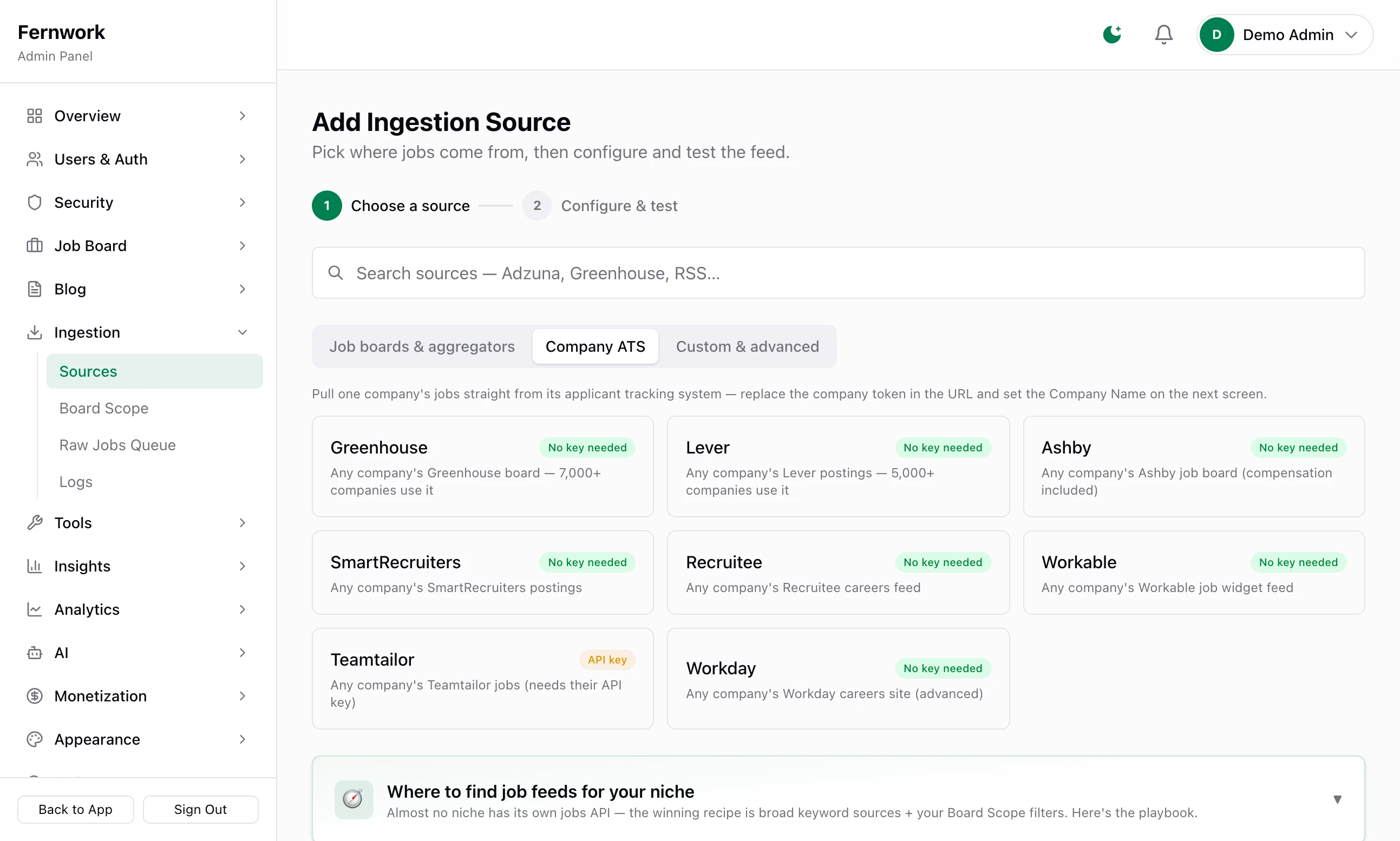
Add one company's feed#
The example is an invented company, Larkspur Mobility, whose careers page is at https://boards.greenhouse.io/larkspurmobility.
Step 1: Find the company's name in the address
Open the company's careers page and look at the address bar. The last part,
larkspurmobility, is the name its hiring system knows it by. The table below says which part to take for each system.Step 2: Pick the tile
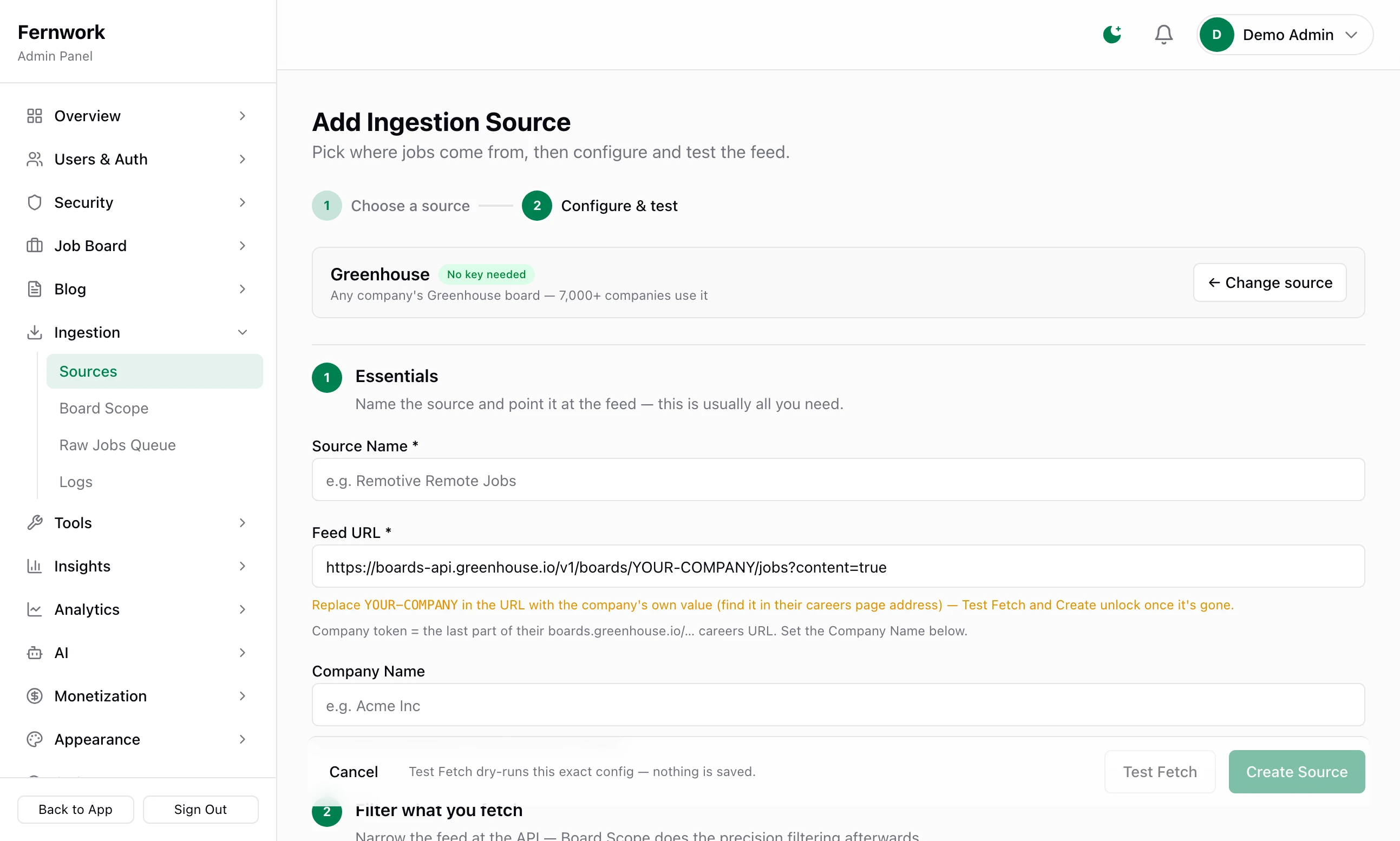
Click Greenhouse. The form opens with Feed URL already filled in and a warning under it: "Replace YOUR-COMPANY in the URL with the company's own value (find it in their careers page address) — Test Fetch and Create unlock once it's gone."
Step 3: Replace YOUR-COMPANY
Change the address to:
Feed URLhttps://boards-api.greenhouse.io/v1/boards/larkspurmobility/jobs?content=trueThe warning goes and the two buttons at the bottom can be clicked.
Step 4: Name the source and the company
Type a Source Name, such as "Larkspur Mobility careers". It starts empty and is only for you. Then type the Company Name as it should read on the board: "Larkspur Mobility". The form says "Every job from this feed is filed under this company".
Step 5: Click Test Fetch
You see how many openings came back and the first five, each with the company name you typed and its location. Nothing is saved yet.
Step 6: Click Create Source, then Run now
The source joins the list, to be fetched every 6 hours. Run now brings the openings in straight away and answers with a line such as "Fetched. 14 new jobs processed."
A feed gives the company's jobs as they are today. Each job still passes through the board scope like any other, so a keyword board keeps only the openings that fit. Add job sources covers schedules, pausing and the logs, which work the same for these sources.
The eight hiring systems#
| Tile | Replace in the Feed URL | With | What the feed brings |
|---|---|---|---|
| Greenhouse | YOUR-COMPANY | The last part of the company's boards.greenhouse.io/… address | Title, location, description, link, date |
| Lever | YOUR-COMPANY | The last part of its jobs.lever.co/… address | The same, with a salary range when the company publishes one |
| Ashby | YOUR-COMPANY | The last part of its jobs.ashbyhq.com/… address | Title, location, description, link, date and whether the job is remote |
| SmartRecruiters | YOUR-COMPANY | The company part of its jobs.smartrecruiters.com/… address | Title, city, link and date. No description |
| Recruitee | YOUR-COMPANY | The first part of its ….recruitee.com address | Title, location, description, link, date, remote |
| Workable | YOUR-COMPANY | The company part of its apply.workable.com/… address | Title, city, description, link, date, remote |
| Teamtailor | Nothing | Title, description, link and date. No location | |
| Workday | YOUR-TENANT in both places and YOUR-SITE | The two parts of its tenant.wd1.myworkdayjobs.com/SITE address. Match the number after wd as well | Title and location only, for the first 20 openings |
Seven of the eight are marked No key needed. Teamtailor is marked API key: its feed is private, so you need a read-only key from the company itself. Type it into API Key as Token token= followed by the key, with nothing else changed.
A job from SmartRecruiters or Workday arrives with no description, so its page on your board has little more than a title and a place. The Workday tile, which its own description calls advanced, reads no link to the opening either.
Scan a careers page instead#
When you have a careers page and do not know what runs it, use the scanner. In the picker, open Custom & advanced and click Careers Page. Put the page's address in Feed URL and fill in Company Name, which this form does require. A careers page is scanned once a week unless you change it, on Mondays at 06:00 UTC.
On every run the scanner reads the page, then looks in its address and its code for a hiring system it knows:
| It finds | It reads |
|---|---|
boards.greenhouse.io or job-boards.greenhouse.io | The company's Greenhouse feed |
jobs.lever.co or jobs.eu.lever.co | Its Lever feed |
jobs.ashbyhq.com | Its Ashby feed |
apply.workable.com | Its Workable feed |
A recruitee.com address | Its Recruitee feed |
jobs.smartrecruiters.com or careers.smartrecruiters.com | Its SmartRecruiters feed |
When one of those is found, the feed is read directly and no AI is involved, unless the feed cannot be read. Teamtailor and Workday are not recognised this way: use their tiles.
Any other page is sent to your AI provider. The scanner strips the page down to its text and sends the first 14,000 characters, with an instruction to list only the positions shown as open. The answer becomes the jobs. That path needs an AI key: see AI: providers, curation and cost. Each scan of such a page is one request to the provider, recorded as "Careers-page extraction" on AI, Cost & Usage. It is not paused by the monthly AI budget, which stops only the two daily AI tasks.
The scanner gives up on a page it cannot use, and the reason is on the source's card and in Ingestion, Logs:
"Could not read the careers page (unreachable, not public HTML, or blocked for safety).": the address did not answer within ten seconds, did not return a web page or is on a private network.
"The careers page renders via JavaScript and exposes no readable text — if it's hosted on an ATS, add that ATS preset instead.": the page is drawn in the browser, so there is nothing for the scanner to read.
"AI extraction returned no result": the AI provider failed or declined to answer.
How jobs find their company#
Every job on the board belongs to a company record. When a job arrives, Job Lab looks for a company with exactly the same name, letter for letter and capital for capital.
Found: the job joins it. If that company has no logo or no location yet, they are filled in from the job.
Not found: a new company is made with the name, the logo if the feed carries one and the location if the job names a real place. It has no owner and is shown as Unclaimed.
No name at all: the job is rejected.
For the sources on this page the name is the Company Name you typed. For a job board or an aggregator it is whatever that feed calls the employer, so "Larkspur Mobility" from one source and "Larkspur Mobility Ltd" from another become two companies.
Tidy the companies#
Open Companies under Job Board.
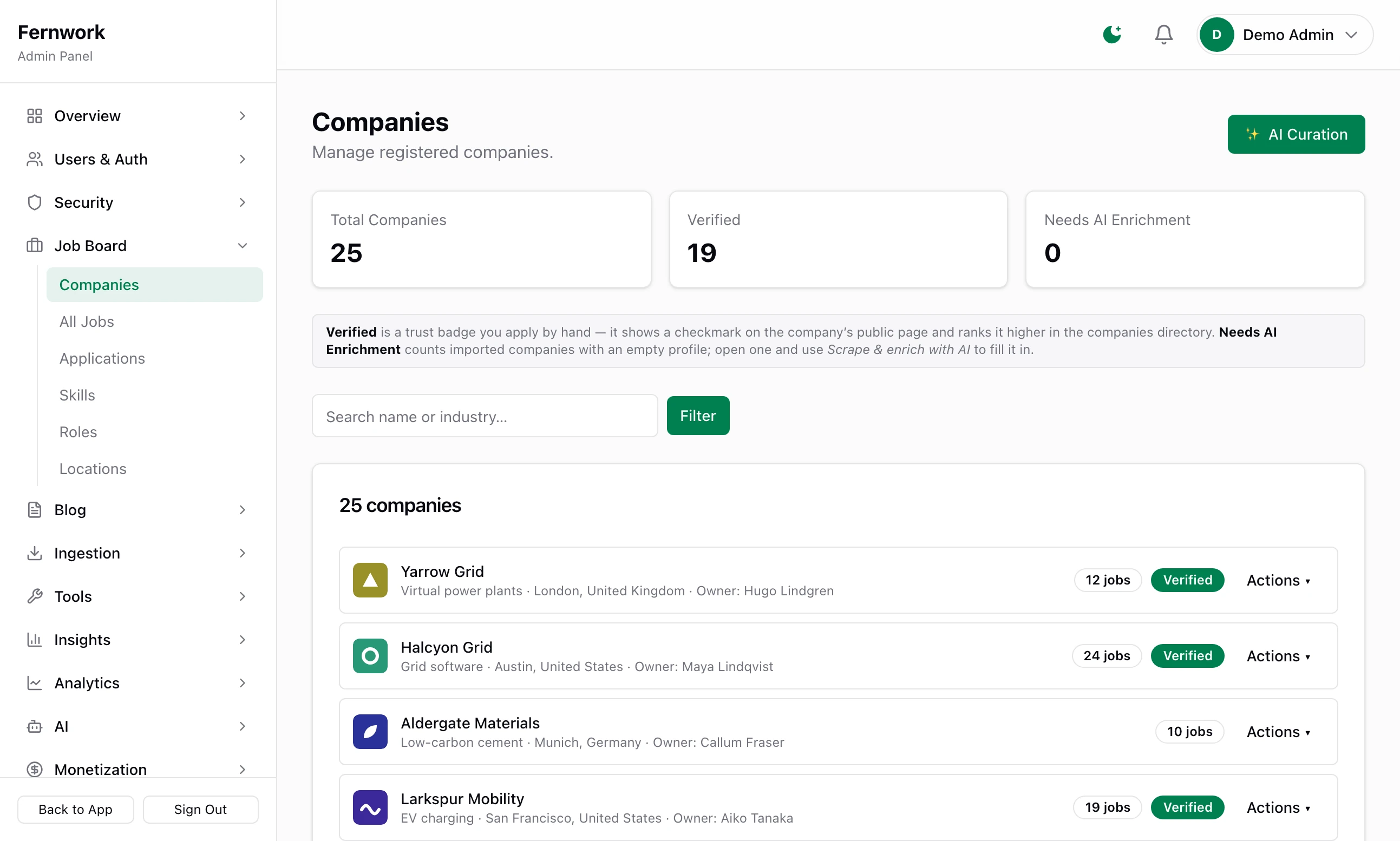
The tiles are Total Companies, Verified and Needs AI Enrichment, which counts imported companies with an empty profile. Each row gives the company's industry, location and owner and how many of its jobs are live. Its Actions menu has:
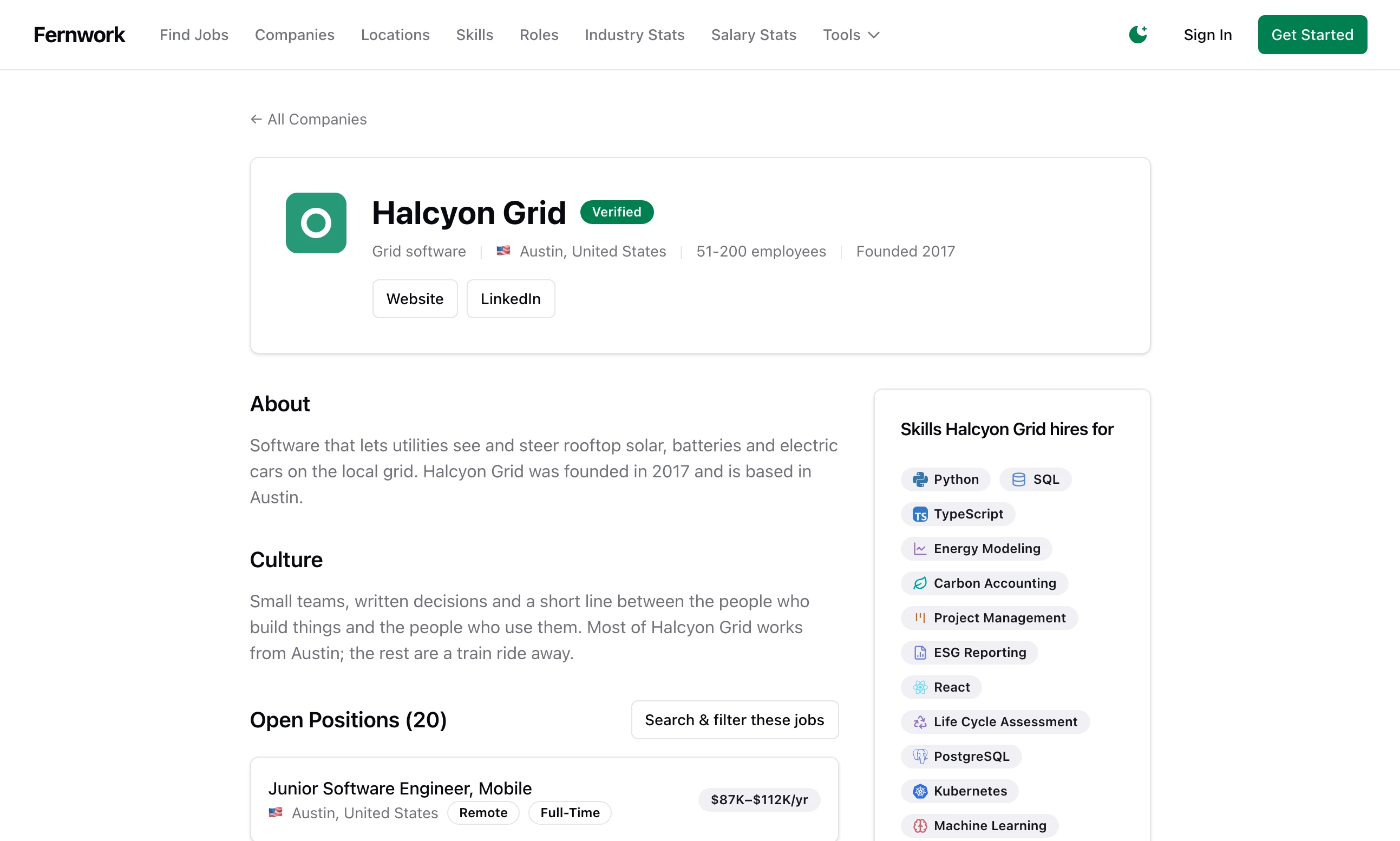
Edit profile: the name, website, description, location, industry, size, logo and the rest of what the public company page shows. With an AI provider connected, Scrape & enrich with AI in the AI Enrichment box reads the company's website and writes the description, industry and skills. It fills empty fields only, unless you tick Overwrite existing description / industry / skills.
View public page: the company's page as visitors see it.
Mark as verified or Remove verified badge: a tick on the public page that you award by hand. Verified companies are listed higher in the companies directory.
Delete company: asks first, then deletes the company and every one of its jobs.
Three things to know before you tidy by hand:
Renaming a company does not rename it in the feed. The next new job that arrives under the old name creates the old company again.
Deleting a company does not bring its jobs back on the next fetch, because each source remembers what it has already sent. New openings from the same employer do arrive, and they create the company again.
With an AI provider connected, new unclaimed companies are given a profile each day without your doing anything.
Test Fetch and Create Source are greyed out
The Feed URL still holds a placeholder: YOUR-COMPANY, YOUR-TENANT or YOUR-SITE. Replace every one. Workday has three to replace.
Test Fetch warns "HTTP 404"
The hiring system has no board under the name in the address. Check it against the address of the company's careers page: it is often not the company's trading name.
"This careers page needs AI extraction, but no AI provider is configured (Settings → Integrations)."
The scanner found none of the six hiring systems on the page, so it needs AI to read it and none is connected. Connect a provider, or find the company's hiring system and add that tile.
Can I add the same company twice?
Yes. These tiles are never marked Already added, because they are meant to be used many times. If two sources send the same opening it is published once: see how duplicates are found.
Can I keep one company off the board?
Not with a setting. Job Lab 1.1.0 has no list of blocked companies, and the board scope reads job titles, skills and descriptions, not company names. Leave that company's feed out, or delete its jobs as they arrive.
Stuck on a step? Send a message.