Market stats, tools, blog and embeds
The salary and hiring pages the board works out from its own jobs, the feeds and widgets other sites can use, and a blog with scheduled posts.
Updated 9 Oct 2026 · written for Job Lab 1.1.0
On this page
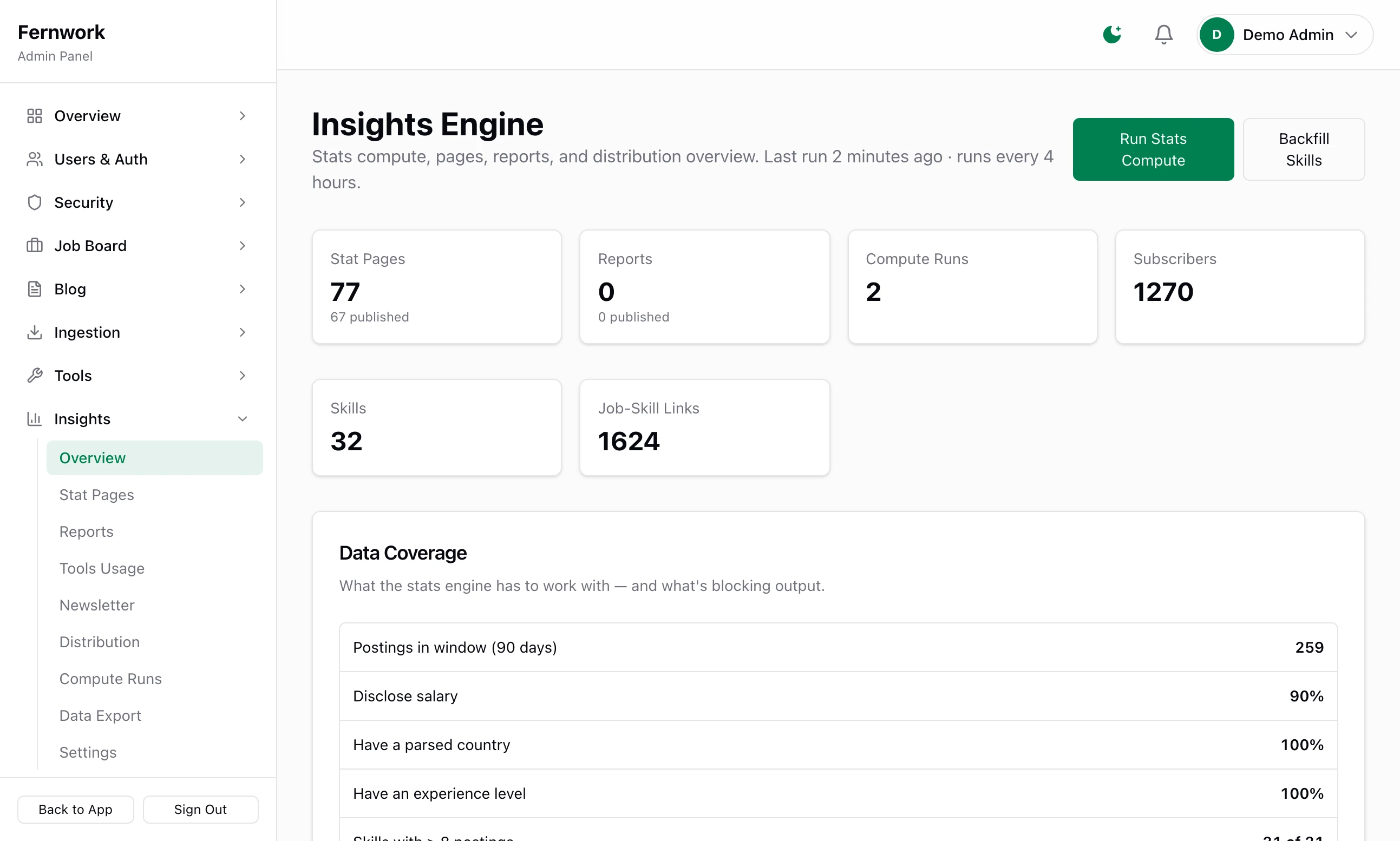
Open Overview under Insights in the admin sidebar. The screen is headed "Insights Engine". The board turns its own job postings into salary and hiring figures, publishes a page for every topic with enough data, and offers the jobs to other sites as feeds and widgets. All of it runs by itself: this guide covers what gets published, the few numbers you can change, and the blog.
What visitors get#
| Page | Address | What is on it |
|---|---|---|
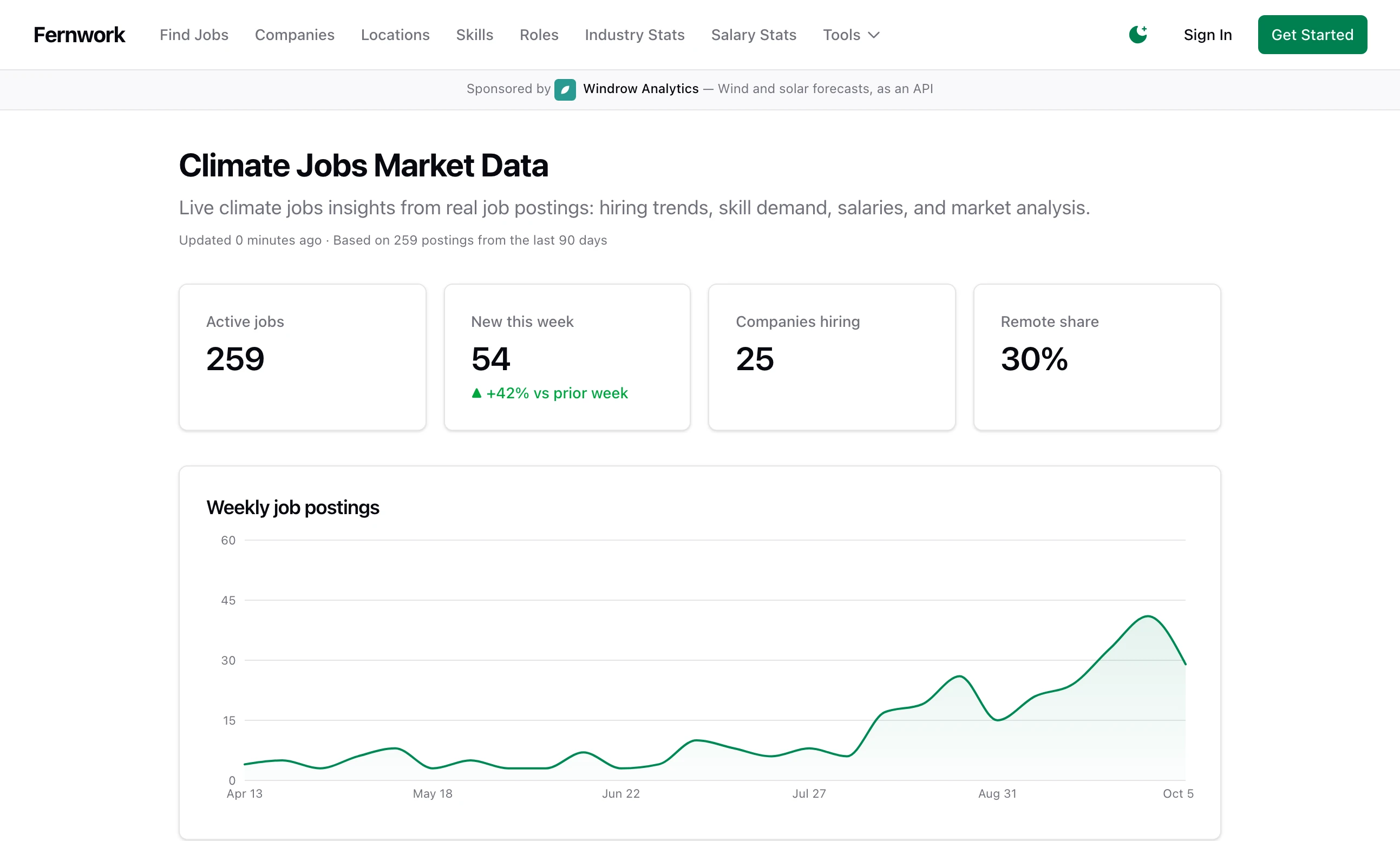
| Market data | /stats | Counts of active jobs and companies hiring, weekly postings, skills in demand, experience levels, job types, salary transparency, hiring by country, most active companies |
| Salaries, markets, skills, roles, companies | /stats/salaries, /stats/markets, /stats/skills, /stats/roles, /stats/companies | A list for each, and a page for every topic with enough jobs, such as /stats/skills/python or /stats/markets/us |
| Tools | /tools | Salary Calculator, Hiring Trend Explorer, Market Comparison, Skill Demand Tracker, Role Demand Tracker, Company Hiring Monitor |
| Reports | /reports | Empty in version 1.1.0: see the Insights screens |
| Data | /data | How the figures are worked out, with a fuller page at /data/methodology and a licence at /data/license |
How the figures are worked out#
The task Compute Market Stats runs every four hours. It reads the jobs published in the last 90 days and groups them by skill, role, country, company, job type, experience level and remote or on-site.
A topic with fewer than 20 jobs gets no figures.
A topic's page is published at 30 jobs. It is taken down at the next run if the count falls to between 20 and 29.
Salary figures need 10 jobs that state their pay.
A topic that falls below 20 keeps its last figures and its page for seven days, then loses both.
The market data page at /stats is the exception. It is worked out on every run whatever the numbers.
The task Stats Snapshot runs daily at 02:00 UTC. For each published stat page it keeps one copy of the figures per quarter, at an address such as /stats/skills/python/2026-Q4. Once a page has its copy for the quarter, later runs leave it as it is.
Both tasks are in Scheduled Tasks under Tools, where you can change how often they run: see Backups, scheduled tasks and health.
Change the thresholds#
A young board has few topics with 30 jobs, so most stat pages do not exist yet. Lower the numbers to publish sooner, at the price of figures drawn from fewer jobs.
Step 1: Open Insights, Settings
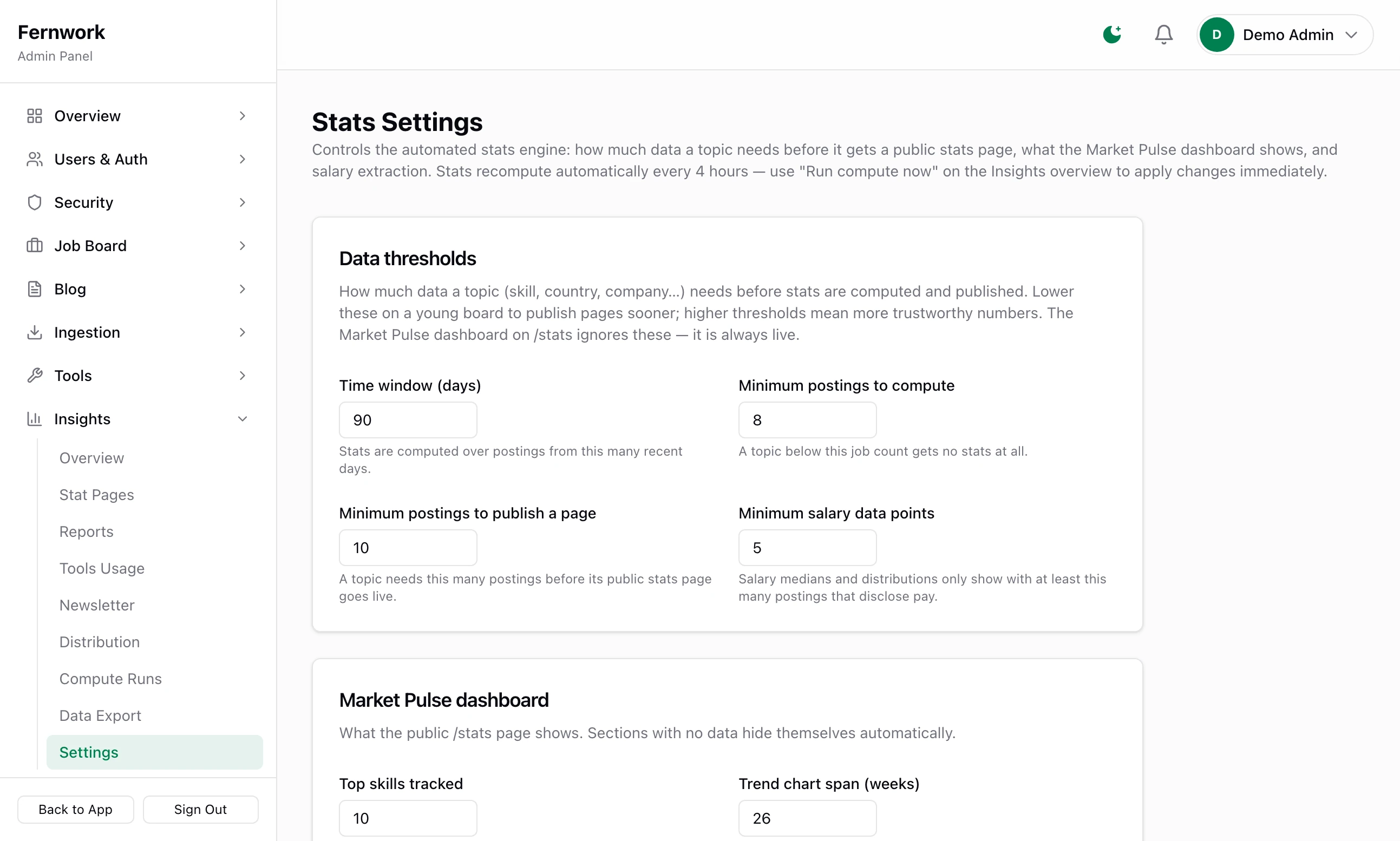
The first card is Data thresholds.
Step 2: Set the four numbers
Time window (days): 90 to begin with. From 7 to 365.
Minimum postings to compute: 20.
Minimum postings to publish a page: 30.
Minimum salary data points: 10.
Step 3: Choose what the market data page shows
Under Market Pulse dashboard, set Top skills tracked (10, from 3 to 30) and Trend chart span (weeks) (26, from 8 to 52), and untick any of Salary insights, Skill demand, Markets by country and Top companies you do not want on
/stats.Step 4: Click Save settings
The bar at the bottom reads "Saved — applies on the next compute run."
Step 5: Run a compute
Open Insights, Overview and click Run Stats Compute. Reload the page after a minute: the run is listed under Recent Compute Runs.
The last card, Salary extraction, is off to begin with. Tick Extract salaries from descriptions on new imports and the board reads a pay range out of a job's text when its source gave none. Extract from existing postings does the same for jobs already on the board and reports, for example, "Extracted salary from 14 of 120 postings. Run a compute now to update the stats."
The Insights screens#
Overview: counts of stat pages, reports, compute runs and subscribers, then Data Coverage, which shows how many jobs in the window state a salary, a country and an experience level. Read it first when a page you expected is missing. Backfill Skills links jobs to their skills where that was missed.
Stat Pages: every topic page with its Sample (the number of jobs) and Status. Unpublish asks for a reason and the page then stays down through later runs. Publish puts it back and hands it to the task again.
Reports: a list with Publish and Unpublish. In version 1.1.0 nothing creates a report, on this screen or on a schedule, so the list is empty and
/reportsreads "No published reports yet."Tools Usage: meant to count how often each tool is used. In version 1.1.0 nothing records a use, so both tables stay empty.
Compute Runs: the last 50 runs, with Trigger, Status, Stats, Pages and Duration.
Data Export: Export JSON and Export CSV download every computed figure as
stat-aggregates.jsonorstat-aggregates.csv.Distribution: subscriber counts and a log with Channel, Target, Status and Sent At. In version 1.1.0 the newsletter is the only thing that writes to it. The code also names a social card channel and a press channel. Each one only writes a "not yet implemented" line to the server log, and no screen starts them.
Newsletter has its own guide.
When a run fails, Overview shows "Latest stats compute failed" with the reason. The public pages go on showing the last good figures.
Feeds, widgets and badges#
Every job is also offered to other sites, with no key and no sign-up. Your public page at /feeds lists it all for visitors.
| What | Address |
|---|---|
| All jobs, RSS | /feed/jobs.xml |
| All jobs, JSON | /feed/jobs.json |
| One skill, role or country | /feeds/python.xml, /feeds/germany.json |
| Published stat pages, RSS | /feed/stats.xml |
| Blog posts, RSS | /blog/feed.xml |
| A job widget for another site | /embed/jobs?feed=python&limit=5 |
| A live count badge | /badges/python.svg |
A job feed carries the newest 50 jobs and is held for 15 minutes. It can be narrowed in the address with skill, location, type, level, q and limit (100 at most), for example /feed/jobs.xml?skill=python&level=senior.
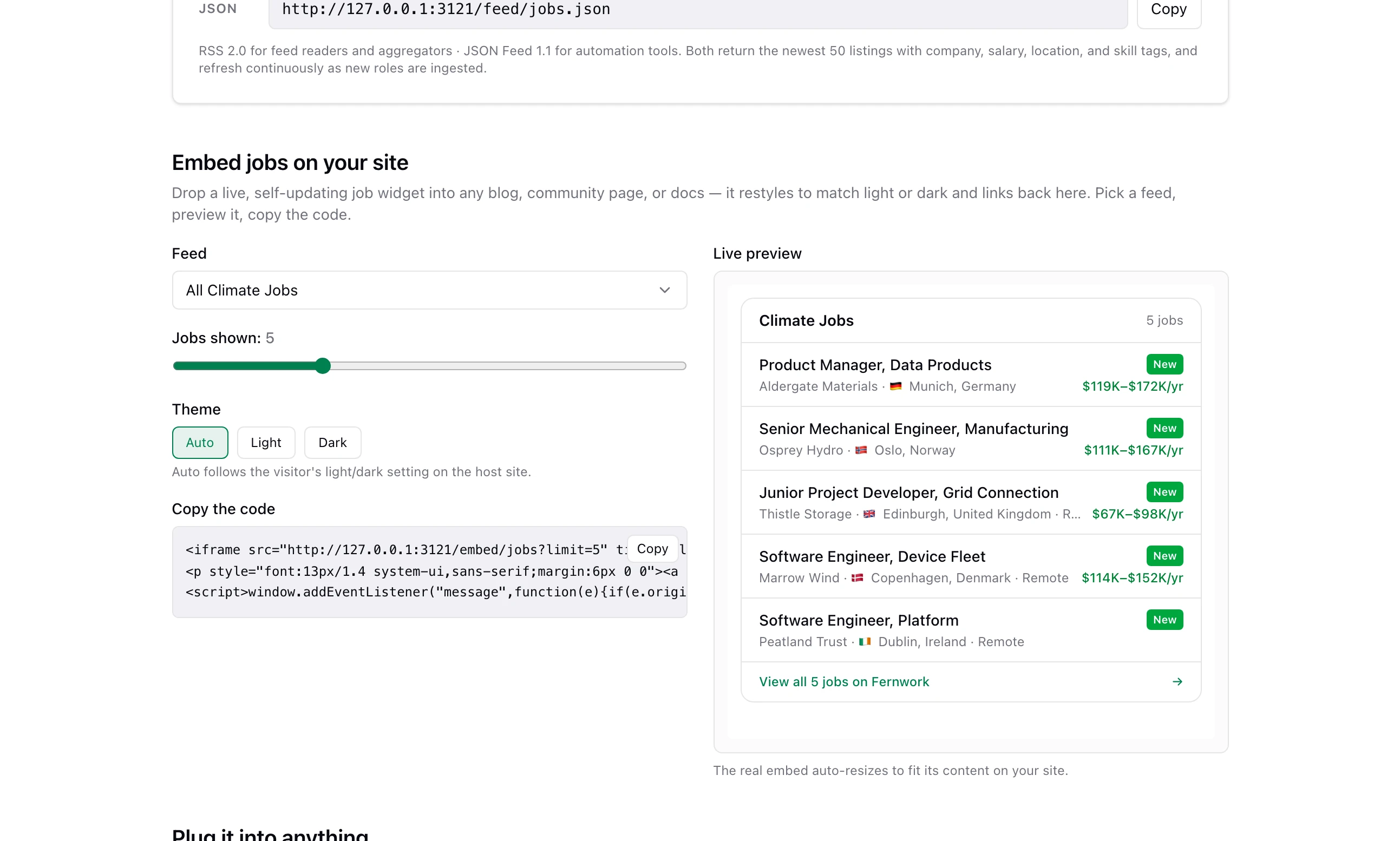
The embed builder is on /feeds under Embed jobs on your site. A visitor picks a Feed, sets Jobs shown from 1 to 15, picks a Theme of auto, light or dark, watches the Live preview and copies the code. The code is a frame showing the jobs and, beneath it, a plain link back to your site. Each skill, role and country also has a page of its own, such as /feeds/python, with the same widget and a Live badge. The Salary Calculator and the Hiring Trend Explorer offer embed code for their charts.
The blog#
Open All Posts under Blog. The public blog is at /blog.
Step 1: Click New Post
You get an empty page headed "New Post".
Step 2: Write the post
Type the title where it says "Post title" and write underneath. The toolbar has bold, italic, links, two sizes of heading, lists, quotes and Insert Image. The Block button adds larger pieces, among them Callout, FAQ Accordion, Table, Code Block, Two Columns, Image Block and YouTube Video. A picture can be a JPEG, PNG, WebP or GIF of up to 5 MB.
Step 3: Fill in the side panel
Slug is the end of the post's address and is made from the title if you leave it empty. Add an Author, a Cover image, a Category, any Tags and an Excerpt, which is the summary shown on the blog page. SEO opens Focus keyword, Meta title, Meta description and OG image URL.
Step 4: Publish it, or set a time
Click Publish now. To publish later, set Status to Scheduled, choose a date and time under Publish at and click Create, or Save on a post that already exists.
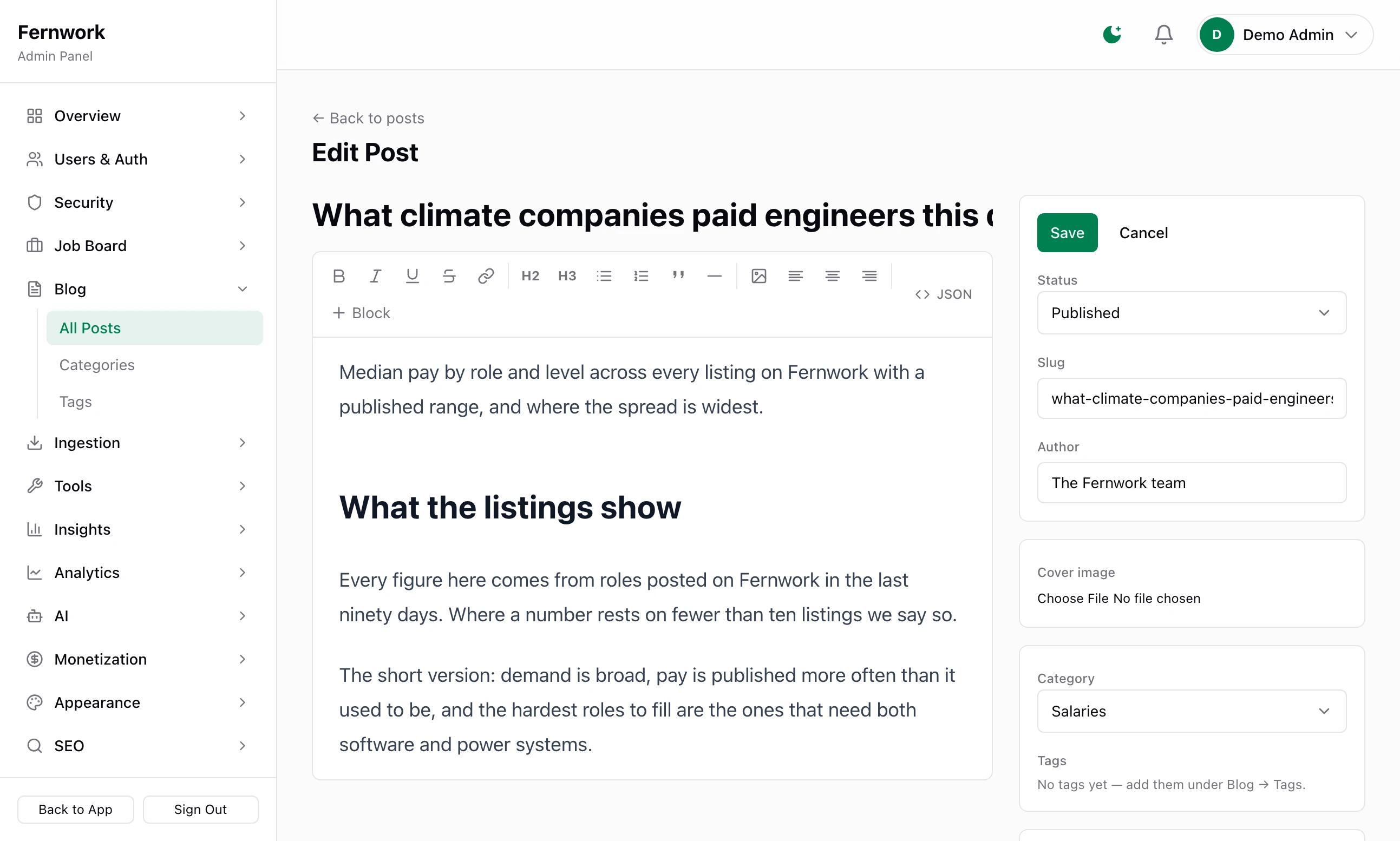
A post is public only while its status is Published. Draft, Scheduled and Archived posts are not shown.
Scheduled posts#
The task Publish Scheduled Posts runs every 15 minutes and publishes each scheduled post whose time has passed. The blog pages are then held for up to 30 minutes, so a post can appear on /blog up to 45 minutes after the time you chose. The time is read on the server, in the server's time zone, which may not be yours. Schedule a test post a few minutes ahead to see how your server reads it.
Categories and tags#
Categories and Tags under Blog work the same way: type a name and click Add. Delete asks "Delete this? Posts keep their content but lose this label." A post has one category and any number of tags. The category is shown on the blog page and on the post, and the related posts shown with a post are drawn from the same category first.
The blog's RSS feed at /blog/feed.xml lists every published post with its title, address, date and excerpt. Feed readers find it from the blog page by themselves.
A stat page I expected does not exist
Its topic has fewer jobs in the window than Minimum postings to publish a page, or it was unpublished by hand. Look for it in Stat Pages: a status of below_threshold with a Sample under your minimum is the first case. Lower the threshold or wait for more jobs.
/reports says "No published reports yet."
That is the case on every board in version 1.1.0. Nothing creates a report, so there is nothing to publish. Leave the page out of your menus.
My scheduled post did not appear
Check that its status is Scheduled and not Draft: a draft keeps no time. Then allow 45 minutes, and check the time against the server's clock. Publish Scheduled Posts in Scheduled Tasks shows when the task last ran.
Can I stop other sites using my jobs?
Not from the admin. The feeds, the widgets and the badges are always on and need no key. The widget and the badge both link back to your site.
Stuck on a step? Send a message.