Employers, applications and moderation
Walk the path an employer takes from registering to reading applicants, so you can support it, then work the moderation queue, its rules, company reviews and the lists of every job and application.
Updated 9 Oct 2026 · written for Job Lab 1.1.0
On this page
Click Post a Job in the footer of your own board, signed out. The page it opens, /post-job, is where an employer starts. Most of your jobs will be imported, but the employers who post directly are the ones who buy plans and featured jobs, so walk their path once yourself before anyone else does. The second half of this guide is your side: the moderation queue, its rules, company reviews and the lists of every job and application.
Post a job as an employer#
Use a second browser, or a private window, so that you stay signed in to the admin in the first.
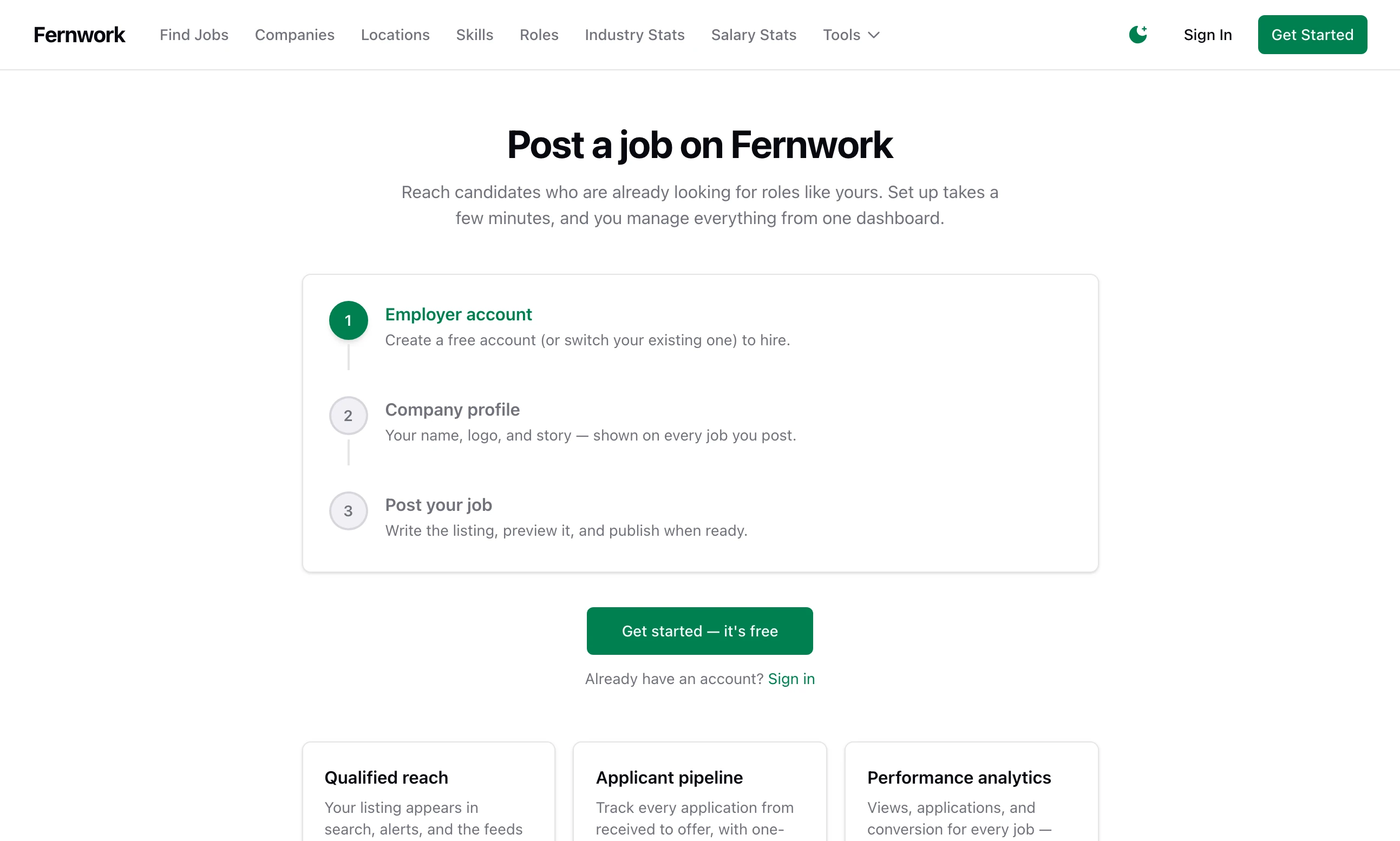
Step 1: Start on the Post a Job page
Click Get started — it's free. The page lists three steps, Employer account, Company profile and Post your job, and ticks each one off as it is done.
Step 2: Register
Fill in Name, Email and Password. Employer is already chosen. Click Create Account. You are taken to the sign-in page: sign in, and you are back on the Post a Job page with the first step marked Done.
Step 3: Create the company
Click Create your company profile. Only Company Name is required. The logo, description, website, location, industry and size can wait. Click Continue to job details.
Step 4: Get past email verification
The next page reads "One quick step first — verify your email address, then come back here to post." The link is in the welcome email and lasts seven days. Resend verification email sends a new one.
With no email server connected yet, no link arrives. Let the account through yourself: in the admin, open All Users under Users & Auth, click the employer and, under Account Actions, click Mark email verified. You see "Done." Reload the employer's page.
Step 5: Write the job
The form has five parts: Basics (title, company and description), Details (type, level, location and Remote OK), Salary, Skills and Extras (requirements, benefits and an Application Deadline). Save draft keeps it without publishing, and Preview shows it as a job seeker will see it.
Step 6: Publish it
Click Continue to launch. A window asks "Your job is saved — how do you want to launch it?" Click Publish free, or pay to feature it. You see "Job published!", and the job is on the board.
Messages an employer can meet#
| Message | Why |
|---|---|
| "Please verify your email address first — check your inbox for the verification link." | The email address is not verified. Applying to a job is held back in the same way |
| "You've used all 3 job posts in your plan this month. Upgrade to post more, or wait for older posts to fall outside the 30-day window." | The plan's allowance is used up. Drafts count. See Sell employer plans |
| "This company has reached the maximum of 50 jobs." | Max Jobs Per Company under Settings, General. It counts every job the company has, closed ones included |
| "This job can't be published — …" | The job is outside what your board accepts. See Board scope and the raw jobs queue |
| "Your job was submitted and is pending review before it goes live." | A moderation rule held it. It is waiting in your Review Queue |
| "This job was flagged by automated moderation and can't be published. If you believe this is a mistake, contact support." | A rule set to Auto Reject matched. The job stays a draft, and the employer can edit it and publish again |
What the employer has afterwards#
The menu across the employer's pages reads Dashboard, Applications, Post a Job, Analytics and Billing.
Dashboard lists their companies and jobs. Manage on a job opens its own page: the views and applications so far, the applicants at each stage and the buttons Edit, Publish on a draft, Close Job and Feature this job on a live one. A closed job has no button to reopen it: you do that from All Jobs.
Applications is the pipeline board: a column each for Pending, Reviewing, Shortlisted, Interview, Offered and Rejected, with a filter for each job.
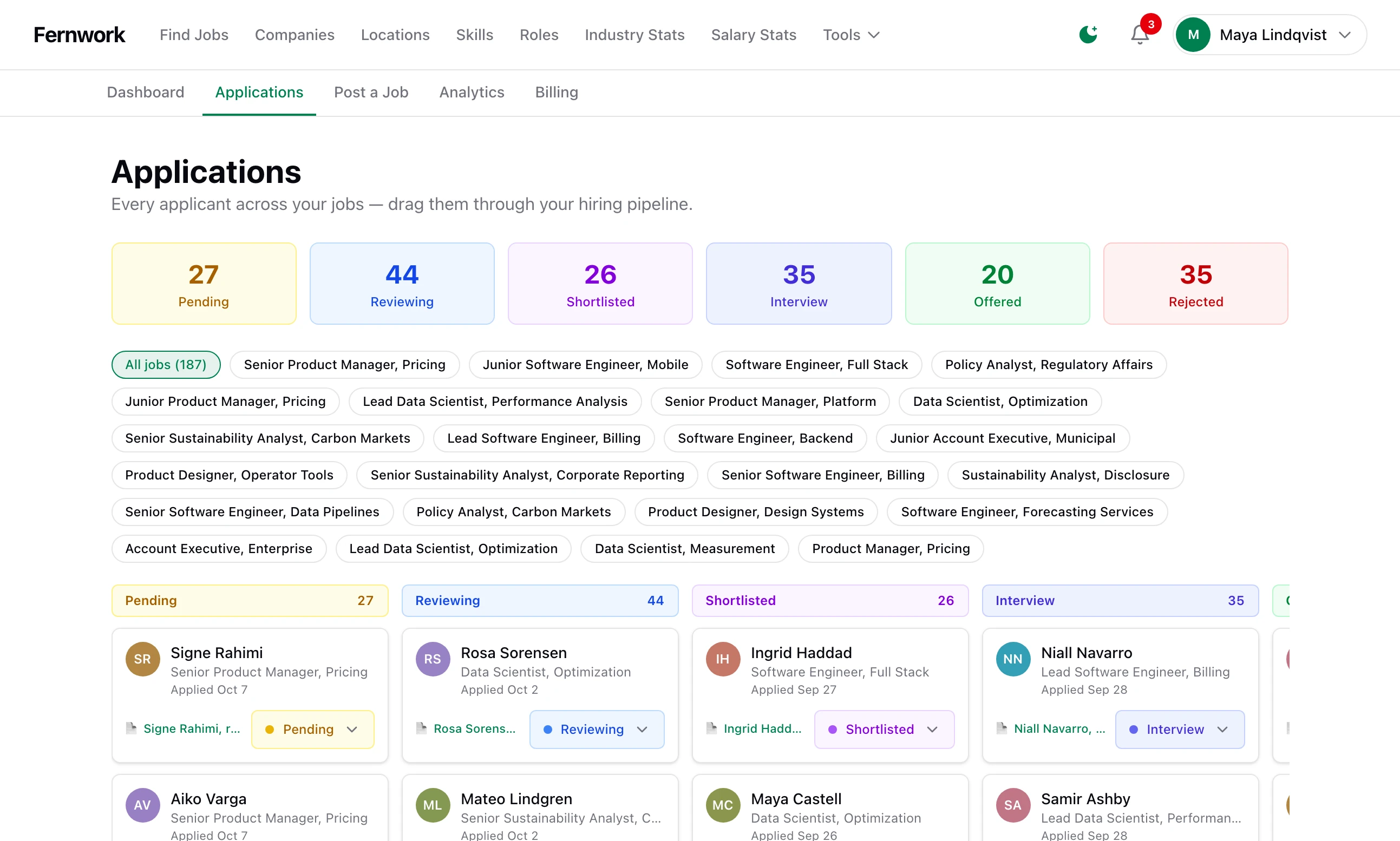
The employer moves an applicant by choosing a stage from the list on the card. The page says to drag the cards, but in version 1.1.0 they do not drag. Each change sends the applicant a notification and an email.
Clicking a name opens the application: the cover letter, the résumé with Download file and Internal Notes, which the applicant never sees.
Analytics shows views, applications and apply rate for the last 30 days. It belongs to the plan: on a plan without it the page reads "Analytics is a premium feature", with a View plans button.
Billing is where an employer changes plan, buys featured-job credits and finds the advertising shop. Sell employer plans and Featured jobs and credit bundles cover what you set and what they pay.
The job seeker's side#
A job seeker registers on the same form with Job Seeker chosen, and must verify their email before applying.
Résumés: built on the site, each with a PDF attached if they wish. One is marked as the default.
Applying: on a job an employer posted, Apply Now opens a window for a résumé and an optional cover letter, and Quick Apply sends the default résumé in one click. On an imported job the button reads Apply on original site and leaves your board, so no application is recorded.
Saved Jobs and Saved Searches: a bookmark on any job, and Save Search on the job list.
Job Alerts: a saved set of filters with a Frequency of Instant, Daily Digest or Weekly Digest. New jobs are matched every 15 minutes.
When a job reaches its plan's limit of applications, the next job seeker sees "This job is no longer accepting applications."
The moderation queue#
Open Moderation under Tools in the admin sidebar.
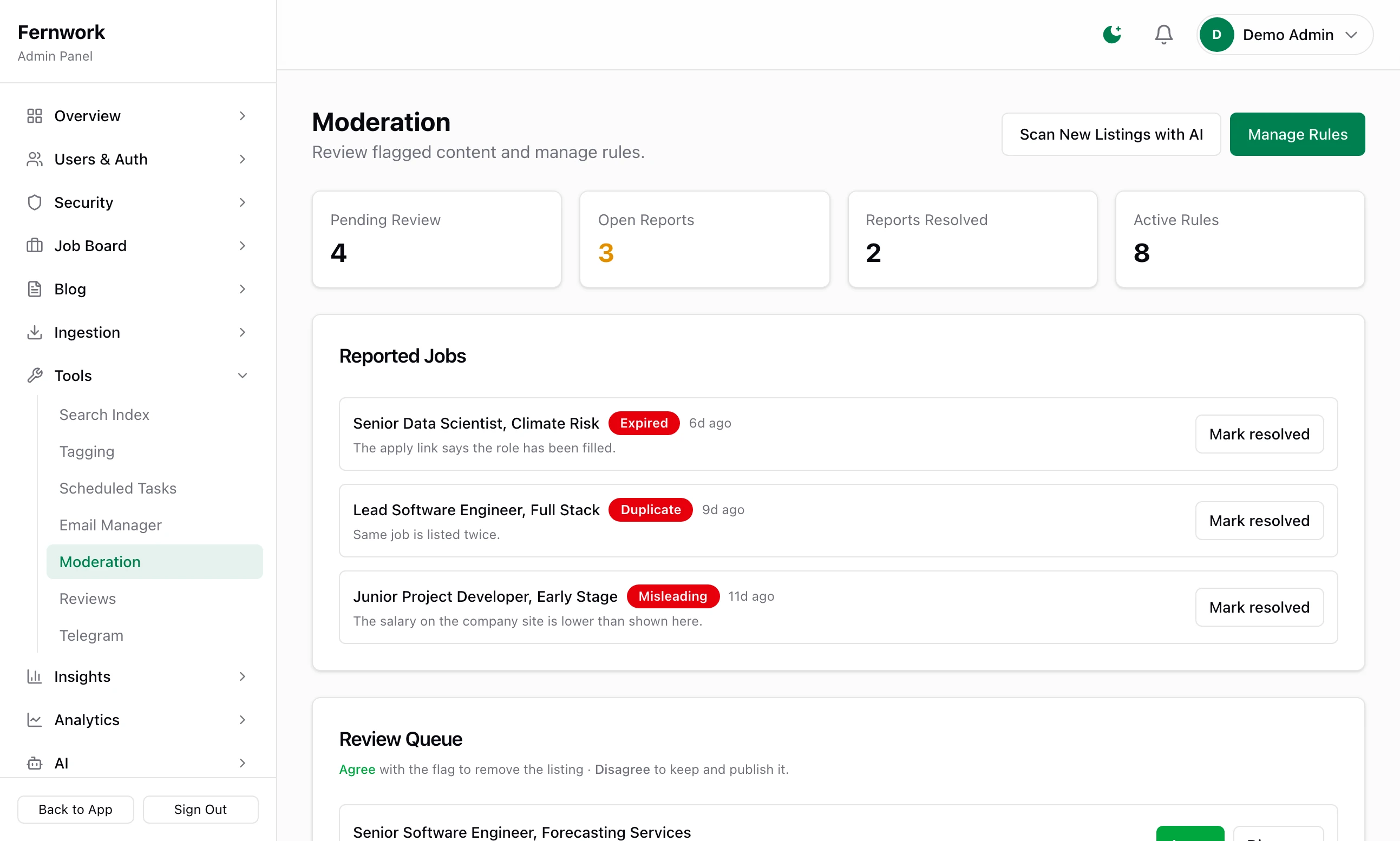
Reported Jobs: a signed-in visitor can click Report this job on any job and choose a reason, such as Spam, Misleading or Expired / filled. Mark resolved clears the report and does nothing to the job. To take a job down, use All Jobs.
Review Queue: jobs a rule or the AI has flagged, each with its flags. Click the title to read the job. Agree means you agree with the flag: the job is closed and taken out of search. Disagree publishes it. An employer who posted the job is told either way, by notification and email, and on a removal is given the flags as the reason.
Learned from your decisions: appears once you have decided at least four jobs flagged by the same rule. It offers to reject that rule's matches automatically if you nearly always agree, or to switch the rule off if you keep overruling it.
Scan New Listings with AI: reads newly published imported jobs and adds the ones that do not look like real vacancies to the queue. Those stay live until you decide. It needs an AI provider: see AI: providers, curation and cost.
Moderation rules#
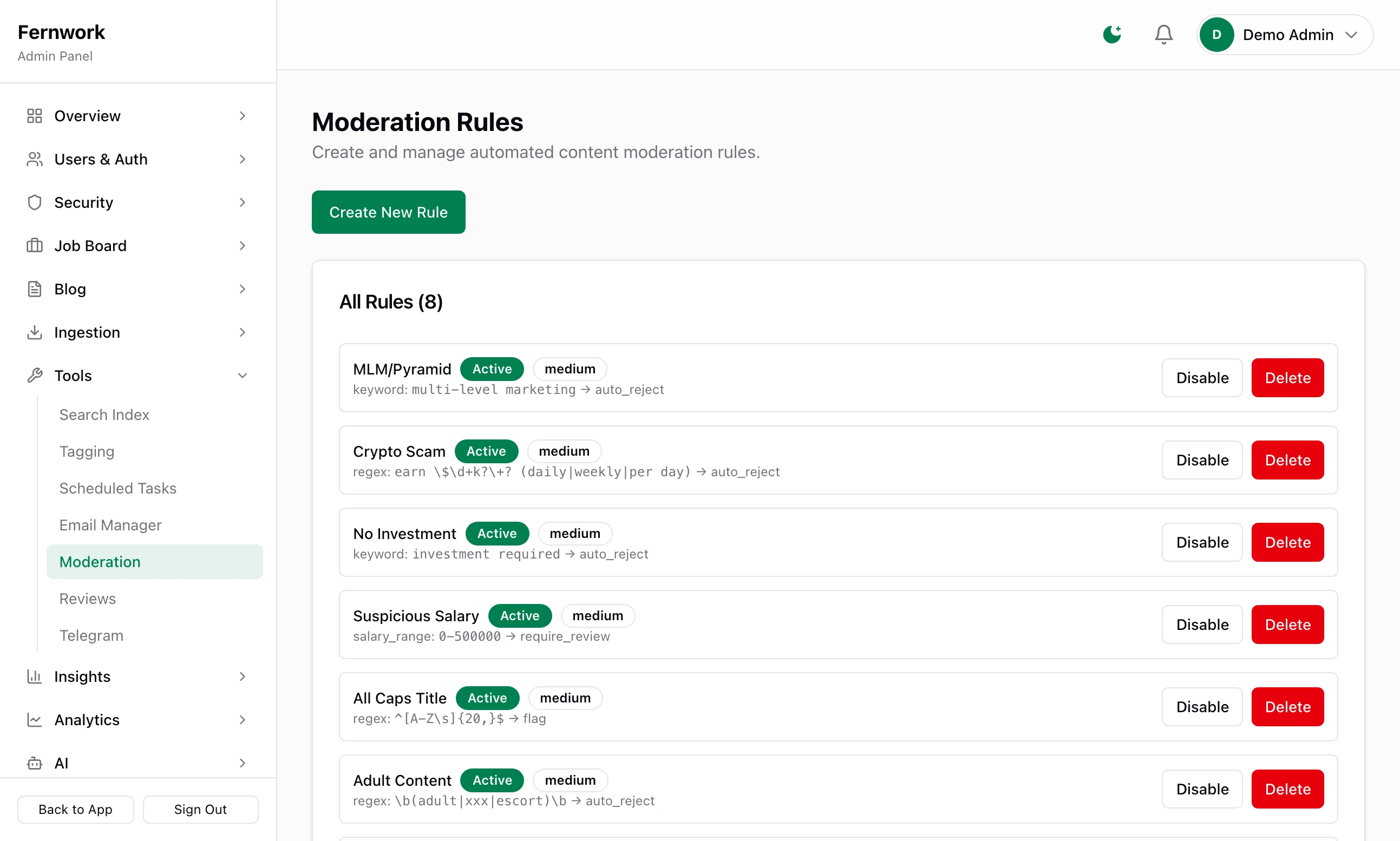
Click Manage Rules. Every job is checked against the rules: an imported job as it arrives, an employer's job when they press publish. Job Lab adds eight the first time it starts.
| Rule | Trips on | Then |
|---|---|---|
| MLM/Pyramid | The words "multi-level marketing" | Auto reject |
| Crypto Scam | Wording such as "earn $500 daily" | Auto reject |
| No Investment | The words "investment required" | Auto reject |
| Adult Content | The words adult, xxx or escort | Auto reject |
| Suspicious Salary | A salary above 500,000 | Require review |
| Telegram Link | t.me/ | Require review |
| The word "whatsapp" | Flag | |
| All Caps Title | See the note below | Flag |
Create New Rule asks for a Name, a Type, a Pattern and an Action.
Keyword and URL Pattern: the pattern is looked for as it stands, anywhere in the title and description, ignoring capitals.
Regex: a regular expression, tested against the title and description in lower case.
Salary Range: two numbers such as
0-500000. A salary below the first or above the second trips it. The currency and pay period are not considered.
A rule cannot be edited. Disable it, or Delete it and create it again.
What happens to a job that trips a rule#
| The rule's action | An imported job | An employer's job |
|---|---|---|
| Flag for Review or Require Review | Saved as a draft and put in the Review Queue | Stays a draft and goes to the Review Queue. The employer is told it is pending review |
| Auto Reject | Saved as a draft. It is not in the Review Queue | Stays a draft. The employer is told it cannot be published |
In version 1.1.0 Flag for Review and Require Review behave the same, and Priority is a label only. An auto-rejected job does not appear on the Moderation page: find it in All Jobs with the status filter on draft.
Company reviews#
Open Reviews under Tools. A signed-in visitor can review a company, with a star rating, pros and cons. A review waits as pending and is not shown until you click Approve. Reject hides one already approved. The page lists the latest 100.
All Jobs and Applications#
Open All Jobs under Job Board.
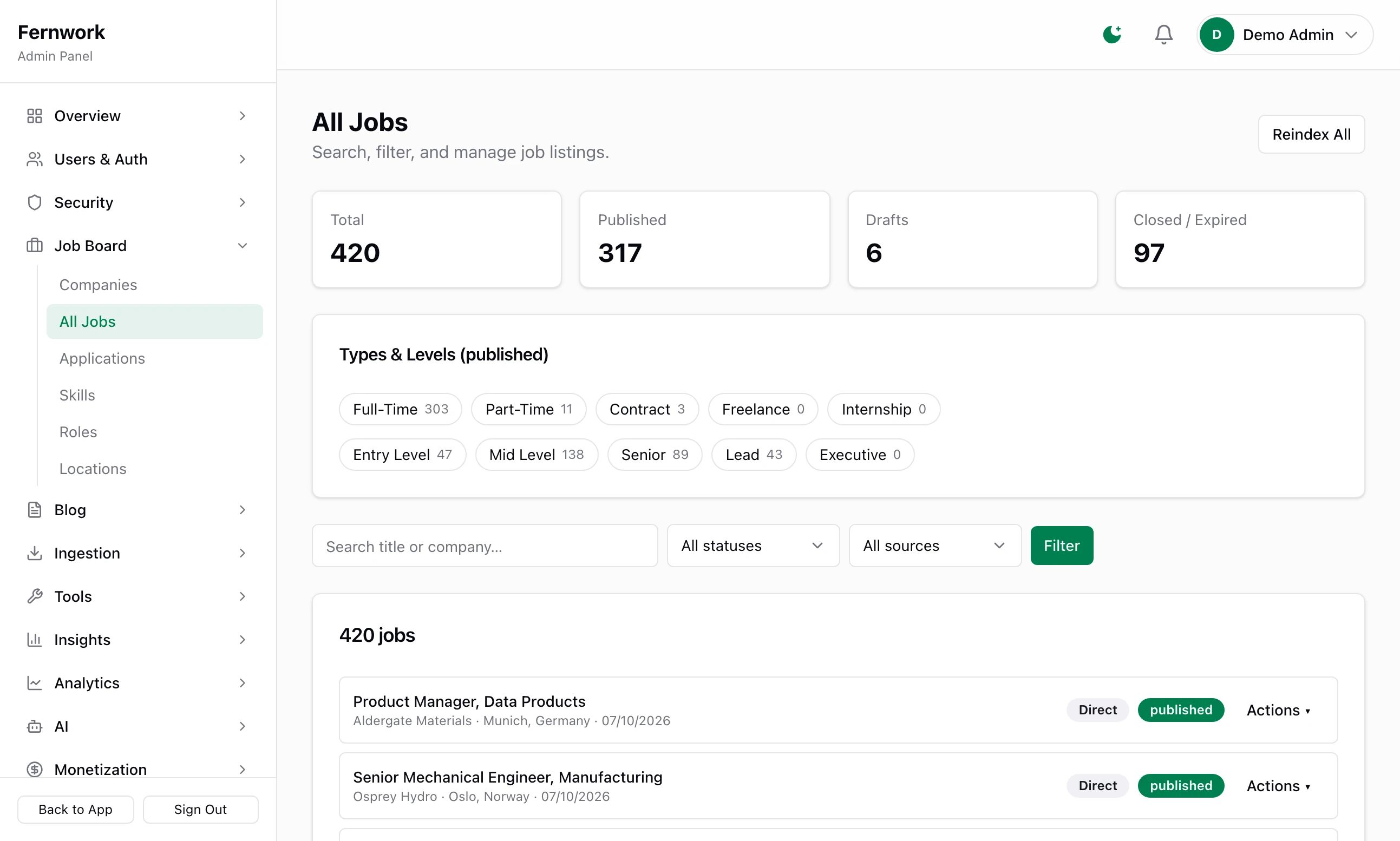
Search by title or company, and filter by status and by source. Posted directly in the source filter shows the jobs employers posted. On each row, Actions has:
Publish: puts a draft, closed or expired job live at once. No rule and no board scope is checked: this is you overruling them.
Unpublish (draft) and Close: both take the job off the board and out of search.
Feature and Unfeature: turn the Featured badge on and off without a payment.
Delete: removes the job for good, after "Delete this job permanently?"
Each action applies to one job. In version 1.1.0 there is no way to select several.
Applications, also under Job Board, lists every application on the board, 50 to a page. Search by applicant or job title, and use Change Status to move one for an employer who cannot. A change made here does not notify the applicant. The Pending tile counts only the applications on the page you are looking at.
An employer says they cannot post: "verify your email"
Their address is not verified. If email is not connected, or their link went astray, open their page from All Users and click Mark email verified.
A job I expected never appeared on the board
Look in All Jobs with the status filter on draft. A job that tripped a rule is saved as a draft. If the rule was right, leave it. If not, Publish it from Actions and disable the rule.
Does Agree delete the job?
No. The job is closed and kept. You can publish it again from All Jobs.
Can an employer post without me approving each job?
Yes. A job that trips no rule and fits the board scope goes live the moment they publish. There is no setting to hold every job for approval.
Stuck on a step? Send a message.