Backups, scheduled tasks and health
What the server backs up every night and how to put it back, the tasks the board runs on its own and how to read the System Health and Security pages.
Updated 9 Oct 2026 · written for Job Lab 1.1.0
On this page
A server takes a backup every night with scripts/prod/backup.sh. The board runs its own recurring work, from fetching jobs to sending the newsletter, which you watch on Scheduled Tasks under Tools and System Health under Overview in the admin sidebar. Server commands here are run as root in /opt/joblab, for a board called myboard.
The nightly backup#
deploy.sh update installs the schedule each time it runs, and new-site.sh runs update, so a server set up as in Deploy to a server has it already. See it with crontab -l:
15 3 * * * /opt/joblab/scripts/prod/backup.sh auto >> /var/log/joblab-backup.log 2>&1 # joblab-backupAt 03:15 by the server's clock the script writes two files:
Every database, with
pg_dumpall, to/opt/joblab/backups/TIER/db/joblab_TIER_DATE_TIME.sql.gz. One file holds every board on the server and their database users. It is plain SQL, compressed.The whole storage volume,
joblab_miniodata, tobackups/TIER/minio/miniodata_TIER_DATE_TIME.tar.gz. That is every board's uploads: logos, pictures and résumés.
The tier is chosen by the date, in UTC, and each tier keeps its newest files:
| Tier | When | Kept |
|---|---|---|
monthly | The 1st of the month | 6 |
weekly | A Sunday that is not the 1st | 4 |
daily | Every other day | 7 |
Disk check: if the disk is more than 80% full when the script starts, it stops and backs up nothing. The log says "Disk at" and the figure.
Size check: a database file smaller than 1 KB is counted as a failure.
Not backed up, on purpose: the search index, which is rebuilt from the database, and Redis, which holds only the task queues.
Telegram alert: optional, and separate from the Telegram settings in the admin. Put a bot token and a chat ID in
/opt/joblab/.backup.envand the script sends a message when a backup fails. Telegram alerts and Google sign-in explains how to get both.
TELEGRAM_BOT_TOKEN=your-bot-token
TELEGRAM_CHAT_ID=your-chat-idRun a backup by hand#
/opt/joblab/scripts/prod/backup.sh dailyName the tier, daily, weekly or monthly, or leave it off to let the date choose. A good run ends "Backup complete: tier=daily" with the time. Do this before every update.
Restore a backup#
The kit has no restore script. These steps use the tools that made the files: psql reads the database file back and tar unpacks the volume. A restore takes every board on the server back to the night of the backup.
Step 1: Choose the files and keep the present state
bash/opt/joblab/scripts/prod/backup.sh daily ls -lh backups/daily/db/ backups/daily/minio/The first line saves everything as it is now, in case you want it back.
Step 2: Stop every board
bashdocker stop joblab-myboardRun it once for each board. Leave
joblab-postgresrunning.Step 3: Drop each board's database
bashdocker exec joblab-postgres psql -U joblab -d postgres -c "DROP DATABASE joblab_myboard;"Step 4: Load the database file
Put the name of your chosen file in place of the one here.
bashgunzip -c backups/daily/db/joblab_daily_20261007_031500.sql.gz | docker exec -i joblab-postgres psql -U joblab -d postgresLines saying a role or the database
joblab"already exists" are expected. The file tries to make them again.Step 5: Put the uploads back, if you need them
Stop the storage service first. This replaces every board's uploads.
bashdocker stop joblab-minio docker run --rm -v joblab_miniodata:/data -v /opt/joblab/backups/daily/minio:/in:ro alpine sh -c "find /data -mindepth 1 -delete && tar -xzf /in/miniodata_daily_20261007_031500.tar.gz -C /data" docker start joblab-minioStep 6: Start the boards and rebuild search
bash./scripts/prod/deploy.sh restartThen open Search Index under Tools and click Full Reindex. It answers "Reindexed" with the number of jobs.
On a new server, set it up as in Deploy to a server as far as deploy.sh infra, but copy the old /opt/joblab/.env and sites/ folder into place first. Copy the backup files over, then load the database file and the uploads as above. There is no board to stop and no database to drop. Put each certificate back in /etc/ssl/joblab, then make each board's nginx file and build the boards. The port is the number in sites/myboard/.port.
sed -e "s/__SITE_NAME__/myboard/g" -e "s/__SITE_DOMAIN__/example.com/g" -e "s/__SITE_PORT__/3101/g" scripts/prod/nginx-site.conf.template > /etc/nginx/sites-available/joblab-myboard
ln -sf /etc/nginx/sites-available/joblab-myboard /etc/nginx/sites-enabled/joblab-myboard
nginx -t && systemctl reload nginx
SKIP_PULL=1 ./scripts/prod/deploy.sh update
Scheduled tasks#
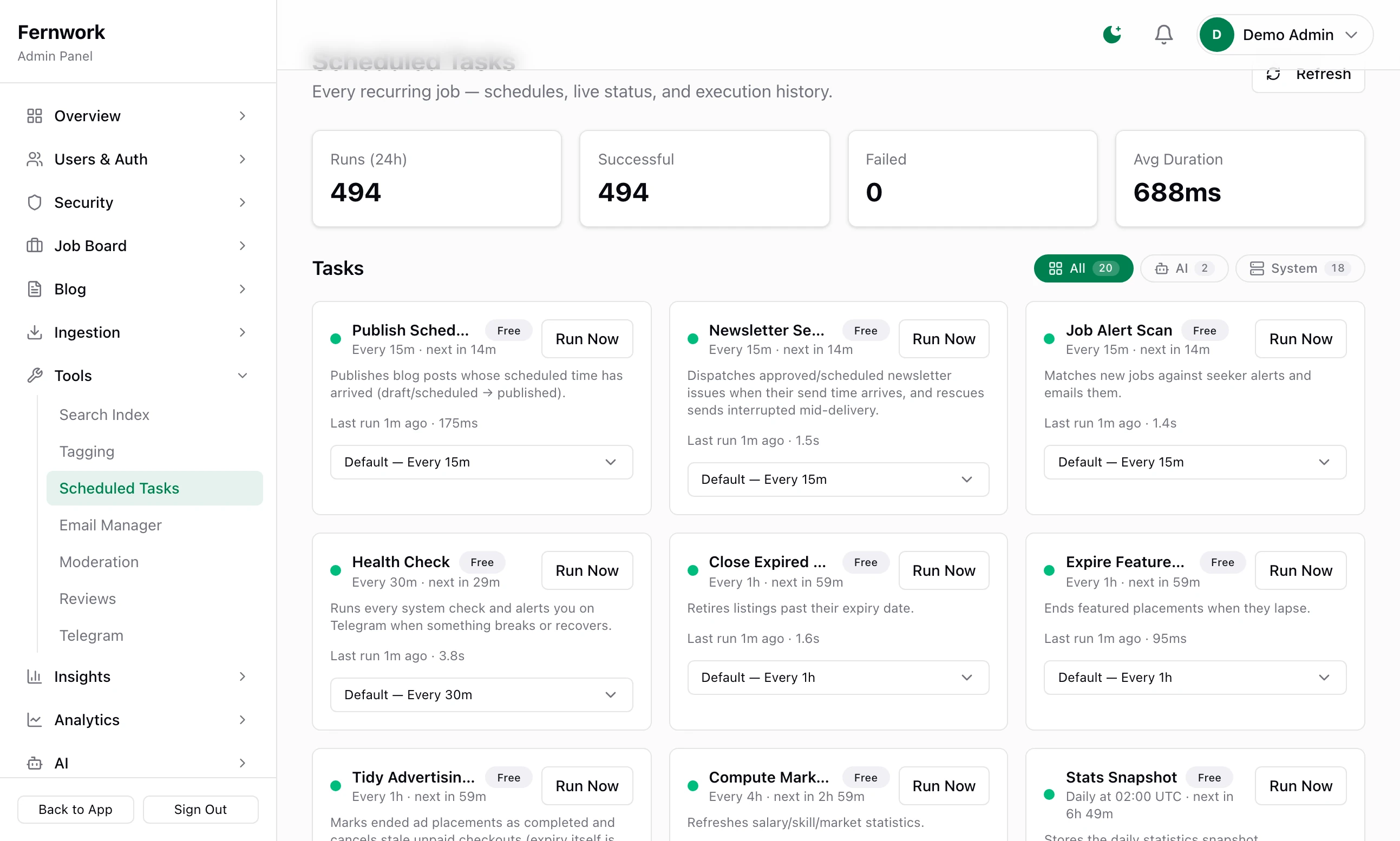
Open Scheduled Tasks under Tools. Every recurring task has a card with its schedule, when it runs next and when it last ran.
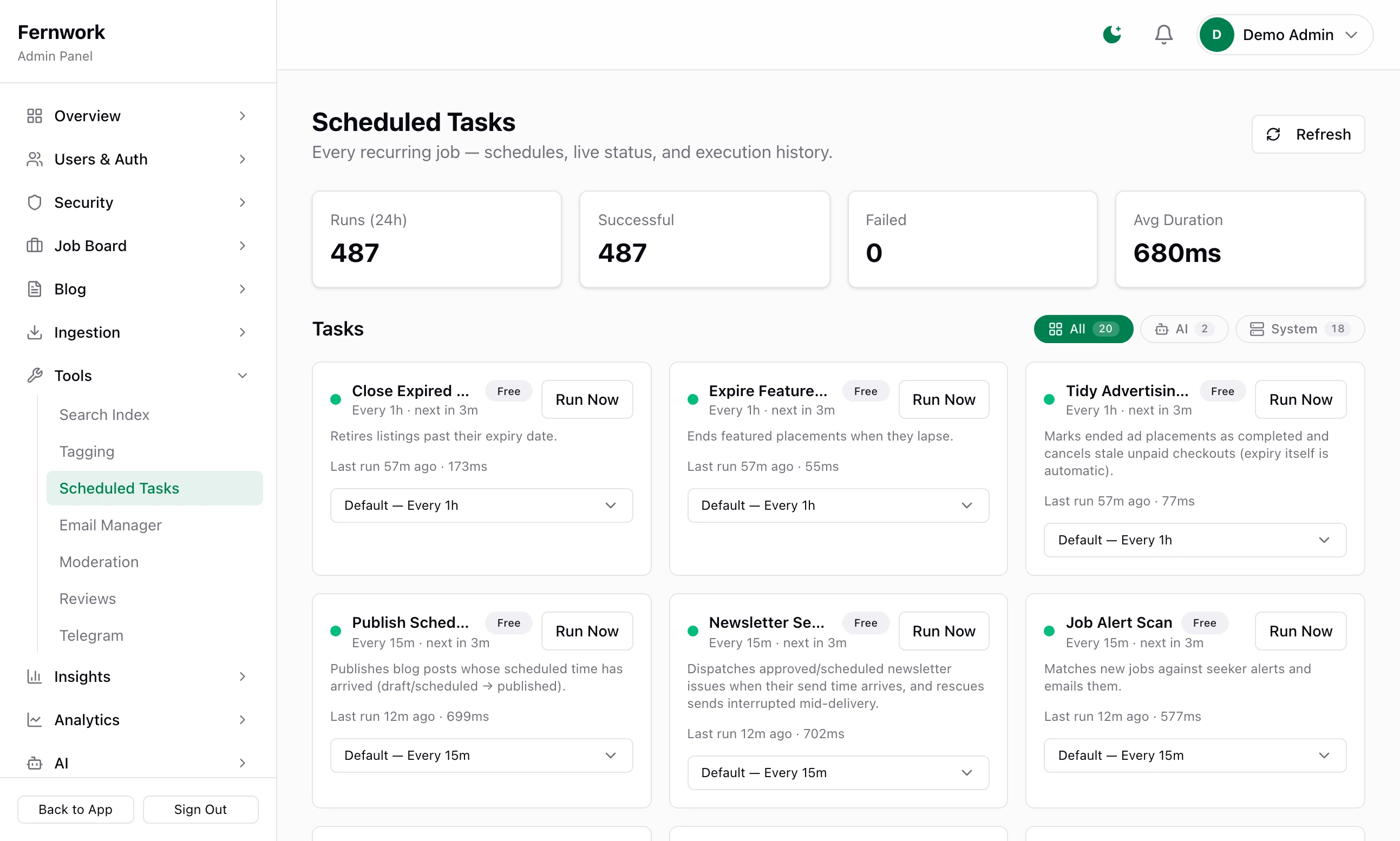
There is no separate worker to start. The tasks run inside the board itself and begin when it starts, on a server and on your own computer alike. They wait in Redis: if Redis cannot be reached the page shows "Scheduler Offline", and nothing runs until Redis is back and the board has been restarted.
All times are UTC.
| Task | Default | What it does |
|---|---|---|
| Close Expired Jobs | Every hour | Closes jobs past their expiry date. |
| Listing Expiry Reminders | Every 24 hours | Emails employers whose jobs expire within 3 days. |
| Purge Old Raw Jobs | Every 24 hours | Clears processed items from the raw jobs queue. |
| Purge Old Job Views | Every 24 hours | Trims old page-view records. |
| Security Housekeeping | Every 24 hours | Removes security events and sessions past their kept days. |
| Purge Old Logs | Every 24 hours | Trims old ingestion, distribution and task logs. |
| Expire Featured Slots | Every hour | Ends featured placements that have run out. |
| Collapse Duplicate Listings | Every 24 hours | Merges re-posted copies of the same remote job. |
| Tidy Advertising Orders | Every hour | Completes ended adverts and cancels unpaid checkouts. |
| Publish Scheduled Posts | Every 15 minutes | Publishes blog posts whose time has come. |
| Search Index Reconcile | Daily at 04:00 | Brings the search index in line with the database. |
| Tagging Maintenance | Daily at 04:45 | Tidies skills and roles on jobs. |
| AI Curation | Daily at 05:30 | Finds and describes skills and companies, flags spam. Needs an AI provider. |
| Compute Market Stats | Every 4 hours | Refreshes the market statistics. |
| Stats Snapshot | Daily at 02:00 | Stores the day's statistics. |
| Newsletter Draft | Mondays at 09:00 | Writes the next issue for you to review. |
| Newsletter Sender | Every 15 minutes | Sends issues whose send time has come. |
| Job Alert Scan | Every 15 minutes | Emails job seekers the new jobs that match their alerts. |
| SEO Page Generation | Daily at 03:00 | Publishes and unpublishes landing pages. |
| Ingestion Autopilot | Daily at 06:15 | Retunes source and scope keywords. Needs an AI provider. |
| Health Check | Every 30 minutes | Runs every health check and alerts you. |
| Telegram Daily Digest | Daily at 08:00 | Sends a summary to Telegram, if switched on there. |
Each enabled job source has a card too, named "Fetch:" and the source's name.
Change how often a task runs: open the menu at the foot of its card and choose another tempo. Each task offers only the tempos that suit it, between every 5 minutes and once a week. The change applies at once.
Run Now: starts the task. The button reads "Running…" until it finishes. If it is already under way you see "This task is already queued or running."
Execution History (Last 30): the latest runs, each with how long ago it ran and how long it took. A failed run shows its error.
Queue Health: how many jobs each queue has active, waiting, completed and failed. Failed jobs are kept until you remove them, and one failed job keeps the Queues health check on a warning. When you have dealt with the cause, click Clear failed under that queue.
System Health#
Open System Health under Overview. The page runs every check as it loads. The banner reads "All systems go", "Attention needed" or "Action required", and lists what is wrong. Re-run checks runs them again.
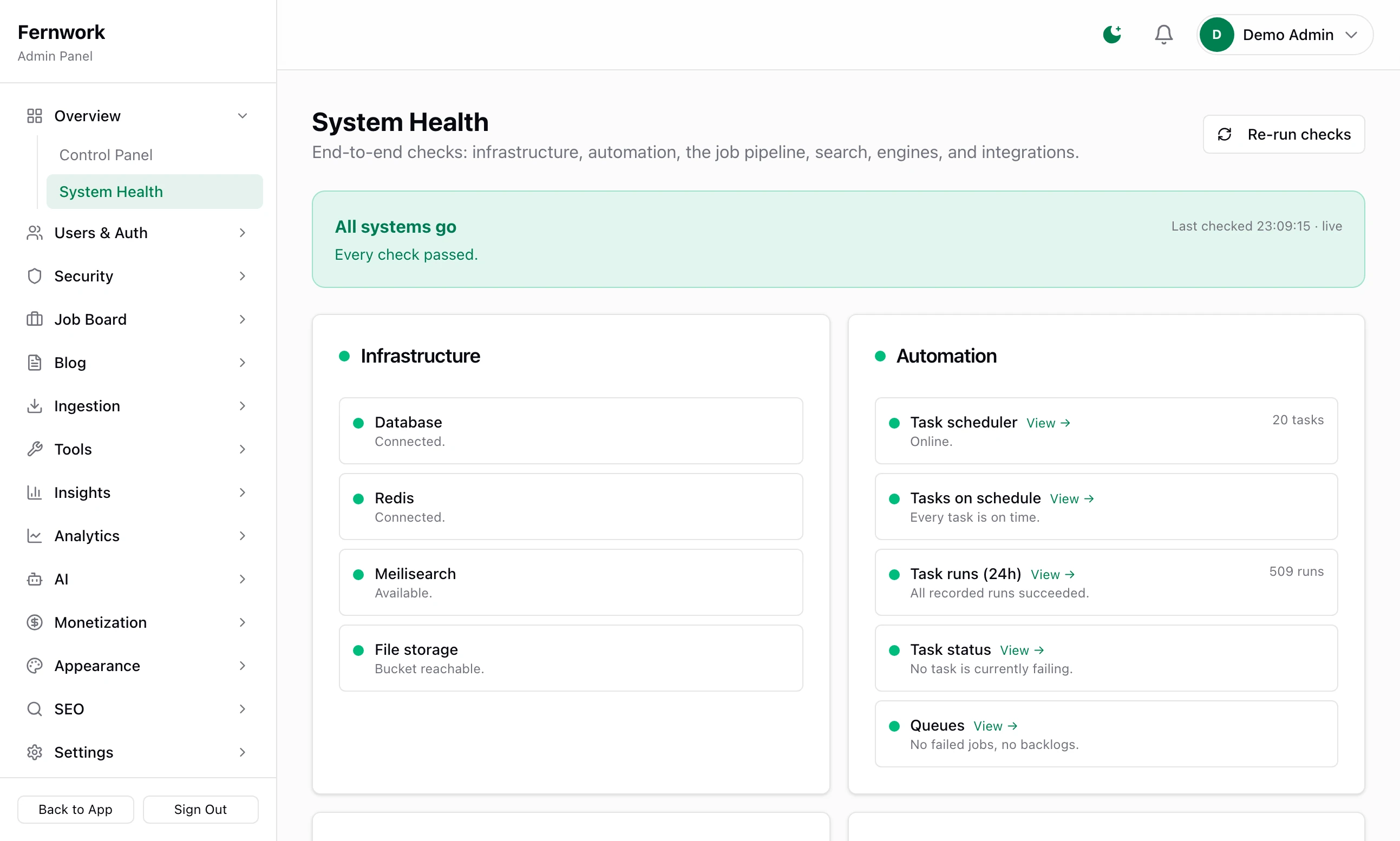
A green dot is a pass, amber a warning and red critical. A grey dot is a feature you have not switched on.
| Section | Checks | What a failure means |
|---|---|---|
| Infrastructure | Database, Redis, Meilisearch, File storage | Without the database nothing works. Without Redis no task runs. Without Meilisearch, search falls back to the database: slower and less exact. Without file storage, uploads fail. |
| Automation | Task scheduler, Tasks on schedule, Task runs (24h), Task status, Queues | No tasks are registered, a task missed its time, runs failed in the last 24 hours, or a queue holds failed jobs. |
| Job pipeline | Job sources, Processing backlog, Import errors, Fetch errors (24h), Fresh jobs, Moderation | A source was switched off after repeated failures, fetched jobs are piling up, or no new job has been published for too long. |
| Search integrity | Index vs database | The search index has drifted from the database. Run Search Index Reconcile. |
| Content engines | Stats engine, SEO pages, Job alerts, Newsletter | A run failed or is overdue, or a newsletter issue failed to send. |
| Comms & integrations | Email (SMTP), Telegram alerts, Billing (Stripe), AI provider, Error reporting | Email warns until it is set up, and is critical if the mail server refuses. The others are grey until you connect them. |
Health thresholds, lower on the page, sets when some checks trip. A new board starts with these:
| Group | Setting | Default |
|---|---|---|
| Fresh jobs | Warn after, Critical after | 36 and 96 hours without a new job |
| Ingestion | Warn at, Critical at | 500 and 2,000 unprocessed fetched jobs |
| Scheduled tasks | Overdue after | 10 minutes past schedule |
| Engines | Stats stale after, SEO stale after | 30 hours each |
| Moderation | Warn at, Critical at | 25 and 100 items awaiting review |
| Search drift | Warn beyond, …and at least | 5% drift and 25 documents apart |
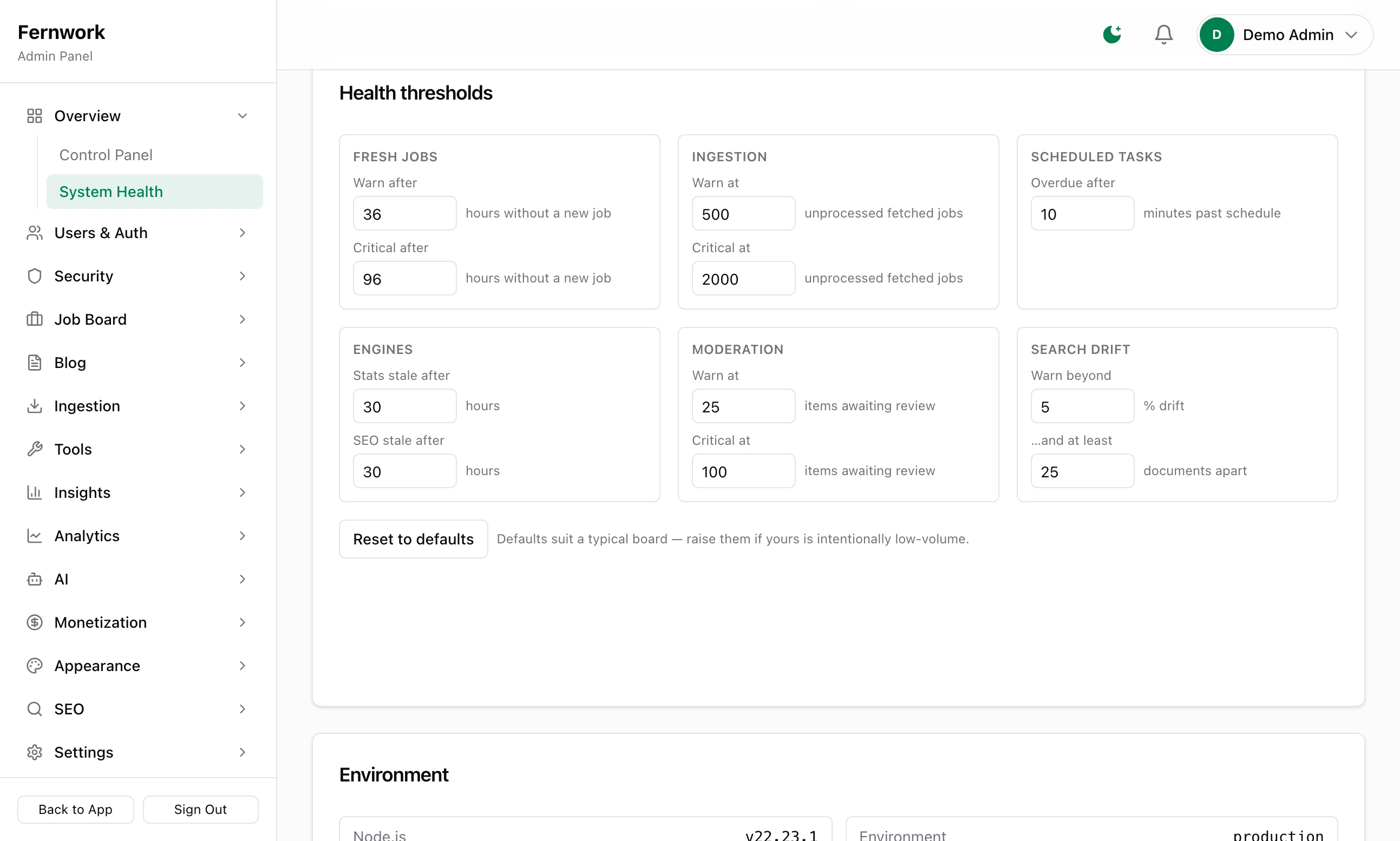
Raise them for a niche that is quiet on purpose, then click Save thresholds. You see "Thresholds saved".
The Health Check task runs the same checks every 30 minutes and keeps the result for the Health badge on the Control Panel. When a check turns critical, or a critical one recovers, it sends one message: to Telegram if you have connected it, and otherwise by email to your support address.
The health address#
https://example.com/api/health answers anyone, with no sign-in and no detail:
{"status":"ok","checkedAt":"2026-10-08T13:21:55.371Z"}status is ok, warn or critical. The page answers with code 200 for the first two and 503 for critical, so an uptime monitor can watch it. It gives the last Health Check result if that is under 90 minutes old. If not, it tests the database and Redis there and then. ./scripts/prod/deploy.sh status prints this code for every board.
Security#
Four pages under Security in the sidebar cover who is signed in and what has happened.
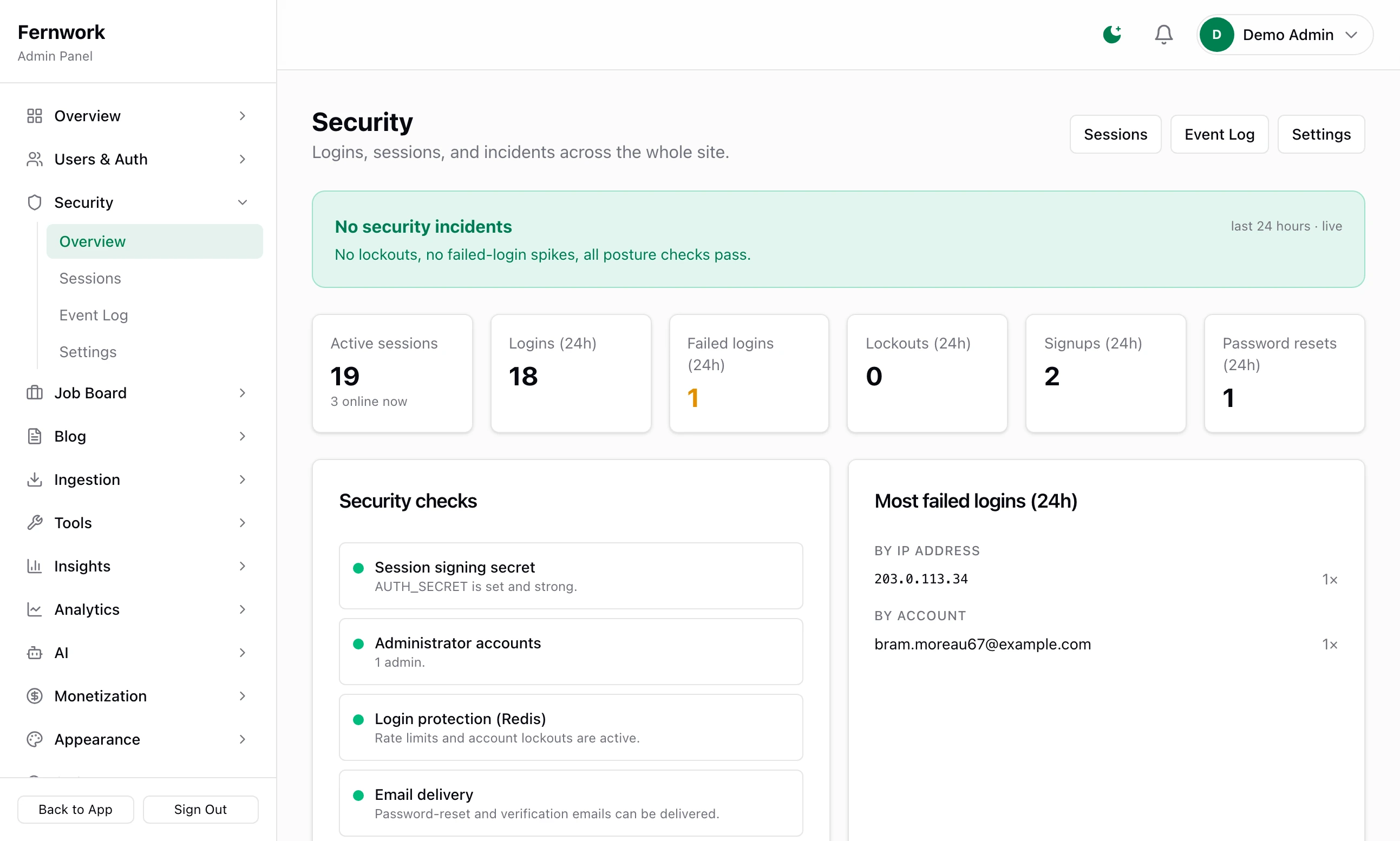
Overview: sign-ins, failed sign-ins, lockouts, sign-ups and password resets in the last 24 hours, with a list of Security checks.
Sessions: every signed-in device. The Actions ▾ menu on a row has Revoke session and Log out user everywhere. Log out all users signs out everyone but you.
Event Log: every sign-in, failure, lockout and admin action, filtered by Logins, Account, Admin actions or Incidents. Events are kept for 90 days.
Settings: an account is locked for 15 minutes after 5 failed sign-ins within 15 minutes. All three numbers can be changed here, with how long events and old sessions are kept.
Lockouts are counted in Redis. If Redis is down, sign-in still works and nothing is locked.
How do I know last night's backup worked?
tail /var/log/joblab-backup.log
ls -lh /opt/joblab/backups/daily/db/
A good run ends with a line beginning "Backup complete", and the newest file has last night's date and a size close to the one before it.
Can I change the time of the backup?
You can edit the line with crontab -e, but setup-crons.sh writes its own line back each time it runs, and every deploy.sh update runs it.
A task shows "missed fire time"
The task did not run when it was due. Restart the board, which registers every task again: ./scripts/prod/deploy.sh restart myboard on a server, or stop and start pnpm dev on your own computer.
Can I restore one board and leave the others alone?
Not from the nightly file: it holds every board, and loading it while another board still has its database can put old rows back into that board. Before risky work on one board, take a copy of that board alone with pg_dump. The command is in Updating Job Lab.
Stuck on a step? Send a message.