A tour of the admin
What the Control Panel tells you, what every item in the sidebar is for, who is allowed to open what and the General settings field by field.
Updated 9 Oct 2026 · written for Job Lab 1.1.0
On this page
- The Control Panel
- What needs you
- The six tiles
- The launch checklist
- The rest of the page
- System Health
- The sidebar, group by group
- Overview, Users & Auth and Security
- Job Board and Blog
- Ingestion and Tools
- Insights, Analytics and AI
- Monetization
- Appearance, SEO and Settings
- Users and roles
- The read-only guest admin
- Security
- Settings, General
Go to /admin and sign in, or choose Admin Panel from the menu under your name at the top of the site. Every screen is opened from the sidebar on the left, which has fourteen groups. The first screen is the Control Panel, and it is where you find out what needs you today.
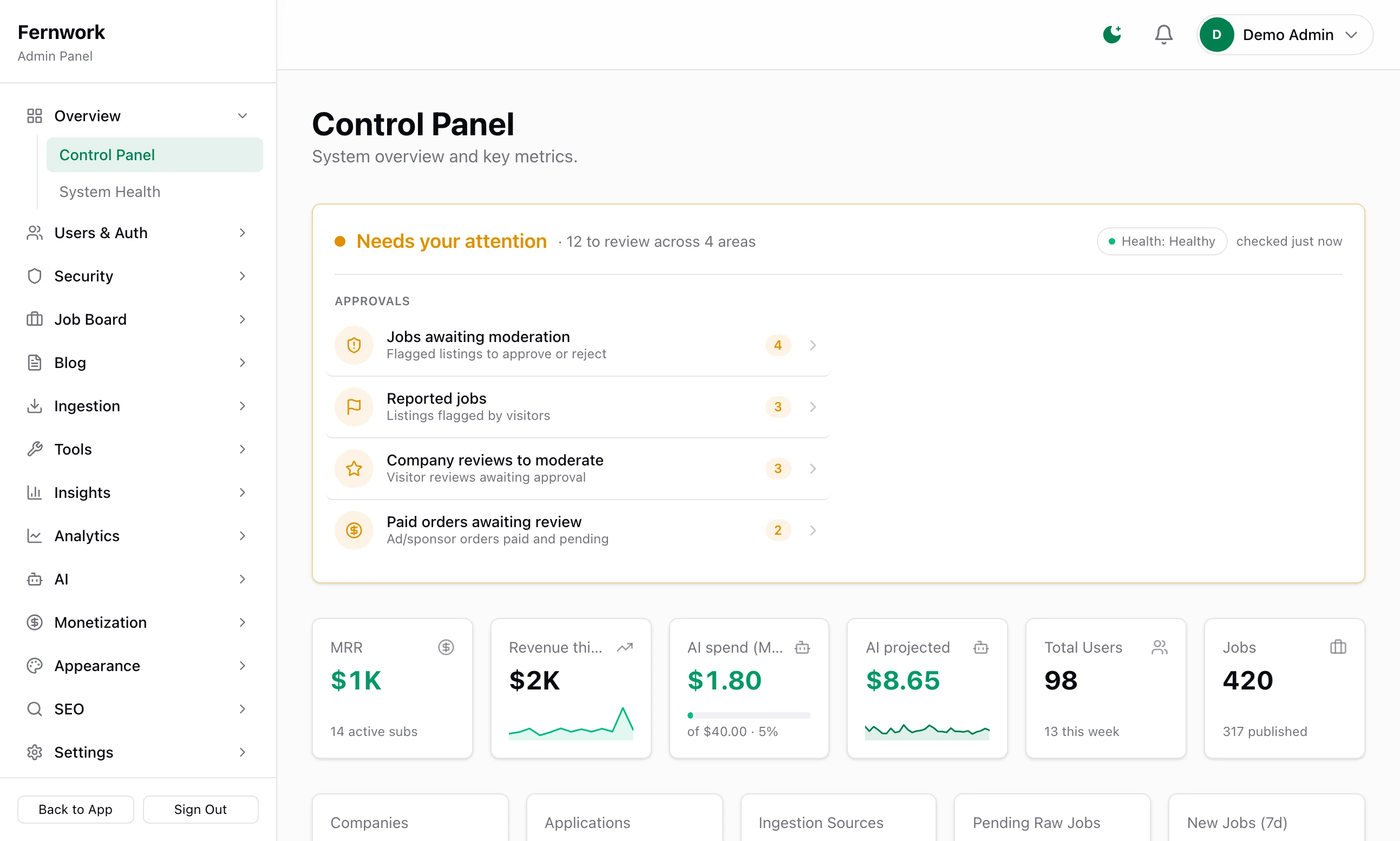
A group in the sidebar opens when you click it and closes when you open another. The group that holds the screen you are on stays open. At the foot are Back to App, which returns to the public site, and Sign Out. The guides name a screen by its group and its item: "Plans under Monetization".
The Control Panel#
What needs you#
The box at the top gathers every queue in the admin that is waiting for a decision. Its heading is one of four:
| Heading | It means |
|---|---|
| Action needed | Something is broken: a health check is critical, or there is an incident in the list. |
| Needs your attention | Something is waiting for you, or a health check is on a warning. |
| All systems healthy | Nothing is waiting and every check passes. |
| Not checked yet | The health check has not run on this install. |
Underneath, the waiting items are grouped as Incidents, Approvals and Triage, each with a count. There are seventeen kinds, among them Jobs awaiting moderation, Reported jobs, Company reviews to moderate and Paid orders awaiting review. A kind with nothing waiting is left out. Click a line to open the screen where you deal with it. With nothing waiting, the box reads "You're all caught up".
The six tiles#
| Tile | What it shows | Opens |
|---|---|---|
| MRR | What your active subscriptions pay each month, and how many there are. | Monetization, Overview |
| Revenue this month | Payments taken this month. | Monetization, Overview |
| AI spend (MTD) | What AI calls have cost this month, against your monthly budget if you set one. | Cost & Usage under AI |
| AI projected | Where the month will end at the current rate of spending. | Cost & Usage under AI |
| Total Users | Every account, with how many joined this week. | All Users |
| Jobs | Every job, with how many are published. | All Jobs |
Until Stripe is connected the first two tiles read Connect Stripe, and until an AI key is saved the next two read Set up AI.
The launch checklist#
Once the setup wizard has been finished, a Launch checklist sits under the top box, with a count such as "3/8". Each line ticks itself when the thing is done, and clicking a line opens the screen where you do it.
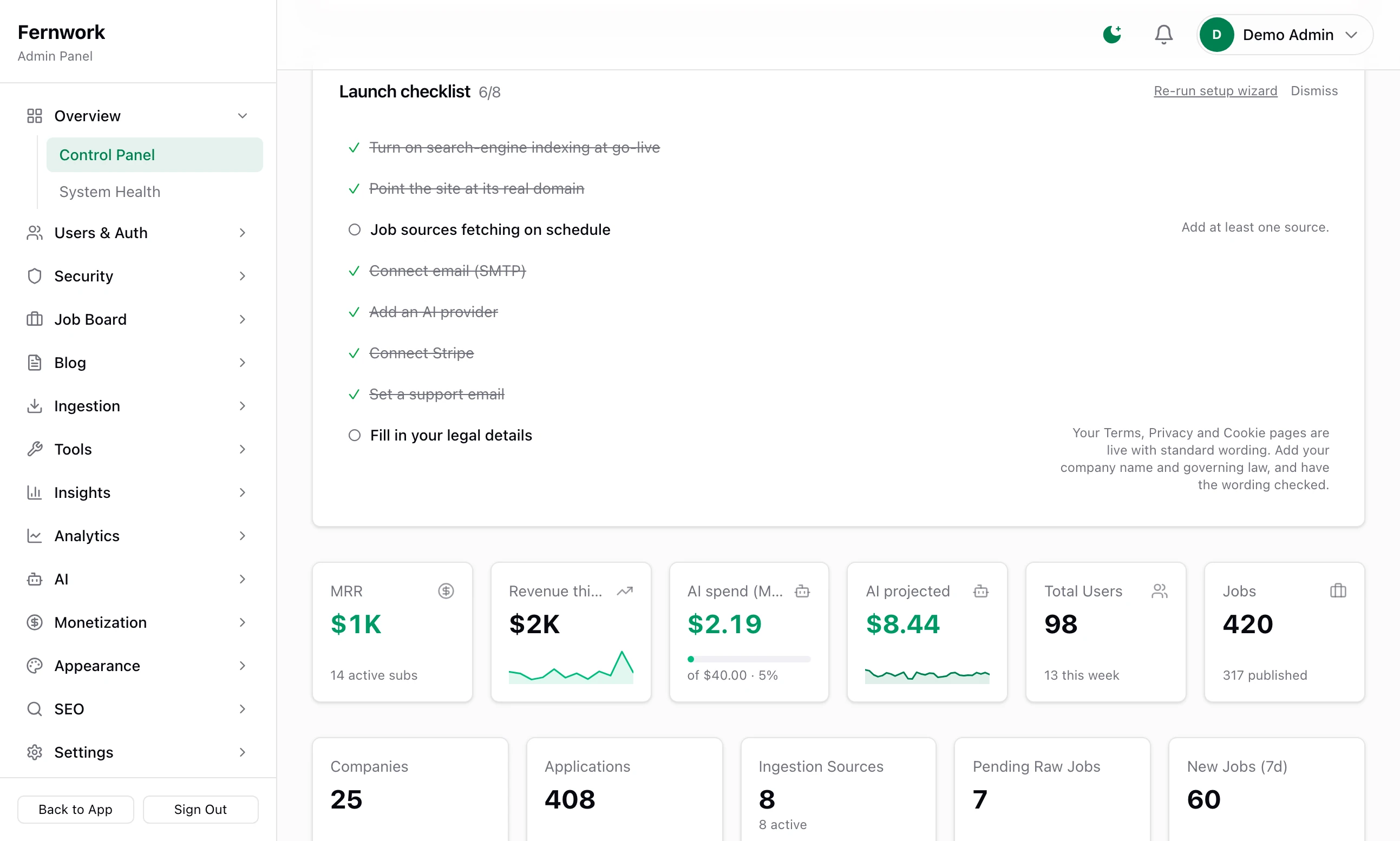
| Line | Ticked when |
|---|---|
| Turn on search-engine indexing at go-live | Indexing is switched on under SEO, Settings. |
| Point the site at its real domain | The site's address, NEXT_PUBLIC_APP_URL in .env, no longer contains "localhost". |
| Job sources fetching on schedule | At least one source is switched on and the scheduler can be reached. |
| Connect email (SMTP) | An SMTP host is saved. |
| Add an AI provider | An AI key is connected. |
| Connect Stripe | A Stripe secret key is saved. |
| Set a support email | Support Email is filled in under Settings, General. |
| Fill in your legal details | Company or legal name is filled in under Settings, Legal Pages. |
Email, AI and Stripe are marked optional on the list. Re-run setup wizard opens the wizard again.
The rest of the page#
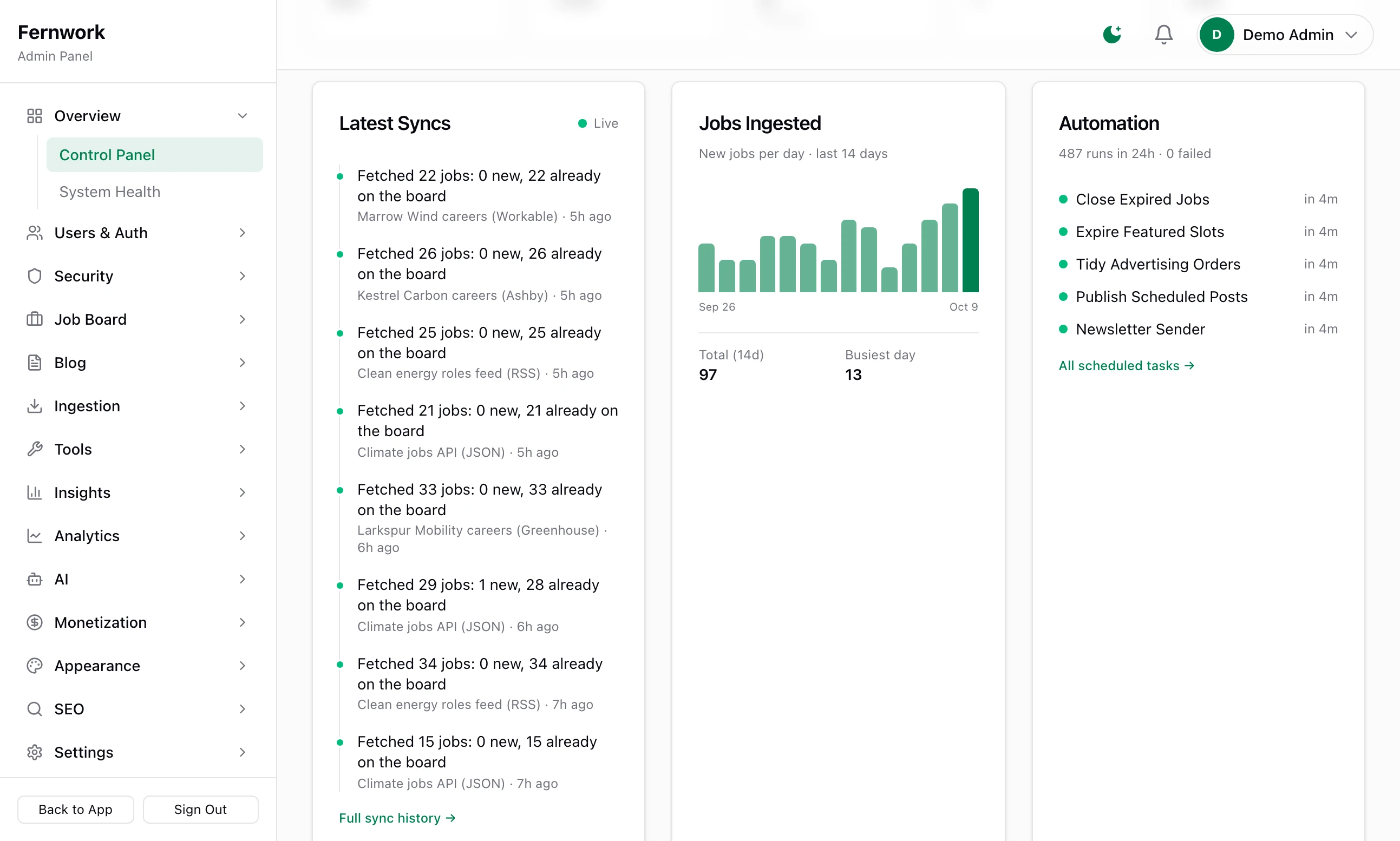
Five counters: Companies, Applications, Ingestion Sources, Pending Raw Jobs and New Jobs (7d).
Latest Syncs: the last eight lines of the ingestion log.
Jobs Ingested: new jobs for each of the last 14 days.
Automation: the next five scheduled tasks, with the runs and failures of the last 24 hours.
Source Health: up to ten sources, each with its status and when it last ran.
Quick Actions: five shortcuts.
System Health#
Open System Health under Overview. A banner reads "All systems go", "Attention needed" or "Action required", above six cards of checks: Infrastructure, Automation, Job pipeline, Search integrity, Content engines and Comms & integrations. Re-run checks runs them again on the spot. The same checks run by themselves every 30 minutes, and their result is the Health badge on the Control Panel. Backups, scheduled tasks and health goes through each check and the thresholds at the foot of the page.
The sidebar, group by group#
Overview, Users & Auth and Security#
| Item | What it is for | Guide |
|---|---|---|
| Control Panel | The page above. | |
| System Health | Every check on the services, the tasks and the job pipeline. | Backups, scheduled tasks and health |
| All Users | Every account, with its role. | Users and roles, below |
| Security: Overview, Sessions, Event Log, Settings | Sign-ins, signed-in devices, the audit trail and the lockout rules. | Security, below |
Job Board and Blog#
| Item | What it is for | Guide |
|---|---|---|
| Companies | Every company on the board, whether an employer made it or a source brought it in. | Employers, applications and moderation |
| All Jobs | Search, filter and manage every job. | Employers, applications and moderation |
| Applications | Every application made through the site. | Employers, applications and moderation |
| Skills, Roles, Locations | The lists that jobs are sorted by, with their other names and groupings. | Skills, roles and locations |
| All Posts, Categories, Tags | The blog. | Market stats, tools, blog and embeds |
Ingestion and Tools#
| Item | What it is for | Guide |
|---|---|---|
| Sources | The feeds your jobs come from, with their health and schedules. | Add job sources |
| Board Scope | The filter that decides which incoming jobs belong. | Board scope and the raw jobs queue |
| Raw Jobs Queue | Jobs as they arrive, and why any were rejected. | Board scope and the raw jobs queue |
| Logs | What every fetch did. | Add job sources |
| Search Index | The state of the job search index, with a button to rebuild it. | |
| Tagging | How jobs get their skills and role, and a place to fix them by hand. | Skills, roles and locations |
| Scheduled Tasks | Every recurring task: when it last ran, when it runs next and how often. | Backups, scheduled tasks and health |
| Email Manager | Delivery status, templates, test sends and the log of what was sent. | Email that arrives |
| Moderation | Jobs held for review, jobs visitors reported and the rules. | Employers, applications and moderation |
| Reviews | Company reviews waiting for approval. | Employers, applications and moderation |
| Telegram | A bot that sends you alerts. | Telegram alerts and Google sign-in |
Insights, Analytics and AI#
| Item | What it is for | Guide |
|---|---|---|
| Insights: Overview, Stat Pages, Reports, Tools Usage, Compute Runs, Data Export, Settings | The market statistics: when they were last worked out, which pages are published and how much data a page needs. | Market stats, tools, blog and embeds |
| Newsletter | What went out, what goes out next and how subscribers responded. | The weekly newsletter |
| Distribution | Newsletter subscribers and a log. | The weekly newsletter |
| Analytics: Overview | Traffic figures from Google Analytics. | |
| Analytics: Search Console | What people search for to find the board, and which pages rank. | SEO: landing pages, indexing and Search Console |
| Cost & Usage | Every AI call the board makes and what it cost. | AI: providers, curation and cost |
Monetization#
| Item | What it is for | Guide |
|---|---|---|
| Overview | Revenue at a glance, and whether Stripe is connected. | Connect Stripe |
| Plans | What each employer plan costs and includes. | Sell employer plans |
| Featured Jobs | The price of a featured job and the credit bundles. | Featured jobs and credit bundles |
| Advertising Orders | What the advertising shop sells, and the orders waiting for you. | The advertising shop |
| Sponsors, Advertising | Sponsors you add by hand, banners and ad network code. | Sponsors, banners and AdSense |
Appearance, SEO and Settings#
| Item | What it is for | Guide |
|---|---|---|
| Appearance: Theme & Fonts, Branding, Homepage, Sidebars, Feeds, Navigation & Footer | Colours, logo, the sections of the home page, the sidebars, how lists are laid out, the menu and the footer. | Make it your niche |
| SEO: Overview, Landing Pages, Generation, Metadata Audit, Settings | Generated landing pages, page titles and the switch that lets search engines in. | SEO: landing pages, indexing and Search Console |
| General | Currency, limits and how long things are kept. | Settings, General, below |
| Integrations & Secrets | The keys for Stripe, email, AI, Google and error tracking. | Connect Stripe, Email that arrives |
| Legal Pages | Your Terms of Service, Privacy Policy and Cookie Policy. | |
| API Keys | Creates keys that nothing accepts yet. | What is not in it |
| Setup Wizard | Opens the wizard again. | The setup wizard, step by step |
Users and roles#
Open All Users under Users & Auth. It counts Total Users, Employers and Seekers, and lists accounts 50 to a page, newest first, with a search by name or email.
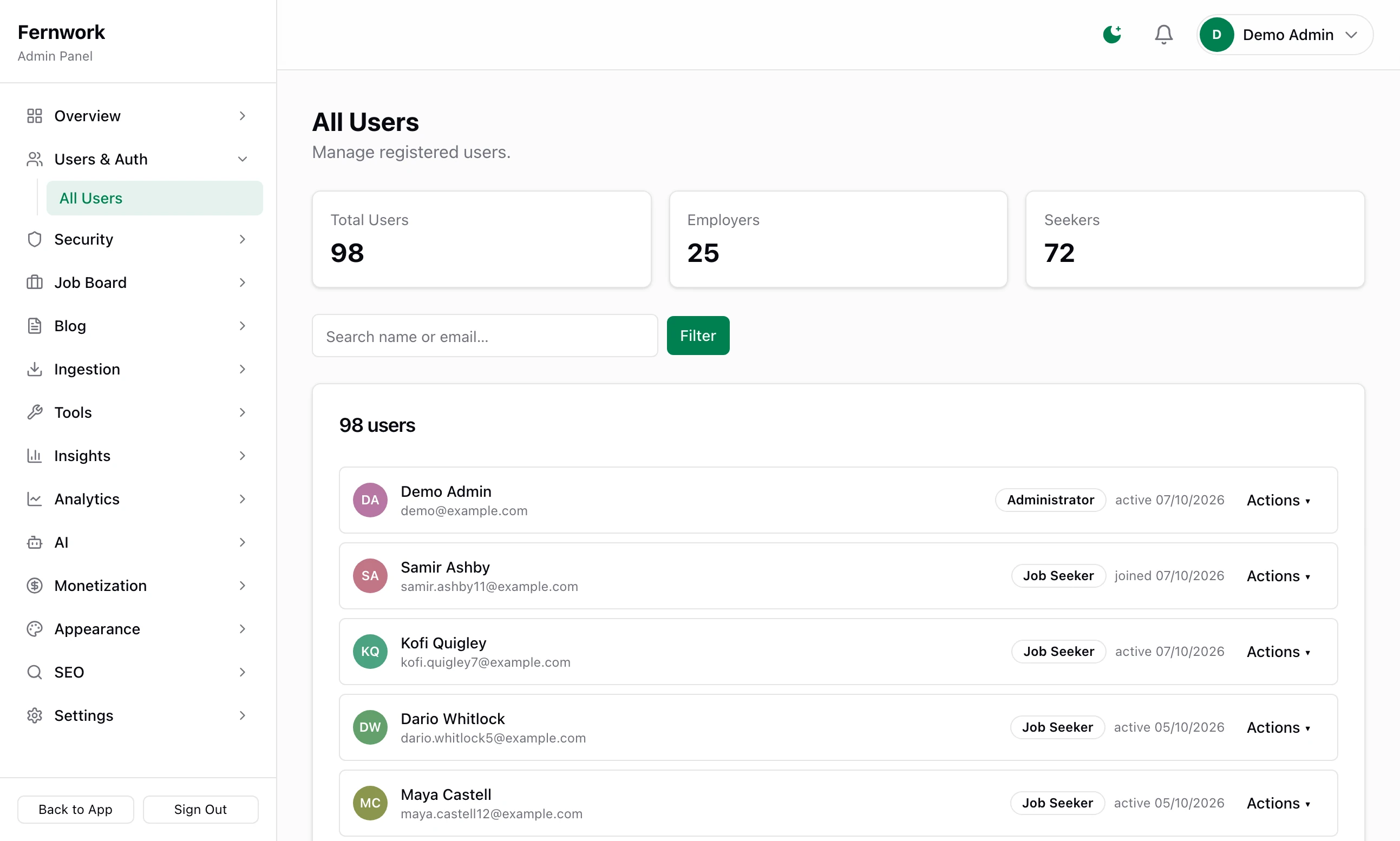
Every account has one of four roles:
| Role | What it can do |
|---|---|
| Job Seeker | Browse and apply, and keep résumés, saved jobs and alerts. |
| Employer | Post jobs and manage companies and applicants. |
| Guest Admin (read-only) | See the admin and change nothing. |
| Administrator | Everything, settings and keys included. |
People choose Job Seeker or Employer themselves when they register. The two admin roles are given by you. There is no "add user" button, so to make a second admin the person registers first.
Step 1: Have them create an account
They register on your site in the ordinary way.
Step 2: Find them in All Users
Search for their name or email.
Step 3: Change the role
Click Actions on their row and, under Change role, choose Make Administrator.
Step 4: Have them sign out and in again
The new role applies the next time they sign in.
The Actions menu also has View profile, Log out everywhere and Delete user. The rest is on the account's own page, which opens when you click the name:
Access & Role: the same change of role, with Save Role.
Send password reset: emails the person a link to set a new password. With no email set up you see "SMTP is not configured — the reset link was written to the server log."
Mark email verified: shown only for an account that is not verified. Use it when the verification email never arrived. Until an address is verified, an employer cannot post and a job seeker cannot apply.
Suspend account: type a reason if you want one, then Confirm suspension. The person is signed out everywhere and cannot sign in. Lift suspension undoes it.
Delete User, under Danger Zone: removes the account and everything attached to it, and cannot be undone.
You cannot change your own role, suspend yourself or delete yourself, so a site always keeps one administrator.
The read-only guest admin#
A guest admin is for showing the admin to someone, such as a person thinking of buying the site, without letting them change it. Their sidebar says Read-only under the site's name, and email addresses are masked, for example j•••@e•••.com.
A guest does not see Security, Monetization or Settings at all, nor Tagging, Scheduled Tasks, Email Manager and Telegram under Tools. Opening one of those screens by its address sends them to the home page, with the one exception in the note below. Whatever a guest presses anywhere else, nothing is saved.
Make one from Actions, Make Guest Admin (read-only), or create the account from the terminal in the Job Lab folder:
DATABASE_URL=postgres://joblab:joblab@localhost:5433/joblab pnpm tsx scripts/make-guest-admin.ts [email protected] a-strong-passwordIf the email already has an account, that account becomes a guest admin and the password is ignored. Never give it your own email: your administrator account would become a guest. The address in front is the database on your own computer. On a server, use the DATABASE_URL from that server's .env.
Security#
Open Overview under Security.
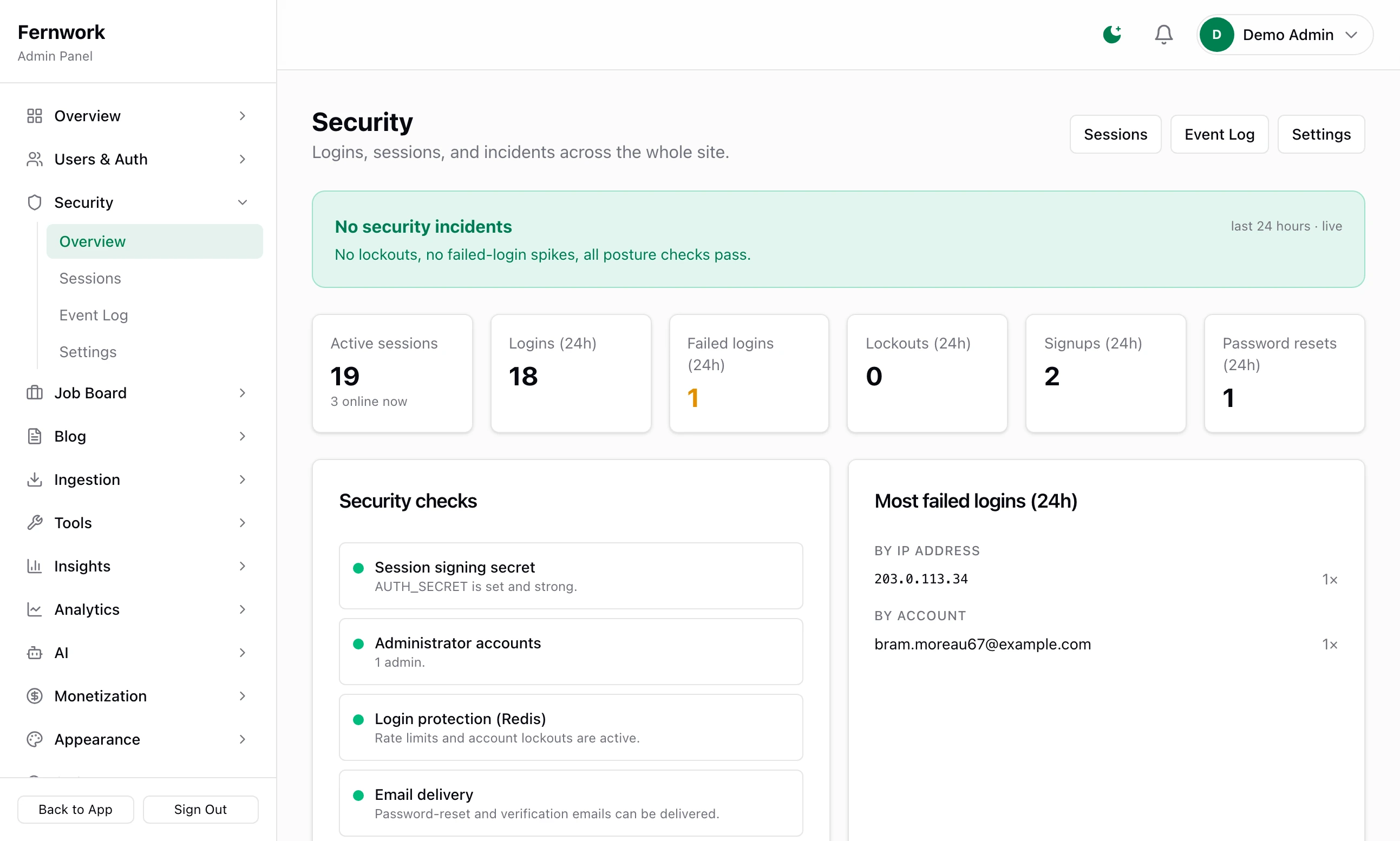
Overview has a banner, "No security incidents", "Worth a look" or "Attention required", then counters for the last 24 hours and a list of Security checks. One of them, Guest (read-only) admin access, stays on a warning for as long as any guest admin exists.
Sessions lists every signed-in device. Actions on a row offers Revoke session and Log out user everywhere. Log out all users signs out everyone on every device except the one you are using.
Event Log is the record of every sign-in, failed sign-in, lockout and admin action. Filter it by Logins, Account, Admin actions or Incidents, or search by email or IP address.
Settings holds the numbers:
| Setting | Starts as |
|---|---|
| Lock after … failed logins, …counted within … minutes | 5 within 15 minutes |
| Lock for | 15 minutes |
| Spike alert at … failed logins per hour | 20. Type 0 for off. |
| Re-check every … seconds | 60. This is how long a revoked session can go on working. |
| “Online now” within | 15 minutes |
| Keep events | 90 days |
| Keep old sessions | 30 days |
Telegram me when an admin signs in is off to begin with. The lockout and the rate limits are counted in Redis: while Redis cannot be reached, sign-in still works and neither is applied.
Settings, General#
Open General under Settings. Feature Status at the top is four read-only lines saying whether an AI provider, Google sign-in, email and error tracking are set up. Platform Settings is the form:
| Field | Starts as | What it does |
|---|---|---|
| Support Email | Empty | Shown on the advertising page as the contact address, and told when an advertising order is paid. |
| Site Currency | USD | The one currency for every price you sell: plans, featured jobs and advertising. |
| Max Jobs Per Company | 50 | An employer cannot add a job to a company that already has this many, closed jobs included. |
| Imported Job Expiry (days) | 45 | How long an imported job stays up. 0 means it never expires. |
| Applications Per Job Limit | 500 | Nothing. See the note below. |
| Raw Job Retention (days) | 90 | How long processed records from sources are kept, so that the same job is not imported twice. |
| Log Retention (days) | 30 | Older ingestion and distribution logs are deleted. |
| Job View Retention (days) | 180 | Older records of job page views are deleted. 0 keeps them for ever. |
| Feed Grouping: Max Cards Per Company | 3 | On each page of results, further jobs from the same company fold away behind a "more roles" link. 0 shows everything. |
Click Save Settings and you see "Settings saved successfully." A box you empty goes back to its starting value when you save. The site's name is not here: it is under SEO, Settings.
Danger Zone at the foot has two buttons. Reindex rebuilds the job search index from the database. Clear Queue deletes every raw job that is still waiting to be processed, and cannot be undone.
The admin keeps sending me to the setup wizard
Opening /admin does that until the wizard has been finished or skipped. Finish it, or click Skip setup for now at the foot of any step from 2 to 8.
I dismissed the launch checklist. How do I get it back?
You cannot. The eight lines and where each is done are in the table above.
I changed someone's role and nothing happened
The account's page says it when you save: "Saved. The new role applies the next time this user signs in." Ask them to sign out and in again.
A guest admin was sent to the home page
They opened a screen that is locked to administrators, or pressed a button that saves. Nothing was changed.
Someone sees "Too many failed attempts — this account is temporarily locked."
Five wrong passwords in 15 minutes lock an account for 15 minutes, unless you changed the numbers under Security, Settings. The lock lifts by itself when the time is up.
Stuck on a step? Send a message.