Featured jobs and credit bundles
Price a featured job, sell credits in bundles, and know where a featured job shows, how an employer buys one and what ends it.
Updated 9 Oct 2026 · written for Job Lab 1.1.0
On this page
Open Featured Jobs under Monetization in the admin sidebar. An employer pays to have one job shown first for a number of days. This page sets the price and the length, sells credits in bundles at a discount, and lists the placements that have been bought.
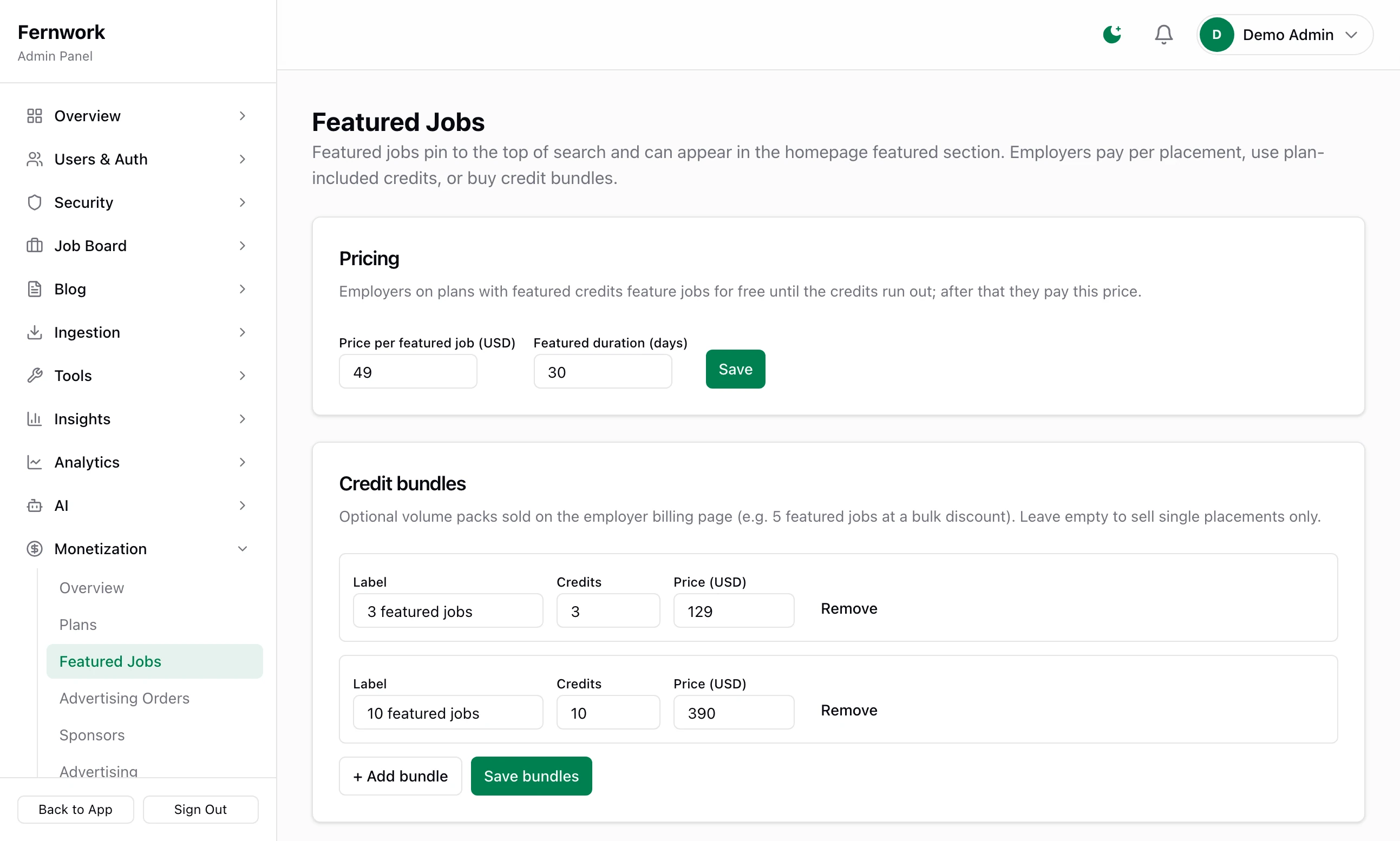
A new board charges 49 for 7 days and sells no bundles. The board in the pictures has been changed to 30 days and sells two bundles.
Set the price and the length#
Step 1: Type the price
Under Pricing, type the amount into Price per featured job (USD). The label carries your own site currency. The lowest price accepted is 1.
Step 2: Type the length
Featured duration (days) is how long one payment or one credit keeps a job featured, from 1 to 90 days.
Step 3: Click Save
You see "Featured job settings saved". The new price and length apply to the next job featured. A job that is already featured keeps the end date it was given.
There is nothing to create in Stripe. The amount is sent to Stripe each time an employer pays.
Credit bundles#
A credit features one job for the length you set. A bundle is a pack of credits sold for a single payment, so that an employer who hires often pays less for each one. You can sell up to four bundles, or none.
Under Credit bundles, click + Add bundle. A new row appears with 5 credits at 199 for you to change.
Label: the bundle's name on your site and on Stripe's payment page, for example "Growth pack". It cannot be left empty.
Credits: how many it gives, from 1 to 100.
Price (USD): what the whole bundle costs, 1 or more.
Remove: takes the row away.
Click Save bundles. You see "Bundles saved". Nothing is kept until you do, including a row you removed.
Bundles are offered on the Pricing page and on every employer's Billing page. Where a bundle works out cheaper for each credit than your single price, Billing adds a line such as "Save 12% vs one-off", worked out for you.
Removing a bundle stops it being sold. Employers who bought it keep their credits.
Where a featured job shows#
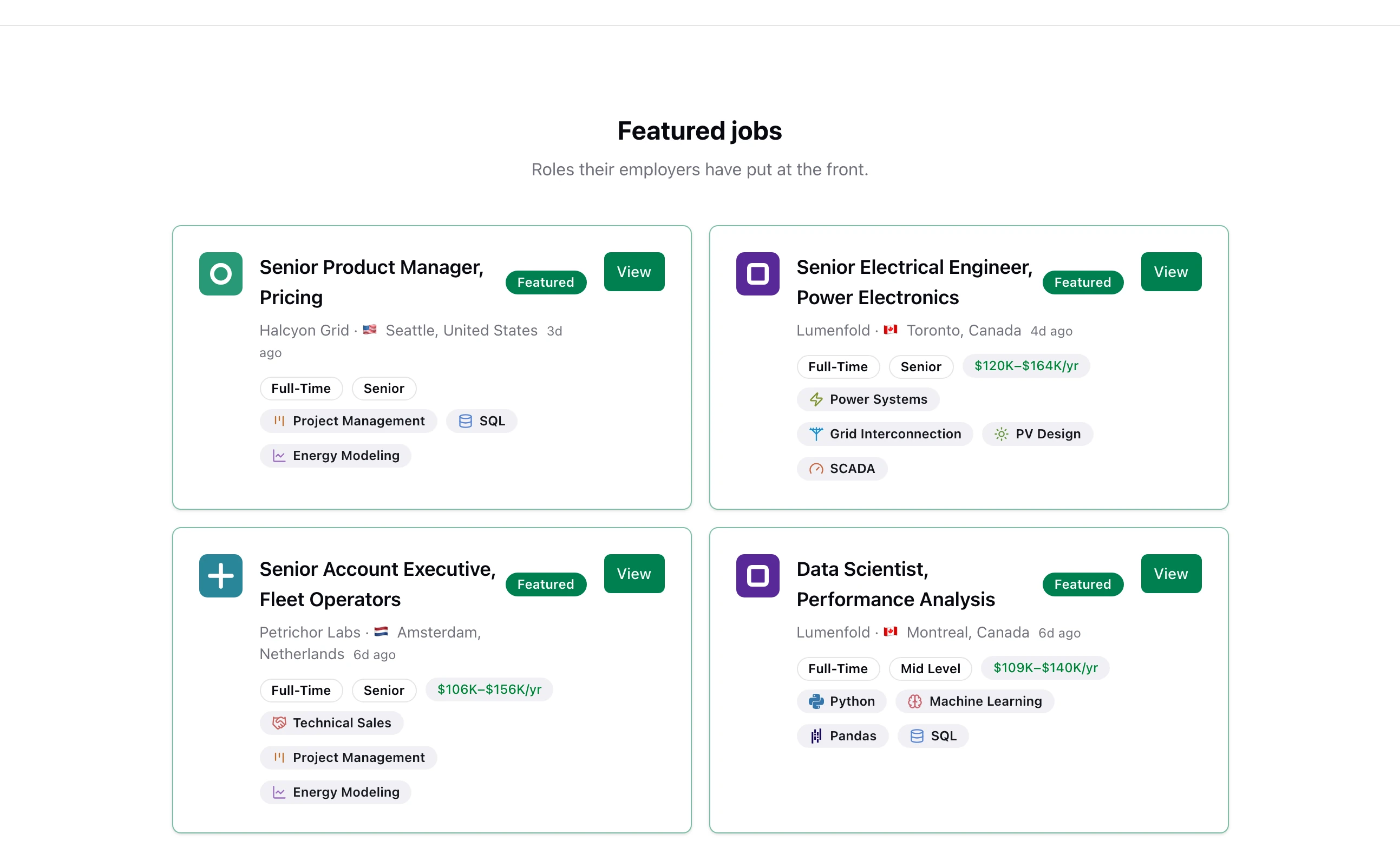
A featured job carries a Featured badge on its card and on its own page. It is put first in these places:
The job search, in the default Best Match order: featured jobs that match come first, then the rest by date. A visitor who changes the order to Newest, Oldest, Highest Salary or Lowest Salary sees every job in that order, featured or not.
Skill, role, location and job type pages, and the landing pages made for search engines.
The home page, in the Featured jobs section if you have it switched on in Homepage under Appearance. It lists featured jobs only. With Show latest jobs when nothing is featured ticked, it fills with your newest jobs when there are none.
The newsletter: among the jobs published since the last issue, featured ones lead.
The Latest jobs block for sidebars has a Featured jobs only tick box, in Sidebars under Appearance.
How an employer features a job#
An employer can feature a job of their own that is published and not already featured. They do it in one of two places.
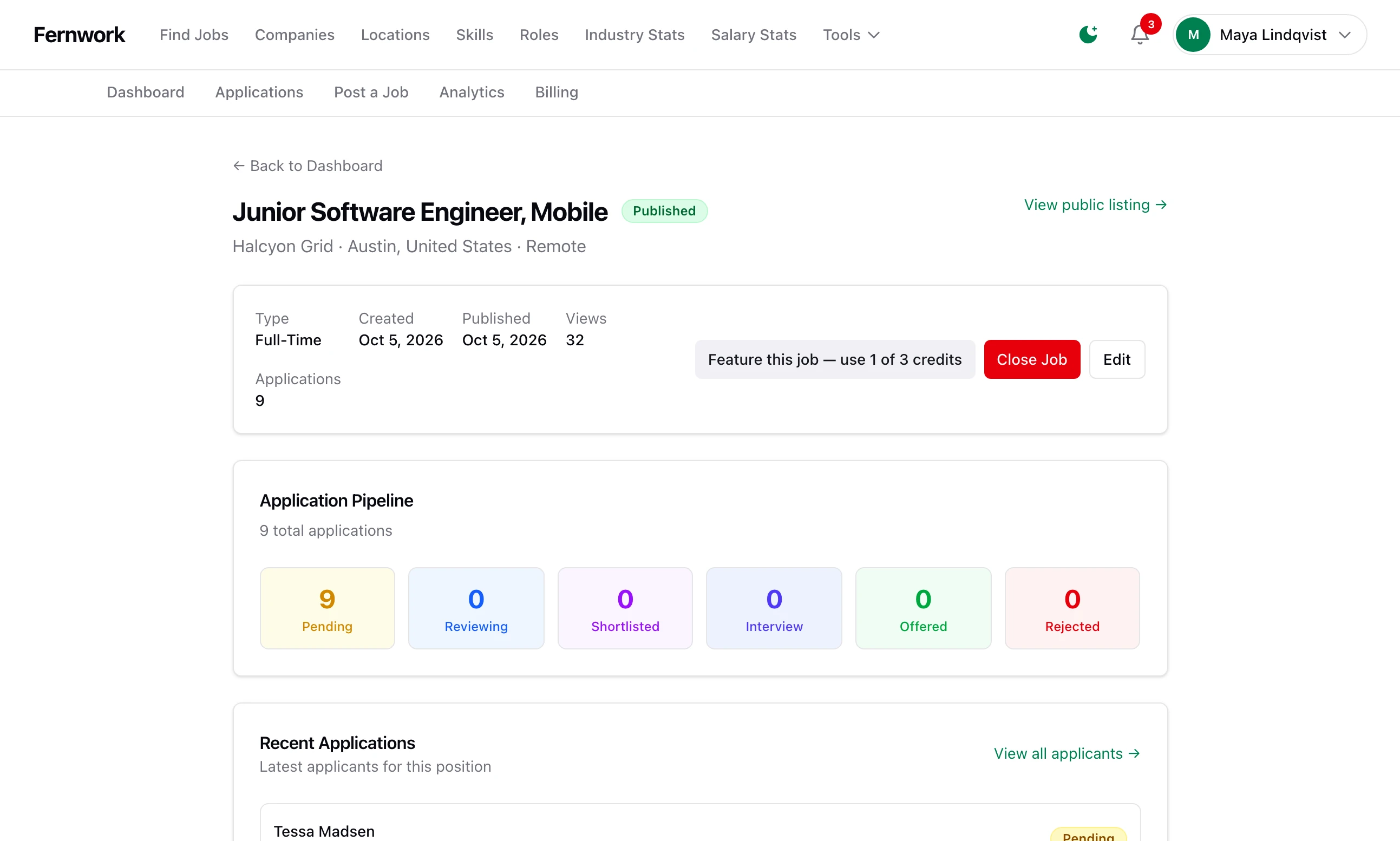
From the job's page. On their dashboard they click Manage beside the job. The button there reads "Feature this job — use 1 of 3 credits" if they have credits, or "Feature this job — $49 for 7 days" if they have none.
When they publish. After the job form, a window asks "Your job is saved — how do you want to launch it?", with Publish & Feature on one side and Publish Free on the other. It appears whenever the employer has a credit or you have Stripe connected. If your moderation rules hold the job for review, it is not featured, no credit is used and no payment is started. The employer features it from the job's page once you have approved it.
What happens next depends on whether they have a credit.
With a credit#
A credit is always used first. The job is featured at once and the employer sees "Job featured for 7 days using 1 credit (2 left)." No payment page appears, and nothing is sent to Stripe. Featuring with a credit works on a board with no Stripe key at all.
By card#
With no credits left, the employer is sent to Stripe's payment page for "Featured Job Listing (7 days)" at your price, then returned to the job's page. The job becomes featured when Stripe's webhook message reaches your site, normally within seconds, and not before: see Add the webhook. They are emailed a receipt headed "Payment received — thank you".
A job that is featured cannot be featured again or extended until it ends. The employer is told "This job is already featured."
Where credits come from#
An employer's credits are on their Billing page, in the card Featured-job credits.
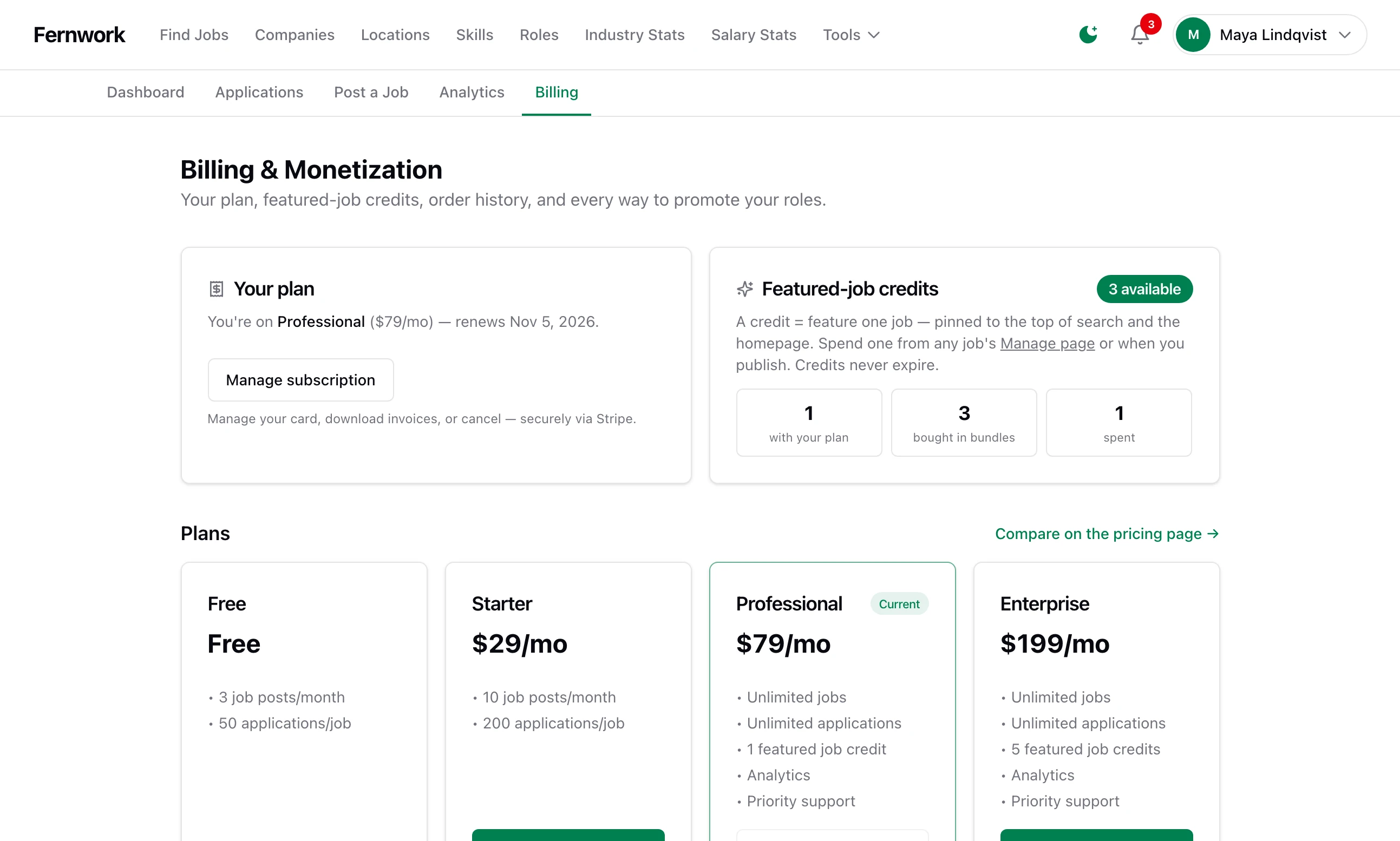
The badge shows how many are available. The three figures beneath are how it is worked out: credits with your plan, plus credits bought in bundles, less credits spent.
With a plan. Each plan has a number of Featured job credits included, set in Sell employer plans. It is one allowance for as long as the employer subscribes. It does not refill each month.
In a bundle. The employer clicks Buy credits under Feature your jobs on Billing, pays on Stripe's page and comes back to Billing. The credits are added when Stripe's webhook message arrives.
Credits do not expire. Nothing in Job Lab takes away a credit because time has passed.
When a featured job ends#
Every featured placement has an end date. A task called Expire Featured Slots runs every hour, finds the placements whose date has passed and takes the badge and the position away, so a job can stay featured for up to an hour past its time. The employer is emailed that the job is no longer featured, with a link to feature it again. The task is on Scheduled Tasks under Tools, where you can run it by hand or change how often it runs: see Backups, scheduled tasks and health.
Closing a job takes it off the board, featured or not. The credit or payment is not given back.
Recent placements#
The foot of Featured Jobs lists the last 25 placements, newest first, with the job, the start and end dates and two badges.
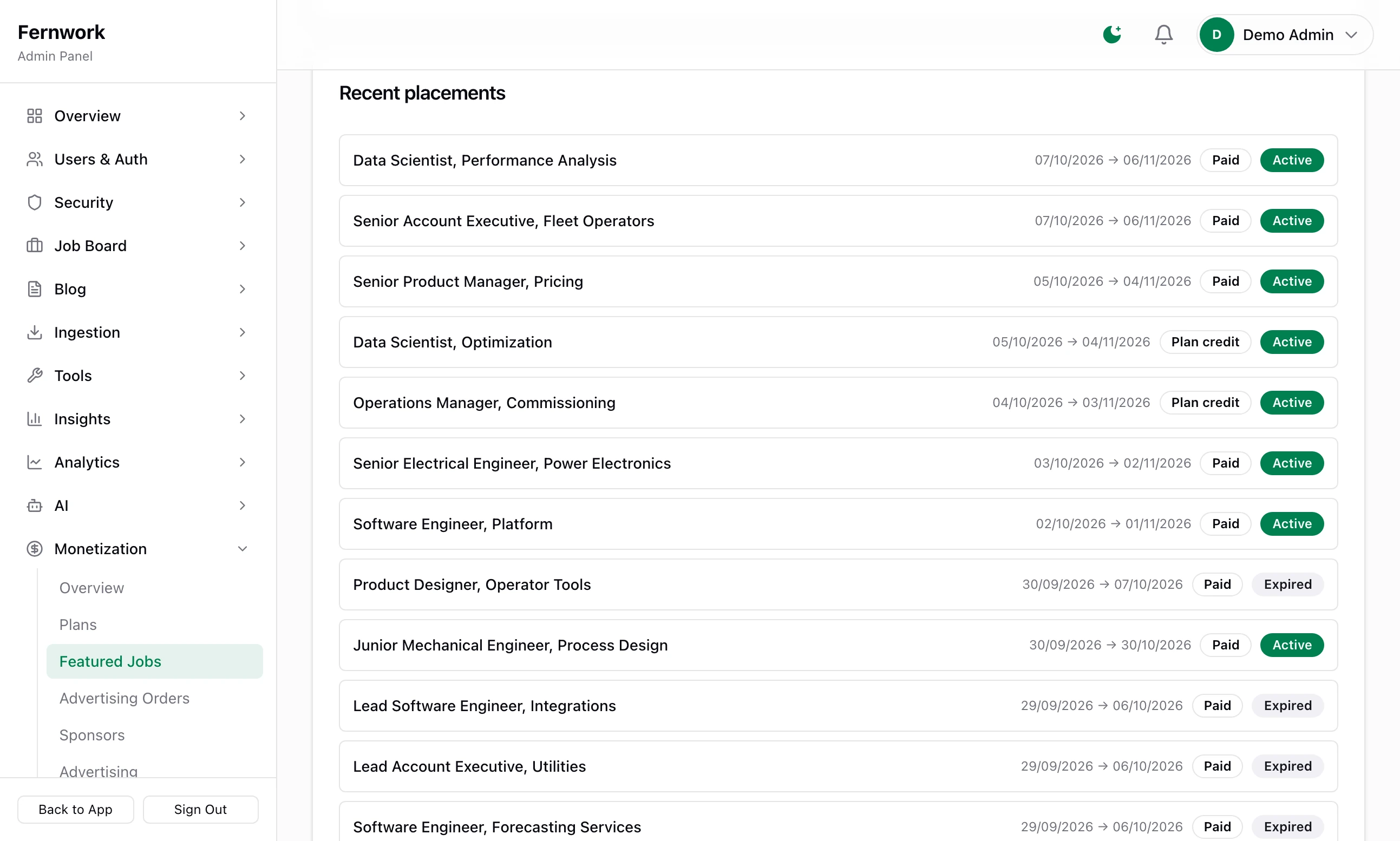
Paid means it was bought by card. Plan credit means a credit was used, whether the credit came with a plan or from a bundle.
Active means it is running. Expired means its end date has passed.
The number of placements running now is also on the Monetization overview, as Featured live now.
Feature a job yourself#
To give a placement away, or to make a new board look lived-in, open All Jobs under Job Board, click Actions ▾ on the job's row and choose Feature. The same menu has Unfeature. It works on any job, including those brought in from your job sources.
A job you feature this way has no end date. It stays featured until you unfeature it, it uses nobody's credit and it does not appear under Recent placements.
An employer paid and the job is not featured
Stripe's message did not reach your site, or was refused. A card payment is completed by the webhook and by nothing else. See "An employer paid and nothing changed" in Connect Stripe.
An employer sees "Only published jobs can be featured."
The job is a draft, is closed or is waiting for your review. It has to be live on the board first.
An employer cannot find their jobs from the credits card
In version 1.1.0 the Manage page link in the Featured-job credits card, and the button in the receipt email, lead to a page that does not exist. Jobs are listed on the employer's Dashboard, each with a Manage button.
Do credits need Stripe?
Using one does not. Getting one usually does, because a paid plan and a bundle are both bought through Stripe. The exception is credits you include in the Free plan.
Can a featured job be shown for longer than 90 days?
Not from one payment: 90 days is the longest Featured duration (days) accepted. The employer can feature the job again once it has ended, or you can feature it yourself with no end date.
Stuck on a step? Send a message.