Install Job Lab on your computer
From the unzipped folder to the first screen of the setup wizard, with four services in Docker, two secrets of your own and the site on port 3000.
Updated 9 Oct 2026 · written for Job Lab 1.1.0
On this page
Run Job Lab on your own computer first. It is a Node.js site with four services behind it: a database, a queue, a search engine and file storage. Docker starts all four with one command, and the site itself runs from the Job Lab folder. You get the whole product, admin included, with no outside account and no keys, and you can break it as often as you like before anything is public.
What you need#
Docker Desktop, running. On Linux, Docker Engine with the Compose plugin does the same job.
Node.js 22. This is the version Job Lab is built and deployed on.
pnpm, the package manager. You do not install it yourself: Node.js comes with a tool called Corepack that fetches the version the folder asks for, which is 9.15.4.
The Job Lab folder. Unzip your download.
A terminal opened in that folder.
The commands below are written for a Mac or Linux. On Windows, use copy where they say cp.
Install and start it#
Step 1: Start the four services
Terminaldocker compose up -dThe first run downloads the four images, which takes a few minutes. After that it takes seconds. To see them, run
docker compose ps: it listspostgres,redis,meilisearchandminio, each with its status.Step 2: Make your settings file
Terminalcp .env.example .env.envis where the site reads its settings. The copy already points at the four services you started, so most of it can stay as it is.Step 3: Set the two secrets
Two lines in
.envhold placeholder values that are the same for everyone who has the code. Make two random strings of your own by running this twice:Terminalopenssl rand -base64 32If your computer has no
openssl, this prints the same kind of string:Terminalnode -e "console.log(require('crypto').randomBytes(32).toString('base64'))"Open
.envin a text editor and replace the two values, one string each:.envAPP_SECRET=paste-the-first-string-here AUTH_SECRET=paste-the-second-string-hereAUTH_SECRETsigns the cookie that keeps people signed in. Changing it signs everyone out and loses nothing else.Step 4: Install the packages
Terminalcorepack enable pnpm installThe first line makes the
pnpmcommand available. The second downloads what the site is built from and takes a minute or two.Step 5: Create the database tables
Terminalpnpm db:pushThis reads the database address from
.envand creates every table. On an empty database it asks nothing and ends with "Changes applied".Step 6: Create the storage bucket
Terminalpnpm setup:minioIt prints
Bucket "joblab" created successfully.Run it a second time and it printsBucket "joblab" already exists.and changes nothing.Step 7: Start the site
Terminalpnpm devOpen http://localhost:3000. A new install has no admin account, so the home page sends you to
/setup, the first step of the setup wizard, headed "Create your admin account".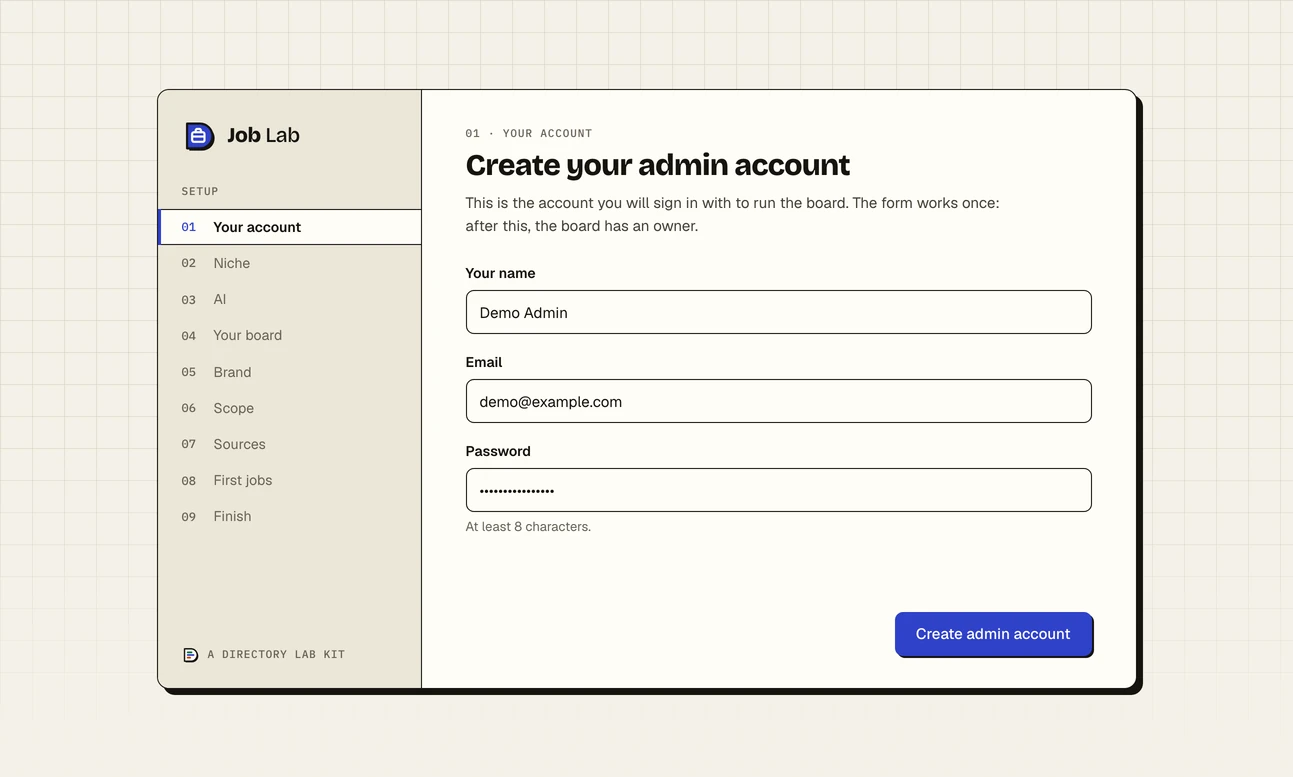
A new install opens on this form. It works once.
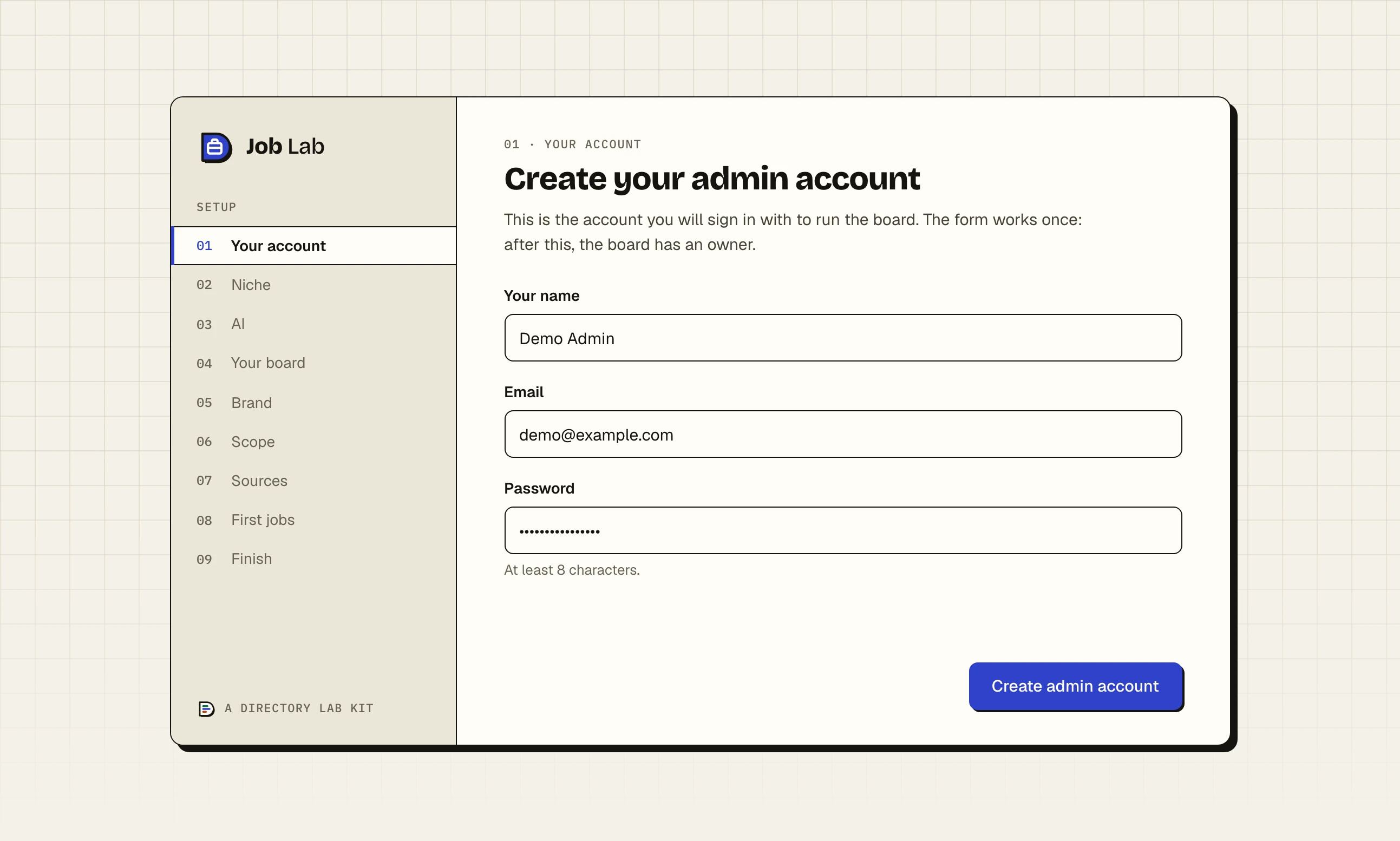
The setup wizard, step by step takes it from here.
The services and their ports#
Each service is reachable on your own computer at a port. If another program already uses one of them, that service cannot start.
| Service | Port | What it does | Its data is in the volume |
|---|---|---|---|
| PostgreSQL 16 | 5433 | The database. User, password and database name are all joblab. | pgdata |
| Redis 7 | 6379 | Queues, schedules and the sign-in counters. | redisdata |
| Meilisearch 1.11 | 7700 | The job search index. | meilidata |
| MinIO | 9000, and 9001 for its own console | File storage for uploaded images. | miniodata |
| The site | 3000 | Job Lab itself, started by pnpm dev. |
PostgreSQL is on 5433 on purpose, so that a PostgreSQL already installed on your computer, which uses 5432, is left alone.
When a port is taken by a service. docker compose up -d stops with an error from Docker that names the port and says it is already allocated or already in use. Close the other program. If you cannot, open docker-compose.yml, change the first of the two numbers on that service's ports line, for example "6380:6379", and change the same port in the matching line of .env. Then run docker compose up -d again.
When port 3000 is taken. The site starts on the next free port and says which in the terminal. Stop it, change NEXT_PUBLIC_APP_URL and AUTH_URL in .env to that address, for example http://localhost:3001, and start it with the port named:
pnpm dev --port 3001The two lines must match the address you open in your browser. Every link the site writes uses them, and so does the built-in Test Feed that the setup wizard offers, which the site fetches from itself.
What starts with the site#
pnpm dev starts more than the pages. When the site starts it does these things in order:
It checks its settings. Without a
DATABASE_URL, or with anAPP_SECRETshorter than 16 characters, it refuses to start and the terminal names the setting at fault.It loads any keys saved in the admin, which take the place of the same keys in
.env.It sets up the search index.
It starts the background workers and registers every scheduled task. The terminal shows a line containing "BullMQ workers and schedulers started".
The workers fetch your sources, process the jobs, send email and run the scheduled tasks. They are part of the site, so there is nothing else to start. On the very first start, step 4 also creates the four default employer plans and a starter set of moderation rules.
If Redis is not running#
Start the four services before the site, and leave them running. Redis is the one the site leans on most: the workers, the schedule, the sign-in lockout and the rate limits all use it. Step 4 needs it, and the default plans and moderation rules are created inside that step, so a first start without Redis leaves them out.
When the site cannot reach Redis, three screens say so:
The Automation card on the Control Panel reads "Scheduler offline — Redis unreachable". No source is fetched on its schedule and no scheduled task runs.
On Security, Overview, the check called Login protection (Redis) reads "Redis unreachable — lockouts and rate limits are inactive (logins still work)."
The last screen of the setup wizard reads "Redis unreachable: scheduled fetching is paused (your manual pull still worked)". The wizard's own first fetch does not use the queue.
The way out is the same each time: run docker compose up -d, then stop the site and start it again.
Check that everything is up#
Once you have an admin account, open System Health under Overview in the admin sidebar. The Infrastructure card has a line each for Database, Redis, Meilisearch and File storage.
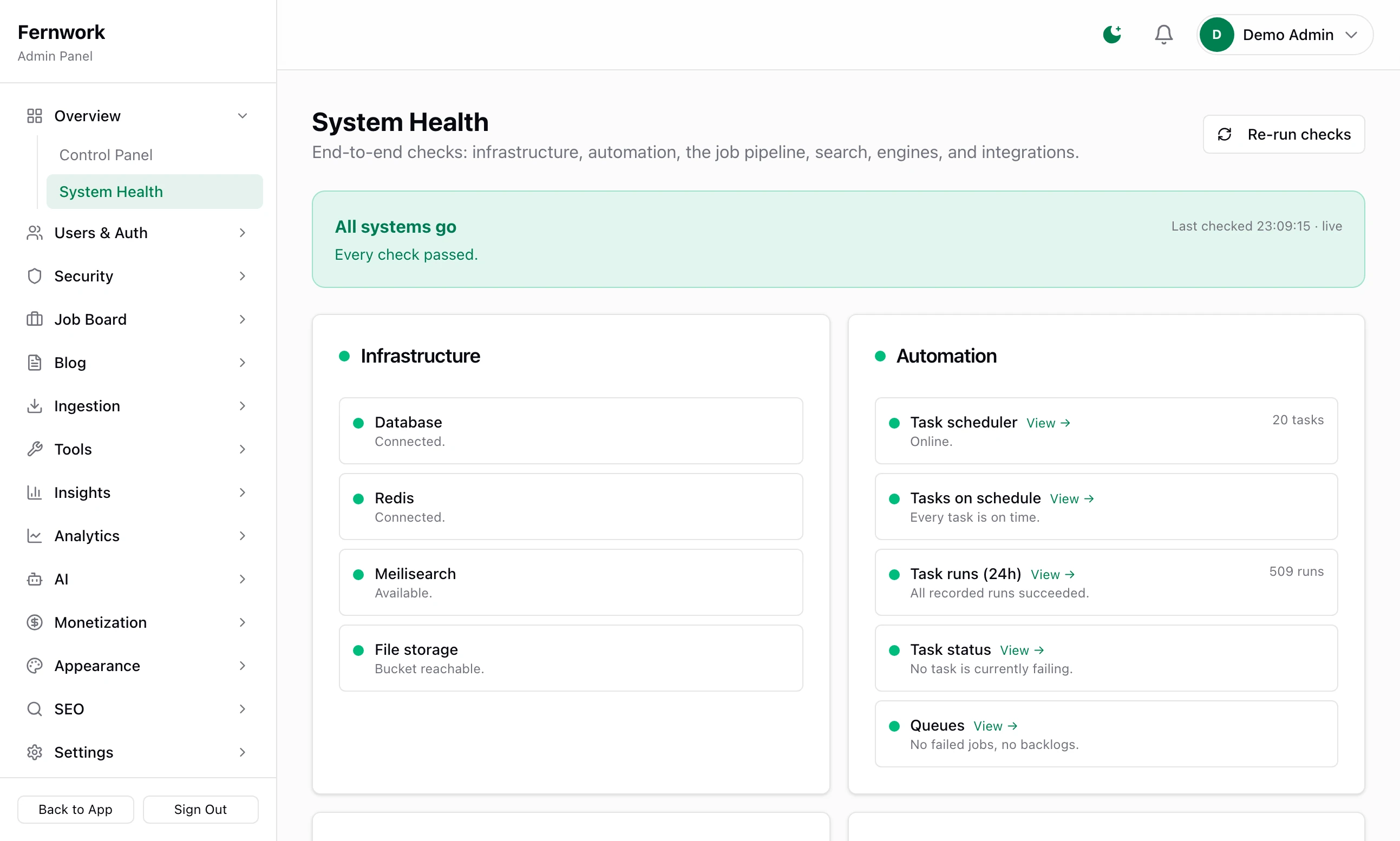
Backups, scheduled tasks and health covers the rest of that page.
Stop it and start it again#
Press Ctrl and C in the terminal to stop the site. To stop the four services as well:
docker compose stopNothing is lost. To carry on later, run docker compose up -d and then pnpm dev. You do not repeat the other steps.
The services are set to come back by themselves whenever Docker starts, unless you stopped them.
Start again from nothing#
Everything the site knows is in the four Docker volumes in the table above. Docker puts the folder's name in front of each, so in a folder called job-lab the database volume is job-lab_pgdata. To wipe all four and begin again:
docker compose down -v
docker compose up -d
pnpm db:push
pnpm setup:minio
pnpm dev
The setup wizard comes back, because there is no admin account. Keep your .env as it is.
To go through the wizard again without wiping anything, see running it again.
- The setup wizard, step by stepCreate your account, pick a niche and bring in the first jobs.
- A tour of the adminWhat is in the sidebar and what the Control Panel tells you.
The terminal says "pnpm: command not found"
Run corepack enable and try again. Corepack comes with Node.js 22, so if that command is missing too, check your Node.js version with node --version.
Is there a default admin login?
No. The only admin is the account you create in the wizard. If you forget its password on your own computer, use Forgot password? on the sign-in page. With no email set up, the reset link is written to the terminal where pnpm dev is running, on a line that contains "SMTP not configured".
I registered a test employer and it cannot post a job
Posting a job and applying for one both need a verified email address, and the verification link is sent by email. With no email set up, nothing is sent. There are two ways round it on your own computer:
Signed in as the test employer, click Resend verification email on the banner headed "Please verify your email address". The link is written to the terminal on a line that contains "SMTP not configured". Open it in your browser.
Signed in as the admin, open the account from All Users and click Mark email verified: see A tour of the admin.
Your own admin account is never asked to verify.
Do I need to run anything besides pnpm dev?
No. The background workers and the scheduler start inside the site. The four services in Docker are the only other thing that has to be running.
Can I look inside the file storage?
Yes. MinIO has its own console at http://localhost:9001. On your own computer the user name and the password are both minioadmin.
Stuck on a step? Send a message.