The advertising shop
Put eight advertising placements on sale, let advertisers book and pay by themselves, and approve, reject or refund each order from one page.
Updated 9 Oct 2026 · written for Job Lab 1.1.0
On this page
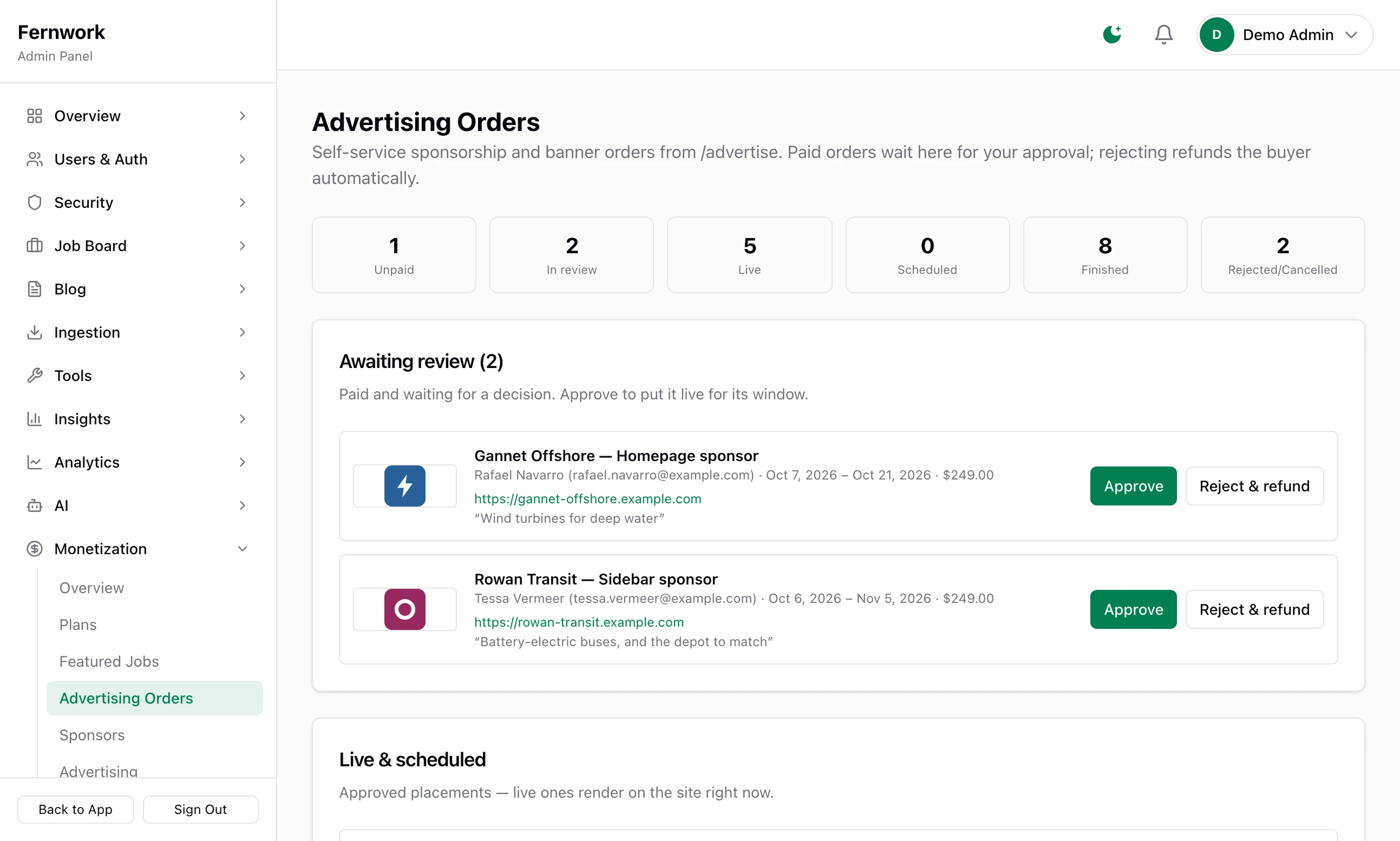
Open Advertising Orders under Monetization in the admin sidebar. This one page runs the shop: it sets what is on sale and at what price, holds every paid order until you approve it, and keeps the record of what is live, what is coming and what has finished. The public side of it is the Advertise page of your board, at /advertise.
The eight placements#
Every board sells the same eight placements. You choose which to switch on and what each costs.
| Placement | Where it shows | How many at once |
|---|---|---|
| Site-wide sponsor | Everywhere below: all four sponsor placements and all three banners, from one order | 1 |
| Homepage sponsor | The Sponsors section of the home page: logo, linked to the advertiser | 1 to 10, you choose |
| Sidebar sponsor | The Sponsor widget in a sidebar, beside job lists and browse pages: logo, name and tagline | 1 to 10, you choose |
| Newsletter sponsor | One line at the top of the weekly newsletter | Keep it at 1 |
| Stats pages sponsor | A "Sponsored by" strip across the top of every market stats page | 1 to 10, you choose |
| Top banner | A banner under the header of every public page | 1 |
| Bottom banner | A banner above the footer of every public page | 1 |
| Job page banner | A banner below the description on every job page | 1 |
The first five are sponsor placements: the advertiser supplies a logo, a name, a link and a tagline. The last three are banners: one wide image and a link, shown under the word "Advertisement". A banner never shows in the admin, in the employer and job seeker dashboards or on the sign-in pages.
Before you start#
Stripe, with its webhook. The shop takes payment through your Stripe account: see Connect Stripe. The secret key opens the shop. The webhook is what tells your board an order has been paid.
Your currency. Prices are in the Site Currency chosen under Settings, then General. Set it before you sell anything.
Email, so that advertisers get their receipts and decisions: see Email that arrives.
Put a placement on sale#
Scroll down Advertising Orders to Packages & pricing. There is one row for each placement.
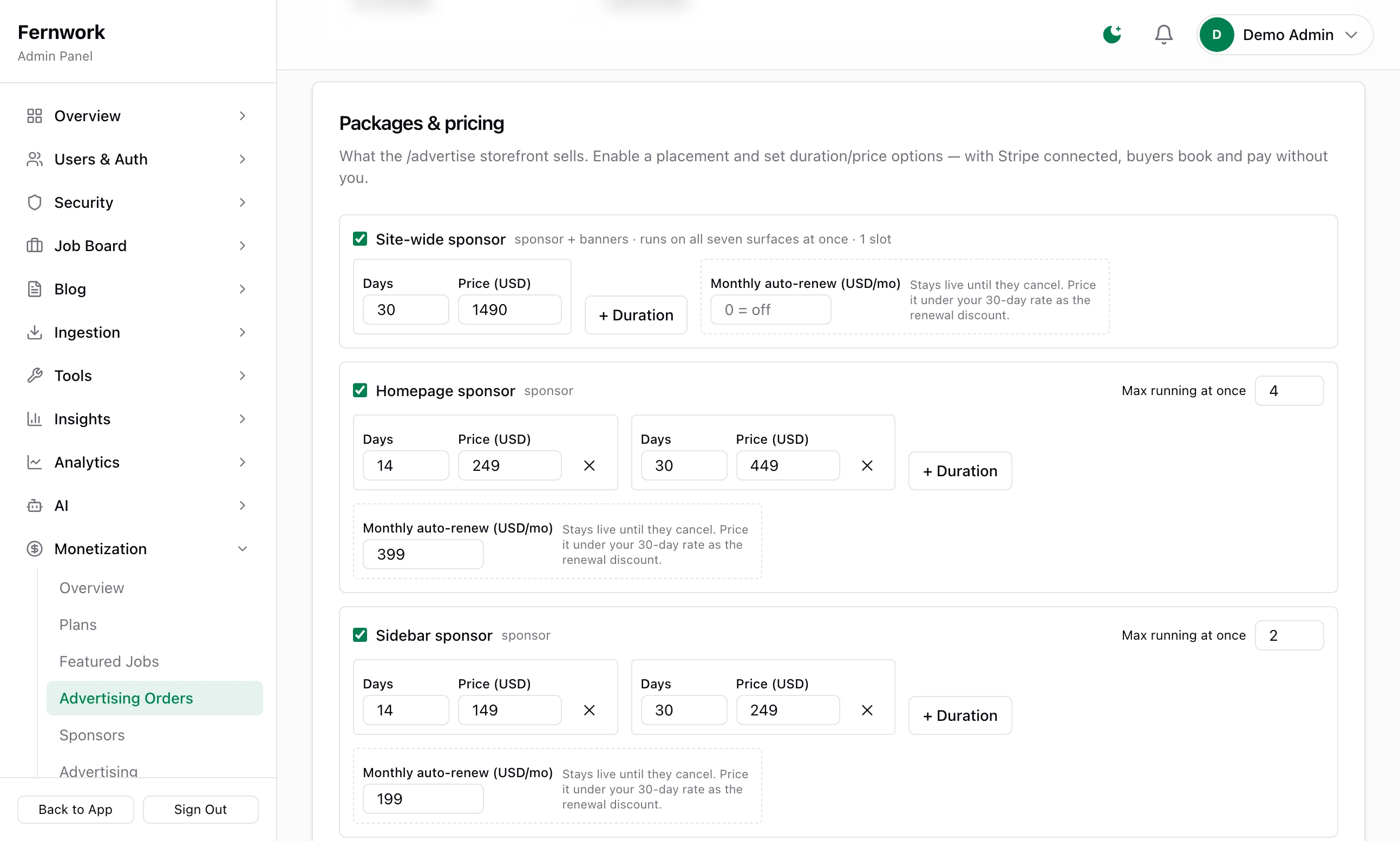
Step 1: Tick the placement
Tick the box beside its name, for example Homepage sponsor. An unticked placement is not offered.
Step 2: Set the length and the price
Each option is a pair: Days and Price. A new row starts with one option, 30 days at 199. Type whole amounts: the price takes no pence or cents.
Step 3: Add more options
Click + Duration to add another length, up to four on a placement. Give each one a different number of days, for example 14 and 30. The cross beside an option removes it.
Step 4: Set how many can run together
On Homepage, Sidebar, Newsletter and Stats pages sponsor, Max running at once takes a number from 1 to 10. When that many orders cover the same dates, the next advertiser is told the dates are booked and given the next opening. Banners and the site-wide sponsor always hold one.
Step 5: Click Save packages
The bar at the bottom of the screen reads "Packages saved — enabled placements are now bookable on /advertise."
A few things to know about these fields:
Days takes 1 to 365.
Two options with the same number of days are treated as one: the advertiser is charged the first of them.
Leave Max running at once at 1 for Newsletter sponsor. An issue has one sponsor line, so a second paid order running at the same time would not appear.
Site-wide sponsor takes a place in every other placement while it runs. It can only be booked for dates when every banner is free and every sponsor placement has room, and while it runs the banners cannot be sold separately.
A price is copied onto the order when it is booked. Changing a price afterwards changes the next booking, never one already made.
Monthly auto-renew adds a second way to pay. Read Monthly orders before you type anything in it.
Storefront wording#
Further down the page, Storefront copy changes the words on the public Advertise page.
Intro paragraph: the text under the heading "Advertise on" and your board's name. Up to 500 characters.
Site-wide sponsor pitch, Homepage sponsor pitch and one for each of the other six: the sentence on that placement's card. Up to 300 characters each.
An empty box uses the standard wording, which is shown in grey inside it. Click Save copy and the bar reads "Storefront copy saved".
When the Advertise page is a shop#
The Advertise page has two forms, and it chooses between them by itself.
| It is | When | What a visitor sees |
|---|---|---|
| A shop | A Stripe secret key is saved and at least one placement is ticked | Prices, availability and a Book this placement button on each ticked placement |
| A contact page | Either of those is missing | All eight placements with no prices, and Enquire buttons that open an email to you |
The contact page sends its enquiries to the Support Email under Settings, then General. With no support email saved it has no Enquire buttons, only a line asking the visitor to contact your team. While Stripe is missing, the top of Advertising Orders says "Stripe isn't connected".
A new board links to the page from its footer, as Advertise & Sponsor, and from the Pricing page. When the shop is open, employers also find the placements on their Billing page.
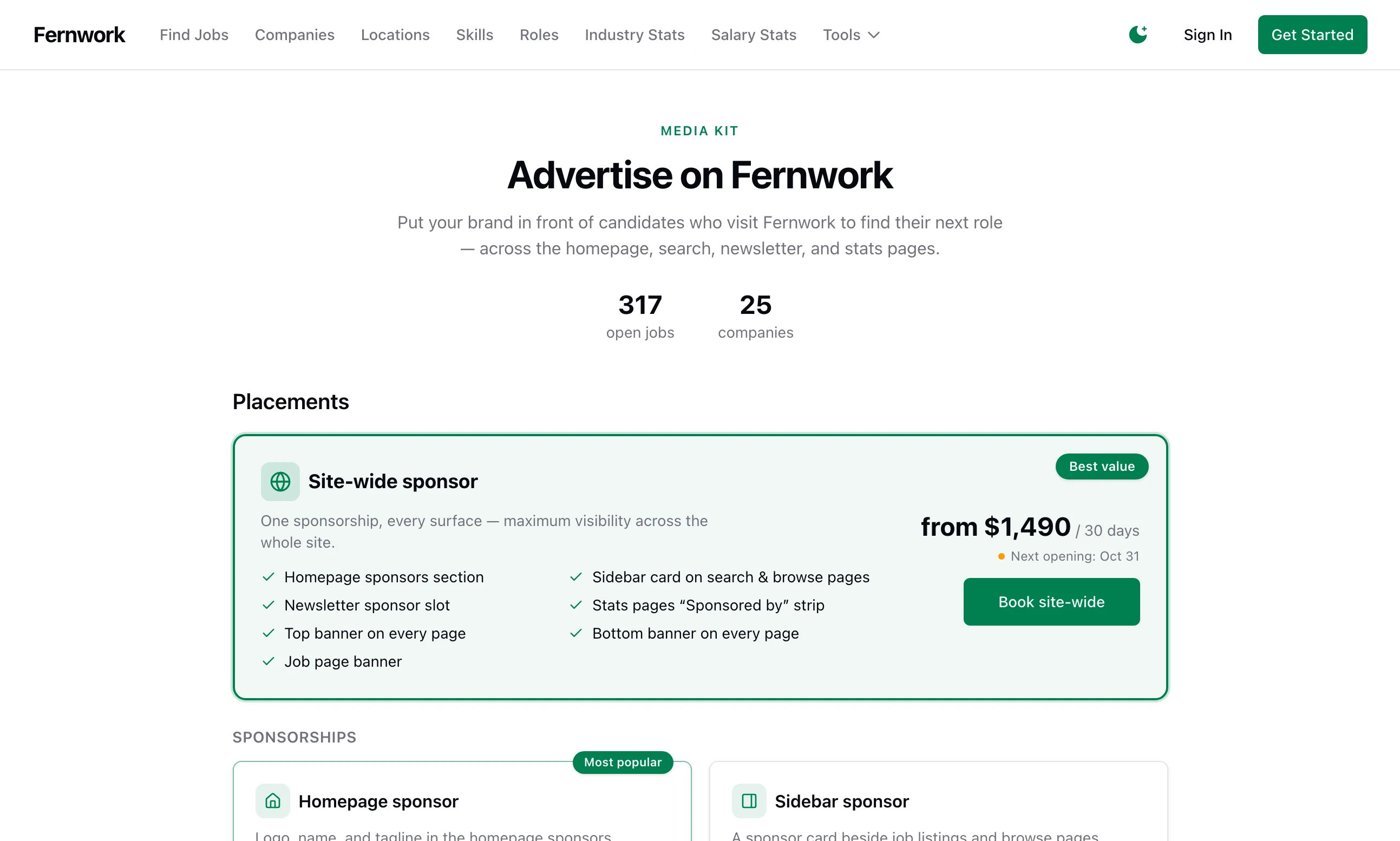
On the shop, each card shows the lowest price as "from $249 / 14 days", and one of three lines: "Available now", "Next opening:" with a date, or "Currently booked".
What an advertiser does#
An advertiser needs an account on your board. Any account will do: employer or job seeker. Someone who is not signed in is sent to sign in and brought back.
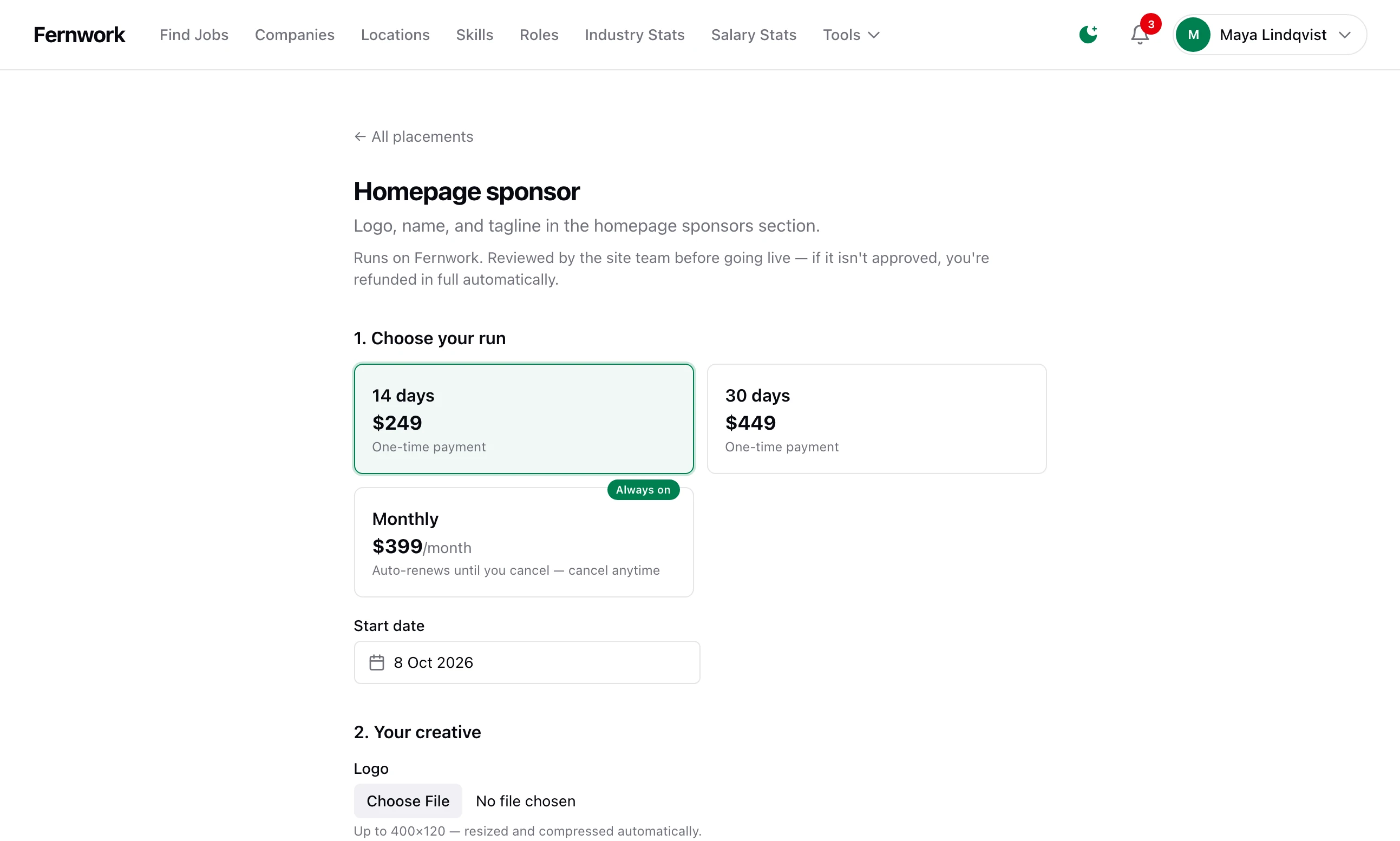
The booking page has three parts.
Choose your run. One card for each length you offer, marked "One-time payment", and a Start date from today to 90 days ahead.
Your creative. A Logo for a sponsor placement or a Banner image for a banner, then Sponsor name, Destination link and Tagline (optional). A banner has Advertiser / brand name and Image alt text (optional) in place of the name and tagline. The site-wide sponsor asks for both a logo and a banner image.
Live preview. The advert as it will appear.
An image file can be up to 5 MB. A logo is shrunk to fit 400 by 120 pixels and a banner to fit 1200 by 400. Advertisers upload a picture and a link, never code.
The button at the bottom reads "Pay $249 — continue to checkout" and takes them to Stripe. After paying they land on Your campaigns, at /advertise/orders, under "Payment received — your placement is awaiting a quick review by the site team."
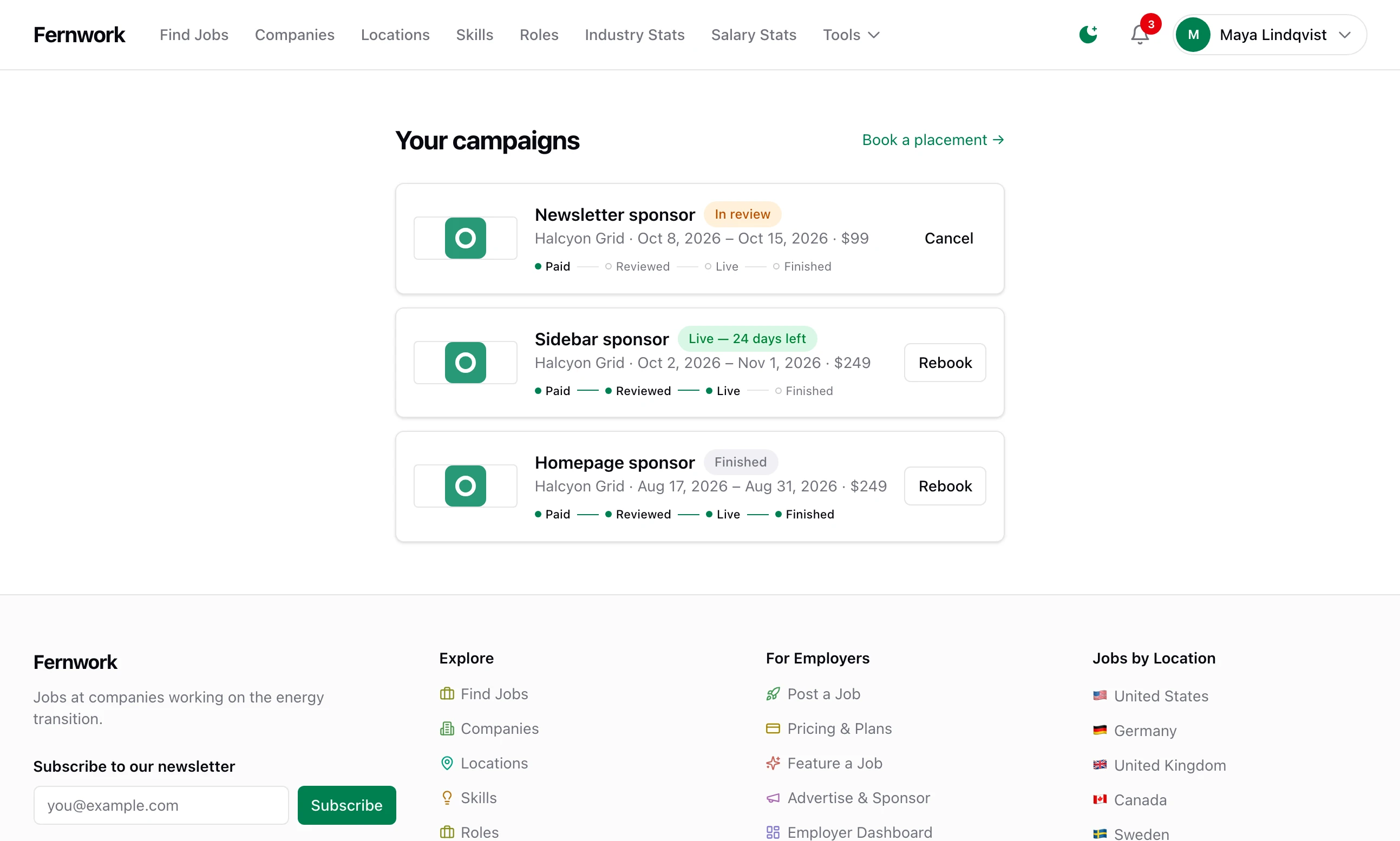
Your campaigns lists every order with its status and a line of four stages: Paid, Reviewed, Live, Finished.
| Status | Buttons |
|---|---|
| "Payment pending — pay, edit, or cancel" | Pay now, Edit booking, Cancel |
| "In review" | Cancel |
| "Scheduled" | Rebook, Cancel |
| "Live", with the days left | Rebook |
| "Finished", "Rejected & refunded", "Cancelled" | Rebook |
Cancel on a paid order that has not started refunds it in full, with no action from you. Once an advert is running the advertiser cannot cancel it. Rebook opens the booking page with the same image and wording filled in.
The advertiser is emailed a receipt when they pay, your decision when you make it, a reminder three days before the end and a note when the run finishes, the last two with a link to book again.
Approve or reject an order#
A paid order does not go live. It waits under Awaiting review until you decide. You are told in four places: a line on the Control Panel under "Needs your attention", a notice at the top of Monetization, then Overview, an email to your support address, and a Telegram message if you have connected Telegram, which can also approve the order.
Each row shows the image, the advertiser's name and placement, who booked it, the dates, the price, the link and the tagline. Open the link before you decide.
Approve puts the advert live for its dates. You see "Order approved — the placement is live for its window." If the start date has already passed, the run is moved to begin now and still lasts the full number of days.
Reject & refund opens a box for a Reason (sent to the buyer, optional). Click Confirm reject & refund. The whole payment goes back through Stripe, the advertiser is emailed with your reason, and you see "Order rejected and refunded."
Live, scheduled and finished#
The six counters across the top are Unpaid, In review, Live, Scheduled, Finished and Rejected/Cancelled. Below the queue:
Live & scheduled lists approved orders. One marked Live is showing on the site now. One marked Scheduled starts on a later date. Both have a Take down & refund button, which removes the advert and refunds the whole payment, however long it has already run. There is no way here to take an advert down and keep part of the money: for that, let it run or settle the difference in Stripe.
Unpaid checkouts appears when someone has started a booking and not paid. An unpaid booking holds its place for 60 minutes, so nobody else can take those dates while the advertiser is at the Stripe page, and it is cancelled after 24 hours. There is nothing for you to do.
Revenue by placement adds up paid orders for each placement, leaving out refunds.
History holds the last 25 orders that finished, were rejected or were cancelled.
An advert stops showing the moment its last day ends. Nothing has to run for that to happen.
The hourly tidy-up#
A task called Tidy Advertising Orders runs every hour. It does three things: marks ended orders as finished and emails each advertiser a link to book again, sends the reminder to adverts with three days left, and cancels unpaid bookings older than 24 hours. Until it has run, an ended order sits under Live & scheduled with a Finished mark. You can change how often it runs, or run it now, under Tools, then Scheduled Tasks: see Backups, scheduled tasks and health.
Monthly orders#
A placement can also be sold as a subscription. Type an amount in Monthly auto-renew on its row and the booking page gains a card marked Monthly, with the price per month and "Auto-renews until you cancel". The amount is sent to Stripe as it is: you create nothing in Stripe.
This is how a monthly order is meant to behave:
It has no start date. Stripe charges the first month at checkout and the advert goes live when you approve it.
Each month Stripe charges again and the run is extended by a month.
The advertiser stops it with Cancel renewal on Your campaigns. The advert stays up to the end of the month already paid for.
If a renewal payment fails, the advertiser is emailed and nothing changes while Stripe retries the card.
Rejecting it cancels the subscription and refunds the first payment.
My Advertise page has no prices
It is showing as a contact page. Either no placement is ticked under Packages & pricing, or there is no Stripe secret key. Check both: When the Advertise page is a shop.
An advertiser sees "This placement is booked for those dates."
Every place in that placement is taken for the dates they chose, by a paid order, a site-wide sponsor or a booking someone started in the last 60 minutes. The message gives the next opening. To sell more at once, raise Max running at once.
An advertiser paid and the order still says "Payment pending"
Your board has not been told about the payment, which means the Stripe webhook is missing or failing. Fix it using Connect Stripe. If the order has cancelled itself in the meantime, refund the payment in Stripe and ask the advertiser to book again.
Approve answers "This slot is now fully booked for those dates — reject (auto-refunds) or wait for an opening."
Another order was approved for the same dates while this one waited, or you lowered Max running at once. Reject it, which refunds the advertiser, or raise the number and approve it.
Stuck on a step? Send a message.