Board scope and the raw jobs queue
Decide which jobs belong on the board with remote-only and keyword rules, clean up what is already published, and read the queue that shows what became of every job a source sent.
Updated 9 Oct 2026 · written for Job Lab 1.1.0
On this page
Open Board Scope under Ingestion in the admin sidebar. The scope is the one filter that makes a general feed into a niche board: every job a source sends is checked against it, and a job that does not fit is turned away before it is published. The second half of this guide is the Raw Jobs Queue, where you can see what happened to each job and why.
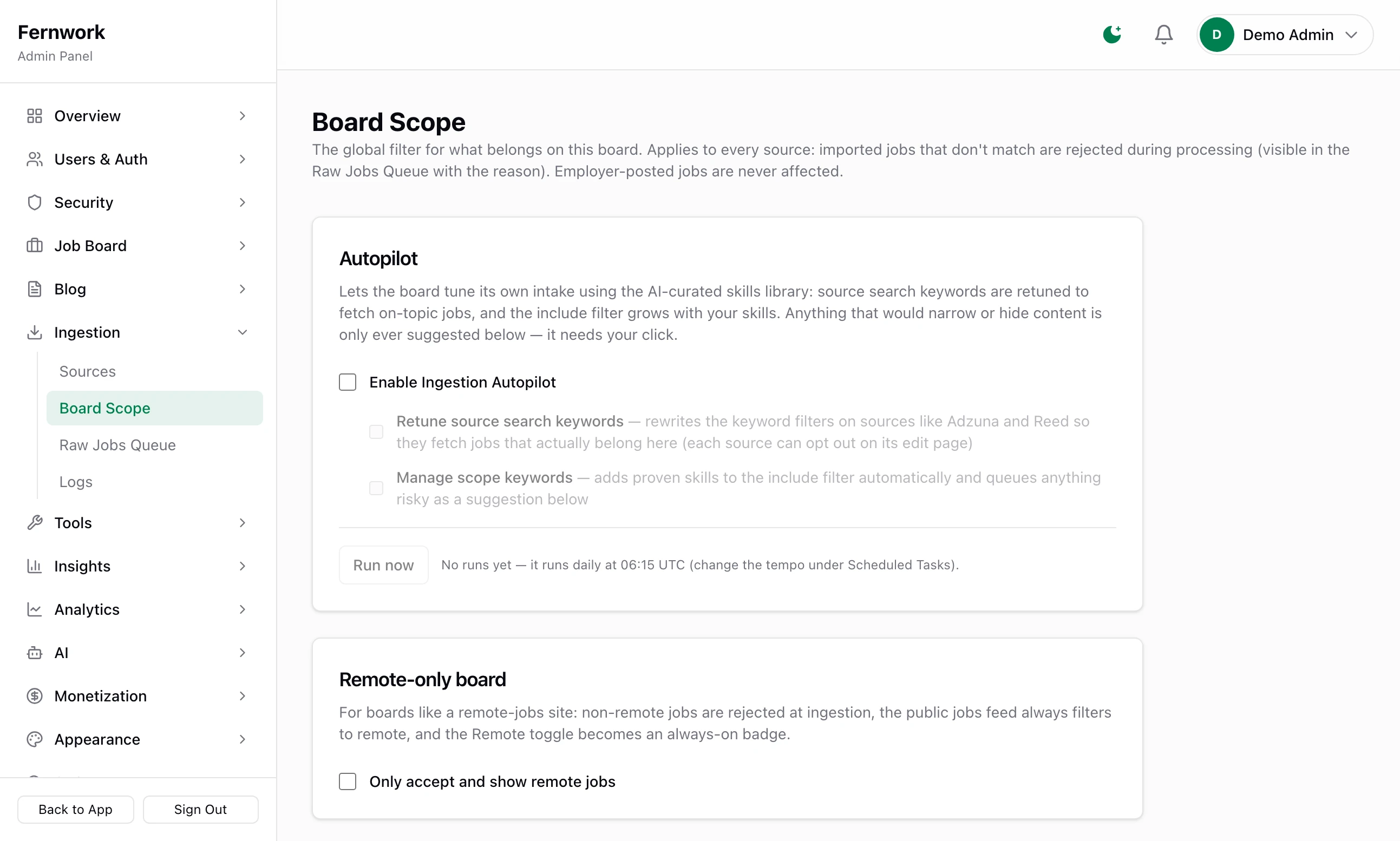
Set the scope#
The setup wizard's Scope step fills in the same three settings from the starter pack you chose. This page is where you change them afterwards.
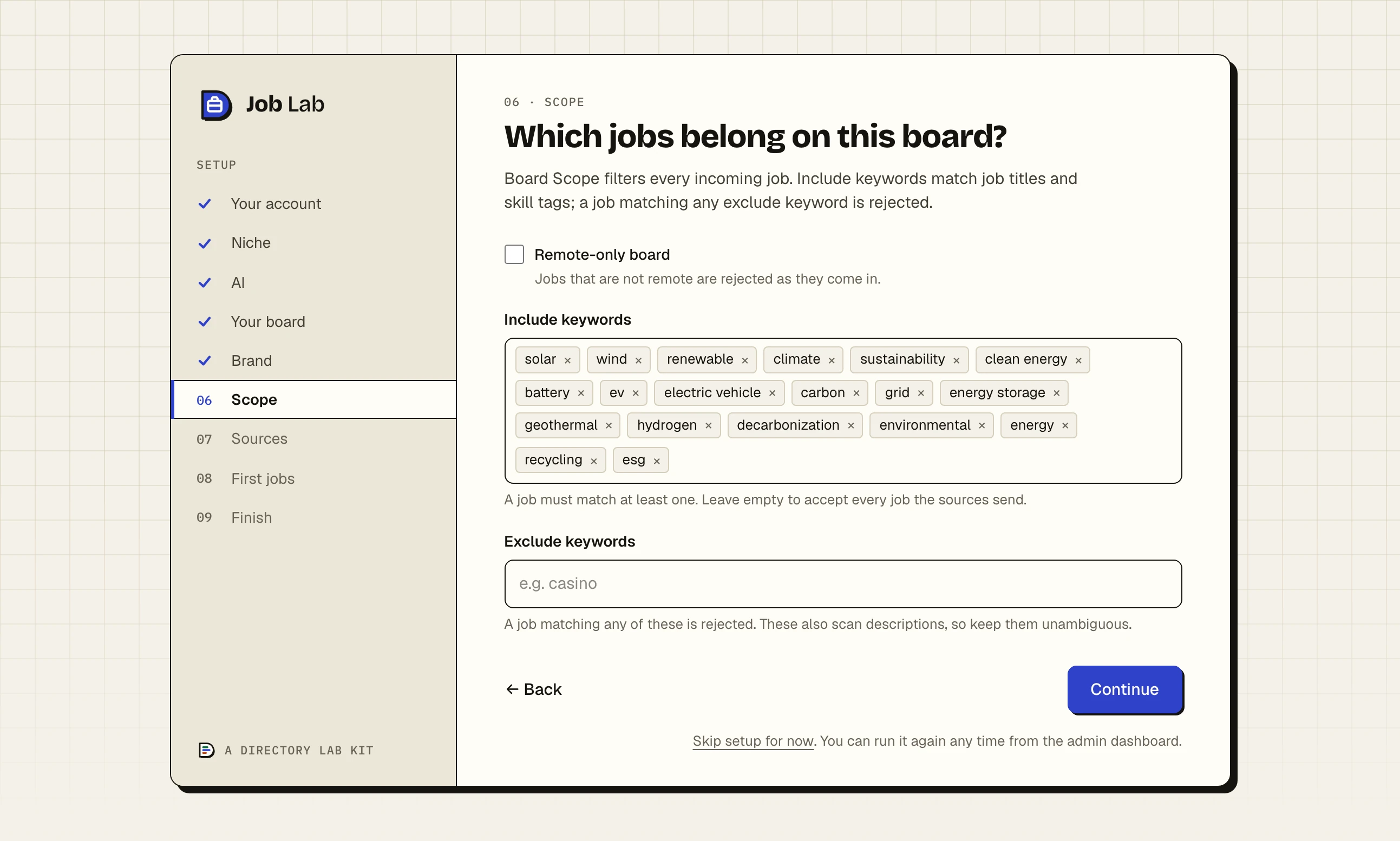
Step 1: Decide whether the board is remote-only
Under Remote-only board, tick Only accept and show remote jobs if every job on the board must be remote. Leave it off for any other board.
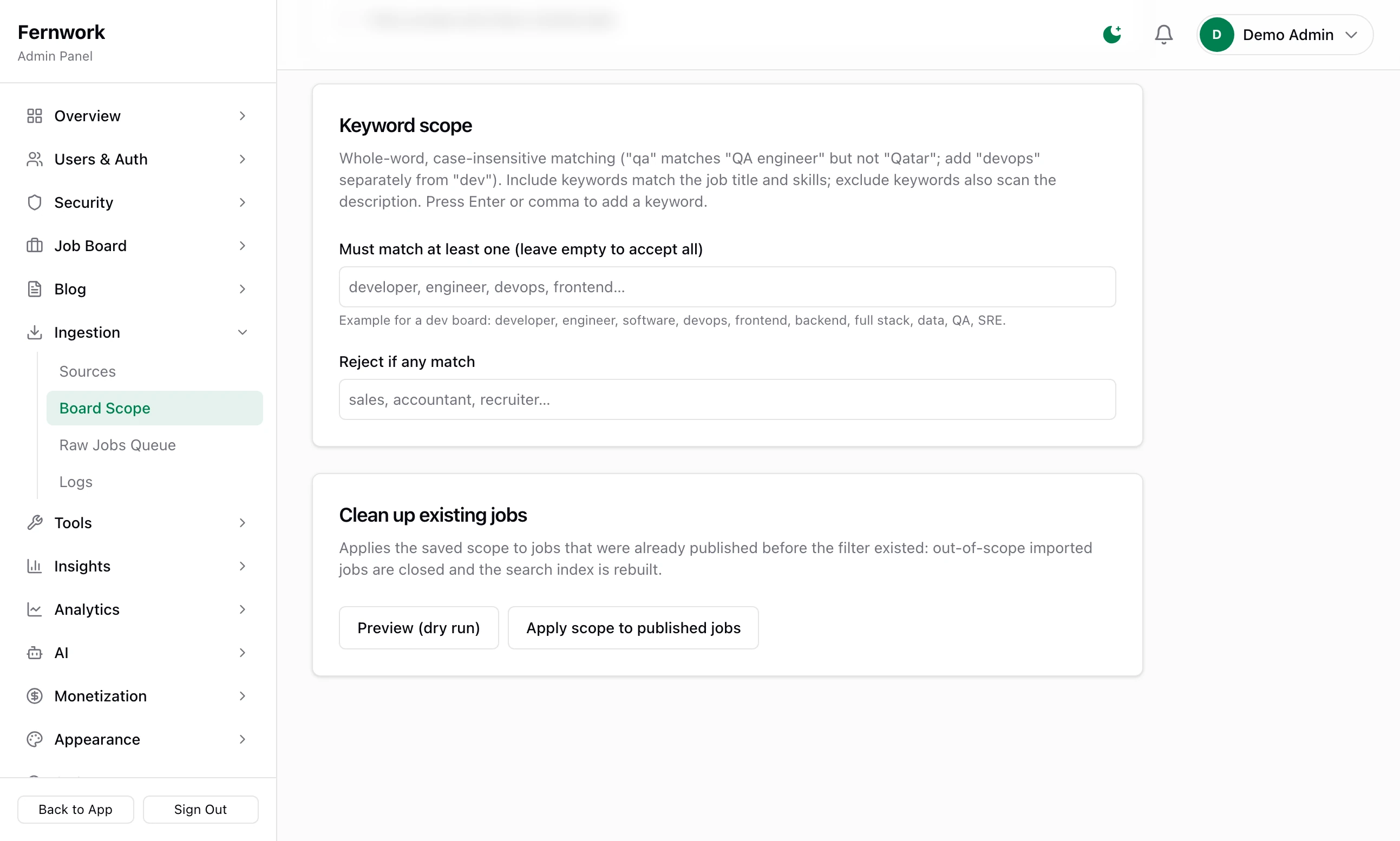
Step 2: Add the words a job must have
Under Keyword scope, type each word into Must match at least one (leave empty to accept all) and press Enter or a comma after it. A job is kept if its title or its skills contain any one of them. The list holds up to 50.
Step 3: Add the words that rule a job out
Type them into Reject if any match. A job is turned away if its title, its skills or its description contains any one of them.
Step 4: Click Save scope
A bar reading "Unsaved changes" appears at the bottom of the page as soon as you change anything, with the button on it. After saving you see "Saved — new imports are filtered from now on."
Step 5: Check what is already published
The scope only acts on jobs as they arrive. Click Preview (dry run) to see which published jobs no longer fit: see Clean up jobs already published.
How a job is matched#
A keyword matches whole words only, in capitals or small letters. Three checks are made, in this order, and the first to fail gives the reason that is recorded.
| Check | Looks at | Reason recorded |
|---|---|---|
| Remote-only | Whether the job is remote | "Outside board scope: not a remote job" |
| Exclude keywords | Title, skills and description | "Outside board scope: matches excluded keyword" and the word |
| Include keywords | Title and skills only | "Outside board scope: title/skills match no included keyword" |
Three things follow from "whole words":
qamatches "QA engineer" and not "Qatar".devdoes not match "developer" or "devops": add each form you want.A plural is a different word.
engineerdoes not match "Engineers wanted" or "Engineering Manager". Addengineersas well.A phrase such as
full stackmust appear as that phrase. Symbols work:c++,.net.
Include keywords never read the description, because almost any word turns up in some job advert. Exclude keywords do read it, so keep that list to words that would never appear in a job you want. An empty include list accepts everything that is not excluded.
On a remote-only board, a job from a feed that does not say whether it is remote is read for clear signs: a location such as "Remote", "Anywhere" or "Worldwide", the word "remote" in the title or a phrase such as "fully remote" or "work from anywhere" in the description. The word "hybrid" in the title or location rules it out. When every job in a feed is remote, tick This feed only contains remote jobs on that source.
On a remote-only board the public job search shows remote jobs only, and its Remote switch becomes a fixed badge.
What a visitor never sees#
A job outside the scope is rejected at the door. No job page is made, no company is created for it, it is not in search and it is in no email alert. The only trace is a row in the raw jobs queue with the reason.
The scope applies to employers too. An employer who tries to publish a job outside it is stopped with "This job can't be published" and the same reason.
Clean up jobs already published#
Changing the scope does nothing to jobs that are already live. The Clean up existing jobs box applies the saved scope to them.
Preview (dry run) changes nothing. It answers with a line such as "12 of 317 published imported jobs would be closed:" and up to 25 of them, each with its reason. It uses the scope as last saved, so save first.
Apply scope to published jobs asks you to confirm, closes every imported job that fails the scope and rebuilds the search index. You see "Checked 317 published jobs — closed 12 out-of-scope." Closed jobs are not deleted, and jobs posted by employers are left alone.
With no scope saved, both answer "No scope configured — save a scope first."
Ingestion Autopilot#
The Autopilot box at the top of the page lets AI keep the scope and your keyword searches in tune with the board. It needs an AI provider: see AI: providers, curation and cost. Everything in it is off until you switch it on, and each tick is saved at once with "Autopilot settings saved."
Enable Ingestion Autopilot: the main switch.
Retune source search keywords: rewrites the search terms on sources that search by keyword, which are Adzuna, Reed, JSearch, USAJobs and Careerjet, from your skills and from the titles the scope has rejected in the last 14 days. A source with failed fetches against it is skipped, and so is one where you have unticked Autopilot manages search keywords. Each change is written to the source's log.
Manage scope keywords: adds up to five skills a run to a separate list, shown as Added by autopilot under your include keywords, each with a cross to remove it. It only ever widens the filter and uses only skills already in your skills list. It adds nothing while your own include list is empty.
Anything that would narrow the board is never applied by itself. A new exclude keyword, or the removal of an include keyword, appears under Autopilot suggestions — needs your approval with Agree and Disagree. After you agree, a Clean up existing jobs button closes the published jobs the new rule catches.
It runs once a day at 06:15 UTC, and the timing can be changed on Scheduled Tasks under Tools. Run now starts one at once: you see "Autopilot run started — results appear here and in the source logs shortly." A run is skipped when no AI provider is connected or the monthly AI budget is spent.
The raw jobs queue#
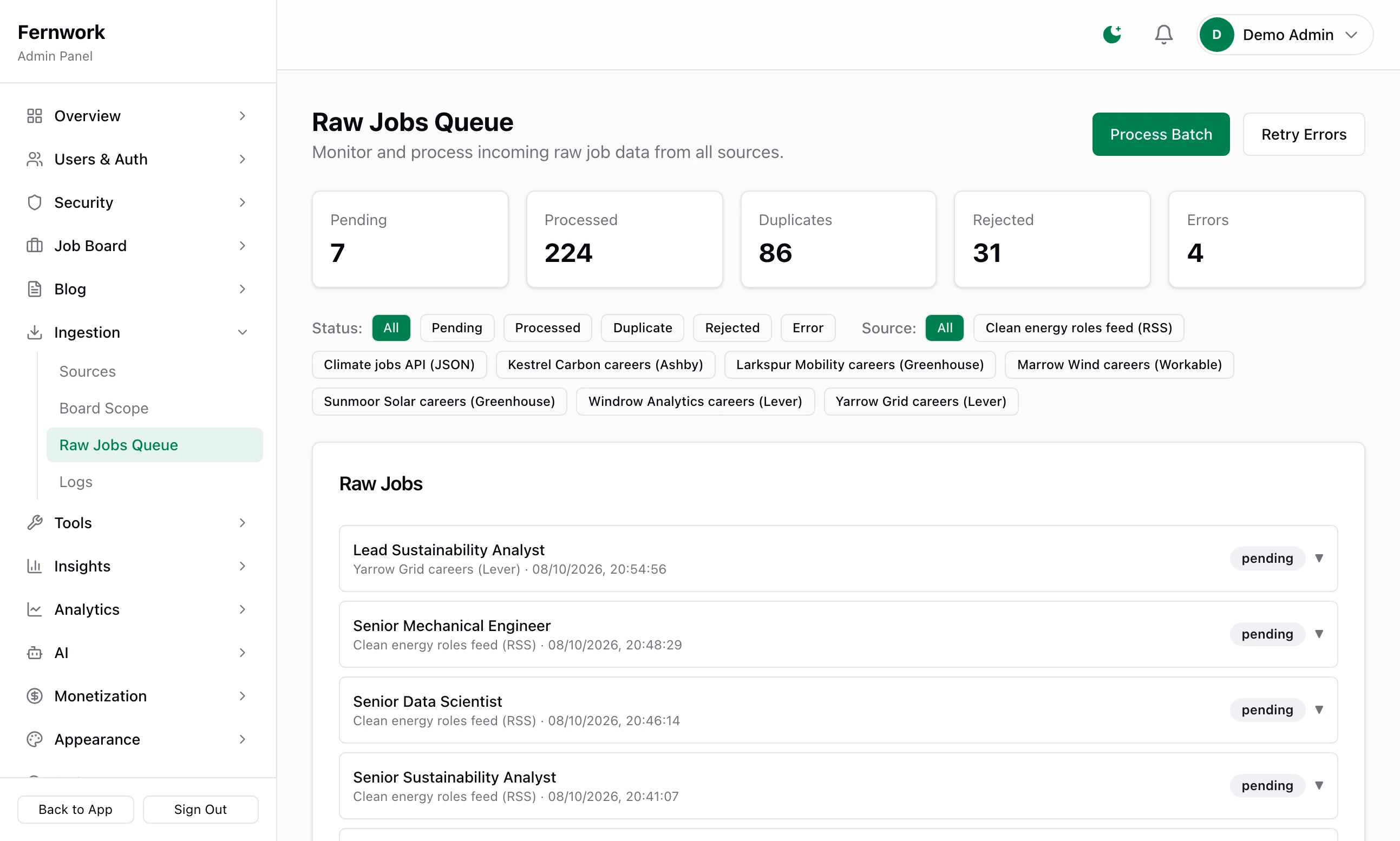
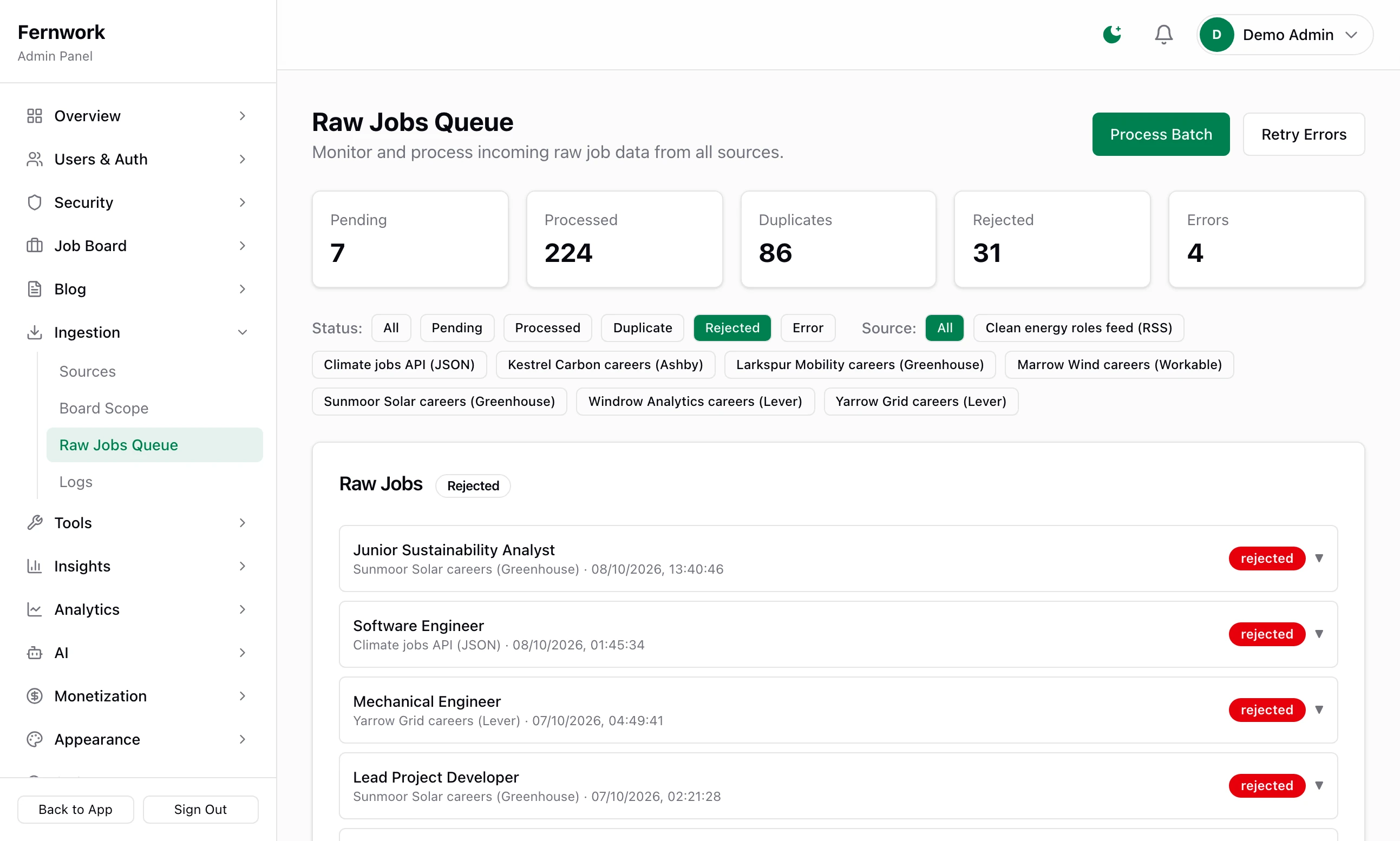
Open Raw Jobs Queue under Ingestion. A raw job is one item exactly as a source sent it, kept with a status that says what became of it.
| Status | It means |
|---|---|
pending | Fetched and waiting to be processed |
processed | Became a job on the board |
duplicate | The board already had this job |
rejected | Outside the scope, or it had no title or no company. The reason is in red under the title |
error | Something failed while it was processed. The message is in red under the title |
The five tiles count each status, and Status and Source filter the list, which shows the latest 50. Click a row to open it: Raw Data is what the source sent, and Normalized Data is what Job Lab read from it.
Process Batch processes the next 100 pending jobs from every source and answers "Processed: 12, Duplicates: 3, Errors: 0". Jobs rejected by the scope are in none of those three numbers: look at the Rejected tile.
Retry Errors puts every job marked
errorback to pending and processes it again. It answers "No errored jobs to retry" when there are none. It does not retry rejected jobs.
To empty the queue, open General under Settings, scroll to Danger Zone and click Clear Queue beside Clear Raw Jobs Queue. It deletes pending jobs only and answers "Cleared 40 pending jobs." A job that is still in its feed is fetched again on the next run, so pause or fix the source first.
Old rows are removed by the daily Purge Old Raw Jobs task once they are older than Raw Job Retention (days) on Settings, General, which starts at 90. The row behind a job that is still live is kept, because it is how the board knows it has that job.
How duplicates are found#
The same opening often arrives more than once: from two sources, or from one feed that lists a remote job once for each state. Three checks stop it being published twice.
By source. A source never stores the same item twice. Once fetched, an item is remembered for as long as its row is in the queue, whatever became of it.
By title, company and place. These three are compared with every job already processed, ignoring capitals and punctuation. For a remote job the place is left out.
Against live jobs. Before publishing, the job is compared with the published and draft jobs of the same company.
A duplicate is not thrown away entirely. When a second copy of a remote job arrives, the live job takes the wider salary range of the two and a fresh expiry date. Once a day the Collapse Duplicate Listings task also merges published remote jobs with the same company and title into the earliest one and closes the rest. It never closes a job posted by an employer or a featured job.
What is not caught: the same opening under two spellings of the company's name, or with two differently worded titles.
Worked example: a board with no jobs#
A climate board has the include keywords solar, wind and battery. Its owner adds the Test Feed from Add job sources, clicks Run now and reads "Fetched. 0 new jobs processed." Nothing looks broken, and the board is empty.
Step 1: Read the log
Ingestion, Logs has two entries for the source: "Fetched 20 jobs, inserted 20 new" and then "Processed batch: 0 new, 0 duplicates, 20 out of scope, 0 errors". The feed worked. The scope turned all twenty away.
Step 2: Read the reason in the queue
On Raw Jobs Queue the Rejected tile reads 20. Click rejected beside Status: every row says "Outside board scope: title/skills match no included keyword" under its title. The first is "Senior Frontend Engineer". None of the three keywords is in it.
Step 3: Widen the scope
Back on Board Scope, add
engineerand save. Eight of the twenty sample titles have that word. "Engineering Manager" is not one of them.Step 4: Fetch the source afresh
Clicking Run now again brings in nothing: see the note below. Delete the source, add it again and click Run now. This time you read "Fetched. 8 new jobs processed."
I added a keyword that is in the job's description and it was still rejected
Include keywords read the title and the skills, never the description. Use the word as it appears in job titles.
A job I do not want got through
Find a word in its title or description that no wanted job would use and add it to Reject if any match. Then run Preview (dry run) to see what else that word would close.
"An autopilot run is already queued or running."
Run now was clicked while a run was in progress. Wait a minute and reload the page: the line beside the button then starts "Last run".
"Exclude list is full (50)."
You agreed to an autopilot suggestion with 50 exclude keywords already saved. Remove one you no longer need, save and agree again.
Does clearing the queue remove jobs from the board?
No. It deletes only items that were waiting to be processed. Published jobs are untouched.
Stuck on a step? Send a message.