The weekly newsletter
A weekly email that drafts itself from your new jobs and market stats. Choose who presses send, review an issue, manage subscribers and read the opens and clicks.
Updated 9 Oct 2026 · written for Job Lab 1.1.0
On this page
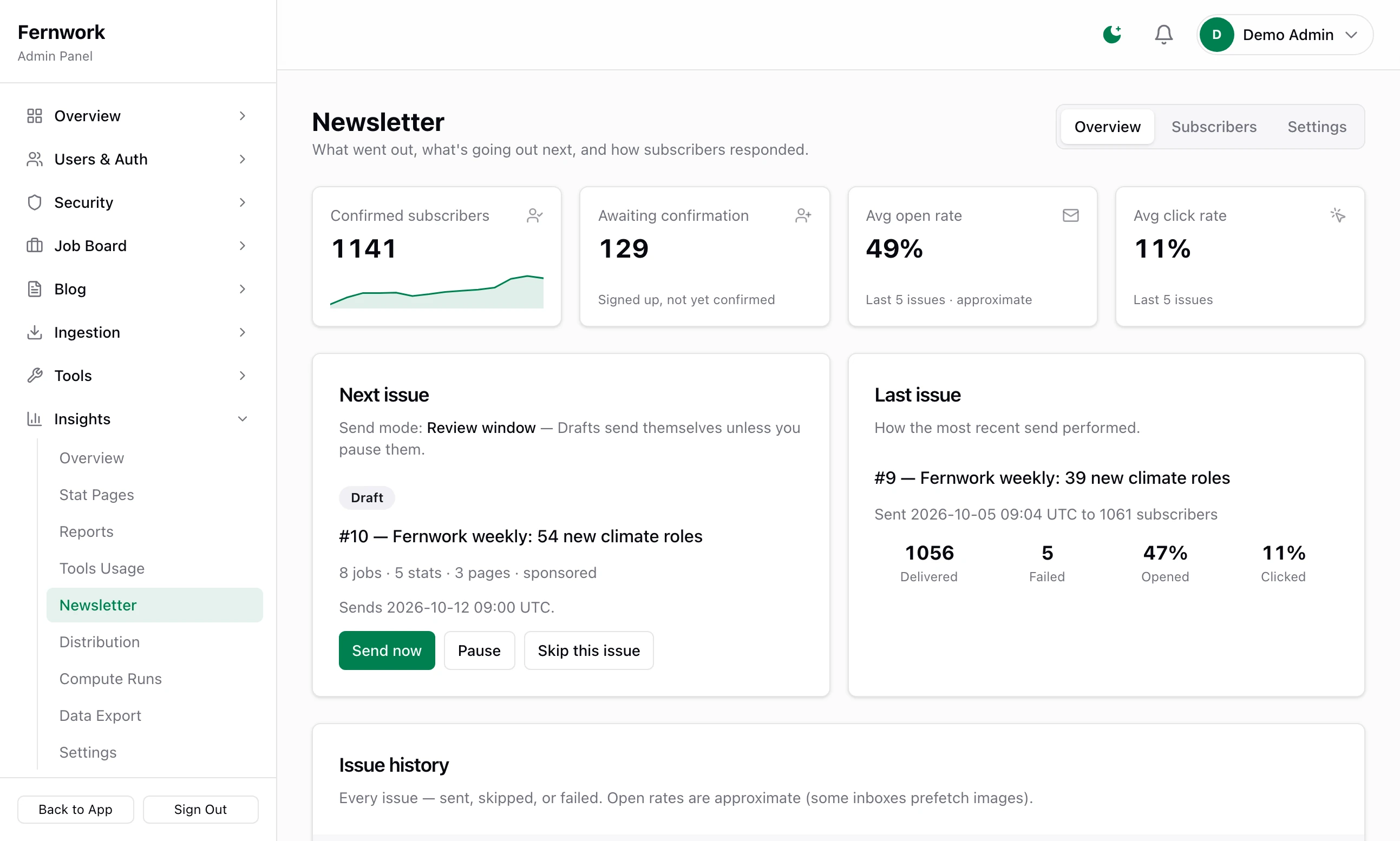
Open Newsletter under Insights in the admin sidebar. Your board writes its own weekly email: every Monday it gathers the new jobs, a few salary figures and links to fresh stats pages into a draft, and sends it to everyone who subscribed and confirmed. The page has three tabs, Overview, Subscribers and Settings, and this guide takes them in turn.
The newsletter needs working email. Set that up first: Email that arrives.
How an issue is made#
Two scheduled tasks do the work. Both are listed under Tools, then Scheduled Tasks, and all their times are UTC.
| Task | Runs | What it does |
|---|---|---|
| Newsletter Draft | Mondays at 09:00 UTC | Writes the next issue as a draft |
| Newsletter Sender | Every 15 minutes | Sends any draft whose send time has come |
A draft's send time is the moment it was written plus the Review window, which starts at 24 hours. So on a new board a draft appears on Monday at 09:00 and is due on Tuesday at 09:00.
What goes into a draft:
New roles: up to 8 jobs published since the last issue went out, or in the last seven days if none has. Featured jobs come first, then the newest.
Market pulse: up to 5 median salary figures, for the topics with the most jobs behind them.
Explore more: links to the 3 most recently published stats pages.
A sponsor line, if there is a sponsor.
The draft is fixed when it is written. A job posted an hour later waits for next week.
No draft is written when:
an issue is already waiting as a draft, paused or sending
the last issue went out less than 20 hours ago
there are fewer new jobs than the minimum, which starts at 1. The week is then recorded in the history as Skipped, with the reason.
When a draft is ready you are told by Telegram, or by an email to your support address if Telegram is not connected.
Send modes#
Who presses send is one setting, Send mode, on the Settings tab.
| Mode | What happens to a draft |
|---|---|
| Manual approval | It waits. Nothing goes out until you click Approve or Send now. A new board starts here. |
| Auto-send with review window | It sends itself at its send time unless you pause it first |
| Fully automatic | The same as the one above |
Send your first issue#
Step 1: Choose the send mode
Open the Settings tab. Under Send mode, leave Manual approval selected for your first few issues, so that you see each one before it goes.
Step 2: Check the subject line
Subject line starts as
{siteName} weekly digest — {jobCount} new roles. The words in braces are filled in for each issue:{siteName},{jobCount},{date}and{issueNumber}.Step 3: Add yourself as a test recipient
Under Quality guard, type your own address in Test recipients. Click Save settings. The bar at the bottom reads "Saved."
Step 4: Write a draft now
Go back to Overview. Under Next issue, click Compose draft now. The card changes to show the draft: its number and subject, and a line such as "8 jobs · 5 stats · 3 pages".
Step 5: Send yourself a test
Click the draft's subject to open it. Under Test send, click Send test. You see "Test sent to 1 address — check the inbox." The email arrives with "[TEST]" at the front of its subject. It goes to nobody else.
Step 6: Approve it or send it
Approve lets it go at its send time, and you see "Approved — it sends at the scheduled time." Send now asks you to confirm with Send to all subscribers, then sends at once: "Sending — emails are being queued to all subscribers."
The Overview tab#
Four tiles: Confirmed subscribers, Awaiting confirmation, Avg open rate and Avg click rate. The two rates are averages over the last five issues sent.
Next issue: the send mode, the draft that is waiting, when it will send and its buttons. With nothing waiting it offers Compose draft now.
Last issue: how the most recent one did, as Delivered, Failed, Opened and Clicked.
Issue history: the last 20 issues with their status, recipients, opens, clicks and date. The statuses are Draft, Paused, Sending…, Sent, Failed and Skipped.
An issue's page#
Click any issue to open it.
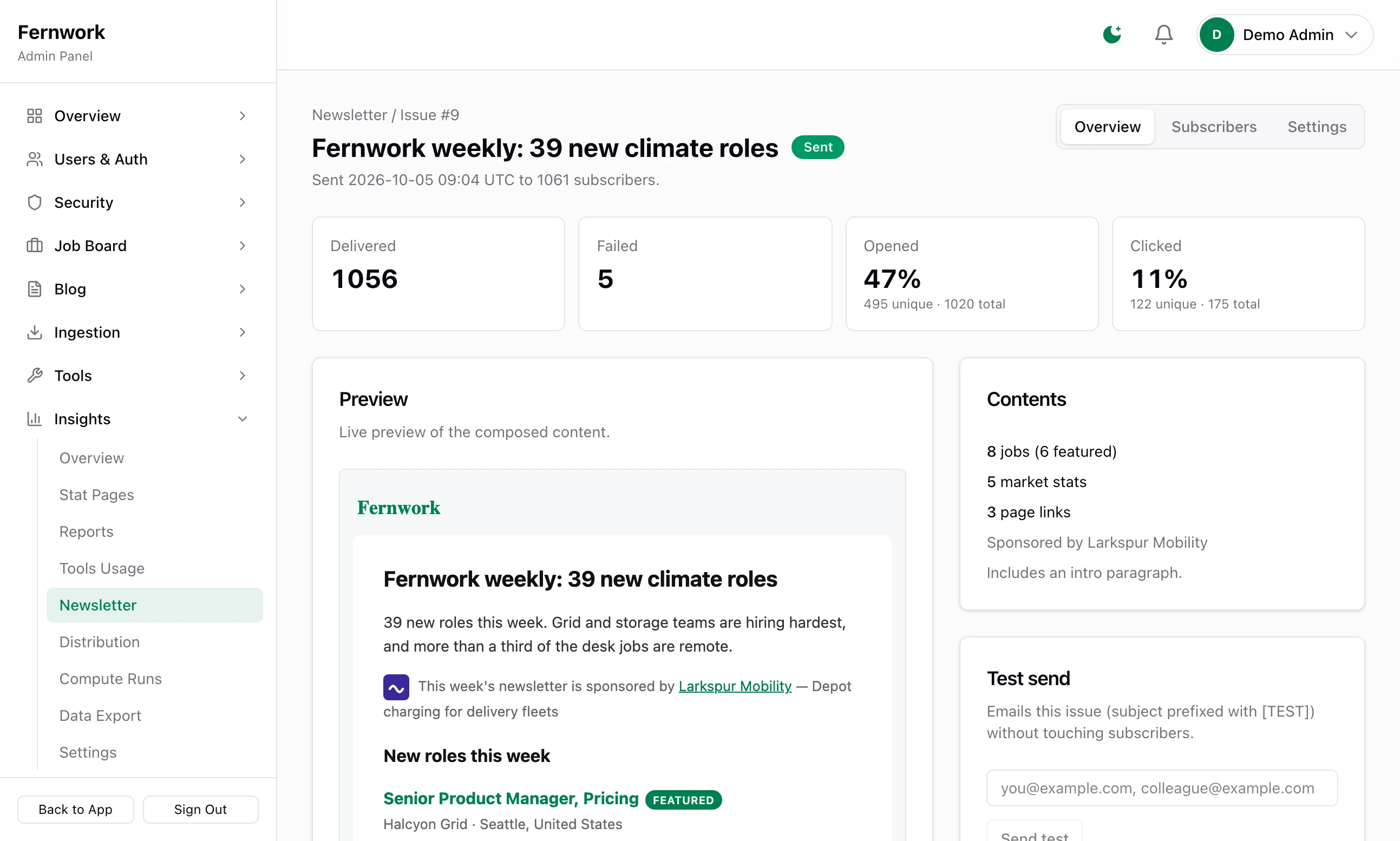
Preview shows the email. For a sent issue it is the exact email that went out.
Edit draft changes the Subject and the Intro paragraph, a few sentences of your own above the job list. Click Save changes. The jobs, figures and links cannot be edited. Once an issue is sent, this panel goes.
Contents counts the jobs, market stats and page links, and names the sponsor or says "No sponsor this issue".
Test send takes up to ten addresses, separated by commas.
The buttons across the top depend on the issue's state:
| Button | When it shows | What it does |
|---|---|---|
| Approve | A draft, in Manual approval | Clears it to send at its send time. If that time has passed, it goes at the next check, within 15 minutes. |
| Send now | A draft or a paused issue | Sends to every confirmed subscriber at once, in any mode. It cannot be undone. |
| Pause | A draft | Holds it: "Paused — it will not send until you resume it." |
| Resume | A paused issue | Makes it a draft again |
| Skip this issue | A draft, paused or failed issue | The issue never sends. Next week's is written as usual. |
| Retry send | A failed issue | Carries on from where it stopped. Nobody is emailed twice. |
A sent issue shows four tiles, Delivered, Failed, Opened and Clicked, and a list of Top clicked links. Delivered counts the emails your mail server accepted, and it climbs for a few minutes after sending while the queue empties. About two hours after an issue goes out you are sent a summary, headed "Newsletter delivery problems" if more than a quarter failed.
Subscribers#
How someone subscribes#
There is no separate newsletter page. People join through a small box headed "Subscribe to our newsletter", which can sit in three places:
| Where | How to switch it on |
|---|---|
| The footer of every page | On already. The tick box is Show the newsletter signup, under Appearance, then Navigation & Footer. |
| The home page | Add a Newsletter signup section under Appearance, then Homepage |
| A sidebar | Add the Newsletter widget to a sidebar that is switched on, under Appearance, then Sidebars |
Joining needs a confirmation, so that nobody can sign up someone else:
The visitor types an address and clicks Subscribe. They see "Thanks for subscribing! Check your inbox to confirm."
They are sent an email with a confirmation link. Until they click it they are "awaiting confirmation" and receive nothing more.
The link brings them back to your home page under "You're subscribed — the next newsletter will land in your inbox.", and a short welcome email follows.
The Subscribers tab#
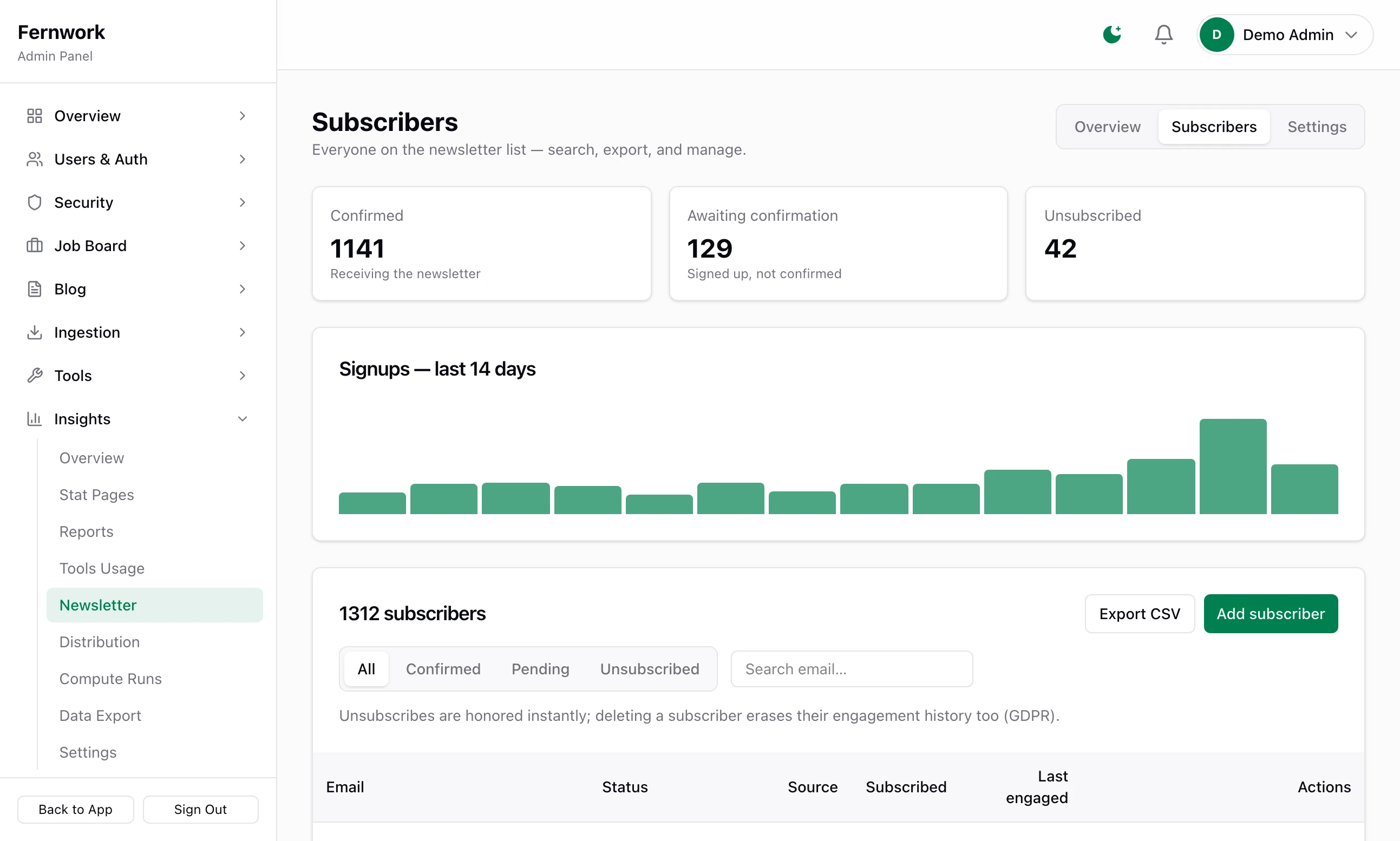
Three tiles count Confirmed, Awaiting confirmation and Unsubscribed, above a chart of sign-ups over the last 14 days. The list shows 50 to a page with each person's status, Source (footer, home, sidebar or admin), the date they joined and when they last opened or clicked. Filter it with All, Confirmed, Pending and Unsubscribed, or type part of an address in the search box.
Add subscriber: type an address and click Add as confirmed. No confirmation email is sent, so add only people who have asked you to. Adding an address that had unsubscribed puts it back on the list.
Resend confirmation: on a row that is awaiting confirmation. You see "Confirmation email sent."
Delete: removes the person and their record of opens and clicks for good. It is meant for requests to have data removed. Someone who only wants to stop the emails can unsubscribe.
Export CSV: downloads the confirmed, current subscribers as a file named
newsletter-subscribers-and the date, with five columns:email,subscribed_at,confirmed_at,sourceandlast_engaged_at.
There is no import. A list from elsewhere has to be added one address at a time.
The Settings tab#
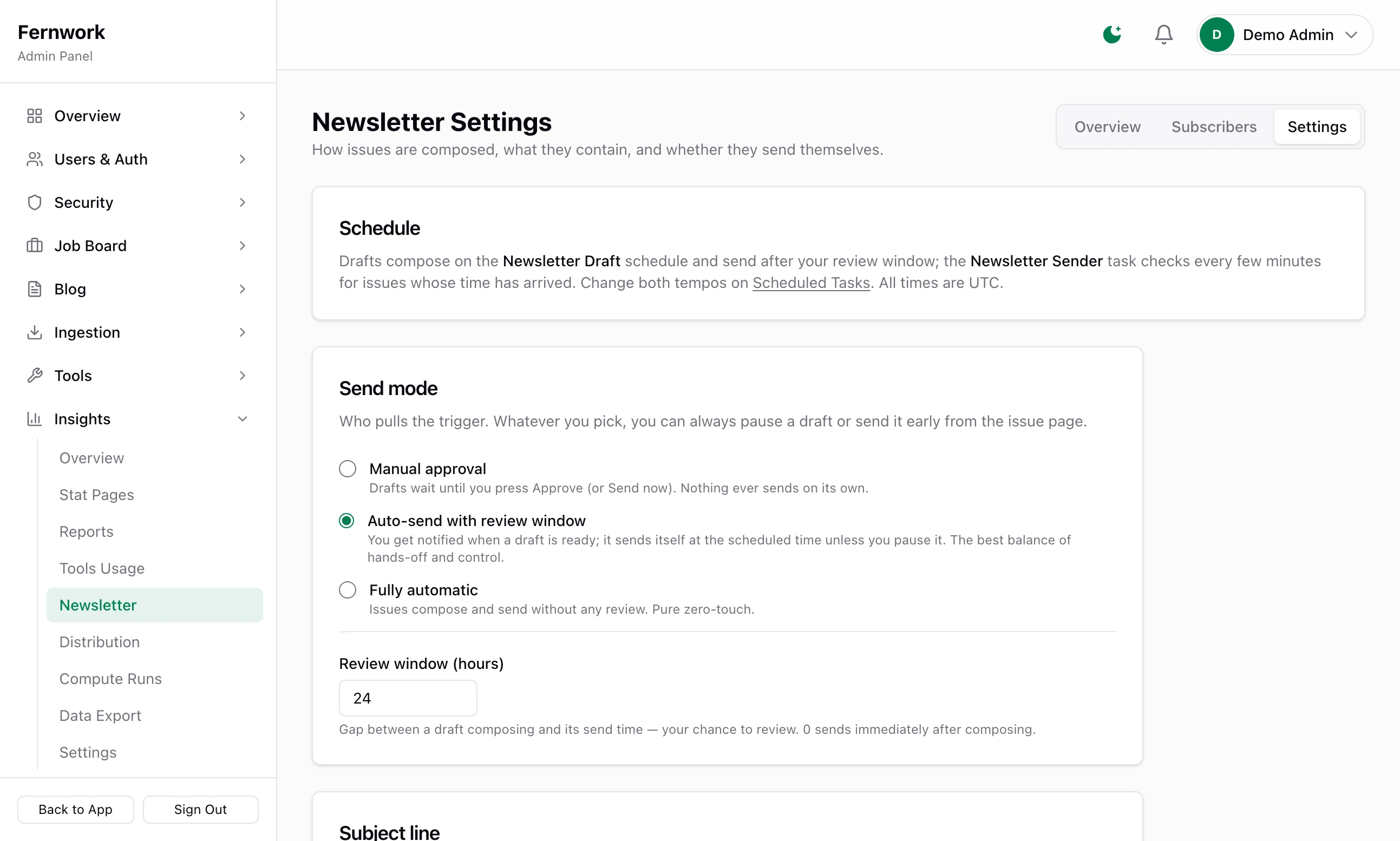
Send mode: see Send modes.
Review window (hours): the gap between a draft being written and its send time, from 0 to 72.
Subject line: the pattern for every issue. Each issue's subject can still be changed on its own page.
Content sections: tick boxes for New roles, Market pulse and Explore more, each with a limit: Max jobs up to 30, Max stats up to 15, Max links up to 10. A section with nothing to show is left out of the email.
Sponsor slot: on to begin with. See the next section.
AI-written intro: adds an opening paragraph written from that issue's jobs and figures. It can be ticked only when an AI provider is connected, and you can rewrite the paragraph on the draft. See AI: providers, curation and cost.
Minimum new jobs to send: a week with fewer new jobs is skipped. 0 switches the guard off.
Test recipients: up to ten addresses, filled into the Test send box on every issue.
To change when it runs, open Tools, then Scheduled Tasks. Newsletter Draft can run once a week, on Mondays at 09:00 UTC, or once a day at 09:00 UTC. No other day or hour is offered. Newsletter Sender can check every 5, 15 or 30 minutes or every hour.
The sponsor slot#
With Sponsor slot ticked, an issue carries one line under its heading: "This week's newsletter is sponsored by", then the sponsor's name, linked, their tagline and their logo.
The sponsor is the first of these that is live when the draft is written:
an advertiser who bought Newsletter sponsor, or Site-wide sponsor, in the advertising shop
a house sponsor with Newsletter ticked, under Monetization, then Sponsors: see Sponsors, banners and AdSense
A paid sponsor always comes before a house sponsor. With neither, the line is left out.
Tracking and unsubscribing#
Opens and clicks are counted by your own board, at two addresses under /api/newsletter/t/. Nothing is sent to an outside service.
Opens. Each email carries an invisible one-pixel picture at
/api/newsletter/t/o/followed by a code for that copy. When a mail app loads it, an open is counted. Open rates are approximate: some mail apps load pictures before anyone reads the email, and others block them.Clicks. Links to jobs, to stats pages and to the sponsor go through
/api/newsletter/t/c/, which counts the click and passes the reader on. Each link is signed, so it cannot be altered to point somewhere else. A link that has been tampered with goes to your home page.
A test send is not tracked.
Every issue ends with an Unsubscribe link, and tells mail apps how to unsubscribe in one click, so the unsubscribe button that many of them show beside the sender's name works too. Either way the person is off the list at once and marked Unsubscribed. The link lands on a page headed "You're unsubscribed", with a Resubscribe button for anyone who clicked by mistake.
An issue failed with "SMTP is not configured — set SMTP_HOST etc. and retry from the issue page."
Your board has no email server. Connect one using Email that arrives, then open the issue and click Retry send.
Monday came and there is no draft
Look at Issue history. A row marked Skipped means there were too few new jobs: its page gives the count. An older row still marked Draft or Paused means that issue is in the way: send it or skip it. If there is neither, check under Tools, then Scheduled Tasks that Newsletter Draft ran.
Is a subscriber the same as a member?
No. The newsletter list is separate from user accounts. Signing up for an account does not subscribe anyone, and a subscriber needs no account.
The links in the email go to localhost
Links are built from NEXT_PUBLIC_APP_URL in your .env file. Set it to your site's public address, restart, and write a new draft.
Can I choose which jobs go in?
No. You can change the subject and the intro, how many jobs are included and whether featured jobs exist to lead the list, but not pick jobs one by one.
Stuck on a step? Send a message.