AI: providers, curation and cost
What the board does without AI, how to connect Anthropic, OpenAI or Ollama, which model is used, what each AI feature does and how to cap what it spends.
Updated 9 Oct 2026 · written for Job Lab 1.1.0
On this page
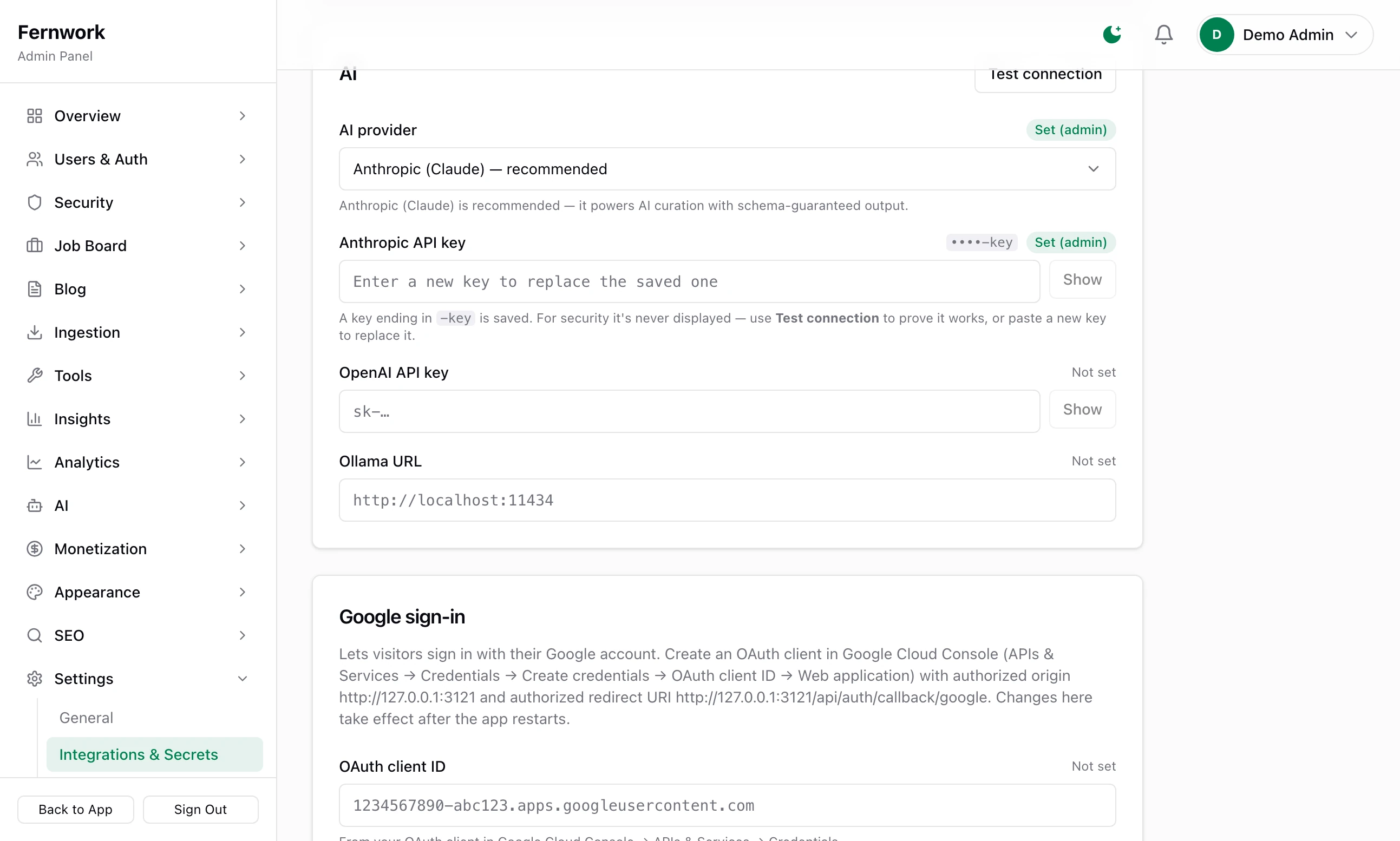
Open Integrations & Secrets under Settings in the admin sidebar and scroll to the AI box. This is where the board is joined to an AI provider: Anthropic, OpenAI or an Ollama server of your own. AI is optional. It tidies and describes what the feeds bring in, and nothing a visitor, a job seeker or an employer does depends on it.
What the board does without AI#
A new board has AI switched off, and it is a complete job board:
Sources are fetched, jobs are checked against the board scope, duplicates are dropped and jobs are published and searchable.
Jobs are tagged with skills and a role by matching their text against your own skills and roles lists.
Locations are read into cities and countries.
Employers post jobs, job seekers apply, alerts and the newsletter go out and payments are taken.
What you do by hand without it: write descriptions for skills, roles, locations and imported companies, spot the skills your lists are missing and judge which imported adverts are not real jobs. The AI Curation pages show "No AI provider configured." and their buttons are greyed out.
Connect a provider#
These steps use Anthropic, which the kit recommends. The other two follow.
Step 1: Create a key in the Claude Console
Sign in at console.anthropic.com, open API keys and create a key. It starts with
sk-ant-. Copy it when it is shown. What the board uses is billed by Anthropic to that account, not by Job Lab.Step 2: Choose the provider
In the AI box, set AI provider to Anthropic (Claude) — recommended.
Step 3: Paste the key
Paste it into Anthropic API key. The Show button lets you read what you pasted before it is saved.
Step 4: Click Save integrations
The button is at the bottom of the page and saves every box on it. You see "Saved. Most changes apply immediately — Google sign-in applies after the next restart. Use “Test connection” to verify." The field now reads Set (admin) with the last four characters of the key.
Step 5: Click Test connection
The button is at the top of the AI box. It sends one real request to the provider, asking for the reply
{"ok": true}and nothing else. You see "AI provider responded — curation and enrichment are ready to use." It is a paid request, though a very small one, and is listed on the cost page as "Connectivity test".
OpenAI. Create a key at platform.openai.com/api-keys. It starts with sk-. Set AI provider to OpenAI and paste the key into OpenAI API key.
Ollama. There is no key. Set AI provider to Ollama (self-hosted) and put the address of the machine running Ollama into Ollama URL, for example http://localhost:11434 when it runs beside the site. The machine must be reachable from the server the site runs on, and the model must already be installed on it.
To switch AI off again, set AI provider to Disabled and save. A saved key cannot be removed from this page, only replaced, and it is not used while another provider or none is chosen.
Where the key is kept#
A key saved on this page is stored in the database, encrypted with a key made from APP_SECRET in your .env file. The page never shows it again: only its last four characters. It is in use from the moment you save, with no restart.
The alternative is to put the settings in .env and restart the site:
AI_PROVIDER=anthropic
ANTHROPIC_API_KEY=sk-ant-your-key| Line | Holds |
|---|---|
AI_PROVIDER | One of disabled, anthropic, openai, ollama. With any other word the site does not start |
ANTHROPIC_API_KEY | The Anthropic key |
OPENAI_API_KEY | The OpenAI key |
OLLAMA_URL | The address of the Ollama server. Without it, http://localhost:11434 |
OLLAMA_MODEL | The Ollama model. Without it, llama3.2 |
A field set this way reads From environment on the page. A value saved on the page always wins over the same line in .env.
Which model is used#
| Provider | Model Job Lab asks for | How to change it |
|---|---|---|
| Anthropic | claude-opus-4-8 | A line ANTHROPIC_MODEL= in .env |
| OpenAI | gpt-4o-mini | It cannot be changed in version 1.1.0 |
| Ollama | llama3.2 | OLLAMA_MODEL= in .env |
None of the three can be chosen in the admin.
To use a smaller Anthropic model, add a line to .env and restart the site. .env.example does not list this setting.
ANTHROPIC_MODEL=claude-sonnet-5Then click Test connection. Not every model accepts the kind of request Job Lab sends, and one that does not fails the test. The model in use is named beside every request under Recent AI calls on the cost page.
What AI does#
| Feature | What it does | Where you switch or run it |
|---|---|---|
| AI Curation, the daily task | Proposes skills and roles your lists are missing, fills in groups, descriptions and icons for new skills and roles, writes profiles for up to 25 new unclaimed companies, describes new skill groups and locations and flags up to 150 new imported adverts that look like spam or promotion for you to judge under Tools, Moderation | Tools, Scheduled Tasks. It runs daily at 05:30 UTC. The card's menu changes how often, and Run Now starts it |
| The AI Curation buttons | The same work when you ask for it, one list at a time | Skills, Roles, Companies and Locations under Job Board: see Skills, roles and locations |
| Ingestion Autopilot | Retunes the search terms on keyword sources and widens the board scope | Ingestion, Board Scope: see Board scope and the raw jobs queue. Off until you switch it on |
| The careers-page scanner | Reads the openings from a careers page that is not on a hiring system it knows | Each Careers Page source, on its own schedule: see Company career pages and ATS feeds |
| The wizard's suggestion | Drafts include and exclude keywords, the homepage headline and the search wording from one sentence about your niche | The AI step of the setup wizard, Suggest keywords and wording |
| The newsletter's opening | A short first paragraph about the week | The newsletter's settings: see The weekly newsletter |
The daily task is built to be cheap once a board is settled: it works only on skills, roles, companies and locations that are still incomplete, and on adverts it has not read before. The first run on a board with a long backlog is the dear one.
Nothing AI proposes that would remove or merge something is applied by itself. Merges, removals and new exclude keywords wait for you to approve them. Names are tidied and descriptions, groups and icons are filled in directly, and a description, group or icon that is already there is never replaced.
AI Cost & Usage#
Open Cost & Usage under AI.
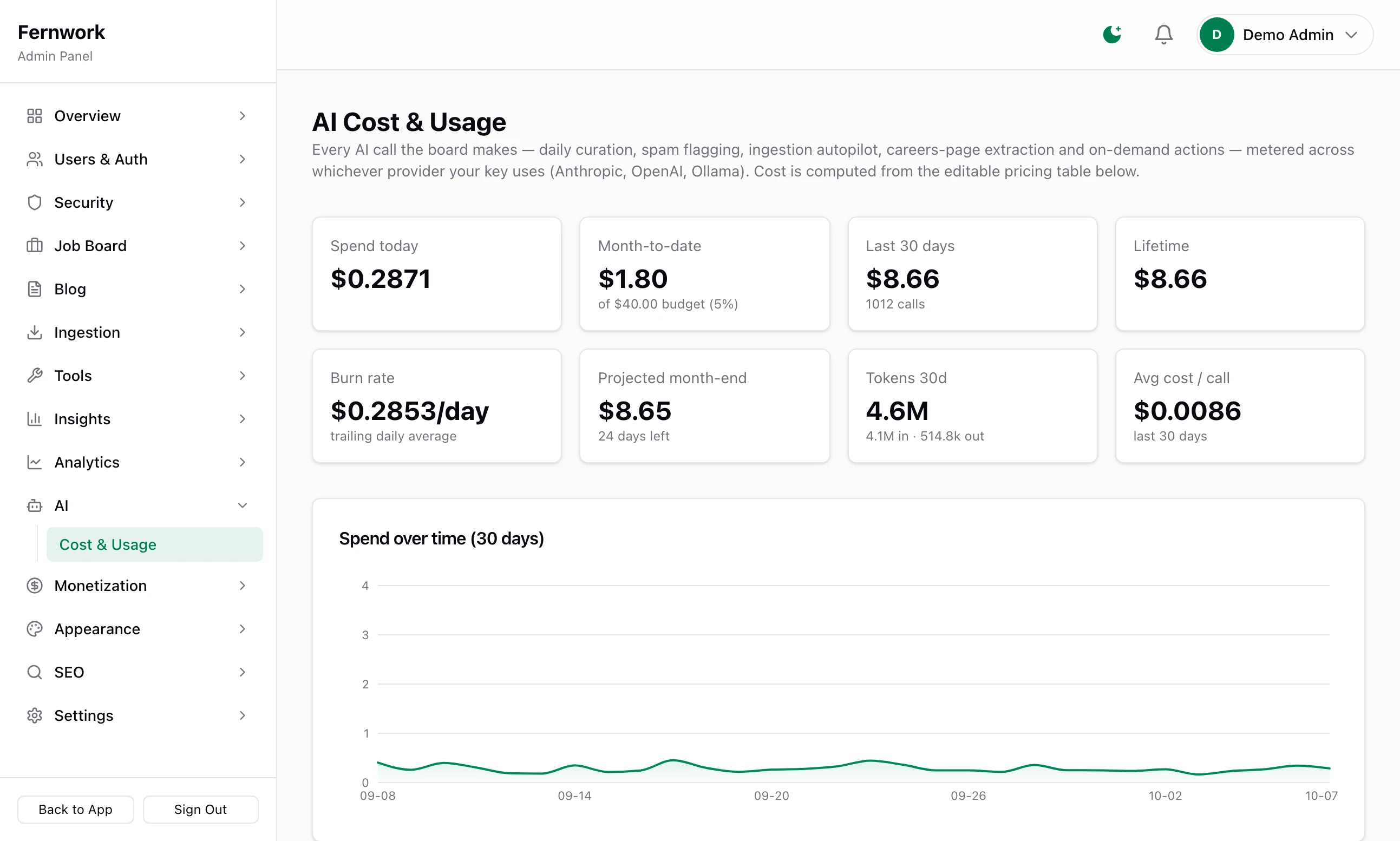
Every request the board makes is recorded with its provider, model, feature, the tokens read and written and what it cost. A token is a piece of a word, and providers charge by the million. The tiles show Spend today, Month-to-date, Last 30 days, Lifetime, Burn rate, Projected month-end, Tokens 30d and Avg cost / call. Days and months are counted in UTC.
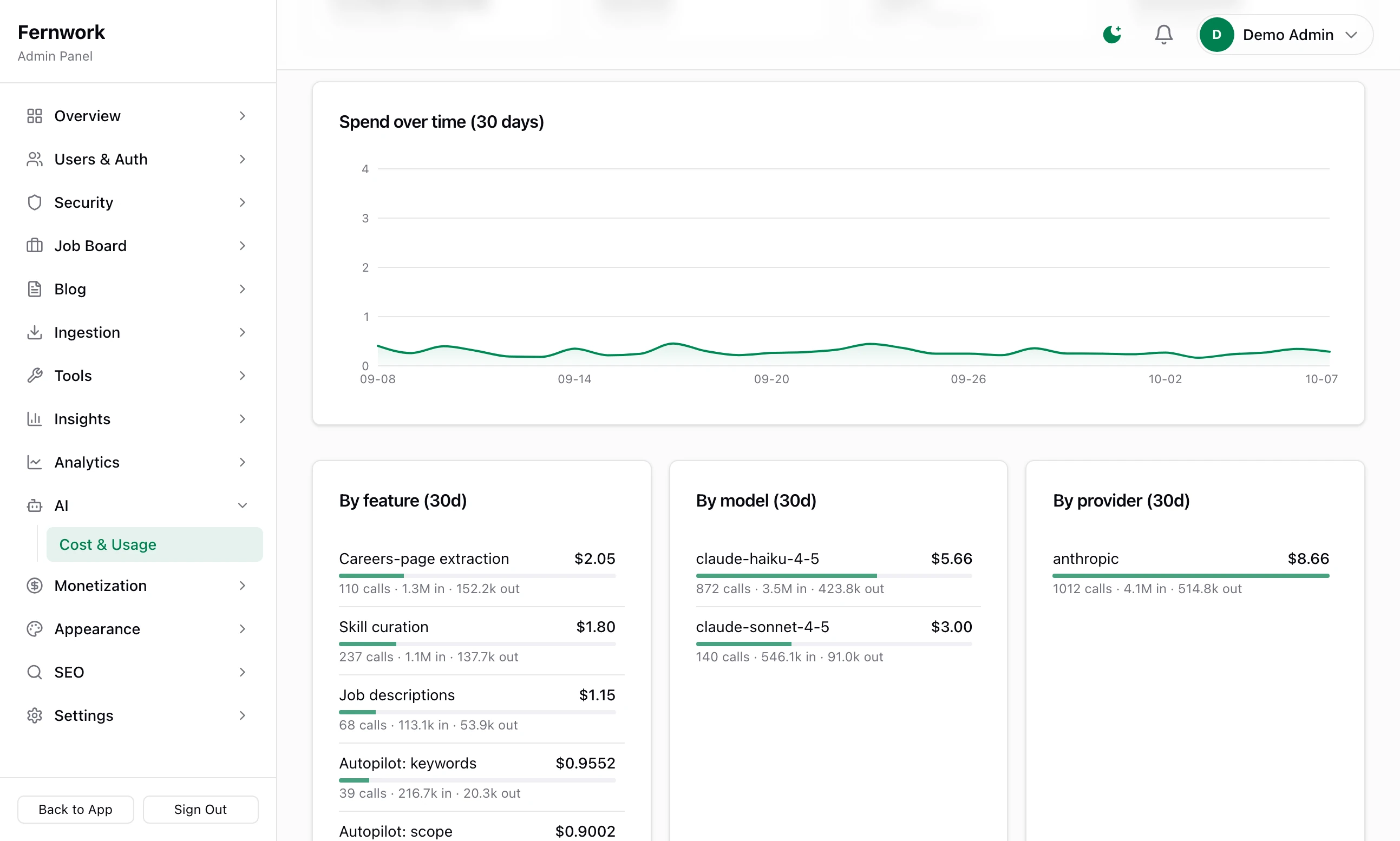
Below the chart, By feature (30d), By model (30d) and By provider (30d) show where the money went, and Recent AI calls lists the last 30 requests.
The pricing table#
Model pricing, at the foot of the page, holds a rate for each model in US dollars for a million tokens, read and written. It starts with five Anthropic models and three from OpenAI. Providers change their prices and the table does not follow them: compare it with your provider's price list and correct it. A new rate applies to later requests only. Click Save pricing when you are done.
A model with no row is still recorded, at 0 dollars and marked "unpriced", and the page offers a button to add its rate. That includes an Ollama model: add a row for it with both rates at 0.
Set a monthly budget#
Step 1: Type the budget
Under Budget & alerts, type an amount in US dollars into Monthly budget (USD).
Step 2: Choose when to be warned
Alert at (% of budget) starts at 80. When the month's spend passes that share you are sent one Telegram message, if Telegram alerts are set up.
Step 3: Leave auto-pause on
Auto-pause AI crons at the cap is ticked to begin with. With it on, the two scheduled AI tasks skip their runs once the budget is spent, until the next month begins or you raise the budget.
Step 4: Click Save budget
You see "Budget saved." The Month-to-date tile now reads "of" your budget and a percentage, and so does the AI spend (MTD) tile on the Control Panel.
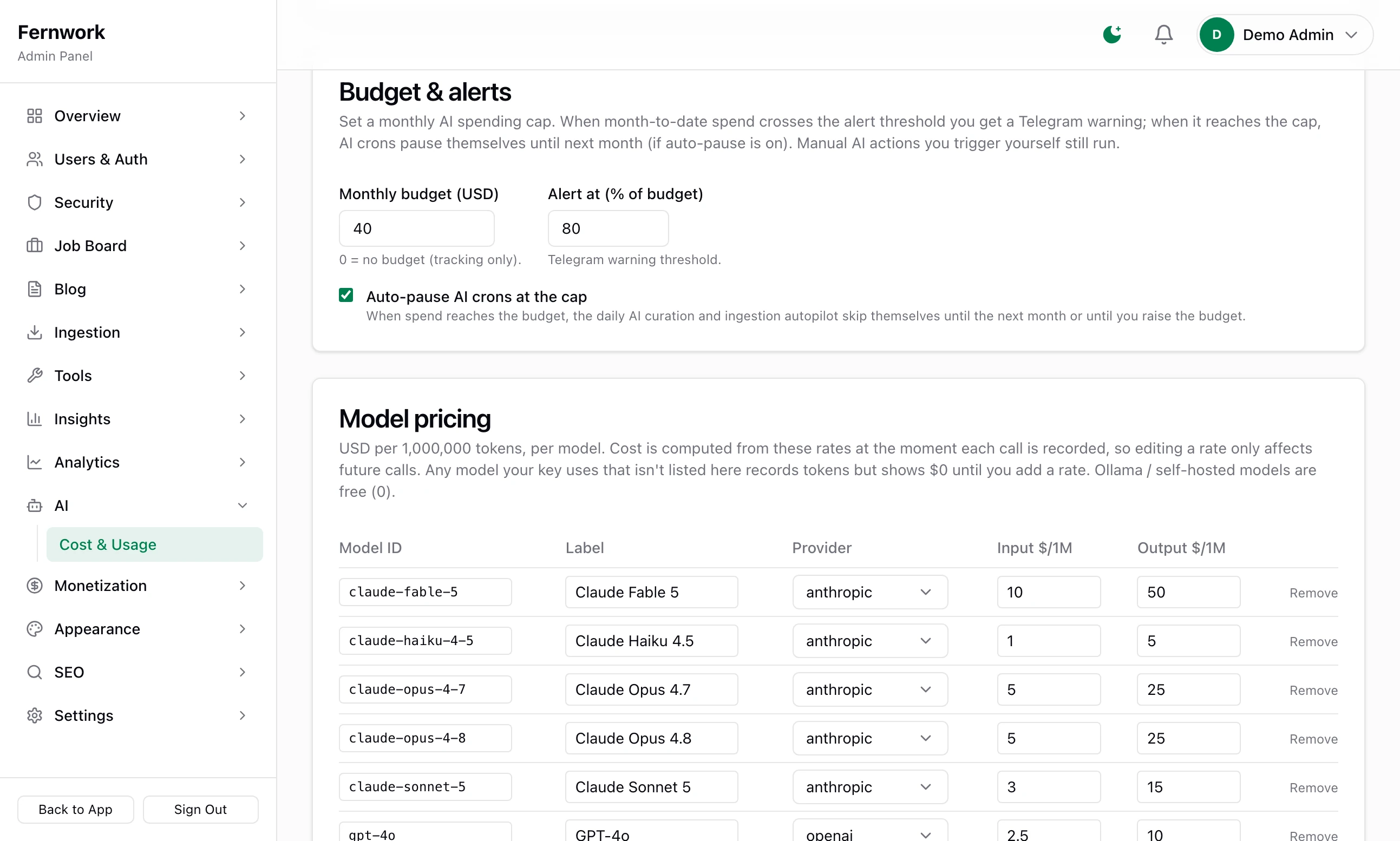
The budget stops two things only: the daily AI Curation task and Ingestion Autopilot. Everything else carries on when it is spent: the AI Curation buttons you click yourself, careers-page scans, the newsletter's opening and Test connection. A board with many Careers Page sources that need AI can go past its budget on those alone.
When the budget is reached the page says "Monthly budget reached." in red, and each time one of the two tasks skips a run you are told on Telegram, if it is set up.
"The provider is configured but the test call failed — double-check the API key."
The provider did not answer the request as asked. Job Lab cannot tell you why. Check in this order: the key is complete and has not been revoked, the provider's account is able to pay and the model in ANTHROPIC_MODEL or OLLAMA_MODEL, if you set one, is one the provider will run.
"No AI provider configured" although a key is saved
After three failed requests in a row Job Lab stops calling the provider for a minute, half a minute for Ollama, and treats it as not connected. Wait, fix the cause and click Test connection again. If the message stays, check that AI provider is not Disabled.
Which provider should I choose?
The kit recommends Anthropic and its AI pages say so. All three are sent the same requests. Anthropic costs the most with the model Job Lab picks, OpenAI's gpt-4o-mini far less and Ollama nothing beyond the machine it runs on.
Does AI read my users' data?
The requests carry job titles, descriptions, skill and company names, the text of careers pages and company websites and your site's name and description. No applicant, application or account is sent.
Can I see what one task costs?
Yes. On Scheduled Tasks under Tools, the two AI tasks carry a line that begins "Uses AI" with the average cost of a run over the last 30 days.
Stuck on a step? Send a message.