Listings, reviews and claims
Find, approve, edit, move and delete businesses, add one by hand, moderate reviews and hand a listing to its real owner when they claim it.
Updated 7 Oct 2026 · written for Local Lab 1.2.1
On this page
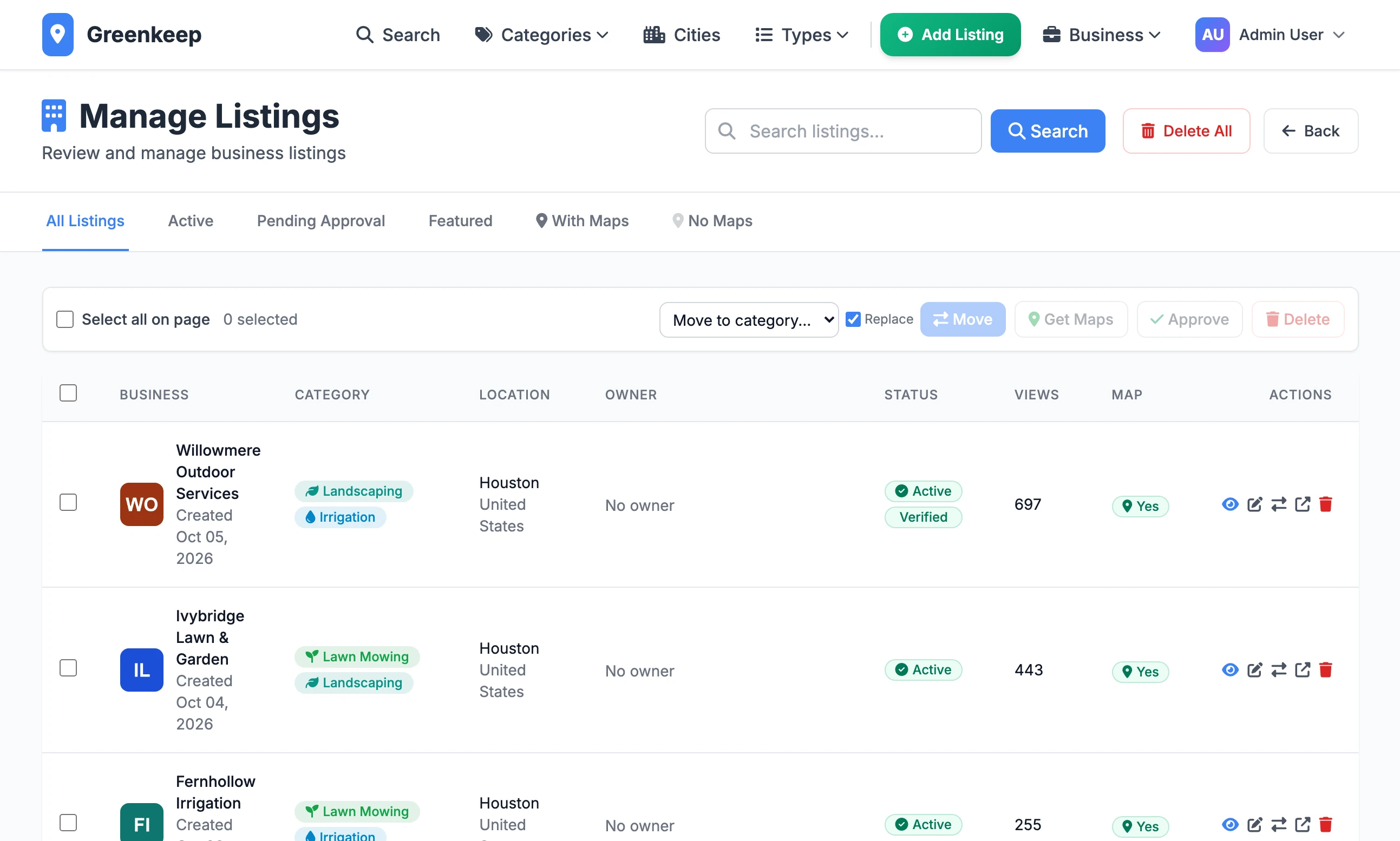
Open Listings under Quick Actions to work on the businesses in your directory. The screen is headed Manage Listings. From it you search, approve, change category, add map pins and delete, one business at a time or hundreds together.
Approve pending listings#
A listing that is not live is Pending. Listings arrive pending when a business owner submits one, and when you import a file without ticking Auto Approve.
Step 1: Open the Pending Approval tab
It lists every listing that is not live, newest first, 20 to a page.
Step 2: Look before you approve
Click the eye icon on a row to open the listing's admin page, which shows everything on it. The public address of a pending listing does not show the business: it shows a "Listing Pending Approval" notice with a short preview.
Step 3: Select the ones to approve
Tick them. Select all on page ticks the 20 on screen. When there are more, a link appears beside it that selects every listing on the tab.
Step 4: Click Approve
They are live at once. A bar tells you how many were approved.
The Listings screen#
Search and tabs#
The search box looks in the business name, description, email, phone, website, street address, city and country, and in the owner's name and email.
| Tab | Shows |
|---|---|
| All Listings | Everything. |
| Active | Live listings. |
| Pending Approval | Listings that are not live. |
| Featured | Homepage featured listings. |
| With Maps | Listings with a map pin. |
| No Maps | Listings without one. |
The bar above the table#
Tick one or more rows and the four buttons wake up.
| Button | What it does |
|---|---|
| Move | Puts the ticked listings in the category chosen in Move to category.... With Replace ticked, as it is to begin with, they end up in that category only. Untick it to add the category and keep the ones they have. |
| Get Maps | Looks up a map pin for each ticked listing that has none. See map pins. |
| Approve | Makes them live. |
| Delete | Deletes them for good, with their reviews, prices, selling points and claims. |
Each asks you to confirm, except Approve on a hand-ticked selection.
The icons on each row#
| Icon | Name | What it does |
|---|---|---|
| Eye | View Details | Opens the listing's admin page. |
| Pencil | Edit Listing | Opens the edit form. |
| Two arrows | Transfer Ownership | Gives the listing to another account. |
| Box and arrow | View on Site | Opens the public page in a new tab. |
| Red bin | Delete Listing | Deletes this one listing. |
Clicking the business name also opens the public page. The Status column shows Active or Pending, with Featured and Verified when they apply.
Delete All, at the top, is for super admins. It deletes every listing in the directory and makes you type DELETE_ALL_LISTINGS first.
A listing's admin page#
The eye icon opens Listing Details. The Administrative Controls panel at the top shows the listing's status and its views, and has the buttons that change it.
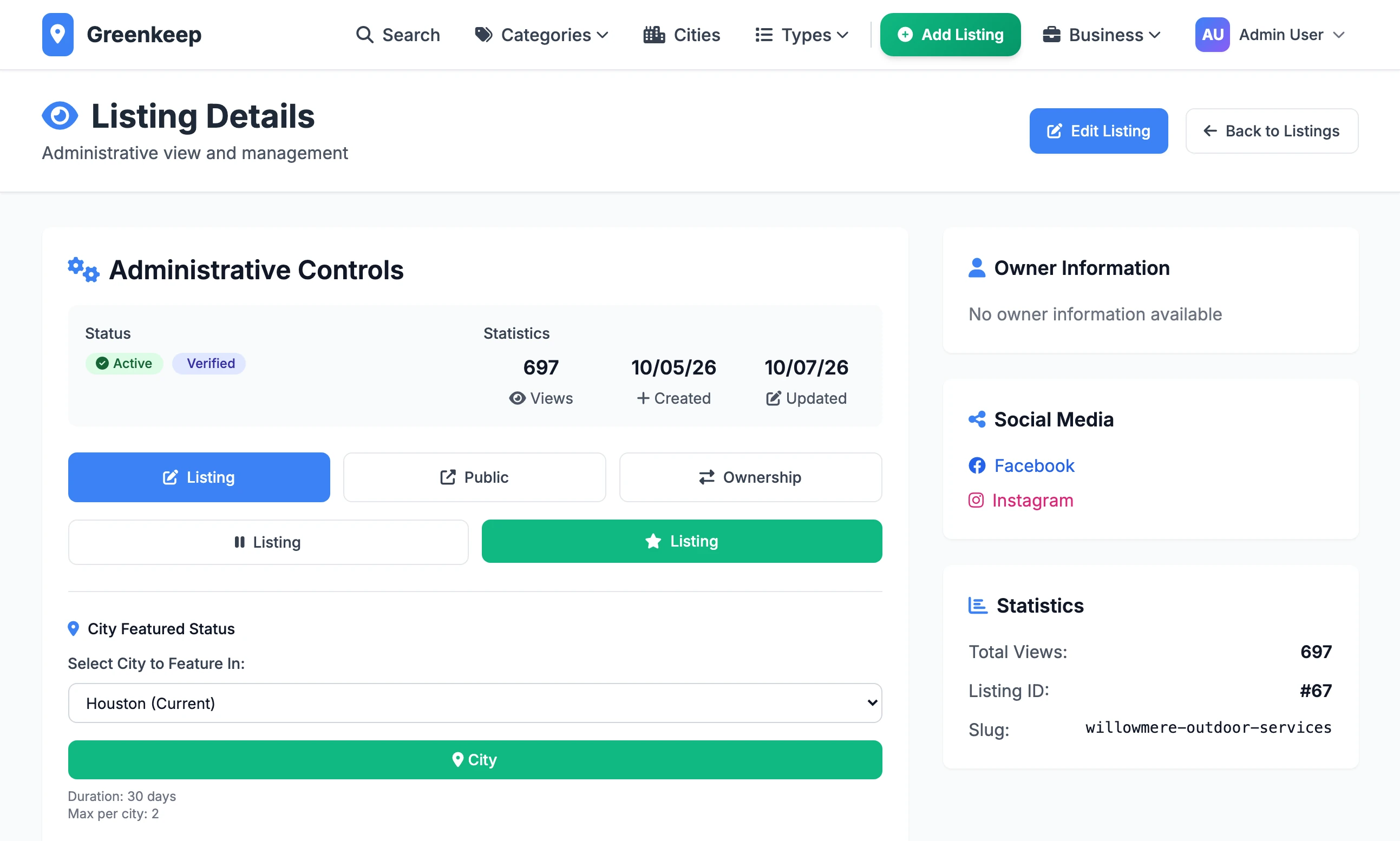
| It reads | Icon | Its full name | What it does |
|---|---|---|---|
| Listing | Pencil, on blue | Edit Listing | Opens the edit form. |
| Public | Box and arrow | View Public | Opens the public page in a new tab. |
| Ownership | Two arrows | Transfer Ownership | Gives the listing to another account. |
| Listing | Tick | Approve Listing | Shown on a pending listing. Makes it live and sends the approval email. |
| Listing | Pause bars | Deactivate Listing | Shown on a live listing. Makes it pending again. It leaves the public lists and its page shows the pending notice. |
| Listing | Star, on green | Feature Listing | Gives a homepage featured placement. |
| Featured | Half star | Remove Featured | Shown on a featured listing. Ends the placement. |
Below them, City Featured Status and Category Featured Status are covered in Sell featured listings. At the bottom, Danger Zone has a red button, also reading "Listing", that deletes the listing.
After approving, the page says "Listing approved successfully and notification sent!". It says so whether or not an email went: with outgoing email not set up, the listing is still approved and nothing is sent.
Add a listing by hand#
Open Add Listing under Quick Actions. It is for super admins.
A listing needs a Business Name, a Country, a City, at least one category and at least one type. If the city is not in the menu, Add new under it creates the city as you save.
Under Admin Settings, tick Active to make it live straight away. Left unticked, the listing is saved as pending.
Verified puts a Verified badge on the listing. It is your word that you have checked the business: nothing sets it for you.
Leave Featured unticked and use the button on the admin page: see the tip in Sell featured listings.
Leave Latitude and Longitude empty and the pin is looked up from the address.
Click Create Listing. The listing has no owner until you transfer it or someone claims it.
Editing changes one thing you might not expect: if you change the Business Name, the address of the listing's page changes to match, and the old address stops working.
Transfer ownership#
Use the two-arrows icon to give a listing to an account. The person must already have an account on your site.
New Owner: every active account, by name and email.
Transfer Reason: optional, for your records.
Send Email Notification: emails the new owner.
Notify Current Owner: shown when the listing has an owner now.
Click Transfer Ownership. The new owner can edit the listing from their dashboard at once.
Reviews#
Open Reviews under Quick Actions. A visitor must be signed in to write a review, and every new review waits here until you approve it. Only approved reviews are shown on a business's page.
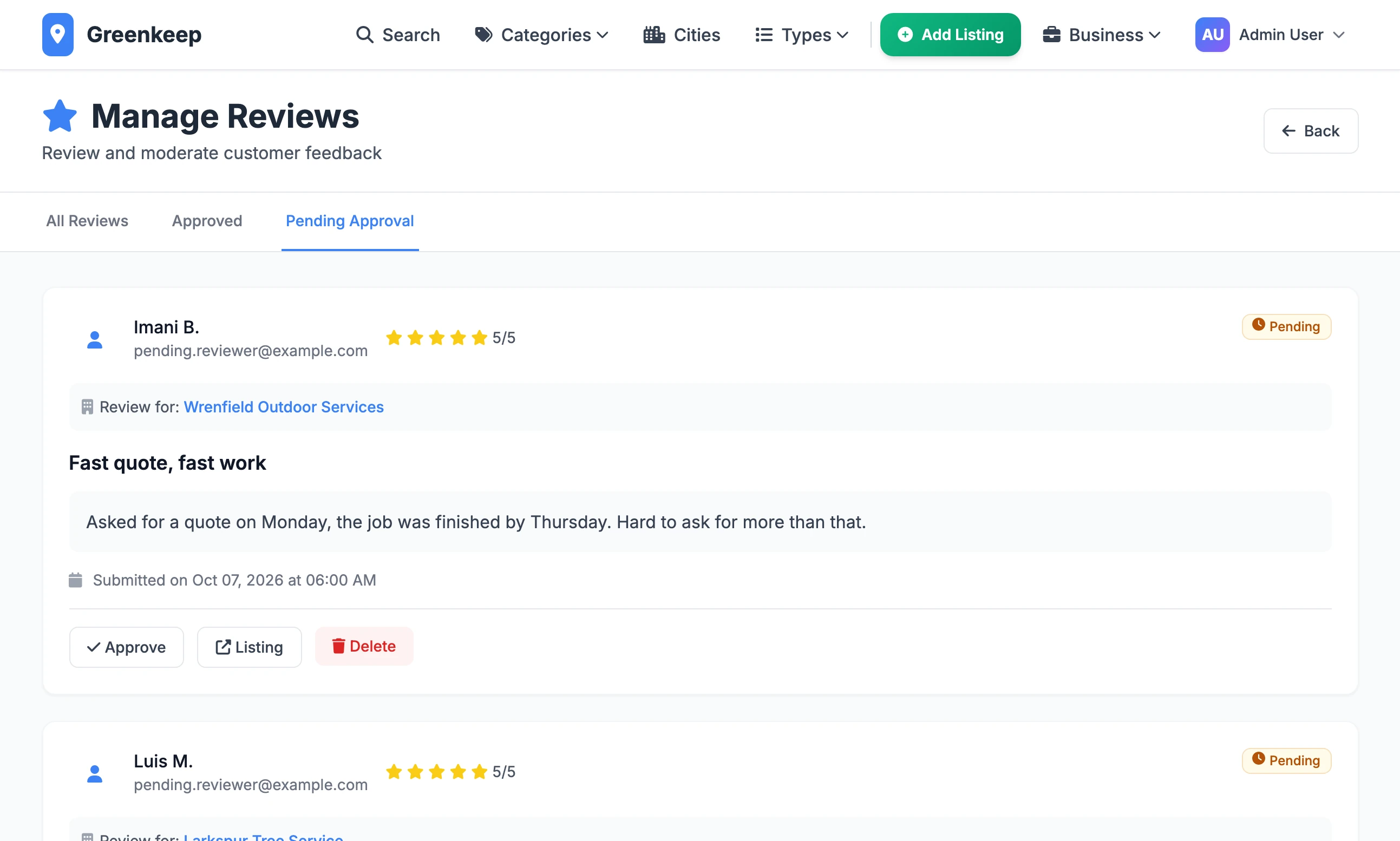
The tabs are All Reviews, Approved and Pending Approval. Each review shows who wrote it, the stars, the business it is for and the text, with three buttons:
Approve makes it public. On an approved review the button reads Disapprove and hides it again.
View Listing opens the business's public page.
Delete removes the review for good.
There is no way to edit a review's text or to reply to it from here, and no bulk approve. The Admin Dashboard tile reads Pending Reviews whenever any are waiting.
To switch reviews off altogether, untick Enable Reviews in Site Settings, on the Features tab.
Claims#
A claim is a business owner asking to take over a listing you added. It is how a scraped listing turns into a customer.
What the owner does#
Every listing with no owner, or owned by an admin, has a banner at the bottom of its public page: Own this business? The button reads Login to Claim for a visitor and Claim This Business for someone signed in. An account is needed to claim.
The form, Claim Your Business, asks for Full Name, Email Address, Phone Number, Relationship to Business and Additional Information. Name and email are filled in from their account and can be changed.
When they submit it, they are thanked and told "We will review it and get back to you within 2-3 business days." You are emailed, if outgoing email is set up.
What you do#
Open Claims under Quick Actions. It opens on claims waiting for you. The Status menu shows the others: All Claims, New, Verified, Approved, Rejected and All Processed.
Step 1: Open the claim
Click Review on its row. You see who is claiming, their relationship to the business, what they wrote and the listing itself. If the listing already has an owner, a warning says approving will take it from them.
Step 2: Check it is really them
The claim page has Send Email for the claimant, and a Call button when they gave a phone number. Compare the email address and phone number with the ones on the business's own website. Mark as Verified records that you have checked. It is a note for you and changes nothing else.
Step 3: Approve or reject
Approve & Transfer Ownership gives them the listing. Reject Claim asks for a reason, which is included in the email they get.
Approve and Reject on the list do the same without opening the claim. A claim rejected from the list is sent the reason "Rejected by admin".
What approving does#
Local Lab looks for an account with the email address on the claim.
If there is one, that account becomes the listing's owner.
If there is none, a new account is made with that email address as both its username and its email, already confirmed, and a random 12-character temporary password.
The claimant is emailed "Claim Approved". For a new account the email gives the Temporary Password and a link to sign in. For an existing account it says to sign in as usual.
The temporary password is in that email and nowhere else. You are not shown it.
A second account is made only when the claimant changed the email address on the form to one that has no account. They then have two accounts, and the listing belongs to the new one.
An owner says they never got a password
Either outgoing email was not set up when you approved the claim, or the email went to spam. With email working, have them choose Forgot password? on the sign-in page and enter the email address from the claim.
Can I approve a claim on a listing that already has an owner?
Yes. The listing moves to the claimant. The claim page warns you first and names the current owner, who is not told.
Can I undo an approved claim?
Not from Claims: an approved claim cannot be reopened. Use Transfer Ownership on the listing to give it to someone else. The listing cannot be set back to having no owner.
What happens to a listing's reviews when I delete it?
They are deleted with it, along with its prices, selling points and claims.
A business asks to be removed
Delete the listing with the red bin. If you later import a file that still has the business in it, it will come back, so take it out of the file too.
Stuck on a step? Send a message.