A tour of the admin
What is on the Admin Dashboard, what every Quick Actions screen is for and who is allowed to open each one.
Updated 7 Oct 2026 · written for Local Lab 1.2.1
On this page
Go to /admin and sign in to reach the Admin Dashboard. It is the only page with a menu: the admin has no sidebar, so every other screen is opened from here, and the main screens have a Back button that returns here.
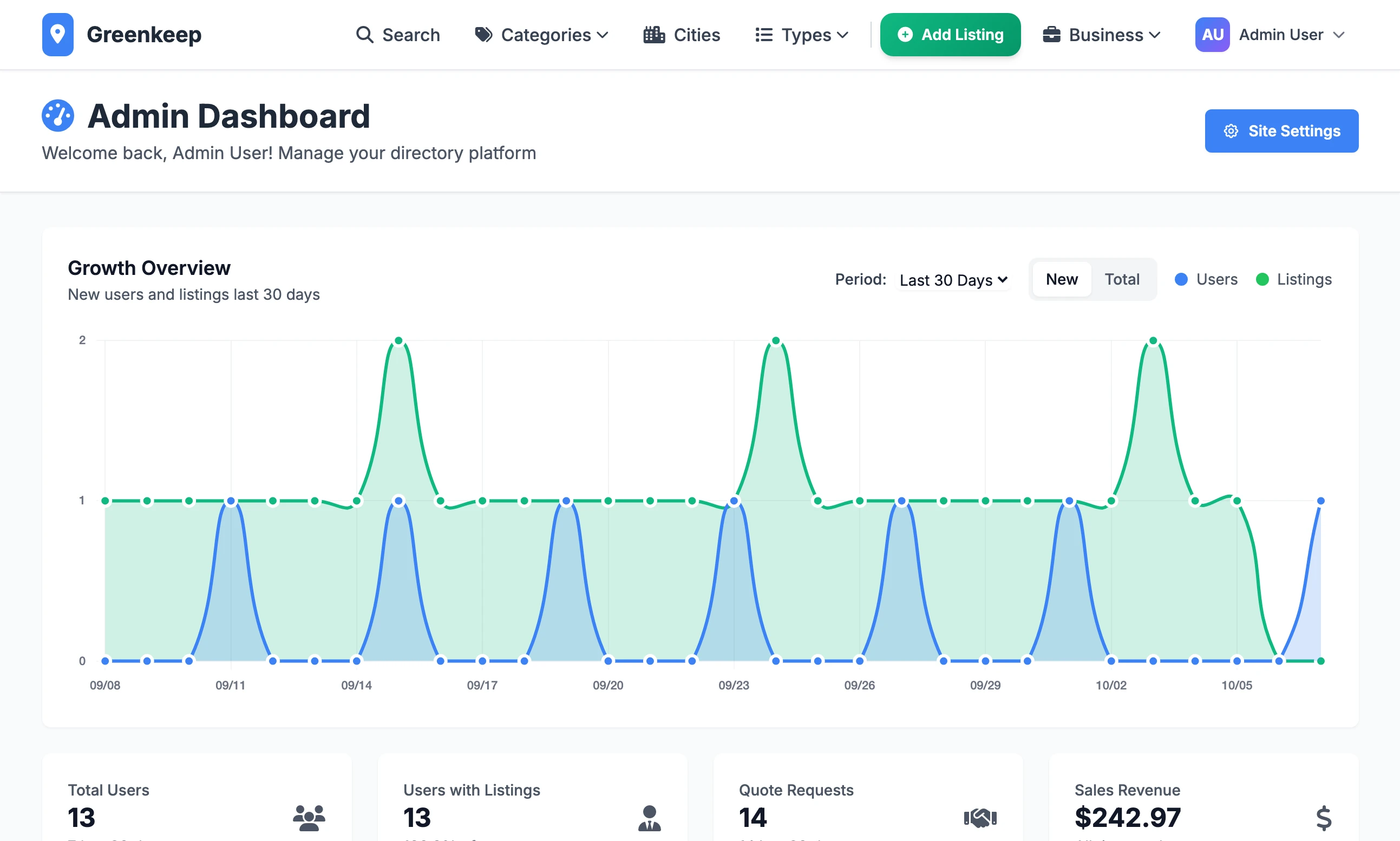
The dashboard, top to bottom#
Site Settings#
The Site Settings button is in the top right corner. It opens the five tabs that hold the site's name, look, features, prices and footer.
Growth Overview#
The chart draws two lines, Users and Listings.
Period chooses the time span: Today, Yesterday, Last 7 Days, Last 30 Days or All Time. It opens on Last 30 Days. All Time draws the last six months.
New shows how many were added in each slice of the period. Total shows the running total.
The period you choose also changes the small line under four of the tiles below.
The eight tiles#
Each tile is a link to the screen behind the number.
| Tile | What it counts | Opens |
|---|---|---|
| Total Users | Accounts that are active, yours included. Underneath: how many joined in the period. | Users |
| Users with Listings | Active accounts that own at least one listing, and their share of all users. | Listings |
| Quote Requests | Every quote request customers have sent. Underneath: how many in the period. | Leads |
| Sales Revenue | Net revenue, all time, in the one currency most of your sales are in. Sales in any other currency are left out of this figure. | Sales |
| Total Listings | Every listing, live or not. Underneath: how many were added in the period. | Listings |
| Pending Approval | Listings that are not live. Underneath: how many are live. | Listings, on the Pending Approval tab |
| Reviews | All reviews. When any are waiting for you, the tile turns into Pending Reviews and counts those. | Reviews |
| Active Cities | Cities with at least one live listing. | Cities |
Recent Listings#
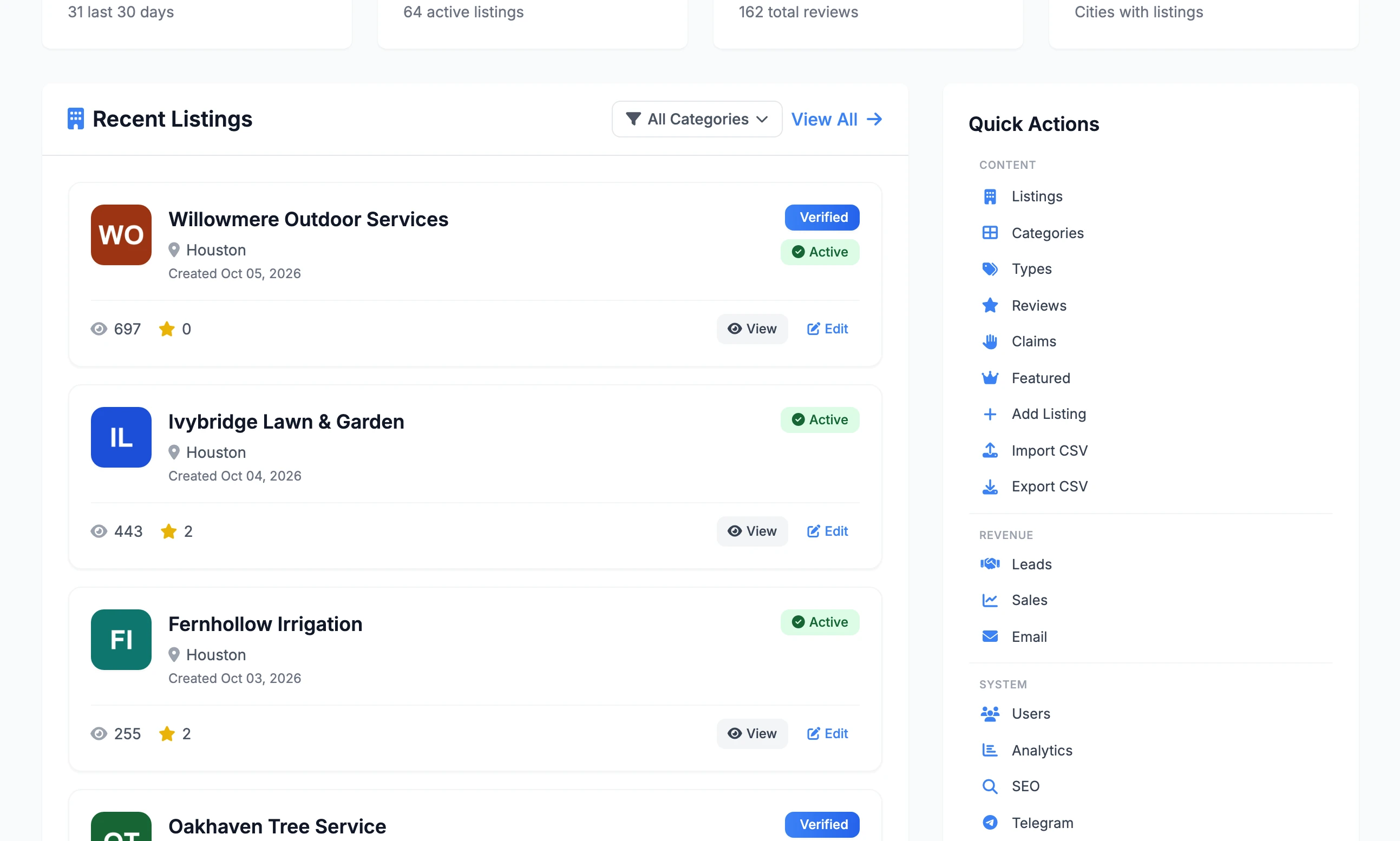
The nine newest listings, each with View and Edit. The All Categories menu narrows the list to one category, and View All opens Listings. Pills show whether a listing is Active or Pending, Featured and Verified.
Quick Actions#
The menu, on the right on a wide screen and above Recent Listings on a phone. The table below lists every entry.
Recent Reviews and System Status#
Under Quick Actions, Recent Reviews shows the last three reviews once there are any. System Status has four lines:
Reviews reads Enabled or Disabled, following Enable Reviews in Site Settings.
Approval Required reads Yes or No, following Require Listing Approval in Site Settings.
Database always reads Online and User Registration always reads Open. They are fixed text, not checks.
Every screen in Quick Actions#
| Label | What the screen is for | Guide |
|---|---|---|
| Listings | Search, approve, edit, move and delete businesses. | Listings, reviews and claims |
| Categories | The services your directory is divided into, with subcategories. | Make it your niche |
| Types | A second way to sort businesses, such as Independent or Franchise. | Make it your niche |
| Reviews | Approve, hide or delete customer reviews. | Listings, reviews and claims |
| Claims | Requests from owners to take over a listing. | Listings, reviews and claims |
| Featured | Who is featured now, when each placement ends and the history of past placements. | Sell featured listings |
| Add Listing | Add one business by hand. | Listings, reviews and claims |
| Import CSV | Load a file of businesses. | Import businesses from a CSV file |
| Export CSV | Download your listings as a file. | |
| Leads | Quote requests and the businesses subscribed to receive them. Shown only while Enable Leads System is on. | Sell leads |
| Sales | Revenue from featured listings and lead subscriptions, with recent payments. | Connect Stripe |
| Email campaigns to the businesses in your directory. | Email, campaigns and bounces | |
| Users | Every account, with its role. Make or remove admins here. | Roles, below |
| Analytics | Directory statistics. | |
| SEO | Page title templates, meta keywords, Google Analytics and the SEO audit. | SEO settings and page templates |
| Telegram | A Telegram bot that sends you admin notifications. | Telegram, Google sign-in and reCAPTCHA |
| Database | Database health, with backup. | Backups, scheduled jobs and PostgreSQL |
| Claude AI | Rewrite descriptions and write selling points for a file of businesses. | Clean up listings with Claude |
| Cities | Add, import and remove cities and countries. | Cities, map pins and geocoding |
| Warehouse | Settings for the data warehouse connection and its API key. | |
| Google Places | Find businesses on Google and save them as a file to import. | Find businesses with Google Places |
| AdSense | Google adverts in the sidebar. | Ads: AdSense and direct |
| Advertising | Your own sidebar advert, email banner and advertising package. | Ads: AdSense and direct |
Two screens are not in the list. Site Settings has its own button at the top, and Custom Fields is opened from Site Settings, on the Features tab, with Manage Custom Fields.
The three roles#
Every account has one of three roles. The Users screen shows it in the Type column.
| Role | Shown as | What it can do |
|---|---|---|
super_admin | Super Admin | Everything. The account the setup wizard made is one. |
admin | Admin | The day-to-day screens: listings, categories, types, reviews, claims, featured, leads, analytics, SEO, Telegram, database and AdSense. |
user | User | No admin at all. Business owners and customers are users, with their own dashboard at /user/dashboard. |
What only a super admin can open#
These refuse an admin with "Access denied. Super admin privileges required." and return them to the dashboard:
Site Settings
Add Listing, and the Delete All button on Listings
Sales
Users
Cities
Google Places
Advertising
An admin who clicks the Total Users, Sales Revenue or Active Cities tile gets the same refusal.
Make a second admin#
There is no "add user" button. The person makes their own account and you raise it.
Step 1: Have them create an account
They choose Create Account on your site and confirm their email address from the link they are sent. Until they confirm, they cannot sign in.
Step 2: Open Users
Open Users under Quick Actions. The tabs are All Users, Regular Users, Administrators, Inactive and Unverified Email.
Step 3: Promote them
On their row click Actions, then Promote to Admin.
Step 4: Give full control only if you mean to
An admin's Actions menu has Promote to Super Admin. A super admin can change every setting, see all revenue and remove other admins, you included. Use it when you hand a site over.
The same menu has Deactivate User, Demote to User, Demote to Admin and Delete User. Deleting a user deletes their listings and the reviews on those listings with them.
The new person never got their confirmation email
Sign-up emails need outgoing email set up, in Site Settings on the General tab under Email / SMTP Configuration. Until it is, make the account from the terminal instead, in the Local Lab folder:
python scripts/create_admin.py --username sam --email [email protected] --password a-strong-passwordThat account is a super admin and is already confirmed. Use Demote to Admin on the Users screen if they should have less.
Why can my admin not see Import CSV?
The Quick Actions menu hides it from anyone who is not a super admin. Either promote them, or give them the address /admin/csv-upload, which works for an admin.
Can I change what an admin is allowed to do?
Not from the admin. The three roles are fixed.
An admin sees "Access denied. Super admin privileges required."
They opened one of the screens in the list above. Nothing is wrong. Either do that job yourself or promote them.
Stuck on a step? Send a message.