Deploy to a server
Put one Local Lab site on a server of your own with the kit's deploy script, from a bare machine to the setup wizard.
Updated 7 Oct 2026 · written for Local Lab 1.2.1
On this page
The kit's own script, scripts/deploy.sh, puts Local Lab on a server you rent. It installs Docker, a PostgreSQL database and the nginx web server, then runs each site in a container of its own. This guide takes one site from a bare server to the setup wizard. Every command on the server is run as root.
What you need#
A server (VPS) running Debian or Ubuntu. The script uses
apt-get,systemctland nginx'ssites-enabledfolder, so it does not work on anything else. It caps each site at 768 MB of memory, and its own notes reckon that three sites and the database fit in 4 GB.Root access over SSH. There is no
sudoin the script.A domain name whose DNS records you can edit.
Ports 80 and 443 open to the internet. The script does not set up a firewall.
A few small tools the script uses and does not install:
apt-get update && apt-get install -y curl openssl python3 unzip gitDeploy the site#
The examples use a site called lawn and the domain example.com. Put your own in their place.
Step 1: Put the code in /opt/directorylab
With repository access, clone it. The server needs permission to read the repository, and later updates pull the
mainbranch fromorigin.With repository accessgit clone YOUR-REPOSITORY-ADDRESS /opt/directorylabWith the zip, copy it up from your own computer and unpack it.
On your computerscp local-lab-1.2.1.zip root@YOUR-SERVER-IP:/opt/On the servercd /opt unzip local-lab-1.2.1.zip mv local-lab-1.2.1 directorylabStep 2: Run first-run
bashcd /opt/directorylab ./scripts/deploy.sh first-runWait until it tells you to add a site. What it sets up is listed below.
Step 3: Set your domain
Every new site is given the address
<name>.<BASE_DOMAIN>. Until you set it,BASE_DOMAINisdirectorylab.io, a domain that is not yours, so set it before you add a site.bashexport BASE_DOMAIN=example.com echo 'BASE_DOMAIN=example.com' >> /etc/environmentThe first line is for this session. The second is for every later one. Then, in your DNS, add an A record for
lawn.example.comthat points at the server's IP address.Step 4: Add the site
bash./scripts/deploy.sh add-site lawnUse lower-case letters and digits only in the name. It becomes part of the database name and the first part of the address. The script does not check it, and a hyphen, a dot, an underscore or a capital letter breaks one or the other.
Step 5: Open the site and finish the wizard
Go to
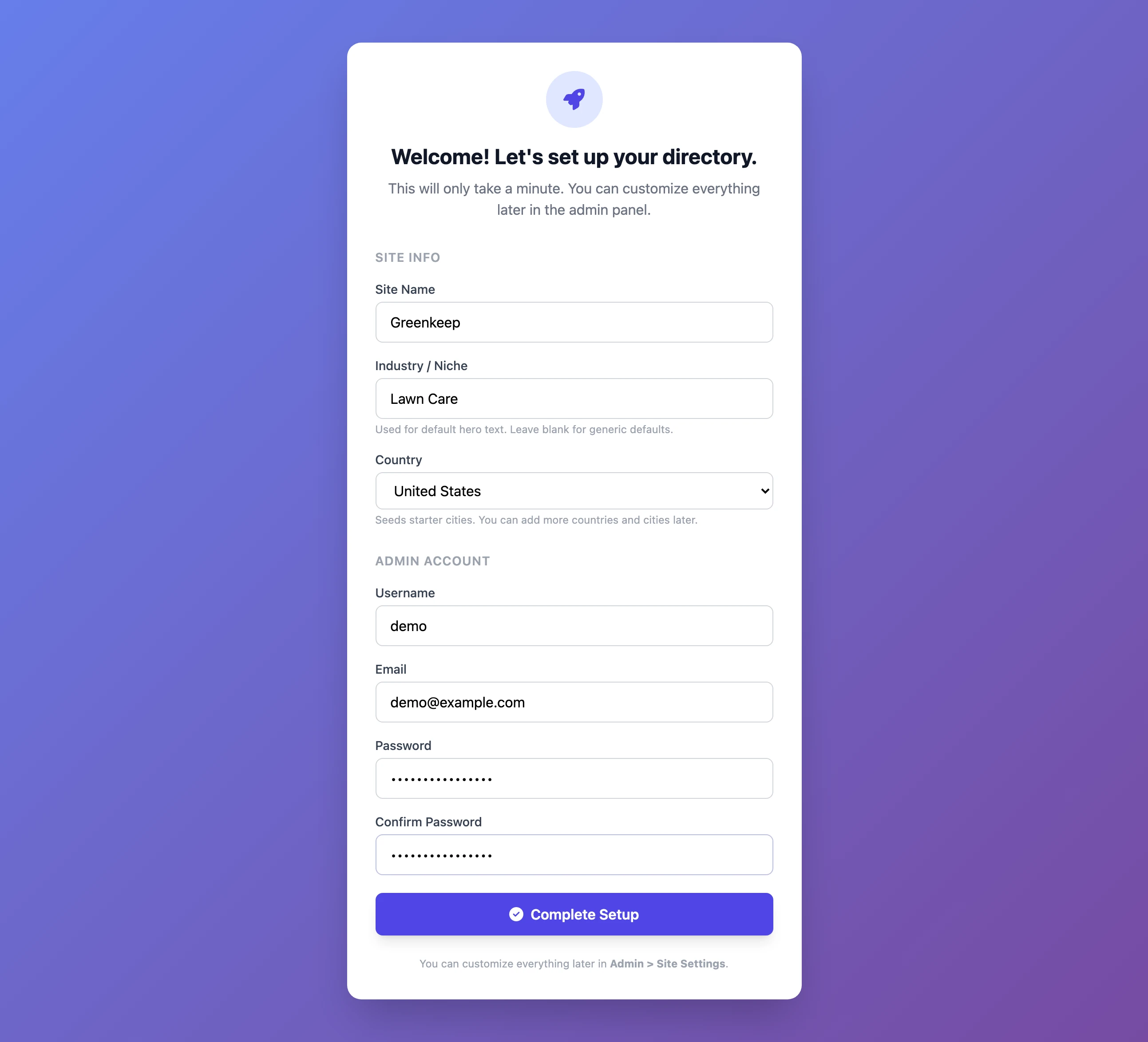
https://lawn.example.com. Your browser warns that the certificate is not trusted, becauseadd-sitemade a temporary one. Go past the warning this once and complete the wizard, as in Install Local Lab.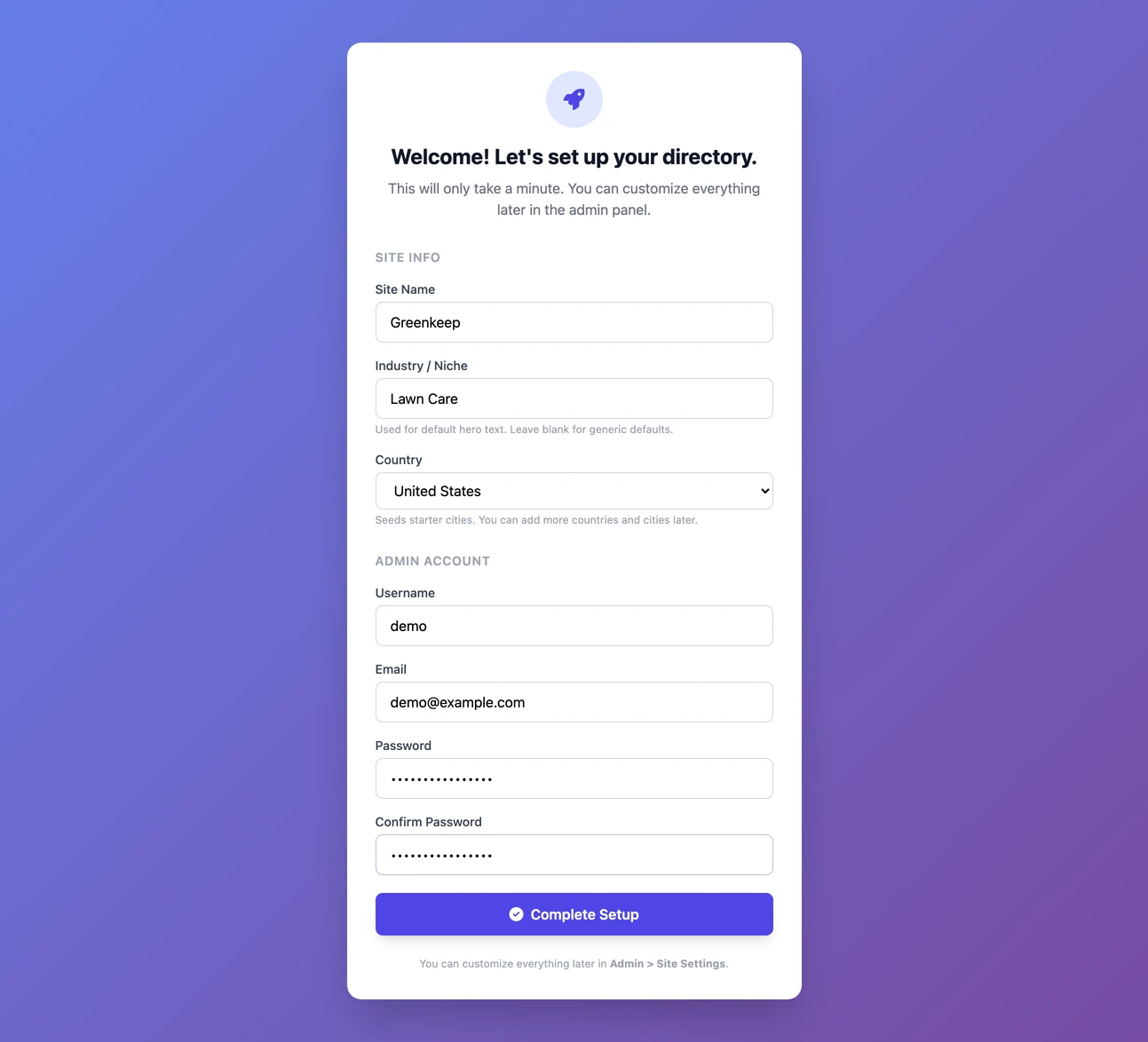
The setup wizard, shown once on a new install. Step 6: Set the website address
Sign in at
https://lawn.example.com/admin. Open Site Settings and, on the General tab, fill in Website Address (Base URL) withhttps://lawn.example.com. Links in emails are built from it. Left empty, they point athttps://example.com.Step 7: Switch on backups and get a real certificate
bashbash scripts/setup-crons.shfirst-runandadd-sitedo not install the nightly backup. This does: see Backups, scheduled jobs and PostgreSQL. For the certificate, and for a domain of your own in place oflawn.example.com, see More sites, domains and HTTPS.
What first-run sets up#
Docker and its Compose plugin, if they are missing.
nginx, if it is missing. Its default site is removed.
certbot, for Let's Encrypt certificates.
Folders:
sites/andbackups/inside/opt/directorylab, and/etc/ssl/directorylabfor certificates.A PostgreSQL password, made at random and saved in
sites/.pgpass.PostgreSQL 16, in a container called
directorylab-postgres. It answers only on the server itself, and its data is kept in a Docker volume.The Local Lab image, called
directorylab, built from theDockerfile. Every site on the server runs from it.
You can run it again. It skips what is already there and rebuilds the image.
What add-site creates#
| What | Where and how |
|---|---|
| A folder | sites/lawn/, holding .env, .port and uploads/. |
| A database | directorylab_lawn, in the PostgreSQL container, with every table made. |
| A settings file | sites/lawn/.env, with a new SECRET_KEY and the database address. |
| A container | directorylab-lawn. Docker restarts it if it stops. It runs two workers of four threads each and may use 768 MB. |
| A port | 5001 for the first site, 5002 for the next. It can be reached only from the server itself: nginx passes visitors to it. |
| An nginx file | /etc/nginx/sites-enabled/directorylab-lawn.conf, which sends lawn.example.com to the site and turns http into https. |
| A certificate | A temporary, self-signed one at /etc/ssl/directorylab/lawn.pem and lawn.key. |
Pictures that you and business owners upload are kept in sites/lawn/uploads/, outside the container, so they outlive restarts and updates.
The settings file#
add-site has already written what a live site needs into sites/lawn/.env. Open it with nano sites/lawn/.env.
SECRET_KEY: a random key made for this site. Leave it alone. A live site will not start without one: the container stops with "SECRET_KEY is not set (or is the insecure default) in a production environment" and Docker starts it again, over and over. Once the site has saved keys, never change it.DATABASE_URL,FLASK_ENV=production,PREFERRED_URL_SCHEME=httpsand the three lines about workers, threads and the pool: leave them.Email, Stripe and
GOOGLE_PLACES_API_KEY: written empty. Enter these in the admin and leave the file alone: see Connect Stripe and Email, campaigns and bounces. What you save in the admin is used ahead of this file.GOOGLE_CLIENT_ID,GOOGLE_CLIENT_SECRET,RECAPTCHA_SITE_KEYandRECAPTCHA_SECRET_KEY: these can only be set here. Left empty, Google sign-in and reCAPTCHA are off. See Telegram, Google sign-in and reCAPTCHA.
Write each line as KEY=value, with no quotes and no spaces round the equals sign. A change does nothing until you restart the site:
./scripts/deploy.sh update-site lawnupdate-site stops the container and starts a new one that reads the file again. The site does not answer in between.
Check on it#
./scripts/deploy.sh statusThis prints a table with a row for each site: SITE, PORT, DOMAIN and STATUS.
UP with 200 or 302 means the site answered. A new site answers 302 until the wizard is done.
WARN with any other number means the container is running and the site is not answering properly.
DOWN means the container is not running.
Under the table are the size of each database, and the processor and memory each container is using. The DOMAIN column always shows <name>.<BASE_DOMAIN>, even after you give the site a domain of its own.
./scripts/deploy.sh logs lawnThis shows the last 100 lines the site has written and keeps following it. Press Ctrl and C to stop. For more, add a number: ./scripts/deploy.sh logs lawn 500.
- More sites, domains and HTTPSA real certificate, your own domain and a second site.
- Backups, scheduled jobs and PostgreSQLWhat runs every night and how to restore.
add-site says the site already exists
An earlier attempt stopped part of the way through and left its folder behind. Clear it and start again:
./scripts/deploy.sh remove-site lawnAnswer y to both questions, then run add-site again.
The browser shows 502 Bad Gateway
nginx is running and the site's container is not answering. Run ./scripts/deploy.sh status, then ./scripts/deploy.sh logs lawn to see why it stopped.
Do I have to use lawn.example.com?
No. That is only the first address. Add your own domain once the site is up.
How do I change the code on the server later?
See Updating Local Lab. With repository access it is one command. With a zip it is a few.
Stuck on a step? Send a message.