Find businesses with Google Places
Search Google for the businesses in your trade, city by city, and come away with a CSV file ready to import. The key, the cost, the filters and the command-line way.
Updated 7 Oct 2026 · written for Local Lab 1.2.1
On this page
Open Google Places under Quick Actions to search Google for businesses and save what it finds as a CSV file. You give it search phrases and cities. It runs every phrase in every city, filters the results, reads each business's website, sorts the businesses into your categories and writes a file in the format Import CSV reads.
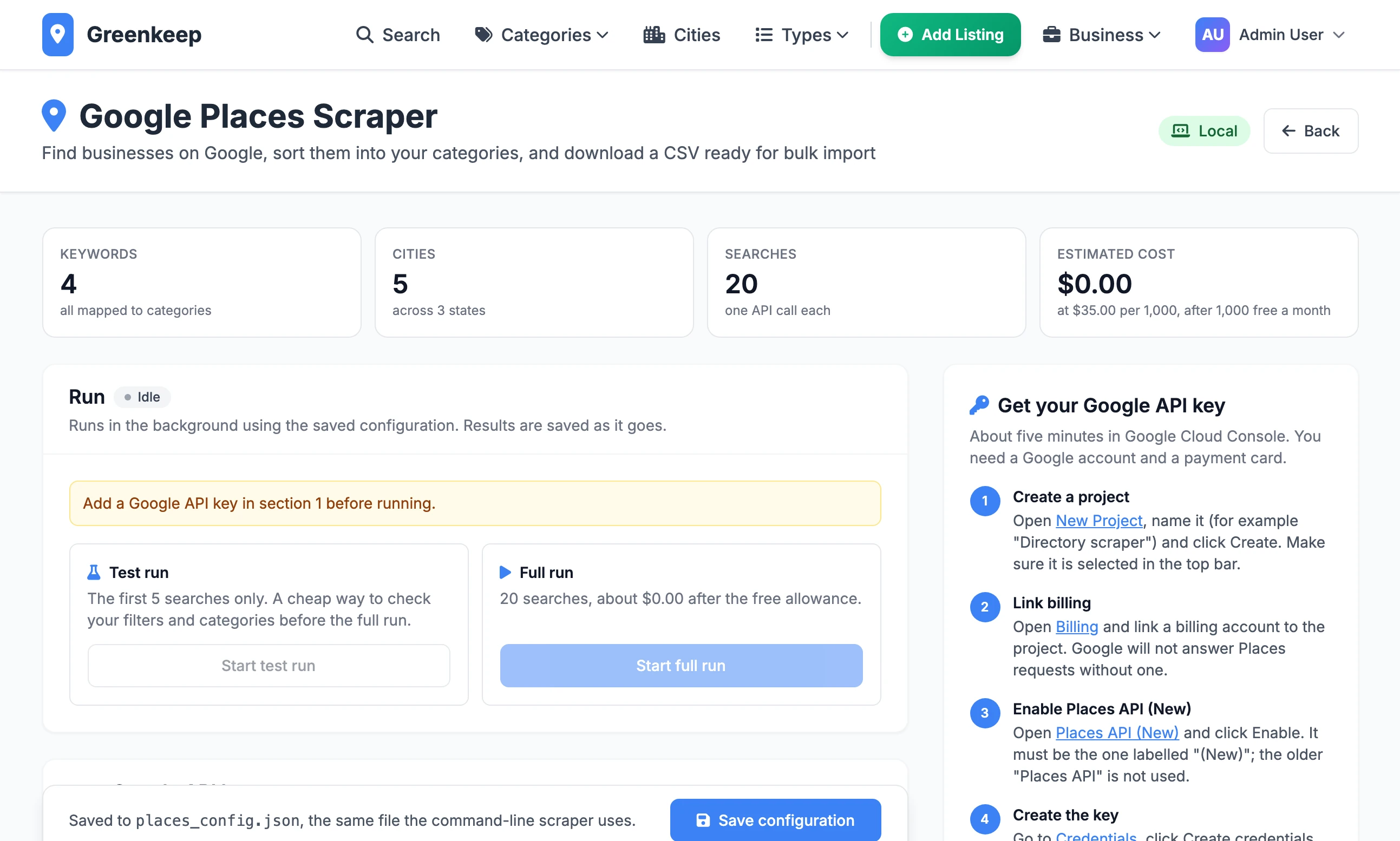
A new install shows a worked example for a plumbing directory: four keywords, five cities, filters to match. Replace it with your own. Nothing is saved until you click Save configuration.
Run a search#
Step 1: Get a Google key and save it
Follow Get your Google API key below. Paste the key into Google Places API Key in section 1, click Test key, then type Your Admin Password and click Save configuration.
Step 2: Add your keywords
In section 2, Keywords and categories, click Add keyword and type a phrase a customer would search for, such as
lawn mowing service. Beside it, add the categories and types a business found by that phrase should get. Paste several takes one phrase per line.Step 3: Add your cities
In section 4, Locations, type one city per line in Cities, written as
Austin, TX. The two-letter state is what lets the scraper drop results from the next state over.Step 4: Save
Click Save configuration. The tiles at the top now show your Keywords, Cities, Searches and Estimated cost.
Step 5: Do a test run
Click Start test run. It does the first five searches only. When it finishes, click Download CSV and look at the file: are these the right kind of business, in the right categories?
Step 6: Do the full run
Click Start full run. The button changes to "Click again to confirm" with the number of API calls. Click it again within six seconds to start.
Step 7: Download the file
When the pill beside Run reads Finished, click Download CSV, then load the file on Import CSV.
The Run panel#
Test run: the first 5 searches. Full run: every keyword in every city.
While it runs you see a progress bar, the elapsed time and four counts: Businesses found, Google API calls, Cost so far (est.) and Filtered out, with the reasons under it.
Activity log opens a line-by-line record: each search, how many businesses it added and what was filtered out.
Stop ends the run after the search in progress. What it has found is kept.
Resume carries on a run that was stopped, failed or interrupted, without repeating the searches already done. A resumed test run stays a test run.
Download CSV appears whenever a finished, stopped or failed run has found at least one business.
The pill reads Idle, Running, Finished, Stopped, Interrupted or Failed. Interrupted means the site was restarted or the computer went to sleep part-way. Use Resume.
Where the file is kept#
Every run from this page writes its own file in the Local Lab folder, at instance/places_output/, named with the date and time it started: places-20261007_143000.csv. Download CSV gives you the file from the latest run. Earlier files stay in that folder.
The six sections#
1. Google API key#
The key is stored encrypted in the database. The alternative is a line GOOGLE_PLACES_API_KEY= in .env. A badge shows which is in use: Database, Environment or Not set. A key saved here wins over the one in .env. Clear removes the saved key.
2. Keywords and categories#
Each row is a Search keyword with Categories (up to 5) and Types (up to 3). A business found by two keywords gets the categories of both. A name marked NEW is a category or type your site does not have yet: the import will create it, so check the spelling.
3. Content rules#
A rule adds categories or types to a business when its name or its website mentions certain words. Click Add rule and type the words under If it mentions any of. Choose Name, Website or both under Look in, then add the categories or types.
Fallback categories and Fallback types are given only to a business that got none from a keyword or a rule.
4. Locations#
Cities: one per line. Remove duplicates and sort tidies the list. A business whose own address is in another city on your list is filed under that city. Any other is filed under the city you searched.
Countries: one per line. Every keyword and city is searched in each country, so two countries doubles the number of searches.
5. Filters#
Filtering happens before any website is visited.
| Setting | What it does |
|---|---|
| Required Google Types | Keeps only businesses Google tags with one of these types, for example plumber. Empty keeps everything. |
| Negative Keywords | Drops any business whose name contains one of these words. |
| Chain / Franchise Names | Names that mark a business as a chain. |
| Skip businesses without a website | On to begin with. Turn off to keep businesses that have only a phone number. |
| Skip chains and franchises | Drops businesses matching the chain names list. |
| Skip duplicates | Drops a business with the same name in the same city, or the same website, as one already found. |
| Skip results outside the searched state | Drops results Google returns from a neighbouring state. It needs the city written as City, ST. |
| Include service-area businesses | Keeps mobile businesses that have no public street address. |
| Also check website text for negative keywords | Stricter. It can drop a genuine business that only mentions the word. |
Businesses Google marks as permanently closed are always dropped.
6. Run settings#
Max Results per Search: Google returns 20 businesses a page and at most 60 for one search. Each page after the first is another billable call.
Price per 1,000 Searches and Free Searches per Month: used only for the estimate.
Parallel Website Fetches, Website Timeout (seconds), Min Delay (seconds) and Max Delay (seconds): how fast it works. Leave them alone unless websites are timing out.
Scrape business websites: turn off to skip the website visits.
Output CSV Filename: used by the command-line scraper only.
What it reads from each website#
With Scrape business websites on, the scraper opens each business's home page and takes:
an email address, looking on the contact page too if the home page has none
links to the business's Facebook, Twitter or X, Instagram and LinkedIn pages
a description: the page's own summary if it has one, otherwise its "about" section or first long paragraph. It is cut to 500 characters, and to 100 for the short description.
The text of the page is also what content rules search. Visiting websites costs nothing. A website that will not load leaves that business as Google gave it.
From Google itself come the name, phone number, website, address, postcode and state, with the latitude and longitude for the map pin. The logo column is filled with the address of the website's small browser icon, served by Google.
Get your Google API key#
The page has its own instructions on the right. They are:
Create a project. Open New Project in Google Cloud Console, name it and click Create. Make sure it is selected in the top bar.
Link billing. Link a billing account to the project. Google will not answer Places requests without one. You need a payment card.
Enable Places API (New). It must be the one labelled "(New)". The older "Places API" is not used.
Create the key. Under Credentials, click Create credentials, then API key. It starts with
AIza.Restrict the key. Under API restrictions choose Restrict key and tick only Places API (New). Under Application restrictions leave None, or choose IP addresses and add the public IP of your computer.
Cap your spend. Set a daily limit on Text Search requests under Quotas, and add a budget alert.
Paste and test. Paste the key in section 1 and click Test key. A new key can take a minute or two to start working.
Each step on the page links straight to the right screen in Google Cloud Console.
The estimated cost#
The Estimated cost tile is arithmetic on your own settings. It does not ask Google.
Searches is keywords × cities × countries.
Each search is one billable call for every 20 results you ask for. With Max Results per Search at 20 that is one call a search. At 60 it is three.
The cost is the calls, less Free Searches per Month, multiplied by Price per 1,000 Searches and divided by 1,000.
A new install has the price at 35.00 and the free allowance at 1,000, so the worked example on the page, 20 searches, shows $0.00. Check Google's current price for Text Search and type it in: the tile is only as right as that number. The estimate also assumes you have used none of this month's free allowance.
The command-line way#
The same scraper runs from a terminal, with the same settings: saving the page writes them to places_config.json in the Local Lab folder, and the command reads that file.
python scripts/scraping/run_scraper.py --test| Option | What it does |
|---|---|
--test | Runs the first 3 searches only. |
--limit 10 | Runs the first 10 searches only. |
--resume | Continues a stopped run of the same output file. |
--keywords "lawn mowing" "tree service" | Searches these phrases in place of the saved ones. |
--cities "Austin, TX" "Denver, CO" | Searches these cities in place of the saved ones. |
--output austin.csv | Saves to this file. |
--config other.json | Uses another settings file. |
Two differences from the page:
The key. The command reads
GOOGLE_PLACES_API_KEYfrom.env. It does not see a key saved on the page.The file. It is saved in the Local Lab folder under the Output CSV Filename, which is
places_businesses.csvto begin with. A second run without--resumeor a new--outputwrites over it.
Press Ctrl and C to stop. What it has found is saved, and the same command with --resume carries on.
"Add a Google API key in section 1 before running."
No key is saved and there is none in .env. Paste one into section 1, type your admin password and save.
Test key says Places API (New) is not enabled
The key belongs to a Google Cloud project where that API is switched off, or where only the older "Places API" is on. Enable the one labelled "(New)", wait a minute and test again.
"Finished, but nothing matched."
Every result was filtered out. The usual cause is Required Google Types set to a type your businesses are not tagged with. Empty it, run a test and look at Filtered out to see which filter is doing it.
Can I run it twice without paying twice?
A new run starts from nothing and makes every search again. Resume is the only thing that skips searches already done, and it only continues the latest run.
The file has columns the importer does not know
google_place_id, google_rating, google_review_count and google_maps_url are there so a stopped run can be picked up again. The importer ignores them.
Stuck on a step? Send a message.