Ads: AdSense and direct
Earn from Google AdSense and from one advert you sell yourself, shown on the site and in your emails, with a table of the pages that carry them.
Updated 7 Oct 2026 · written for Local Lab 1.2.1
On this page
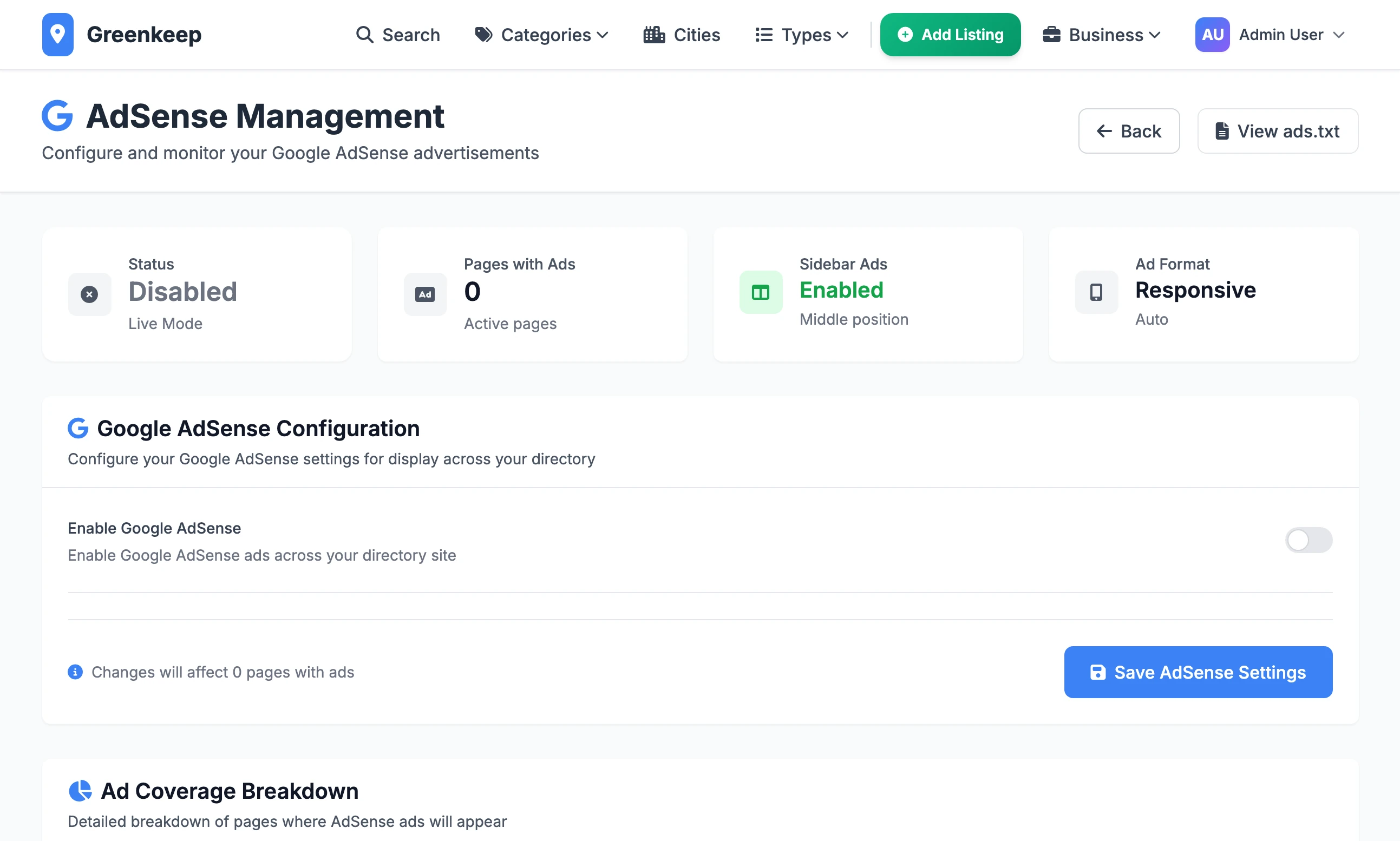
Local Lab has two kinds of advert, each with its own screen. Open AdSense under Quick Actions to show Google's ads. Open Advertising under Quick Actions to place one advert of your own, sold directly to a business, on the site and in the emails the site sends.
Where ads appear#
Both kinds of advert live in the column at the side of a page, so they only show on pages that have one.
| Page | Your own ad block | AdSense unit |
|---|---|---|
| A business page | Yes, above Business Stats | Yes, under Business Stats |
| Home, category, type, city and near-city pages, and category or type in a city | Only with a sidebar layout, near the top of the sidebar | Only with a sidebar layout, where Sidebar Ad Position puts it |
| Search results, the All Categories, All Cities and All Types pages, contact and everything else | No | No |
Switch on AdSense#
You need a Google AdSense account.
Step 1: Get your two IDs from Google
In AdSense, copy your publisher ID, which starts with
ca-pub-. Then create a display ad unit and copy its ID, which is a number.Step 2: Turn on Enable Google AdSense
The rest of the settings appear when the switch is on.
Step 3: Enter the IDs
Put the publisher ID in AdSense Client ID and the ad unit's number in Sidebar Ad Slot ID. If you type only the digits of the publisher ID,
ca-pub-is added for you.Step 4: Tick Test Mode and click Save AdSense Settings
Open a business page on your site and look in the right-hand column. In test mode Google is asked for test ads, and each unit has "Test Mode Active" printed under it.
Step 5: Untick Test Mode and save again
The Status card at the top changes from Testing to Active.
The AdSense settings#
Enable Google AdSense: the main switch. With it on and a client ID saved, Google's AdSense script is loaded on every page of the site and your
ads.txtis filled in.Sidebar Ad Slot ID: the ad unit to show. With this empty, no ad is drawn anywhere.
Show Sidebar Ads: on to begin with. Turn it off to take the ad units away while keeping the script and
ads.txt.Sidebar Ad Position: where the unit sits in the sidebar of a list page. Top of Sidebar is above the filters. Middle of Sidebar, the starting choice, is under the category and type filters. Bottom of Sidebar is under all of them. On a business page the unit is always in the same place.
Ad Format and Responsive Ads: the shape of the unit.
| Ad Format | With Responsive Ads ticked | With it unticked |
|---|---|---|
| Auto (Recommended) | Google chooses the size | The same |
| Rectangle | A rectangle that fits the column | 300 by 250 pixels |
| Banner | A wide strip that fits the column | 320 by 100 pixels |
| Vertical Banner | A tall strip that fits the column | 160 by 600 pixels |
Your ads.txt file#
Local Lab serves /ads.txt for you, and the View ads.txt button opens it. While AdSense is off or no client ID is saved, the file is empty. Otherwise it has one line: google.com, your publisher ID starting pub-, DIRECT and Google's own identifier. Browsers and crawlers are told to keep the file for 24 hours, so a change can take a day to be seen.
Sell an advert directly#
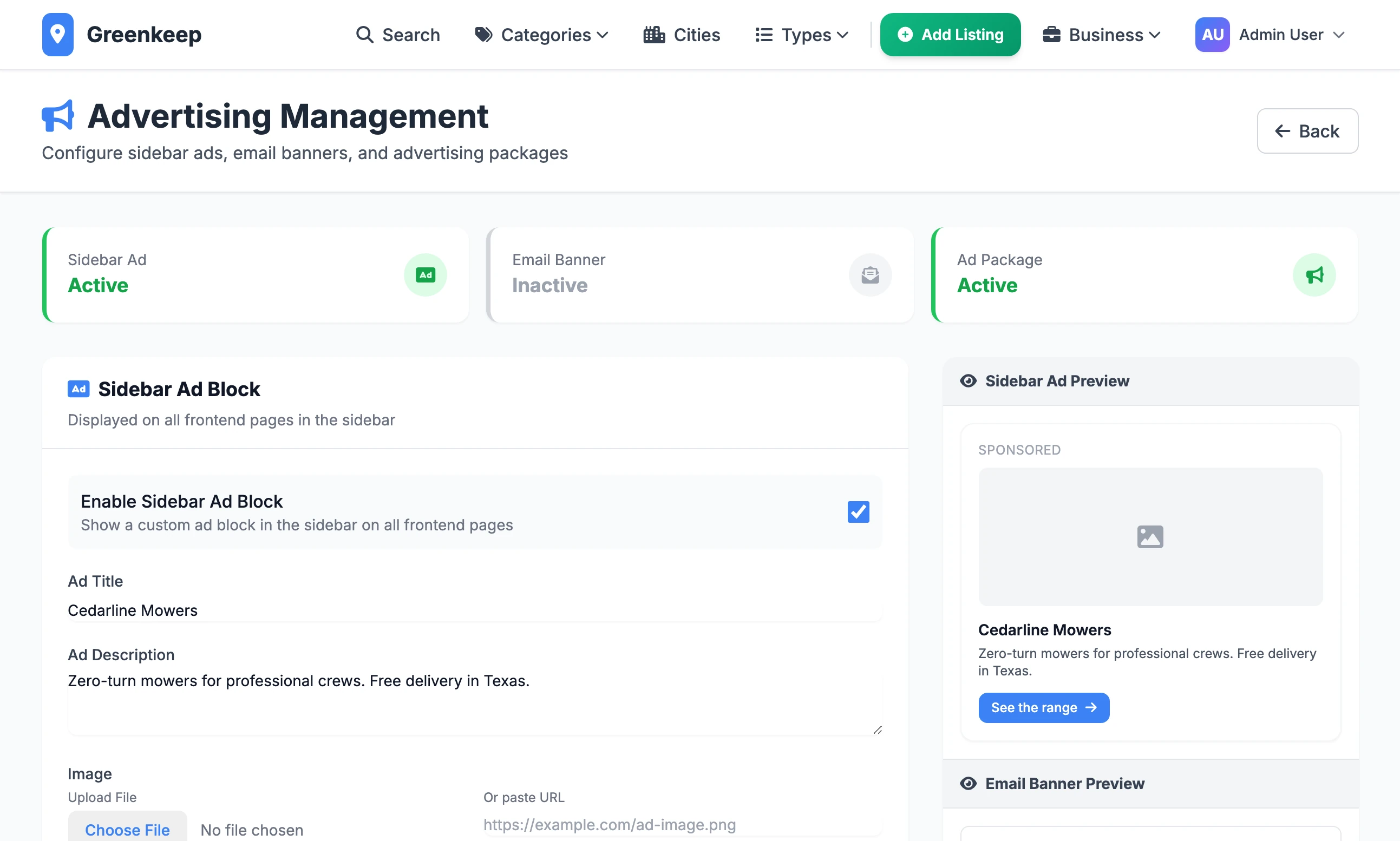
Open Advertising under Quick Actions. The page has three blocks and one Save Advertising Settings button at the bottom. A preview on the right changes as you type.
Sidebar Ad Block#
One advert, shown under a small "Sponsored" label on the pages in the table above.
Enable Sidebar Ad Block: shows or hides it.
Ad Title and Ad Description: the heading and the line under it.
Image: either Upload File (JPG, PNG, GIF, WebP or SVG, up to 5 MB) or Or paste URL. If you give both, the upload is used.
Link URL: where a click goes. It opens in a new tab and is marked as a sponsored link for search engines. With no link there is no button.
CTA Button Text, CTA Button Color and CTA Text Color: the button's wording and colours. Empty wording means "Learn More".
Custom HTML Override: your own HTML in place of everything above, the "Sponsored" label included.
Email Ad Banner#
The same idea for email: Email Ad Title, Email Ad Description, Email Ad Link URL, Email CTA Text, the two colours and Email Custom HTML Override. There is no picture.
With Enable Email Ad Banner on, the banner sits above the footer of every email the site sends from its email templates, password resets and the notifications sent to you included. The page shows seven examples under Email Template Previews, but the banner is in the layout all the emails share.
Advertise Page Package#
This puts a Premium Advertising card on your public /advertise page, which visitors reach from Advertise in the Business menu. The same page lists each featured placement you have switched on.
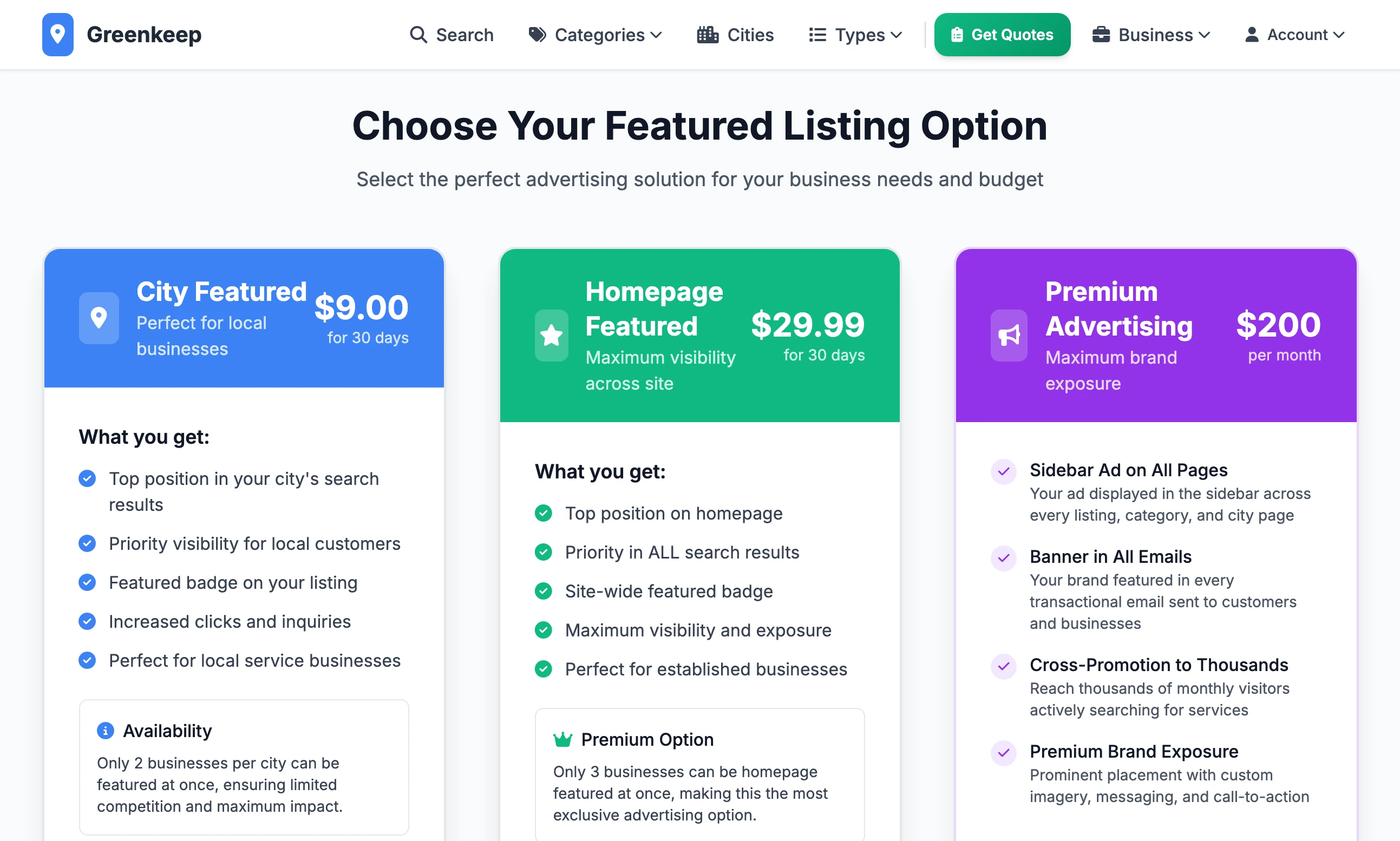
Show Premium Package: shows or hides the card.
Package Price: shown as a price per month, without decimals. It starts at 200.
Currency Symbol: starts as
$.
The card has no checkout. Its Contact Us button opens an email to the Contact Email from Site Settings. You agree the deal by email, take the payment yourself and type the advert into the two blocks above. If no contact email is saved, the button is grey and does nothing.
I switched AdSense on and see no ads
Check four things. Sidebar Ad Slot ID is filled in. Show Sidebar Ads is on. You are looking at a business page, or your layout has a sidebar. And Google has had time: the AdSense page itself says it may take 24 to 48 hours for ads to start showing.
Can I run AdSense and my own advert together?
Yes. Both are shown. Your own block comes first in the column.
The Advertising page says "Access denied. Super admin privileges required."
Advertising opens only for a super admin. The account made by the setup wizard is one. AdSense opens for any admin.
Stuck on a step? Send a message.