Telegram, Google sign-in and reCAPTCHA
Three optional connections. Alerts and approvals on your phone through Telegram, a working Google button on the sign-in page and a robot check on your public forms.
Updated 8 Oct 2026 · written for Local Lab 1.3.0
On this page
Open Telegram under Quick Actions to connect a Telegram bot that messages you when something happens on the site. The other two connections on this page, Google sign-in and reCAPTCHA, have no screen: their keys go in the .env file. A directory runs without any of the three.
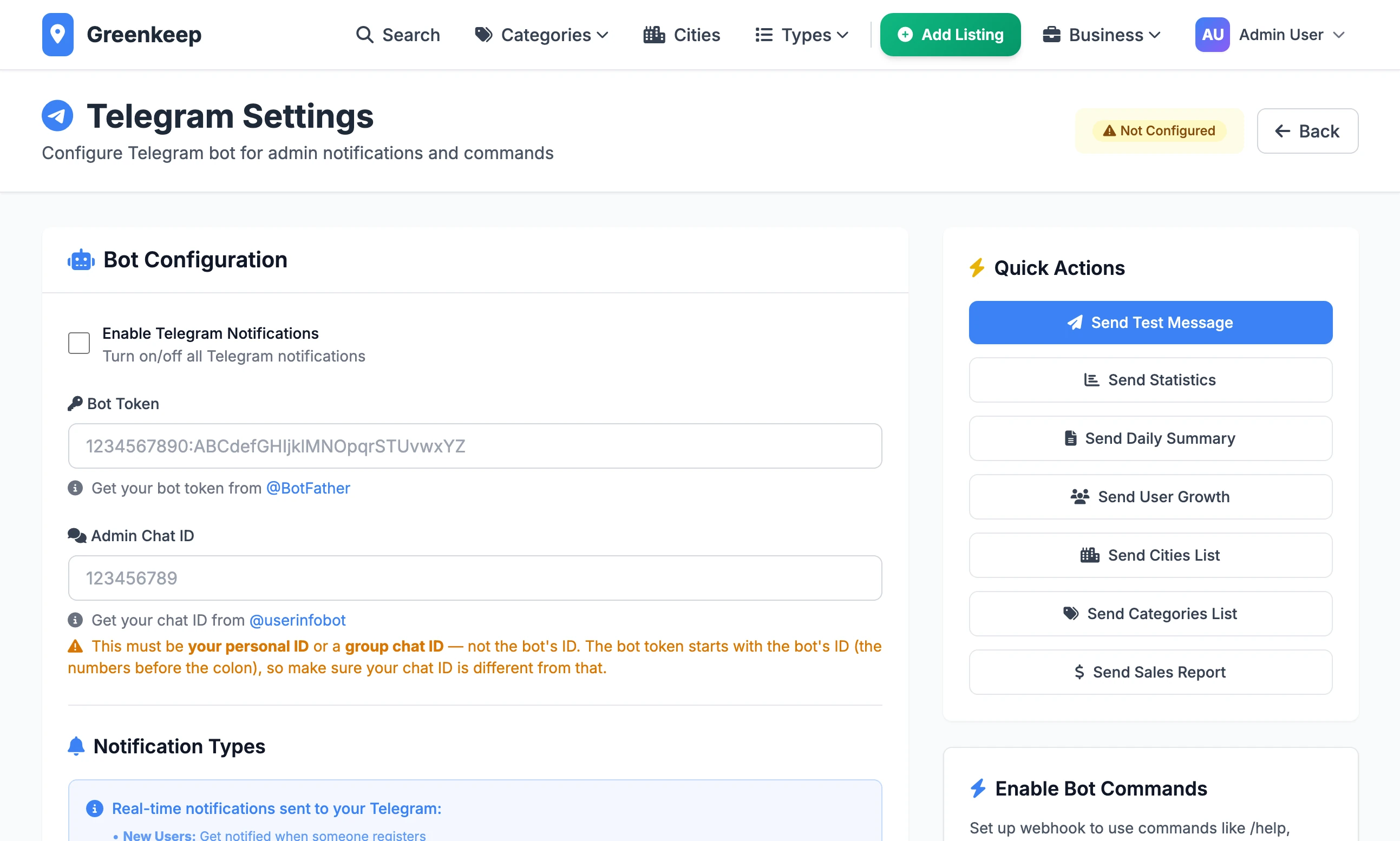
Telegram#
Most messages from the bot carry buttons, so you can approve or delete a listing, a review or a quote request without opening the admin.
Step 1: Create a bot
In Telegram, open a chat with @BotFather, send
/newbotand answer its questions. It gives you a token that looks like1234567890:ABCdefGHIjklMNOpqrSTUvwxYZ.Step 2: Find your chat ID
Send any message to @userinfobot. It replies with your ID, a number. This is your own ID, not the bot's: the bot's is the number at the start of the token. Then find your new bot in Telegram and press Start.
Step 3: Save both
Paste them into Bot Token and Admin Chat ID, tick Enable Telegram Notifications and click Save Settings. The badge at the top changes from Not Configured to Connected.
Step 4: Send a test
Click Send Test Message in the box on the right. "Failed to send test notification" means the token or the chat ID is wrong, or you have not pressed Start on the bot.
Step 5: Switch on buttons and commands
On your live site, click Setup Webhook, then Check Webhook Status. See the webhook.
What it tells you#
Each tick box under Notification Types switches one kind of message on or off.
| Tick box | You get a message when | Buttons in the message |
|---|---|---|
| New User Signups | Someone registers, with the form or with Google | Delete User |
| New Listing Submissions | A listing is submitted | Approve Listing, Delete Listing |
| New Review Submissions | A review is submitted | Approve Review, Delete Review |
| New Lead Requests | A quote request arrives, and again when one is approved | Approve Lead, Delete Lead |
| Featured Listing Purchases | A business owner pays for a featured listing | Links to the listing and the sales dashboard |
| Contact Form Messages | Someone uses the contact form | None |
Two messages have no tick box and are always sent: a claim on a listing, and a business subscribing to leads.
An approve button appears only while the item is waiting. Approving a listing also emails its owner.
The delete buttons act at once. Only Delete User asks you to press a second time.
The links on a purchase message use Website Address (Base URL) on the General tab of Site Settings. Leave it empty and they point at
example.com.
The commands#
Once the webhook is set, you can type to the bot. The slash is optional.
| Command | What it does |
|---|---|
/help or /start | Lists the commands |
/stats | Totals for users, listings, reviews and leads |
/summary | The daily summary, now |
/users | New users in the last 7 days against the 7 before |
/cities, /categories | The top 20 cities, and every category, by number of listings |
/sales | Revenue for all time, this month, the last 7 days and today |
/pending | Up to ten listings and ten reviews waiting for approval |
/approve_listing 12, /approve_review 12, /approve_lead 12 | Approves the item with that ID. The ID is in the notification. |
/reject_lead 12 | Rejects a quote request. Not listed by /help. |
/delete_user 12 | Deletes that user at once, with no second question |
The webhook#
Buttons and commands work only when Telegram can reach your site. Setup Webhook registers the address /telegram/webhook on whatever domain you are using when you click it, so click it while signed in on your live domain. It also gives Telegram a secret for your site. Telegram sends the secret back with every button press and command, and your site refuses any request without it.
Local Lab does not check the address. Telegram does: it refuses one that does not start with
https://, and its refusal is shown under the button.Check Webhook Status shows the registered address, the number of updates waiting and the last error Telegram had.
On your own computer, notifications still arrive. Pressing a button there does nothing.
The secret is worked out from your bot token and the
SECRET_KEYin your.envfile. Change either one and buttons and commands stop until you click Setup Webhook again.
The daily summary#
Enable Daily Summary and Summary Time (UTC) are saved, but nothing in version 1.2.1 sends the summary at that time. The app has no timer, and the deploy script schedules the backup and the subscription sync only.
To get it, click Send Daily Summary or send /summary. It covers new users, listings, reviews and quote requests, revenue, what is waiting for approval and the site's totals. The button works only with Enable Daily Summary ticked.
Google sign-in#
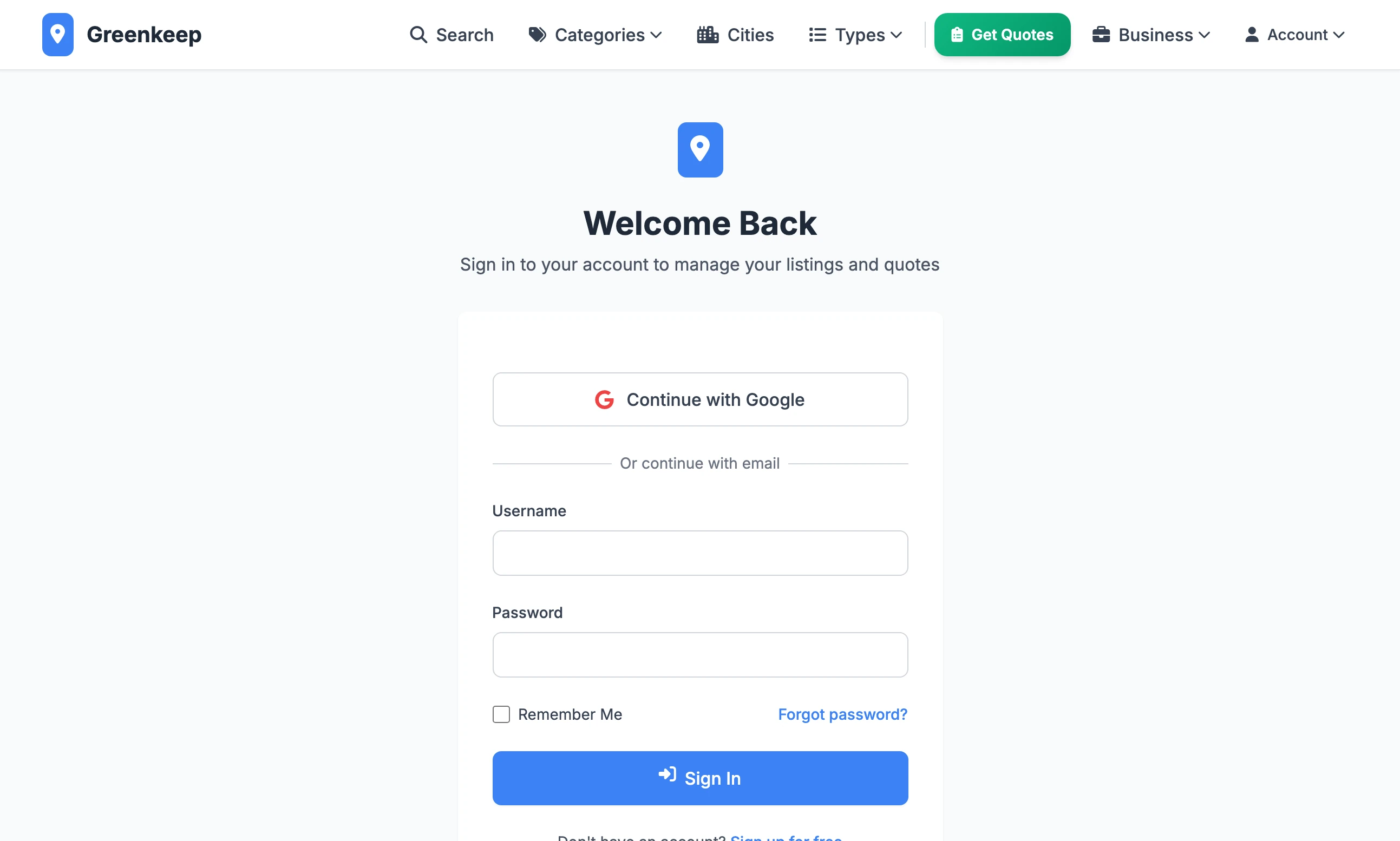
The sign-in page always shows Continue with Google, and the registration page Sign up with Google. Without keys, either one returns the visitor to the sign-in page with "Google OAuth is not configured." No setting hides them. To remove them, delete the Google link from templates/auth/login.html and templates/auth/register.html.
Step 1: Create the credentials
In the Google Cloud console, create an OAuth client ID for a web application.
Step 2: Add the redirect address
Give Google this address as an authorised redirect URI, with your own domain:
Redirect URIhttps://yourdomain.com/auth/oauth/callback/googleThe site builds it from the address the visitor is on. If yours answers on both
www.yourdomain.comandyourdomain.com, add both. To test on your own computer, addhttp://localhost:5000/auth/oauth/callback/google.Step 3: Put the keys in .env
.envGOOGLE_CLIENT_ID=the-client-id-from-google GOOGLE_CLIENT_SECRET=the-client-secret-from-googleBoth are needed. The keys are read when the site starts, so restart it.
Someone whose Google address matches an account you already have is signed in to that account, your admin account included. A new address gets an account at once, already verified, with a username taken from the part of the email before the @. Google must confirm the address is verified, or the sign-in is refused.
reCAPTCHA#
reCAPTCHA puts an "I'm not a robot" box on three forms: registration (/auth/register), forgotten password (/auth/forgot-password) and contact (/contact). The sign-in form and the quote request forms are not covered.
Step 1: Register your site with Google
At google.com/recaptcha/admin, register your domain for reCAPTCHA v2 with the tick box. The pages draw the v2 box, so a v3 key does not work.
Step 2: Put both keys in .env
.envRECAPTCHA_SITE_KEY=the-site-key-from-google RECAPTCHA_SECRET_KEY=the-secret-key-from-googleStep 3: Restart and test
Sign out and open
/auth/register. The box is above the button. Submit without ticking it and you are told "Please complete the CAPTCHA verification."
In .env | What happens |
|---|---|
| Neither key | No box. Nothing is checked. |
| Both keys, real | The box is shown and the server checks the answer with Google. |
| Site key only | The box is shown and the browser asks for it, but the server never checks the answer. A bot that posts the form directly gets through. |
| Secret key only | No box, and every submission is refused with "Please complete the CAPTCHA verification". |
Every new quote request arrives twice
In version 1.2.1 a request made on /request-quote sends the same Telegram message twice when the site has an address to email you at. Press the button on either one.
Do TELEGRAM_BOT_TOKEN and TELEGRAM_CHAT_ID in .env do anything?
No. Those two lines are in .env.example but nothing reads them. The bot is set up on the Telegram page only.
Stuck on a step? Send a message.