Troubleshooting
The problems Local Lab owners meet most often, each with what causes it and how to fix it.
Updated 7 Oct 2026 · written for Local Lab 1.2.1
On this page
- Where to look first
- The site will not open on a Mac
- "Invalid username or password" when I use my email address
- "Please verify your email before logging in"
- "Too Many Requests" when I sign in
- I forgot the admin password
- Every page sends me to the setup wizard
- The site will not start: "SECRET_KEY is not set"
- Stripe or email stopped working after the secret key changed
- Register, contact and forgot-password forms refuse everyone
- A buyer sees a payment error
- Emails are not arriving
- Links in emails go to example.com
- A CSV import reports errors
- A featured listing is still showing after it ended
- No map on a business page
- flask db upgrade fails with "already exists"
- "duplicate key value violates unique constraint"
- On a server: 502 Bad Gateway
- On a server: the browser says the connection is not private
- On a server: "413 Request Entity Too Large"
- On a server: uploading a picture fails with "Permission denied"
- On a server: the sync log says "Subscription sync FAILED"
- What the Database page tells you
Find your problem in the headings below, or search for the words of the error message. Each entry says what causes it and what to do. Where an entry names a screen in the admin, it is one of the links under Quick Actions on the Admin Dashboard.
Where to look first#
On your own computer, every error is printed in the terminal where
python run.pyis running.On a server, run
./scripts/deploy.sh logs <name>for what the site has written, and./scripts/deploy.sh statusto see which sites are up.In the admin, Database shows whether the database is healthy. See the last entry.
The site will not open on a Mac#
python run.py uses port 5000, and on a Mac that port is often taken by AirPlay Receiver. Start the site on another port and open http://localhost:5050:
flask --app run:app run --port 5050"Invalid username or password" when I use my email address#
The sign-in form takes the username only, even though the page says "Or continue with email". Type the username you chose in the setup wizard. If you left it empty there, it is admin.
"Please verify your email before logging in"#
The account was registered on the site and its owner has not clicked the link in the verification email. Each time they try to sign in, a new link is sent, and it works for one hour. If no link arrives, the site cannot send email: see Emails are not arriving. The admin account made by the setup wizard is verified already. Users has an Unverified Email tab that lists these accounts.
"Too Many Requests" when I sign in#
Sign-in allows 10 attempts a minute and 50 an hour from one address. Registering, asking for a password reset and asking for a new verification link allow 5 a minute and 20 an hour. Wait a minute and try again.
I forgot the admin password#
If the site can send email, use Forgot password? on the sign-in page. If it cannot, make a second admin account from the terminal, with a username and an email address that no account has yet:
python scripts/create_admin.py --username you2 --email [email protected] --password a-new-passworddocker exec directorylab-lawn python scripts/create_admin.py --username you2 --email [email protected] --password a-new-passwordIf either is already in use, it prints "Admin already exists; nothing to do." and makes nothing.
Every page sends me to the setup wizard#
The site is reading a database with no admin account in it, which almost always means a new, empty database. On your computer, instance/directory.db has been deleted or moved, or was not copied across in an update. On a server, DATABASE_URL in the site's .env points at a different database. Do not complete the wizard if you expected your own data: put the database back first.
The site will not start: "SECRET_KEY is not set"#
The full message is:
SECRET_KEY is not set (or is the insecure default) in a production environment. Set a unique SECRET_KEY in this site's .env before starting. Generate one with: python -c "import secrets; print(secrets.token_hex(32))"It appears when FLASK_ENV=production is set and SECRET_KEY is missing or is the built-in default. On a server, the container stops, Docker starts it again and it stops again, so the site shows 502. Put the site's own key back in .env. Only if the site has never saved any keys, make a new one with the command in the message. Then restart: ./scripts/deploy.sh update-site lawn on a server.
Stripe or email stopped working after the secret key changed#
The Stripe keys, the Google Places key and the email password saved in the admin are locked with SECRET_KEY. With a different key they cannot be read, and the site behaves as if they were never saved: buyers see "Payment system is not configured. Please contact support." or "Payment processing error", and emails stop. The log says "Failed to decrypt", followed by the name of the setting. Put the old key back in .env and restart, or type each of them in again: the Stripe keys on the Revenue tab of Site Settings, the email password on the General tab, the Places key on Google Places.
Register, contact and forgot-password forms refuse everyone#
These three forms check reCAPTCHA whenever RECAPTCHA_SECRET_KEY has a value. .env.example has placeholder values for both reCAPTCHA keys, so a .env copied from it switches the check on with keys that cannot work. Visitors see "Please complete the CAPTCHA verification" or "CAPTCHA verification failed. Please try again." Delete the two RECAPTCHA_ lines from .env, or put in real keys from Telegram, Google sign-in and reCAPTCHA, and restart the site.
A buyer sees a payment error#
| The buyer sees | Cause | Fix |
|---|---|---|
| "Payment system is not configured. Please contact support." | No Stripe secret key is saved. | Save your keys under Stripe API Keys on the Revenue tab of Site Settings. |
| "Payment configuration incomplete", or the same with "City featured" or "Category featured" in front | The Stripe price ID for that placement is empty. | Paste it in on the Revenue tab. |
| "Payment processing error" | Stripe refused the request. The usual reasons are a missing or wrong key, a price ID from another account or from test mode, and a one-time price where a subscription needs a recurring one. | Check the keys and price IDs. The log has Stripe's own reason on a line containing "Stripe checkout error". |
See Connect Stripe and Sell featured listings.
Emails are not arriving#
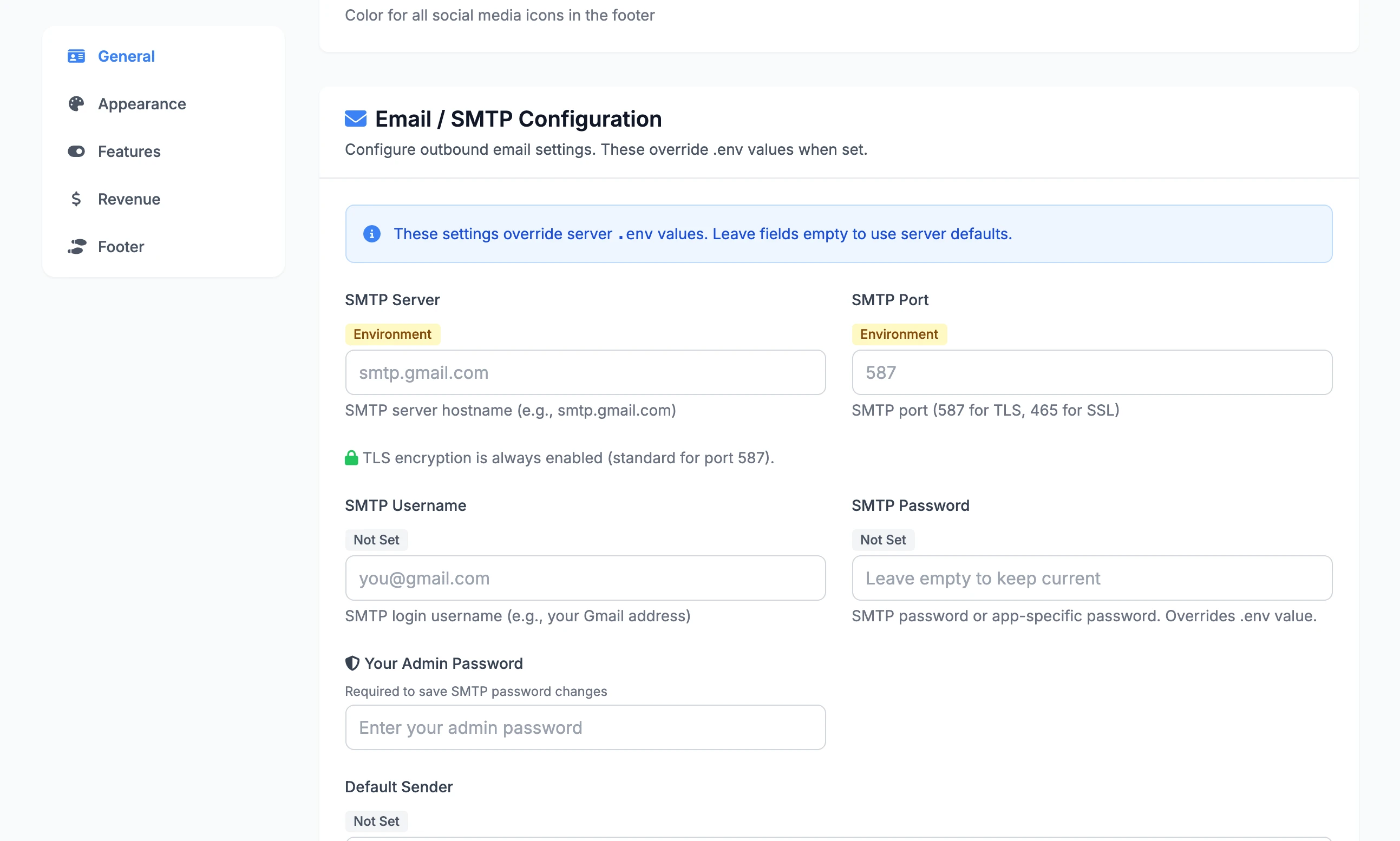
Local Lab sends nothing until SMTP Server, SMTP Username, SMTP Password and a sender are all set. Without them it writes "Email not sent: SMTP not configured" to the log and carries on, so forms still look as if they worked.
Open Site Settings and, on the General tab, find Email / SMTP Configuration. Fill it in and click Send Test Email. It sends to your admin account's email address, and if the mail server refuses, its own message appears beside the button. What you save here is used ahead of .env. For Gmail, the password is an app password made in your Google account, not your normal password.
More in Email, campaigns and bounces.
Links in emails go to example.com#
Fill in Website Address (Base URL) on the General tab of Site Settings, with your full address, such as https://www.yourdirectory.com. Links in emails are built from it, and left empty they point at https://example.com.
A CSV import reports errors#
The bar above Listings after an import lists the first 20 rows that failed, each with its row number and the reason. See Reading the result. On a server, a file over 12 MB is refused before the import starts: see the upload limit.
A featured listing is still showing after it ended#
A one-time placement keeps its badge and its place at the top until something clears it. Opening Featured clears every placement that has ended, and so does its Clean Expired button. On a server with the nightly schedule installed, the 04:30 check clears them too. On your own computer there is no schedule: open Featured.
No map on a business page#
A business page shows a map only when the listing has a latitude and a longitude. Without them it shows the address under "Location Information". Listings imported from a CSV file without those two columns have none. Open Listings, tick the listings and click Get Maps. Positions are looked up in the background, about one a second, and listings that already have one are skipped. See Cities, map pins and geocoding.
flask db upgrade fails with "already exists"#
A copy set up with the setup wizard has a database that is not marked with its version. Mark it once and run the upgrade again. See the first update on your own computer.
"duplicate key value violates unique constraint"#
This happens on PostgreSQL after rows were loaded from outside, by a restore or by moving from SQLite. Run ./scripts/deploy.sh fix-sequences lawn. See fix-sequences.
On a server: 502 Bad Gateway#
nginx is running and the site's container is not answering. ./scripts/deploy.sh status shows the site as DOWN or WARN, and ./scripts/deploy.sh logs lawn shows why. The commonest causes are a missing SECRET_KEY and a mistake in the site's .env.
On a server: the browser says the connection is not private#
The site still has the temporary certificate that add-site made. Install a real one: see More sites, domains and HTTPS. If you used the Cloudflare option and still see the warning, the files need one more step.
On a server: "413 Request Entity Too Large"#
nginx refuses uploads over 12 MB. Raise the limit to the 64 MB that Local Lab accepts.
On a server: uploading a picture fails with "Permission denied"#
The site's uploads folder belongs to the wrong user, usually after files were copied into it by hand. Give it back to the user the site runs as:
APP_UID=$(docker run --rm --entrypoint id directorylab -u)
chown -R "$APP_UID:$APP_UID" /opt/directorylab/sites/lawn/uploads
On a server: the sync log says "Subscription sync FAILED"#
/var/log/directorylab-sync.log says this every night on a site installed from a zip, because one part of the nightly check needs a file the zip leaves out. It also says it for a site with no Stripe key. Placements still expire. See the nightly Stripe check.
What the Database page tells you#
Open Database under Quick Actions.
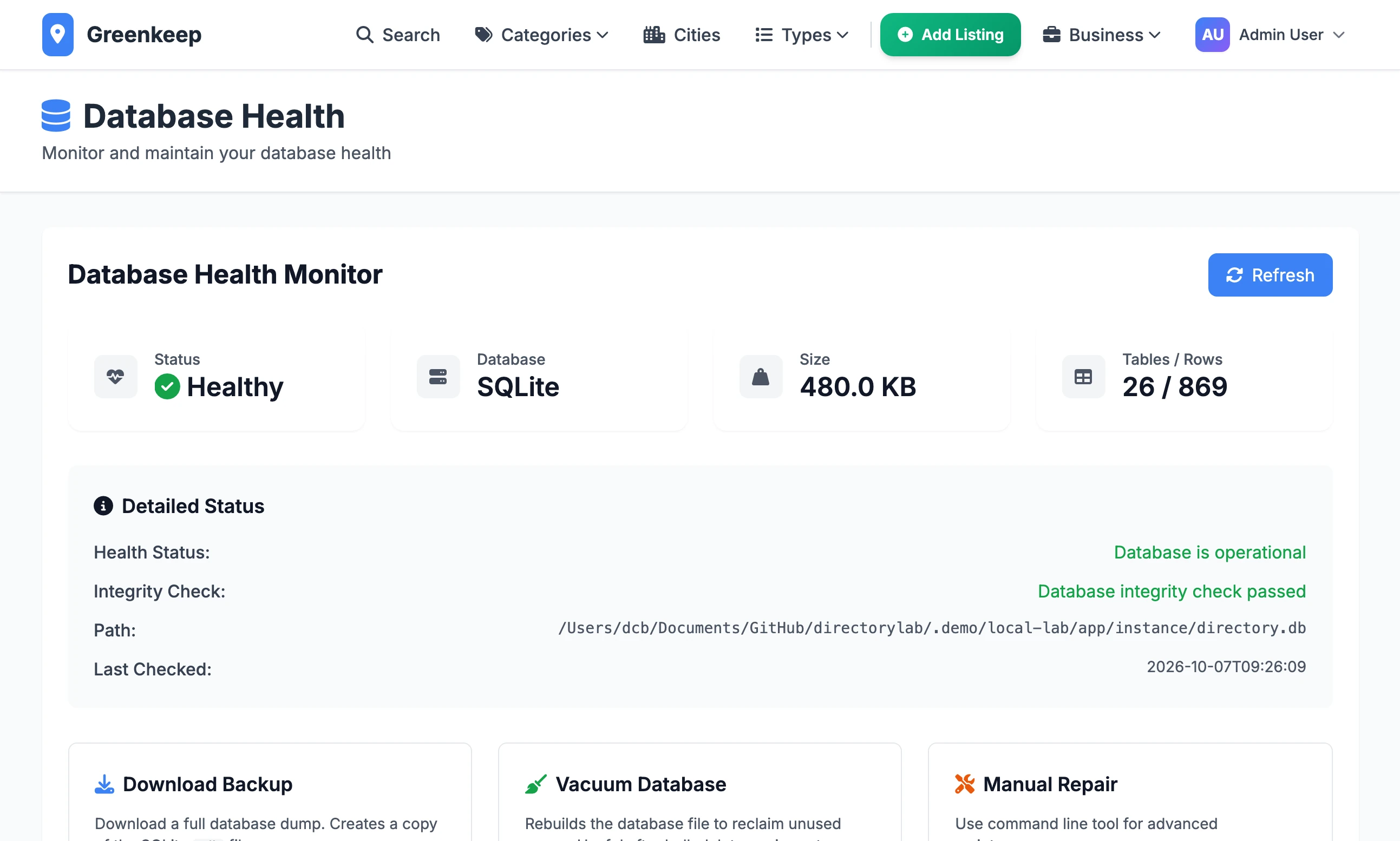
Status says Healthy or Issues. On SQLite it runs SQLite's own integrity check. On PostgreSQL it checks that the database answers, and suggests a vacuum when the dead rows come to more than a fifth of the live ones.
Database, Size and Tables / Rows describe what the site is using. Detailed Status adds the file path, or the PostgreSQL host and version.
Download Dump and Save on Server make a copy. On your own computer that is a full copy of the database file. On a server it is not a full backup: see A copy from the admin.
Vacuum Now tidies the database: it rebuilds a SQLite file, or runs VACUUM ANALYZE on PostgreSQL.
The Manual Repair box shows the command
python database_health_check.py --full-check. That file is inscripts/maintenance, not in the main folder. Run from the main folder, it looks for the database in the wrong place and reports that the file does not exist. Use the buttons on this page instead.
Stuck on a step? Send a message.