Import businesses from a CSV file
Load hundreds of listings in one go, with the exact column names the importer reads and what it does with duplicates.
Updated 7 Oct 2026 · written for Local Lab 1.2.1
On this page
Open Admin, then Import CSV under Quick Actions, to load a file of businesses into your directory. Every row becomes a listing with its own page. Cities, categories and types that do not exist yet are created as the file is read.
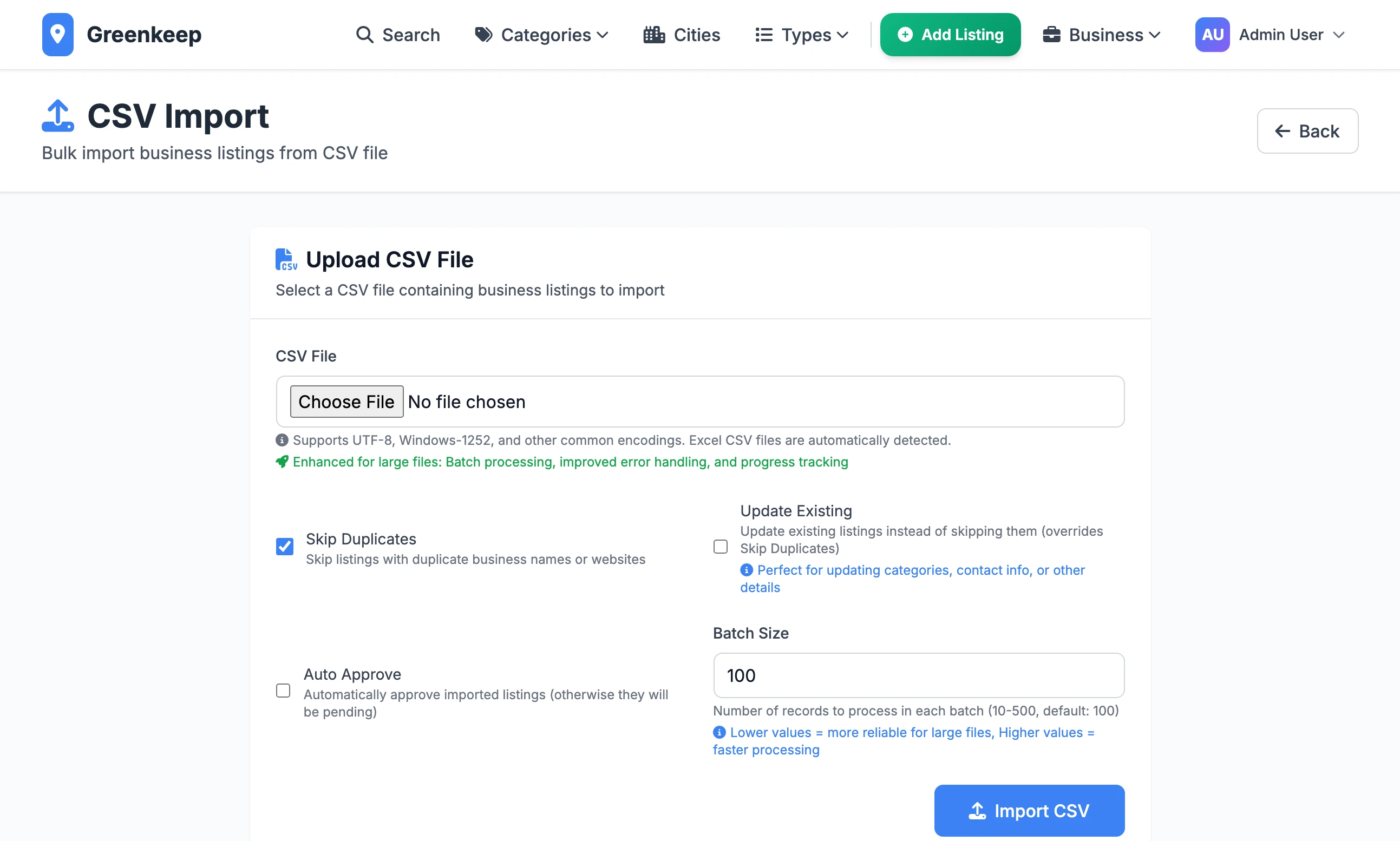
The file can come from anywhere: the Google Places scraper writes one in this format, and so does any spreadsheet saved as CSV.
Import a file#
Step 1: Check the first row of your file
The first row must be the column names, spelled exactly as in the table below. A column with a name the importer does not know is ignored without a warning, so a typo in a heading means that column is silently left out.
Step 2: Choose the file
Click Choose File and pick your CSV. The limit is 64 MB. Files saved by Excel work as they are: UTF-8 and Windows-1252 are both read.
Step 3: Decide what happens to duplicates
Skip Duplicates is ticked to begin with, and it is the right choice for a first import. See how duplicates are found before you change it.
Step 4: Decide whether listings go live at once
Leave Auto Approve unticked and every imported listing waits as pending for you to approve on Listings. Tick it and they are public the moment the import finishes.
Step 5: Click Import CSV
Leave the page open while it works. When it finishes you land on Listings with the result in a bar across the top.
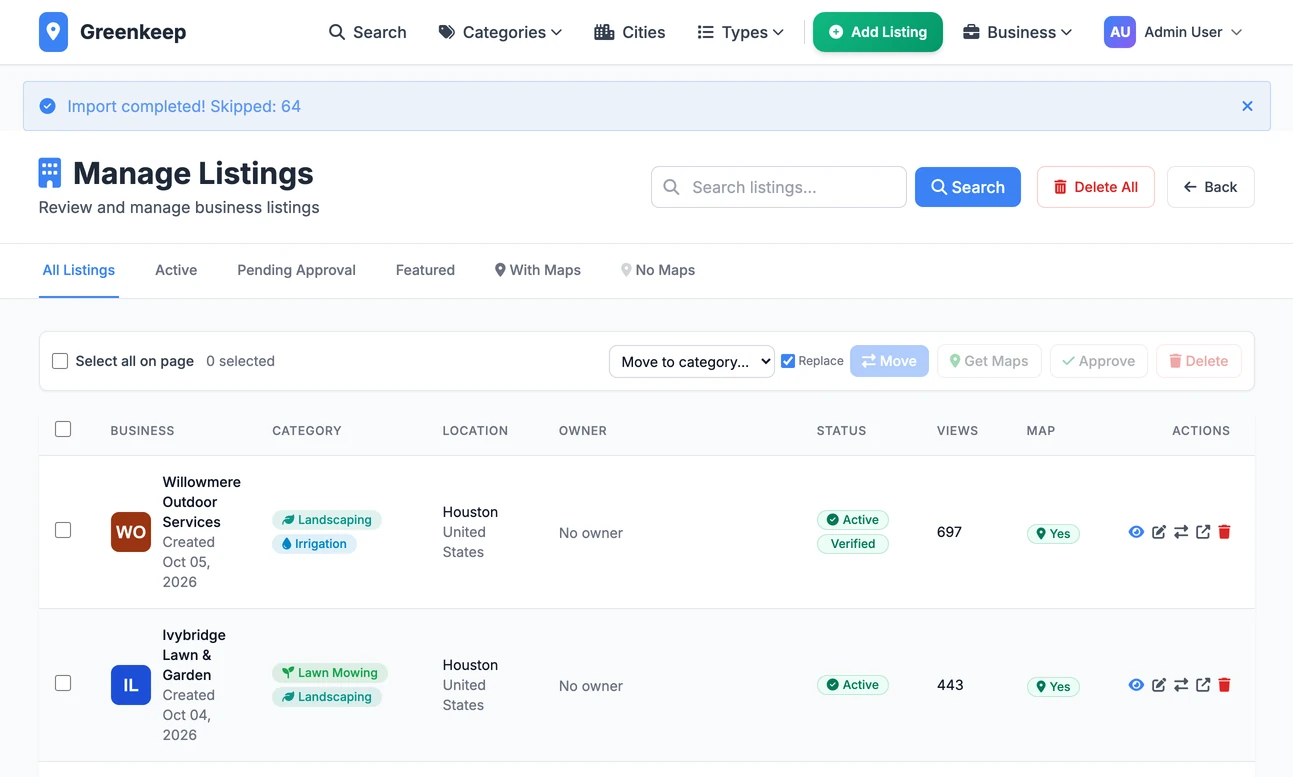
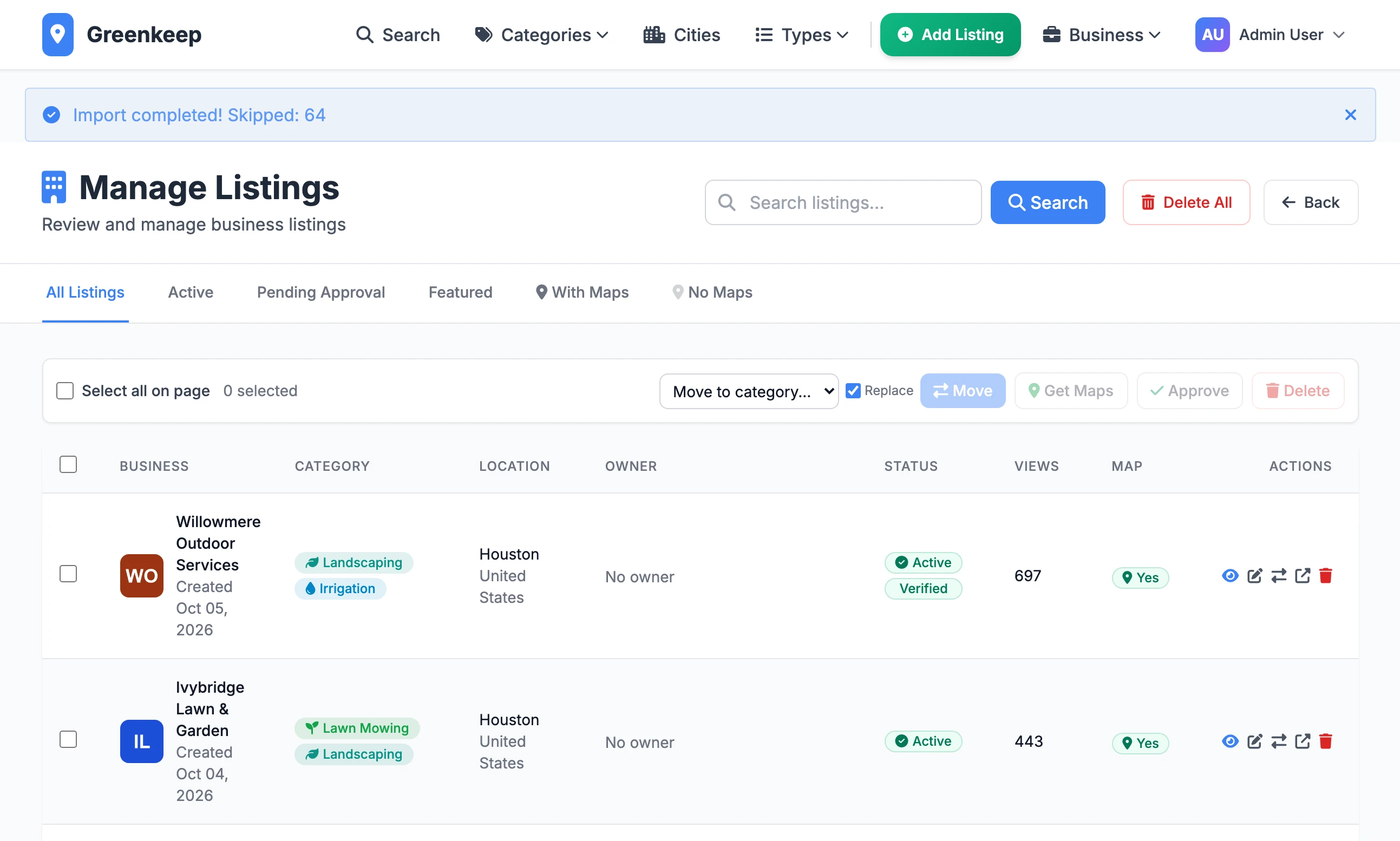
After an import you land on Listings with the result across the top. Here the same file was imported twice, so all 64 rows were skipped.
Reading the result#
The bar counts four things, and only shows the ones that are not zero:
| It says | It means |
|---|---|
| Imported | New listings created. |
| Updated | Existing listings changed, because Update Existing was ticked. |
| Skipped | Rows left out: duplicates, rows that were completely empty, and with Update Existing ticked, rows that matched a listing and had nothing new. |
| Errors | Rows that could not be saved. A second bar underneath lists the first 20, each with its row number and the reason. |
Row numbers count the heading row as row 1, so "Row 2" is the first business in your file. A row with an error is left out and every other row is saved. Fix the rows it names and import the same file again with Skip Duplicates ticked: the ones already in are skipped and the fixed ones are added.
The columns#
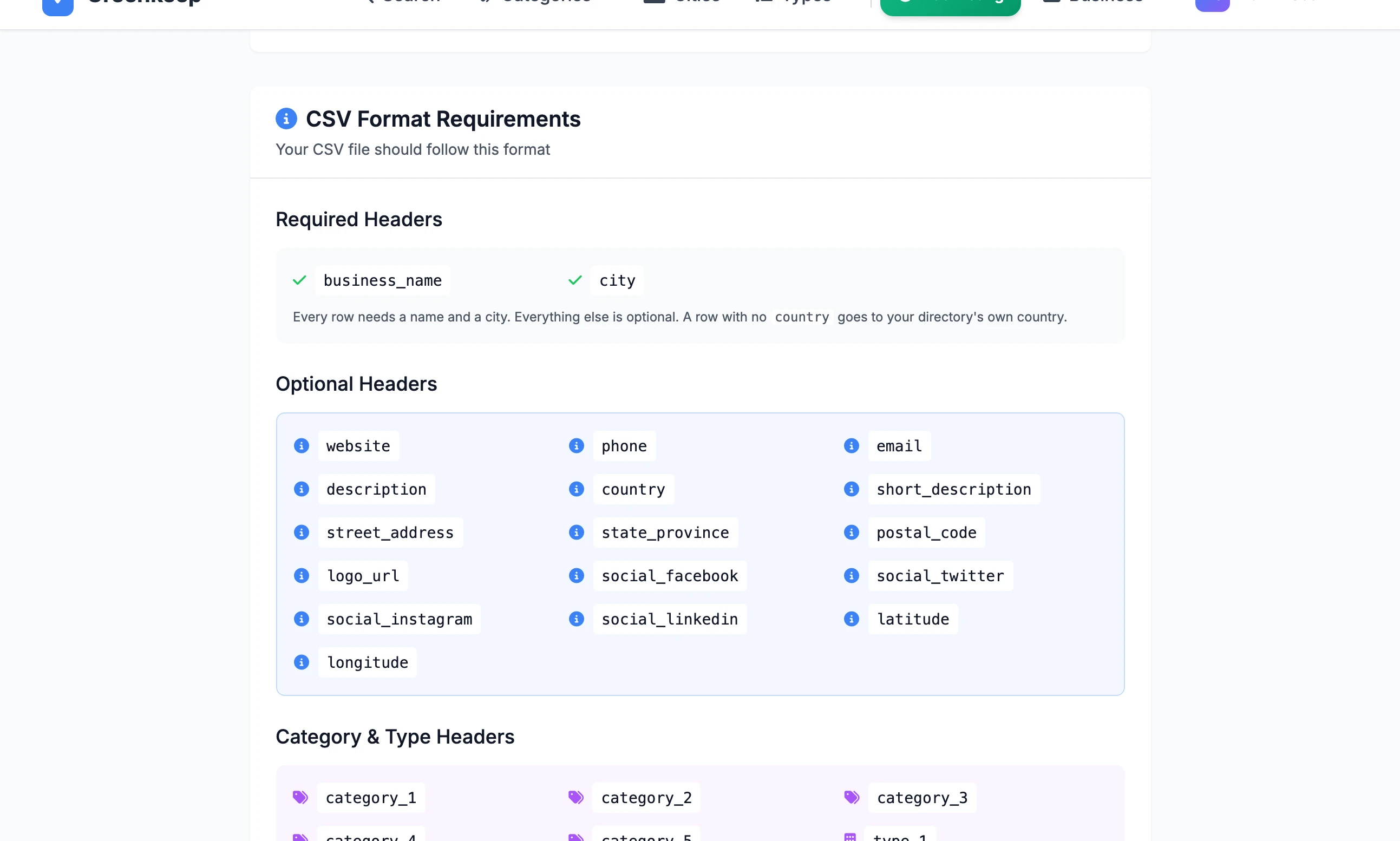
A row needs two things: a business_name and a city. Everything else is optional, and an empty cell is fine.
| Column | What goes in it |
|---|---|
business_name | The name. Needed. Cut at 200 characters. |
city | The city name, for example Austin. Needed. A city that is not in your directory yet is created. |
country | The country name, for example United States. Leave the column out, or a cell empty, and the row goes to your directory's own country. See countries. |
description | The long description on the business page. Cut at 2,000 characters. |
short_description | One or two lines for listing cards. Keep it under 300 characters. |
email, phone, website | Contact details. The website is also used to spot duplicates. |
street_address, state_province, postal_code | The rest of the address. |
latitude, longitude | Map position as decimal numbers. The import does not look positions up for you: see the tip below. |
logo_url | The web address of a logo image. |
social_facebook, social_twitter, social_instagram, social_linkedin | Links to the business's profiles. |
category_1 to category_5 | Up to five category names. New ones are created. |
parent_category | Not shown on the import page, but read. Any category this row creates is filed under this parent, which is created too if it is new. Categories you already have are not moved. |
type_1 to type_3 | Up to three business types. New ones are created. |
pricing_1_name, pricing_1_price, pricing_1_currency, pricing_1_period, pricing_1_description | A price shown on the business page. Repeat with pricing_2_ and pricing_3_ for up to three. |
usp_1_title, usp_1_description, usp_1_icon | A selling point shown on the business page. Repeat up to usp_5_. The icon is a Font Awesome class such as fas fa-leaf; leave it empty for a tick. |
Countries#
Most directories cover one country and never need the country column: a row without one goes to the country your directory already has.
If you do fill it in:
A country your directory has is matched whatever the capitals, and
USA,US,UKandGreat Britainare understood.A well-known country that is new to your directory, such as Canada or Australia, is added for you.
Any other country stops that one row, with a message asking you to add the country on Cities under Quick Actions first. The rest of the file still imports.
How duplicates are found#
A row is a duplicate of a listing you already have when either of these is true:
It has the same business name in the same city. Capital letters are ignored, so
greywell lawn carematchesGreywell Lawn Care. The same name in a different city is a different business.It has exactly the same website address.
What happens next depends on the two tick boxes:
| Skip Duplicates | Update Existing | What happens to a duplicate row |
|---|---|---|
| Ticked | Not ticked | It is left out and counted under Skipped. |
| Either | Ticked | The existing listing is updated from the row. This wins over Skip Duplicates. |
| Not ticked | Not ticked | A second listing is created, with a number on the end of its address. |
Updating listings you already have#
Tick Update Existing and import a file again to change listings in bulk: new phone numbers, corrected categories, better descriptions.
Only cells with something in them are used. An empty cell leaves the listing's current value alone, so you cannot blank a field this way.
Categories, types, prices and selling points are each replaced as a set. Give one category and the listing ends up with only that one.
The business name and the page address never change, and neither does whether the listing is live, featured or verified.
Large files#
The importer saves in batches. Batch Size is how many rows go into each one, from 10 to 500. Leave it at 100 unless a very large file fails part-way, then try 50.
An import stops after ten minutes. Rows saved before that stay saved; import the same file again with Skip Duplicates ticked and it carries on from where it stopped.
On a live server, uploads may be capped lower than 64 MB by the web server in front of the app. If a big file is refused before the import even starts, split it in two.
Can I import the same file twice by mistake?
Yes, safely. With Skip Duplicates ticked, every row is found to be there already and nothing is added. The second picture on this page is exactly that: 64 rows, all skipped.
My categories came in with grey icons. How do I change them?
Categories created by an import get a default icon and colour. Open Categories from Quick Actions to give each one its own.
Why does a row need a city?
Every listing belongs to a city, because the city pages are built from them. A row with an empty city cell is listed under Errors as "Missing city" and left out.
Does the order of the columns matter?
No. Only the names in the first row matter.
Stuck on a step? Send a message.