Cities, map pins and geocoding
Add cities and countries, switch a city on or off, give listings a map pin and learn which public pages each city gets.
Updated 7 Oct 2026 · written for Local Lab 1.2.1
On this page
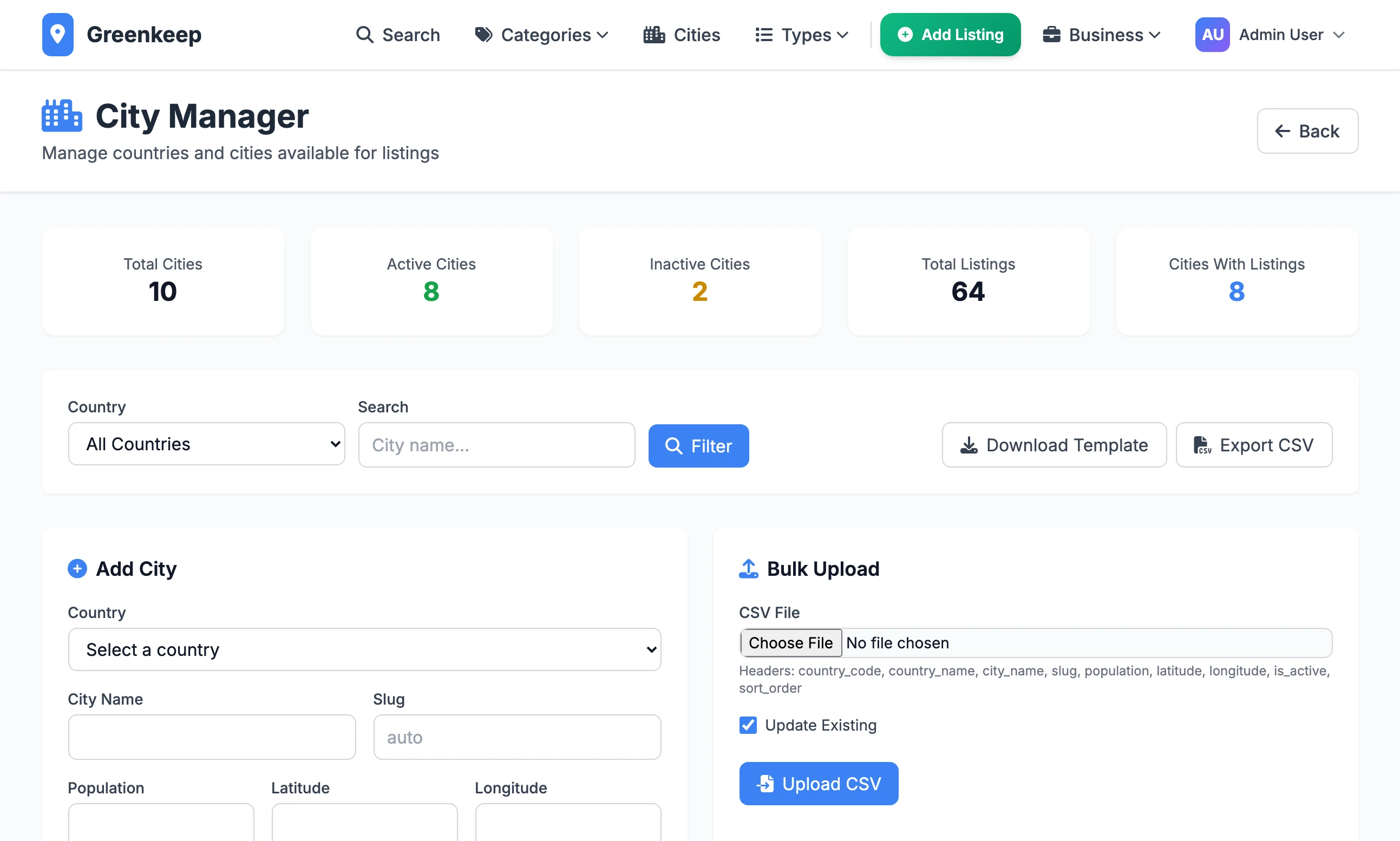
Open Cities under Quick Actions to see every city your directory covers, add more and remove the ones you do not need. The screen is headed City Manager. Each active city has its own public pages, so this list decides which city pages exist.
Most cities arrive without your doing anything here: Import CSV creates any city named in a file, and the form for adding a listing can create one too. Use this screen to add cities ahead of time, to add a country and to tidy up.
The screen#
Five totals across the top: Total Cities, Active Cities, Inactive Cities, Total Listings and Cities With Listings.
Country and Search, with Filter, narrow the table.
Download Template gives you an empty CSV with the right headings. Export CSV gives you every city you have, in the same layout.
The Cities table lists each city with its Slug (the name as it appears in page addresses), Population, number of Listings, whether it is Active and its Sort number. Click a heading to sort by it.
Add one city#
Step 1: Fill in Add City
Choose the Country and type the City Name. Leave Slug empty and it is made from the name. Population, Latitude, Longitude and Sort Order are optional.
Step 2: Click Add City
The city appears in the table, marked Inactive.
Step 3: Switch it on
A city added this way is not live. Follow Switch a city on or off to activate it.
Add cities from a file#
Under Bulk Upload, choose a CSV file and click Upload CSV. The first row must be these headings, spelled exactly:
country_code,country_name,city_name,slug,population,latitude,longitude,is_active,sort_order
US,United States,Boise,,235684,43.6150,-116.2023,1,0
US,United States,Spokane,,,,,1,0| Column | What goes in it |
|---|---|
country_code | The two-letter code, such as US or GB. |
country_name | The country's name. A row needs the code or the name. With neither, it is skipped. |
city_name | The city. Needed. |
slug | Leave empty to have it made from the name. |
population | A whole number, with no commas. |
latitude, longitude | The centre of the city, as decimal numbers. |
is_active | 1, true or yes for on. Anything else is off. Empty means on for a new city. |
sort_order | A whole number. Lower numbers come first. |
When it finishes, a bar reads "Cities import complete" with the numbers Imported, Updated and Skipped.
Update Existing is ticked to begin with. A row whose city is already in that country, matched by its slug, then updates the city. Empty cells leave the current values alone. With the box unticked, such rows are counted as Skipped.
Switch a city on or off#
The table shows whether a city is active, but has no button to change it. The file does it.
Step 1: Export your cities
Click Export CSV. You get
cities_export.csv.Step 2: Change the is_active column
Open the file in a spreadsheet. Put
1beside each city that should be live and0beside each that should not. You can delete the rows you are not changing.Step 3: Upload it
Under Bulk Upload, choose the file, leave Update Existing ticked and click Upload CSV.
Switching a city off takes its pages down: they answer "Page Not Found". Its listings are not deleted.
Delete a city#
Tick the cities in the table and click Delete Selected. A city with any listing, live or pending, is skipped, and a bar names the ones that were. Move or delete those listings first.
Add a country#
The Country menu in Add City only lists countries your directory already has. A CSV import of businesses adds a well-known country by name when it meets one, as the import guide explains. For any other country, this screen is the only way, and it is done with the bulk upload.
Upload a file with one row that gives the country's two-letter code, its name and one city in it:
country_code,country_name,city_name
KE,Kenya,Nairobi
When neither the code nor the name matches a country you have, the country is created, with that city in it. All three cells are needed: a row with no city is skipped, and a row with a name and no code cannot create a country.
Map pins#
A listing has a pin on its map when it has a latitude and a longitude. They get there in one of three ways:
From a file. The
latitudeandlongitudecolumns of an imported CSV. A file from the Google Places scraper has them.Typed in. The Latitude and Longitude boxes under Location on the listing form.
Looked up from the address. This is geocoding.
How the lookup works#
Local Lab builds an address from the listing's street address, city, state or province, postal code and country, and asks a mapping service where that is.
With a line
OPENCAGE_API_KEY=in.env, it asks OpenCage first.Otherwise, and when OpenCage finds nothing, it asks Nominatim, the free lookup run by OpenStreetMap. No key is needed.
If the full address is not found it tries simpler ones, ending with the city and country alone. A listing with an unusual street address therefore gets a pin in the middle of its city.
It works in the background, one request a second, and the pin appears a few seconds later.
When it runs#
When you add a listing in the admin and leave the coordinates empty.
Every time you save the edit form for a listing in the admin.
When a business owner submits a listing, or saves a change to one.
It does not run when you import a CSV. Imported rows with no coordinates have no pin until you ask for one.
Add pins from Listings#
Open Listings under Quick Actions.
The No Maps tab shows every listing without coordinates. With Maps shows the rest.
The Map column reads Yes or No. A No row has a Get button that looks up that one listing.
For many at once, tick them and click Get Maps. To take the whole tab, tick Select all on page, then click the link that selects every listing matching the filter. Listings that already have coordinates are skipped. A bar tells you how many were started, at about 1 to 2 seconds each. Reload the page to watch the No Maps tab empty.
The work stops if the site is stopped. Whatever is still on the No Maps tab can be started again. A listing that stays there has an address neither service could find: correct the address, or type the coordinates.
Add pins from the terminal#
Two scripts do the same job from a terminal, in the Local Lab folder. Both work only on live listings that have no coordinates. Pending listings are left out.
python scripts/geocoding/geocode_existing_free.py --dry-runpython scripts/geocoding/geocode_existing_listings.py --dry-run| Option | What it does |
|---|---|
--dry-run | Lists what would be looked up and changes nothing. Run this first. |
--limit 10 | Stops after 10 listings. |
--delay 2 | Seconds to wait between listings. The free script waits 1.0 unless told otherwise, the Google one 0.1. |
The free script falls back to the centre of the city when the full address is not found. The Google script uses the GOOGLE_PLACES_API_KEY from .env, calls Google's Geocoding service, which is a different service from Places and has to be allowed on the same key, and reads the SQLite database file directly: it does not work once you have moved to PostgreSQL.
The pages each city gets#
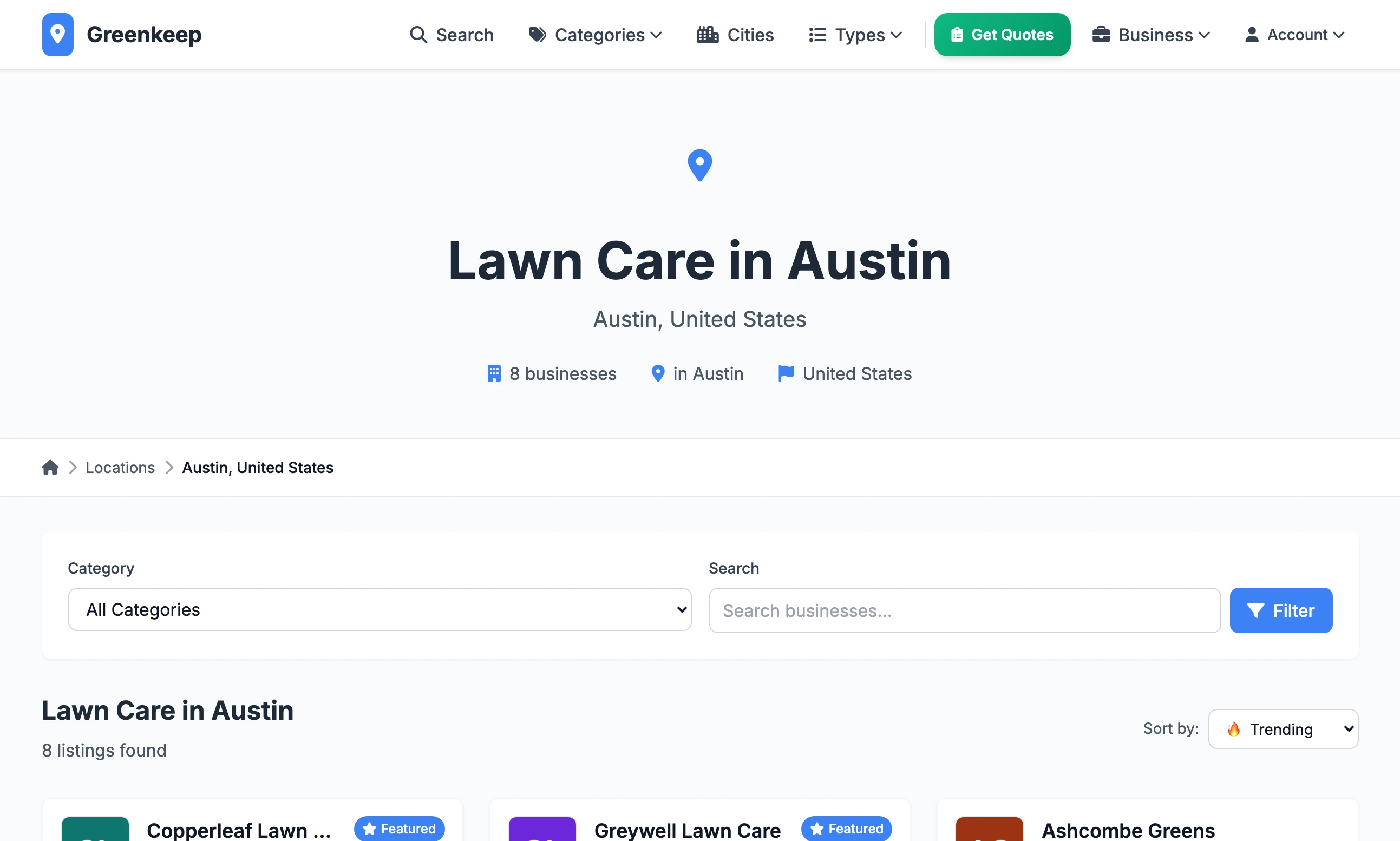
Every active city has these public pages. The examples are from a lawn care directory whose Main Category is Lawn Care.
| Page | Address | Example |
|---|---|---|
| The city | main category, -in-, city | /lawn-care-in-austin |
| A category in the city | city, then category | /austin/lawn-mowing |
| A type in the city | type, main category, -in-, city | /independent-lawn-care-in-austin |
| Near the city | main category, -near-, city | /lawn-care-near-austin |
The category page also answers at the older address
/lawn-mowing-in-austin.The "near" page shows the same businesses as the city page under a "Near Austin" heading.
All cities are listed at
/cities, and there is a matching list of the "near" pages at/cities-near. A city appears at/cities, and in the sitemap, once it has at least one live listing.
Two things change these addresses. The city part is the city's Slug. The first part is your Main Category in Site Settings: change that and every city address changes with it.
I added a city and its page says Page Not Found
It was added with the Add City form, which creates cities switched off. Switch it on.
Does geocoding cost anything?
Not as the kit comes. Nominatim is free and needs no account. OpenCage and Google are optional and have their own terms and prices.
A pin is in the wrong place
The lookup found a different address, or fell back to the middle of the city. Correct the street address and postal code on the listing and save: saving looks it up again.
Can I import cities and businesses in one file?
Not on this screen: a city file has only cities. But you do not need to. Importing businesses on Import CSV creates each city it meets, already switched on.
Why does the Country column come and go?
It is hidden only when exactly one country is ticked under Available Countries in Site Settings. With none ticked, or several, it is shown.
Stuck on a step? Send a message.